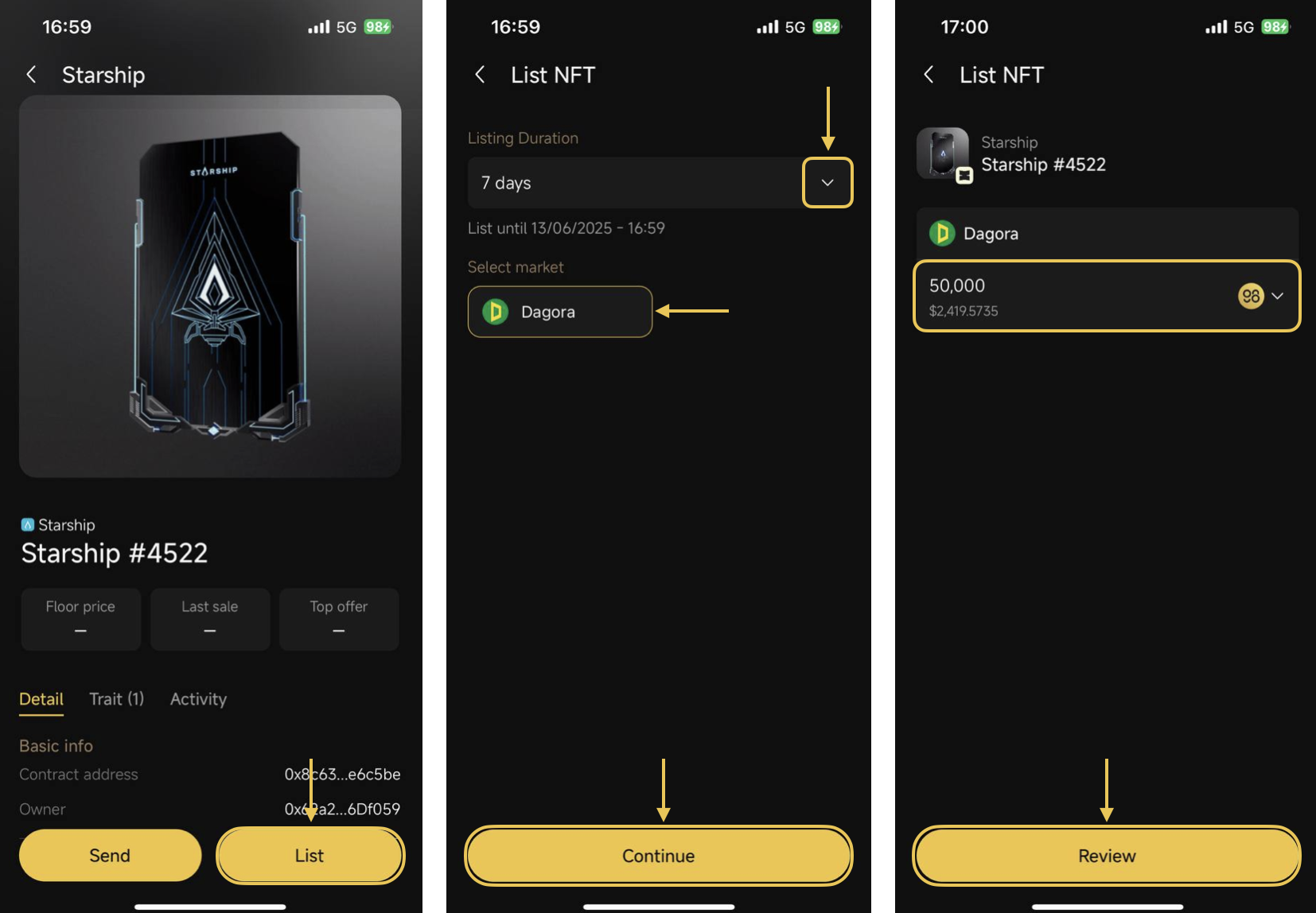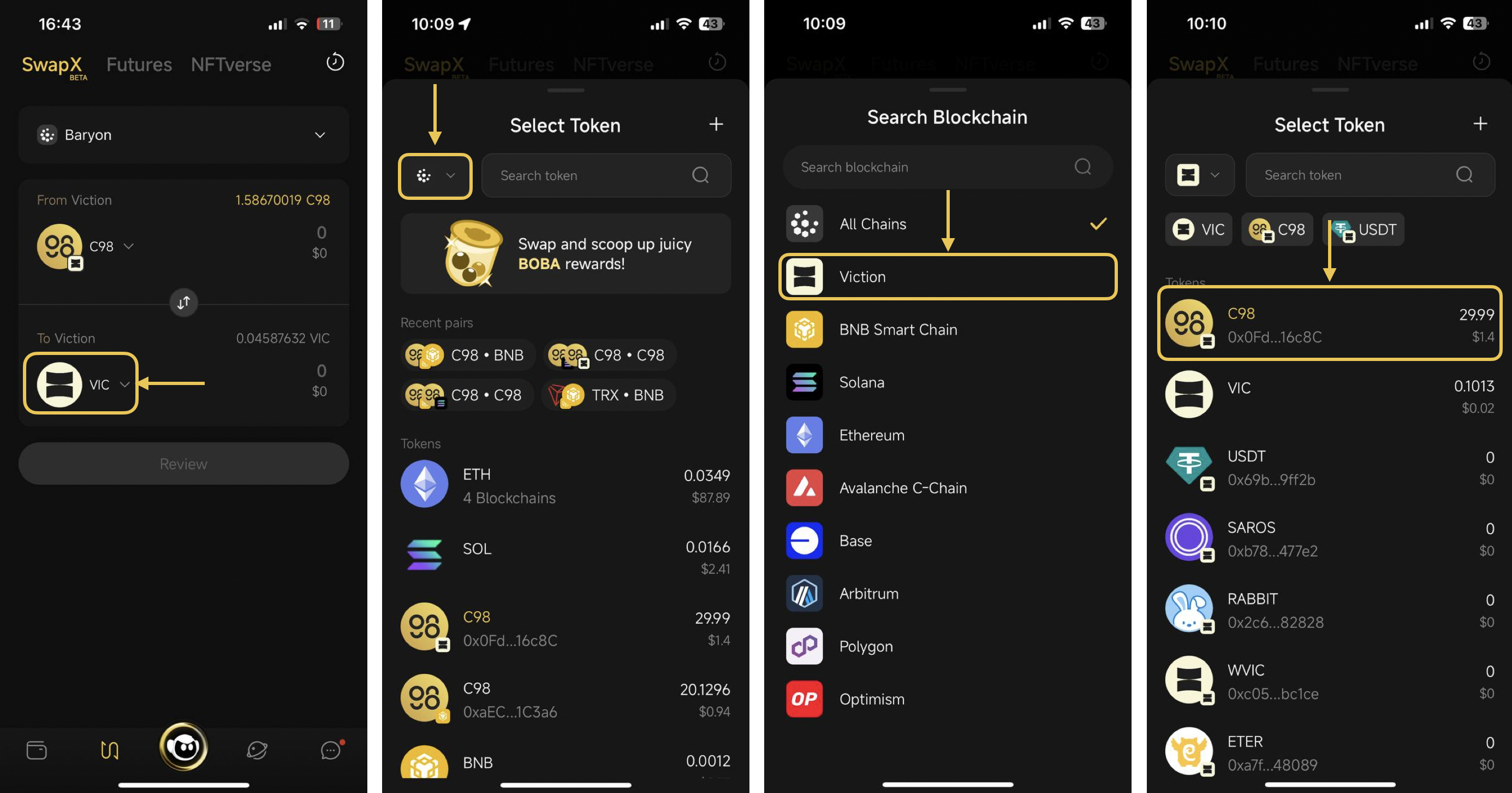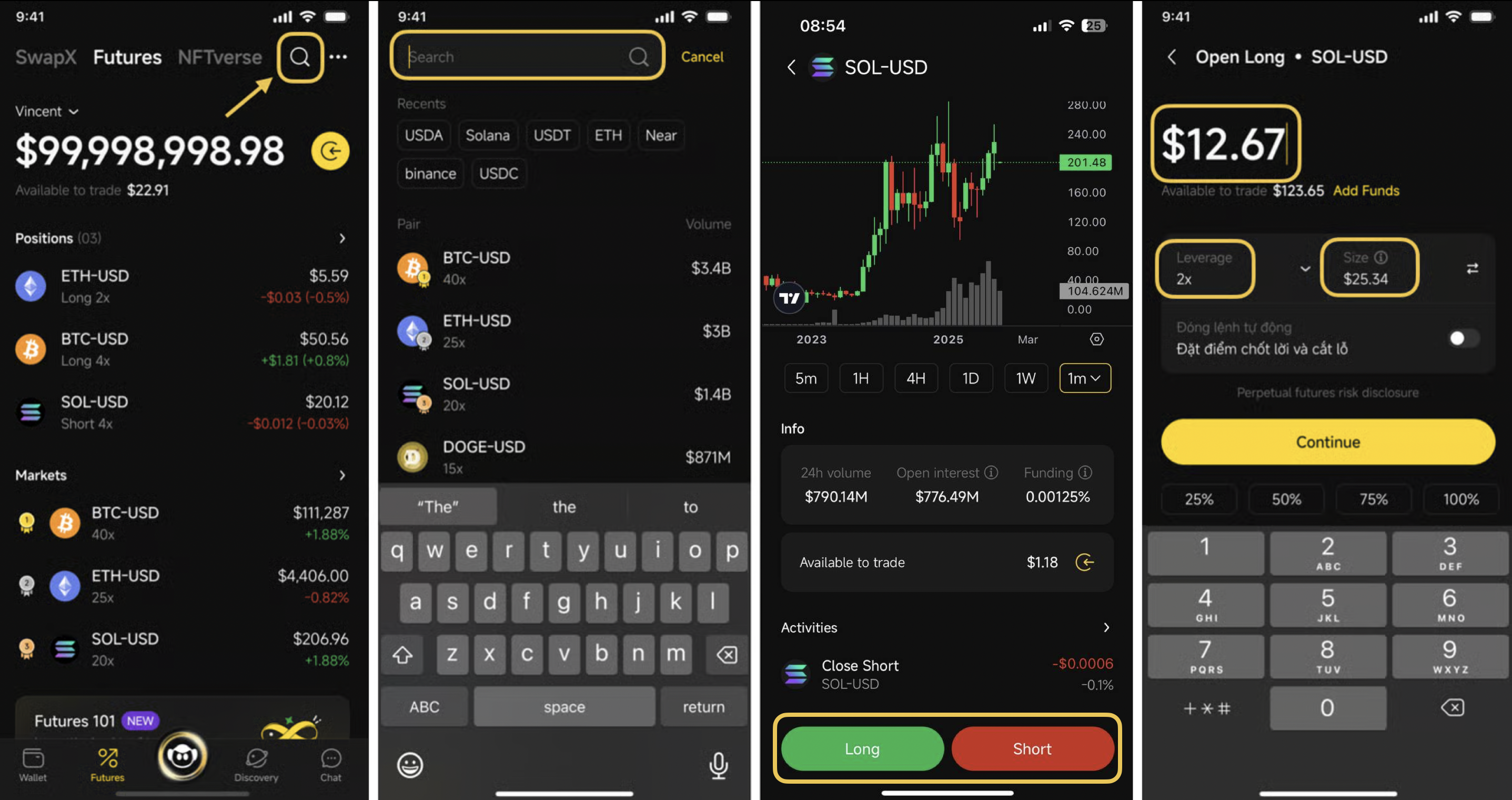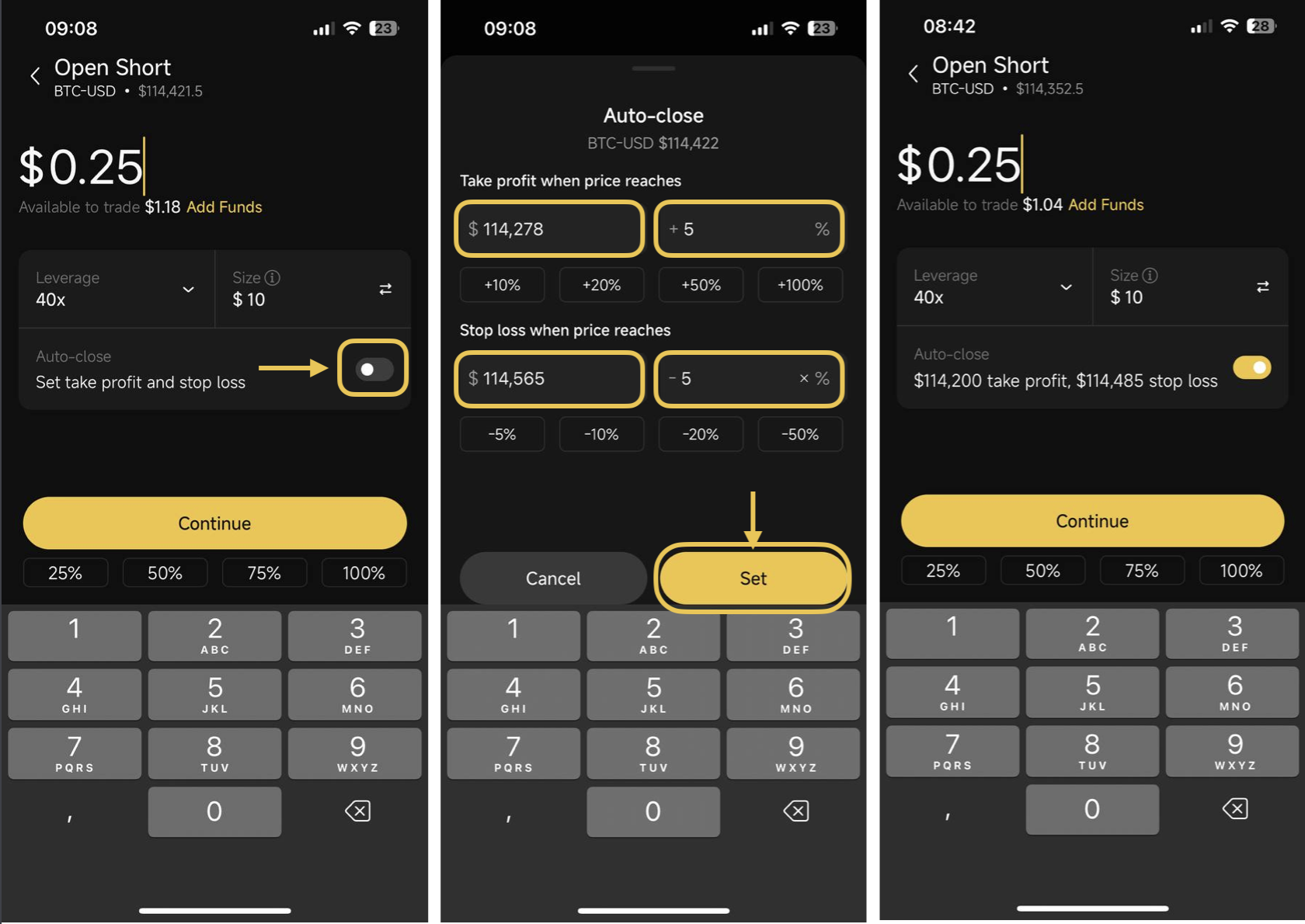
# Coin98

A Secure Financial Platform, Powered by AI

## **Securely Built For Capital Growth**

Coin98 is a secure, AI-powered financial platform for everyone to do everything onchain. Swap, trade perps, earn, spend & explore dApps across 150+ networks. Trusted by 10M+ users in 170+ countries, Coin98 makes DeFi accessible, intuitive, and secure for everyone.

<figure><img src="https://2549780185-files.gitbook.io/~/files/v0/b/gitbook-x-prod.appspot.com/o/spaces%2FirKWZRA5WMZ5uBeDGB96%2Fuploads%2FzPY1sZOrKG1PN7CyomDp%2Fcoin98-growth-snapshot.png?alt=media&amp;token=4034e97d-cb2d-4cfb-a79f-e694c13ce380" alt=""><figcaption></figcaption></figure>

Cioin98 is A Secure Financial Platform powered by AI that gives world-class access to the future of finance through an integrated one-stop suite of financial utility and trading experiences.

* **Start** **easily**: On-ramp under 30 seconds with your local currency
* **Access** **without** **limit**: Trade and manage assets across multiple networks & trading options, anytime and anywhere.
* **Put** **your money to work**: Discover diversified mini-apps for earning, yield, and opportunities beyond traditional finance.
* **Grow with confidence**: Institution-grade access to insights and research with curated content and elite communities
* **Stay protected, stay in control**: Self-custody by default, with financial insurance, 24/7 support, and AI-powered security.

Opinionated by design for financial inclusion, so those who care about their financial future can grow their money safely, without being left behind.

***Coin98 — Securely Built For Capital Growth.***

## Coin98 Universal Referral

This is more than just a referral link; it is a unified revenue-sharing model designed to turn your network into a sustainable, real-time income stream.

We have unified the entire ecosystem into a single system designed for speed and growth.

* **One Link for Everything:** A single link covers Futures, SwapX (coming soon), and Fusion Card, creating multiple real-time income streams at once.
* **Zero Friction:** Codes are auto-applied instantly on any device. Your network syncs across Web and Mobile, so you never miss a reward.
* **Dual-Layer Earnings:** Earn passive income not just from your direct friends, but also from the friends they invite.
* **Faster Growth:** Activity in any feature boosts your total XP, helping you level up quickly to unlock maximum commission rates.

To maximize your benefits, it’s important to understand the simple difference between Ranking (XP) and Revenue (Commissions). Think of it like a game: XP helps you level up, while Commissions are the real money you take.

Your XP and Commissions are fueled directly by your network's activity. Every time your invitees generate fees through eligible actions, you earn rewards.

Currently, the activities that count towards your growth include:

* **Futures Trading:** When your invitees trade on Coin98 Futures.
* **Fusion Card:** When they top up their Coin98 Fusion Card.
* **SwapX:** When they swap on SwapX (coming soon)

[*Learn more and build a sustainable passive income with Coin98.*<br>](https://coin98.com/blog/introducing-coin98-universal-referral-one-link-multiple-earnings/)

At this moment, we are still heading down for the building. Eventually, the community will figure out a better picture for all the DeFi stacks we are nurturing.

DeFi is the century's innovation, which will undoubtedly change how global finance works in the future. Coin98 is proud to be a special part of the journey of making DeFi accessible to everyone, regardless of their knowledge and familiarity with blockchain.

**Follow us**

[Website](https://coin98.com/) | [X (Twitter](https://x.com/coin98_wallet)) | [Telegram](https://t.me/coin98wallet) | [Blog](https://blog.coin98.com/)&#x20;


# Coin98 AI Wallet

Welcome to the next generation of Web3 wallets.

The Coin98 AI Wallet combines the functionality of a comprehensive crypto wallet with the power of artificial intelligence, transforming how you interact in the digital economy. It’s the next generation of Web3 wallets, making your experience accessible and efficient while unlocking new opportunities in the Open Internet.

<figure><img src="https://2549780185-files.gitbook.io/~/files/v0/b/gitbook-x-prod.appspot.com/o/spaces%2FirKWZRA5WMZ5uBeDGB96%2Fuploads%2FhnjOVhYleDirdg2yDT80%2Ftg_image_4026300036.png?alt=media&amp;token=9c6c134c-0579-48bd-b09c-6eb9bebb8bd1" alt=""><figcaption></figcaption></figure>

## AI Enhances The Web3 Experience&#x20;

AI technology offers value in the Web3 space by improving how we engage with blockchain. It’s not just about trends; it’s about making Web3 more effective and user-friendly.

As Web3 grows with numerous blockchains and dapps, the complexity can be daunting for both newcomers and experienced users. AI simplifies processes, increases efficiency, and ensures that technology is accessible to everyone.

Coin98 AI Wallet embodies this vision by enhancing your Web3 experience. It makes interacting with blockchain straightforward today and paves the way for a future where managing your digital assets and controlling your personal finances feels as natural as having a conversation. Welcome to the next generation of Web3 wallets.

## Coin98 AI Wallet: The Next-Generation of Web3 Wallet

The Coin98 AI Wallet redefines how users connect with the Open Internet. With Cypheus Assistant at its core, this next-gen wallet delivers an intuitive, conversational, and personalized experience that grows with you as you explore the decentralized world.&#x20;

<figure><img src="https://2549780185-files.gitbook.io/~/files/v0/b/gitbook-x-prod.appspot.com/o/spaces%2FirKWZRA5WMZ5uBeDGB96%2Fuploads%2FRAB1XSm63zWQWgpl65oS%2F%5BCoin98%5D%20Step-by-step%20Guide%20Template.png?alt=media&amp;token=b6f963c5-1fa1-4f22-8376-a279731e59bc" alt=""><figcaption></figcaption></figure>

Here’s what sets Coin98 AI Wallet apart:

### 1. Accessible to Everyone

Coin98 AI Wallet is free for everyone to use. This open approach allows more people to experience the future of Web3, without barriers or limitations. With AI-powered features, accessing the Open Internet is now easier, ensuring everyone can join and thrive in the decentralized ecosystem.

### 2. Simplifying Web3 Complexity

Navigating over 200 blockchains and thousands of dApps can feel overwhelming. The Coin98 AI Wallet simplifies this complexity with intelligent features that guide you, recommend tools, and streamline even the trickiest tasks. With Cypheus Assistant, finding what you need is as simple as a tap or voice command.

### 3. Conversational and Personalized Experience

What sets AI apart is its ability to create natural, human-like interactions. At the heart of the Coin98 AI Wallet, Cypheus Assistant enables you to communicate effortlessly through text or voice. Whether answering your questions or suggesting features tailored to your needs, every interaction feels personal, making your Web3 journey smoother than ever.

### 4. Future-Ready Innovation

As the Web3 space evolves, Coin98 AI Wallet will evolve with it. We’re continually enhancing our AI capabilities to make your Web3 journey even more intuitive, accessible, and rewarding, empowering you with tools for personalized trading, market predictions, and fraud detection, ensuring safe and confident navigation of Web3.&#x20;

"Integrating AI into a crypto wallet unlocks a wealth of new utilities and experiences for crypto users. From personalized trading strategies to AI-powered research tools, we're building features that learn from user behaviors to offer unique, intelligent guidance. This is just the beginning of what we expect AI to bring to the crypto space." — Thanh Le, Founder of Ninety Eight.

## Join the Future of Web3 with Coin98 AI Wallet

The Coin98 AI Wallet isn’t just another crypto wallet; it’s the next generation of Web3 access. Combining intelligent AI, user-centric design, and seamless integration with decentralized technologies, Coin98 AI Wallet offers a smarter, more intuitive way to interact with the Web3 ecosystem.

Our vision for Coin98 AI Wallet goes beyond just simplifying crypto navigation. We are building a product that grows with you, offering more intelligent tools and personalized experiences to help you navigate Web3 with confidence.

Ready to explore? [Download the Coin98 AI Wallet](https://coin98.com/wallet) today and experience the future of Web3!

<br>


# Coin98 Super Wallet

Coin98 is an open, decentralized, and secure crypto wallet that provides the essential tools, and infrastructure for everyone to enter and participate in any opportunities on the Open Internet, so they can build and shape their own future.&#x20;

We provide users worldwide with a complete and trusted ecosystem of essential services, including a non-custodial, multi-chain NFT and crypto wallet, decentralized IDs, built-in DEXs, a cross-chain bridge, a DApp browser, in-app chat, AI assistant, and more.&#x20;

Our goal is to make the Web3 journey easier for both beginners and experienced users, helping drive the growth and adoption of blockchain technology.

## Non-custodial, Multi-chain NFTs, Cryptocurrency Wallet and Decentralized IDs

Coin98 offers users fast, convenient, and secure procedures of managing, storing, and transferring thousands of tokens on 140+ popular blockchains, including Bitcoin, Ethereum, Solana, Viction (formerly TomoChain), Polygon, BNB Chain, Near, Optimism, Arbitrum, Base, Scroll... and other custom networks.

Besides, we also provide a cosmos for safe, straightforward handling and storage of NFTs directly on all EVM blockchains and non-EVM blockchains such as Solana, Injective, Sei, etc. Incredibly, all NFTs on Ethereum, BNB Chain, Polygon, Optimism, Fantom, Avalanche, Arbitrum, and more are automatically displayed in a neat interface.

We understand that navigating Web3 can be complicated, especially for newcomers. We’ve tailored many features to support users step into the Web3 industry easily:&#x20;

* **Social Log-in Wallet:** Easy to join in multiple ways with social media accounts including Google,  Facebook, Email, Apple ID, and more to come.&#x20;
* **AI Assistant - Cypheus:** Providing comprehensive support for all users’ Web3 needs when interacting with Cypheus by typing or voicing questions on a wide range of topics, from Web3 terms to product guides.
* **In-app chat - Coin98 Messenger:** Letting users connect and chat easily on the blockchain. Beyond communication, users can also send, receive, or request money directly in the chat.

Furthermore, to expedite users on their crypto journey, advanced wallet features have also been added on:

* **Zen Card:** Experience a revolutionary wallet that combines hot and cold wallet capabilities.
* **Wallet Approval:** Enable revoking tokens allowances from DApps on multiple blockchains.
* **Multi-sender:** Send tokens in bulk to various addresses simultaneously.

Coin98 also brings forth ".c98," a decentralized identity solution powered by OneID, aimed at making the multi-chain experience better for Coin98 users.

## Built-in DEXs, Cross-chain Bridges & DApp Browser &#x20;

Coin98 has integrated leading liquidity pools and aggregators on several top-tier blockchains such as Ethereum, BNB Chain, Avalanche C Chain, Polygon, Sonic (formerly Fantom), Arbitrum, Optimism, and more, to allow users to seamlessly trade multi-chain tokens natively, with an optimized transaction fee and speed.

SpaceGate is a cutting-edge cross-chain bridge that enables seamless asset transfers across diverse blockchain networks, including Ethereum, BNB Chain, Solana, Polygon, and Viction (formerly TomoChain), with more chains set to be included soon.

Considered as an endless treasure of DeFi services, the heart of the dApp Browser is the multichain engine, connecting users to many dApps on different blockchains effortlessly and smoothly.

## **Attractive Earn, Gift and Campaign**&#x20;

Coin98 Earn is a one-stop destination on Coin98 where you can see all of the earning opportunities available to you and your crypto assets.

* **Coin98 Vault:** Provide users with a unique “token claim" experience.
* **Coin98 Staking:** Provide C98 holders with passive income without impermanent loss.
* **Coin98 Rewards Hub:** An attractive promotional hub where gather all appealing campaigns, game portal with huge rewards.
* **Coin98 Messenger:** Have a chance to grab surprising rewards in the Coin98 Community by participating in lucky gifts and learn-to-earn activities.

## Install and experience Coin98 Wallet now!&#x20;

Coin98 Super Wallet:

* [Introduction ](https://docs.coin98.com/products/coin98-wallet/mobile)
* [Download](https://docs.coin98.com/products/coin98-wallet/mobile/beginners-guide/how-to-download-install)

Coin98 Extension:

* [Introduction ](https://docs.coin98.com/products/coin98-wallet/extension)
* Install on [Google Chrome](https://docs.coin98.com/products/coin98-super-wallet/extension/beginners-guide/install-extension)


# Mobile

Coin98 Super Wallet is the #1 crypto super app designed to seamlessly connect a billion users to the crypto world safely and securely. We offer users across the globe a comprehensive and trusted ecosystem of essential services including but not limited to a non-custodial, multi-chain NFT & cryptocurrency wallet, built-in DEXs, Cross-chain Bridge & DApp Browser, a powerful Terminal, attractive Earn, Gift & Campaign, and Others.

We aim to create a great decentralized experience possible for both veterans and newbies on their journey in the crypto world and contribute to the accelerated growth and mass adoption of blockchain technology. What can you do on Coin98 Super Wallet?

### Store numerous multi-chain, multi-source digital assets.

You can store thousands of coins and tokens from the most popular blockchains on Coin98 Super Wallet. Currently, our Coin98 Super Wallet supports more than 100 blockchains:

#### Blockchains

Mainnet

| Chain             | Chain               | Chain                  |
| ----------------- | ------------------- | ---------------------- |
| Cyber             | Xterio              | Viction                |
| Bitcoin           | Ethereum            | BNB Smart Chain        |
| Solana            | Near                | Cosmos                 |
| Polygon           | Avalanche C-Chain   | Tron                   |
| Agoric            | Algorand            | Ancient8               |
| Aptos             | Arbitrum            | Archway                |
| Aura EVM          | Aura Xstaxy Mainnet | Aurora                 |
| Avalanche X-Chain | BandChain           | Base                   |
| Bitgert           | Bitkub Chain        | Bittorrent Chain       |
| BNB Beacon Chain  | Boba Network        | Cardano                |
| Casper            | Celestia            | Celo                   |
| Chiliz            | Conflux             | Conflux eSpace         |
| Core              | Cronos              | Dogecoin               |
| Ethereum PoW      | Evmos               | f(x) Core              |
| f(x) Core EVM     | Fantom              | GateChain              |
| Gnosis Chain      | Harmony             | HECO Chain             |
| Humanode          | Injective           | IoTeX                  |
| Juno Network      | KardiaChain         | Kava                   |
| Kava EVM          | Klaytn              | KuCoin Community Chain |
| Kujira            | Kusama              | Linea                  |
| Manta Pacific     | Mantle              | Mint                   |
| Moonbeam          | MultiversX          | Nautilus               |
| Neon              | Oasis Network       | OKXChain               |
| Old Terra         | opBNB               | Optimism               |
| Osmosis           | Persistence         | PlatON Network         |
| Polkadot          | Polygon zkEVM       | Ronin                  |
| Scroll            | Secret Network      | Sei Mainnet            |
| Stargaze          | Starknet            | Stride                 |
| Sui               | Taiko               | Terra 2.0              |
| Tezos             | The Open Network    | Theta Network          |
| Theta Network EVM | THORChain           | Umee                   |
| X Layer           | Xai                 | XRP Ledger             |
| ZetaChain         | zkLink              | zkSync Era             |
| Wanchain          | Astar zkEVM         | Fraxtal                |
| Lightlink         | Zircuit             | Orange                 |
| Beam              | etc                 |                        |

#### Testnet

| Chain                             | Chain                     | Chain                   |
| --------------------------------- | ------------------------- | ----------------------- |
| Ancient8 Testnet V2               | Aptos DevNet              | Aptos Testnet           |
| Archway Testnet                   | Base Testnet              | Berachain Testnet       |
| Bitcoin Testnet                   | Nollie Skatechain Testnet | Scroll Testnet          |
| Sei EVM Testnet                   | Sei Testnet               | Shardeum Testnet        |
| Taiko Jolnir Testnet              | Xion Testnet              | ZetaChain Testnet       |
| Viction Testnet                   | Abstract Testnet          | Algorand Testnet        |
| Amoy (Polygon Testnet)            | OP Sepolia Testnet        | OKExChain Testnet       |
| Moonbase Alpha (Moonbeam Testnet) | Metis Sepolia Testnet     | Fantom Testnet          |
| Sepolia                           | Boba Sepolia              | BNB Smart Chain Testnet |
| Avalanche Fuji Testnet            | Aurora Testnet            | Arbitrum Sepolia        |
| etc.                              |                           |                         |

And many blockchains to come soon.

### **Store, send, and receive multi-chain NFTs**

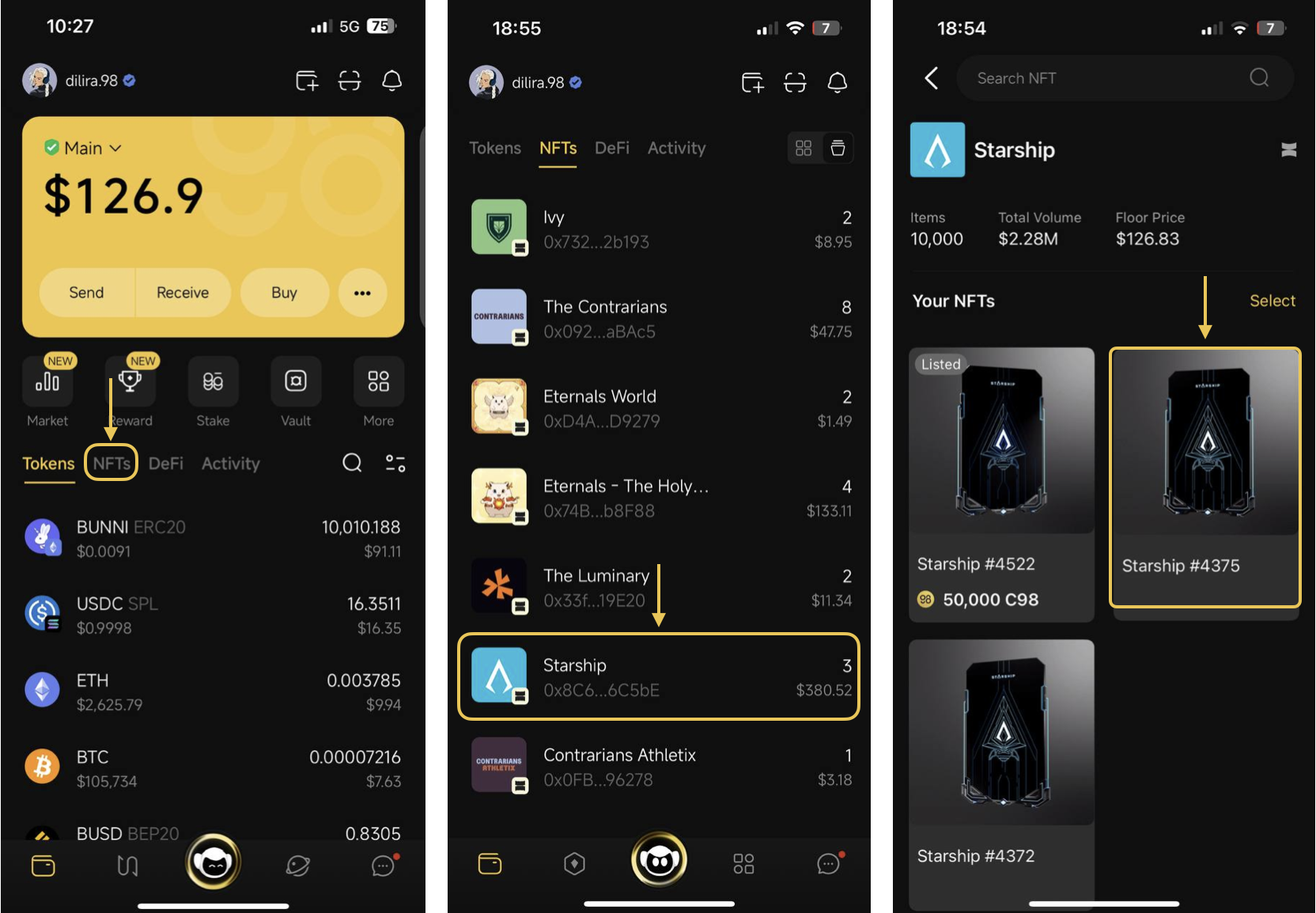
Coin98 Super Wallet provides a cosmos for safe, straightforward handling and storage of NFTs. Our users are able to [store, send and receive](/products/coin98-super-wallet/mobile/asset-management) multi-chain NFT directly on EVM blockchains such as Ethereum, BNB Chain, Viction, etc, and non-EVM blockchains such as Solana, Sei, Injective, etc.

At the moment, only our supported NFT projects are compatible with our NFT features on Coin98 Super Wallet. We are welcoming new NFT projects to join and cooperate with Coin98 Super Wallet.

### Send & receive thousands of coins/tokens.

You can send and store various coins/tokens easily and conveniently on Coin98 Super Wallet. The transaction speed & gas fee are optimized for the best trading experience for all users.

### Access numerous DApps.

You can access the most popular DApps on Coin98 Super Wallet with Coin98 DApp Browser. We have supported many DApps in various categories:

* **Exchanges:** PancakeSwap, Uniswap, Raydium, Trader Joe, Ubeswap, Pangolin, MDEX, Biswap, OpenOcean, Dexlab, SushiSwap, BabySwap, SpiritSwap, SpookySwap, Bunicorn, Baryon Network, Saros …
* **Games:** Faraland, My DeFi Pet, Yay.Games, CryptoKitties, Sipher, Aavegotchi, Bunicorn Game, BetFury, My Crypto Heroes, Gods Unchained, …
* **Finance:** Parrot Finance, Aave, Larix, Compound, Bonfida, Port Finance, Yearn.finance, Curve, Venus, Zapper, Benqi, Zerion, Apricot, Unilend Finance, Landshare, Solend, …
* **NFTs:** Dagora, OpenSea, NFTb, WGMI, Bakery Gallery, AirNFTs, Yooshi, Rarible, icy.tools, Artion, …
* **Starter:** Polkastarter, Poolz, Westarter, DuckStarter, Poolz, Avalaunch, …
* **Farm and Stake:** Solfarm, Crosspool, Sunny, ButterSwap, Francium, Alpaca Finance, DeFi Yield Protocol, Yield Yak, Autofarm, Avaware, Reaper Farm, Harvest Finance, TEN.finance, Baryon Network, Saros …
* **Utilities:** Step Finance, Markr.io, INV, Snapshot, Keep3R Network, cBridgge, Bidali, …

### Trade natively with Coin98 SwapX

Coin98 SwapX is a multi-chain liquidity aggregator that allows users to swap tokens within the same network or convert supported tokens across chains. In addition to retaining advanced features from previous versions, SwapX introduces the StormLink mechanism to aggregate liquidity, helping users find the shortest route and the best price in just one transaction.

Currently, SwapX is supported on the following networks: Viction, Ethereum, BNB Smart Chain, Polygon, Avalanche C-Chain, Solana, Arbitrum, Base, Sui and Optimism.

### Optimized gas fee

Coin98 Super Wallet automatically optimizes the gas fee and the transaction speed, however, you can adjust the gas fee by sliding the gas bar according to your needs.

### Follow the market

The market tracking and analyzing tool is one of the most helpful features of Coin98 Super Wallet. By using Coin98, users can follow all the ups and downs of the market closely and catch new potential opportunities in time.

## Download Coin98 Super Wallet&#x20;

Coin98 Super Wallet is now available on both the App Store and Google Play store. See [How to download and install Coin98 Mobile Wallet](https://docs.coin98.com/products/coin98-wallet/mobile/beginners-guide/how-to-download-install) for the detailed guide.

Install and enjoy now!<br>


# Coin98 Super Wallet UI Overview

Coin98 Super Wallet V16 introduces a sleek new design along with many exciting features, including AI-powered Cypheus Assistant, Coin98 Messenger, Zen Profile & Zen Card management, native NFT Marketplace addition, simplified asset withdrawal from Binance to Coin98, and overall performance improvement to level up user experience.

[**1. Wallet**](#id-1.-wallet)

[**2. Swap:**](#id-2.-swap) [Swap](#id-2.1.-swap) | [Futures](#id-2.2-.-futures) I [NFTverse](#id-2.3.-nftverse)

[**3. Cypheus Assistant**](#id-3.-cypheus-ai-assistant)

[**4. Discover**](#discover)[**:** ](#id-4.-discover)[DApps](#id-4.1.-dapps) | [Market](#id-4.2.-market) I [Services](#id-4.3.-services)

[**5. Coin98 Chat**](#id-5.-coin98-messenger)

<figure><img src="https://2549780185-files.gitbook.io/~/files/v0/b/gitbook-x-prod.appspot.com/o/spaces%2FirKWZRA5WMZ5uBeDGB96%2Fuploads%2FFGSA3CSY9zg3vUXEYwEl%2FScreenshot%202025-06-08%20at%206.20.56%E2%80%AFPM.png?alt=media&amp;token=2418a480-7337-4737-ba7b-c97d902c8c74" alt=""><figcaption></figcaption></figure>

## 1. Wallet

### 1.1. Main Screen

<figure><img src="https://2549780185-files.gitbook.io/~/files/v0/b/gitbook-x-prod.appspot.com/o/spaces%2FirKWZRA5WMZ5uBeDGB96%2Fuploads%2FTkkShOMpd7E2BB13ZCbS%2Fcoin98-app-wallet-main-screen-1.png?alt=media&amp;token=2f7d92b3-c592-4c66-829a-f739ce91575a" alt=""><figcaption></figcaption></figure>

\[1] [**Log in with wallet**](https://docs.coin98.com/products/coin98-super-wallet/mobile/getting-started/how-to-log-in) **or** [**Log in with OneID**](/products/coin98-super-wallet/mobile/oneid/log-in-with-oneid)**.** Learn more about OneID [here](https://docs.oneid.xyz/).

\[2] [**Create a wallet**](https://docs.coin98.com/products/coin98-super-wallet/mobile/getting-started/how-to-create-a-multichain-wallet): Users can tap this icon to create a wallet instantly.

\[3] **Super Connect/QR Code**: allows users to connect their wallet to one or multiple DEXs simultaneously via WalletConnect. Users can also scan QR of a receiving address to be navigated directly to the Send screen;

\[4] [**Notification**](https://docs.coin98.com/products/coin98-super-wallet/mobile/getting-started/how-to-manage-notifications-on-coin98-super-wallet#notification-management): allows users to receive notification messages for various on-chain activities performed on their wallets, such as token/NFT transfer, swap, approval, etc., as well as exciting news like campaigns, new feature updates, and important announcements from Coin98.

<figure><img src="https://2549780185-files.gitbook.io/~/files/v0/b/gitbook-x-prod.appspot.com/o/spaces%2FirKWZRA5WMZ5uBeDGB96%2Fuploads%2FglTDREjITgmN7w9Yq7xl%2FScreenshot%202025-06-08%20at%207.33.50%E2%80%AFPM.png?alt=media&amp;token=4c753fa3-3f32-48f0-80dd-1853c126627b" alt="" width="368"><figcaption></figcaption></figure>

\[5] [**Active wallet**](https://docs.coin98.com/products/coin98-super-wallet/mobile/wallet-management/how-to-activate-a-wallet-on-coin98-super-wallet): The assets displayed in the app belong to the currently activated wallet. Users can click on the wallet name to easily switch between wallets.&#x20;

\[6] [**Send**](https://docs.coin98.com/products/coin98-super-wallet/mobile/asset-management/how-to-send-a-token)**:** send coins/tokens;

\[7] [**Receive**](https://docs.coin98.com/products/coin98-super-wallet/mobile/asset-management/how-to-receive-deposit-a-token): receive or deposit coins/tokens to your wallet.&#x20;

\[8] [**Buy**](https://docs.coin98.com/products/coin98-super-wallet/mobile/getting-started/how-to-buy-cryptocurrency-by-fiat): purchase crypto with fiat currency through third-party services like Moonpay, Transak, etc.;&#x20;

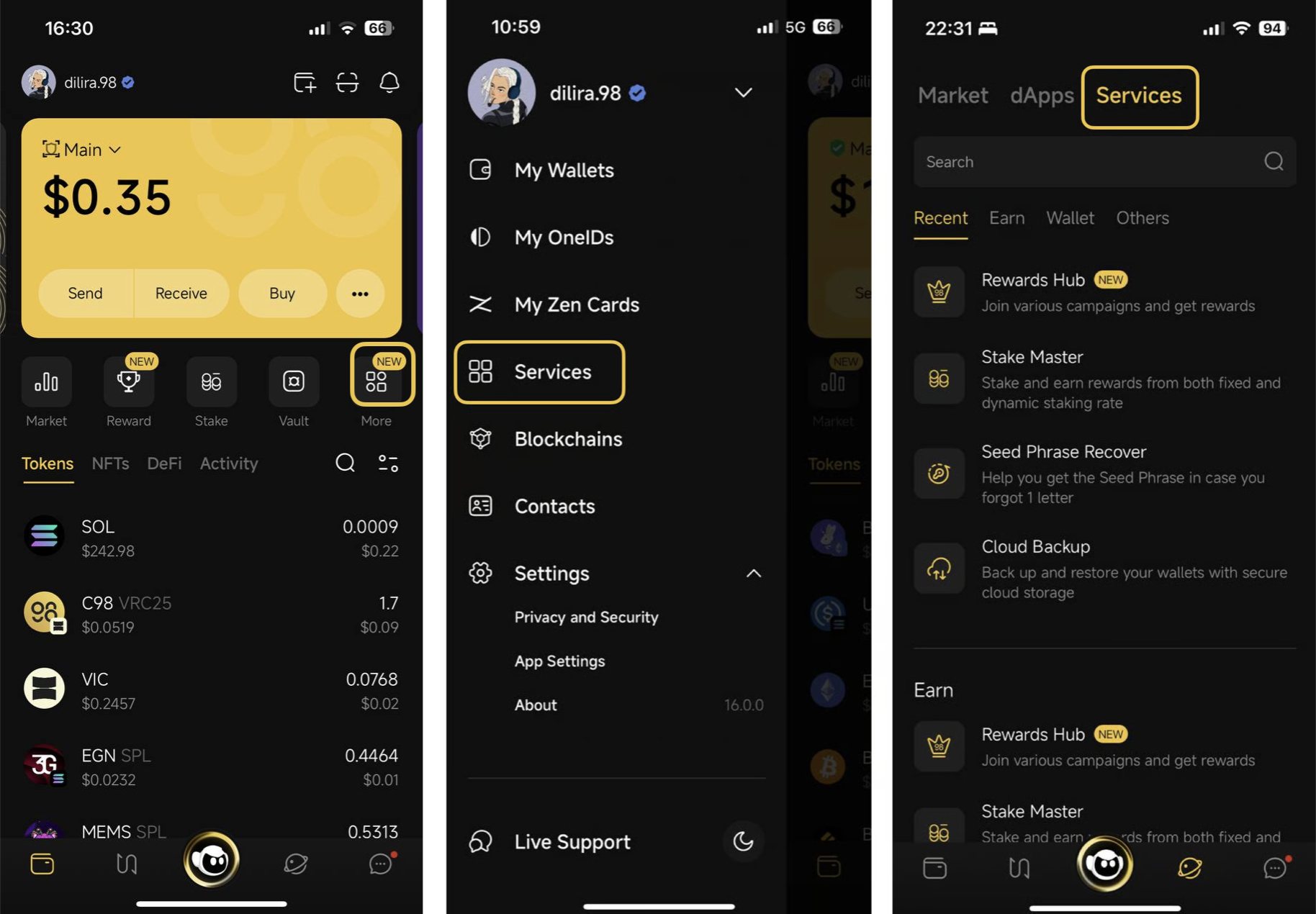
\[9] **More:** explore additional features such as:

<figure><img src="https://2549780185-files.gitbook.io/~/files/v0/b/gitbook-x-prod.appspot.com/o/spaces%2FirKWZRA5WMZ5uBeDGB96%2Fuploads%2FSjguMgHozyxvKoekclsM%2Fcoin98-app-wallet-main-screen-more-1.png?alt=media&amp;token=393fc141-0d1b-48c2-8093-05334c35ace4" alt="" width="563"><figcaption></figcaption></figure>

* \[9a] [**Request Send**](https://docs.coin98.com/products/coin98-super-wallet/mobile/asset-management/how-to-create-a-send-request-for-someone)**:** users can create a token send request and send the link to others. Link recipients can simply click on the link to be directed to the Send screen with all information (address, amount) filled out for them; &#x20;
* \[9b] [**Binance Withdraw**](https://docs.coin98.com/products/coin98-super-wallet/mobile/asset-management/how-to-withdraw-tokens-from-binance-to-coin98-super-wallet): users can directly transfer assets from Binance to Coin98 without going through complicated steps on different platforms. Moreover, users can also input the receiving wallet by entering OneID or the email address linked to it;
* \[9c] **More Wallet Features**: include Notifications Settings, Connection Management, Cloud backup, add/remove Custom Network, Manage Contacts, add/remove Custom Tokens, hide/unhide tokens;
* \[9d] **Managing Wallets:** various actions depending on wallet types. The image is demonstrating actions for Hot Wallets: Rename Wallet, View all wallet addresses, Migrate a hot wallet to Zen Card, Show Seed Phrase and Private Key, Remove Wallet.

**Estimated total assets:** Includxxes the estimated total value of Tokens, NFTs in the wallet, and assets on DeFi platforms such as staked assets.

<figure><img src="https://2549780185-files.gitbook.io/~/files/v0/b/gitbook-x-prod.appspot.com/o/spaces%2FirKWZRA5WMZ5uBeDGB96%2Fuploads%2FxmPvdxxj1TWDxKtoymw6%2FScreenshot%202025-06-08%20at%207.36.06%E2%80%AFPM.png?alt=media&amp;token=2bfdaf04-cf37-4fe9-b152-e3b7e7b0141c" alt="" width="368"><figcaption></figcaption></figure>

**1.1.1. Token**

<figure><img src="https://2549780185-files.gitbook.io/~/files/v0/b/gitbook-x-prod.appspot.com/o/spaces%2FirKWZRA5WMZ5uBeDGB96%2Fuploads%2FbJx6N6WoS00oOSUvBnm9%2FScreenshot%202025-06-08%20at%207.41.33%E2%80%AFPM.png?alt=media&amp;token=508feac6-516e-4de6-82da-c6433ed256d0" alt="" width="563"><figcaption></figcaption></figure>

\[1] **Tokens**: the list of tokens/coins in the currently activated wallet;

\[2] **Search token**: search tokens by token name and symbol;

\[3] **Display filter**: Customize the token’s display according to personal preferences:

* Hide small balance tokens,
* Hide non-listed tokens,
* Sort by value: High to low and low to high,
* Sort by name: A-Z and Z-A.

**1.1.2. NFTs:** The list of NFTs in the currently activated wallet.

**1.1.3. DeFi:** Assets currently held on DeFi platforms.

**1.1.4. Activity**: This section shows the transaction history of the currently active wallet.

<figure><img src="https://2549780185-files.gitbook.io/~/files/v0/b/gitbook-x-prod.appspot.com/o/spaces%2FirKWZRA5WMZ5uBeDGB96%2Fuploads%2F6FCZFlSFv55cQ27U4VdI%2FScreenshot%202025-06-08%20at%206.33.33%E2%80%AFPM.png?alt=media&amp;token=afa09962-16fd-4e71-8e29-b6e3d3a54239" alt=""><figcaption></figcaption></figure>

### 1.2. Sidebar

Users can perform the following app management actions:

<figure><img src="https://2549780185-files.gitbook.io/~/files/v0/b/gitbook-x-prod.appspot.com/o/spaces%2FirKWZRA5WMZ5uBeDGB96%2Fuploads%2FehrRLFuWksotxkhAZwMg%2FScreenshot%202026-03-18%20at%2016.59.46.png?alt=media&amp;token=6337d597-68a1-431d-b0fe-8cfae1d4c4e1" alt="" width="225"><figcaption></figcaption></figure>

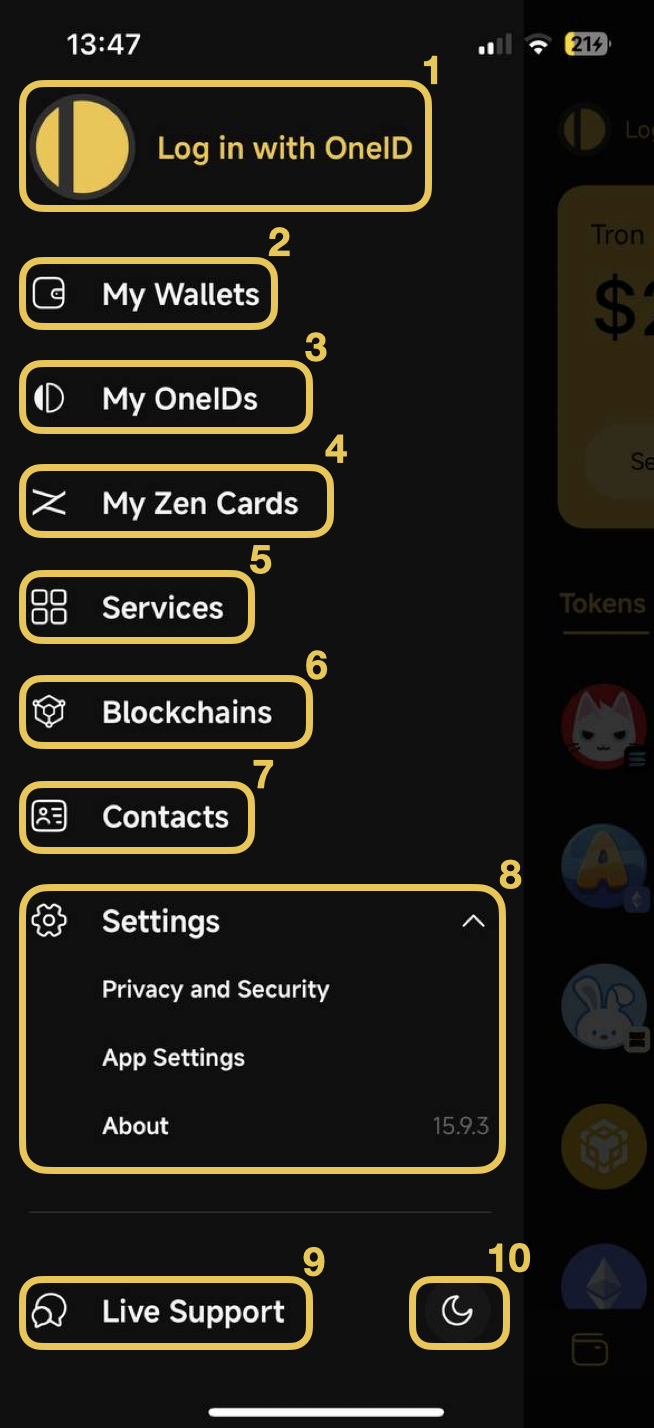
\[1] [**Log in with wallet**](https://docs.coin98.com/products/coin98-super-wallet/mobile/getting-started/how-to-log-in) **or** [**Log in with OneID**](/products/coin98-super-wallet/mobile/oneid/log-in-with-oneid) allows users to enjoy standout features such as chatting with others or join the community groups;

\[2] [**My Wallets**](https://docs.coin98.com/products/coin98-super-wallet/mobile/wallet-management)**:** allows users to manage all their wallets. Users can create new wallets, restore old ones, activate the wallet they want to use, refresh wallets to integrate newly supported blockchains, and perform other actions such as viewing wallet addresses, deleting wallets, renaming wallets, checking wallet recovery keys, and viewing wallet assets on the blockchain;

\[3] [**My OneIDs**](https://docs.coin98.com/products/coin98-super-wallet/mobile/oneid/how-to-use-oneid-on-coin98-super-wallet): allows to register for new OneIDs, link the ID to a wallet address and manage IDs.

\[4] **My Zen Cards:** allows users to manage their Zen Cards. With each Zen Card, users can:

* \[4a] [**Create a Zen Card Wallet**](https://docs.coin98.com/products/coin98-super-wallet/mobile/user-guides/how-to-manage-zen-card): A hybrid wallet, offering security, convenience and cost-effectiveness compared to cold wallets and hot wallets.&#x20;
* \[4b] [**Create a Zen Profile (eCard)**](https://docs.coin98.com/products/coin98-super-wallet/mobile/user-guides/how-to-use-zen-card): Users can share their digital business card with others by tapping their Zen Card on the recipient’s device.&#x20;

<figure><img src="https://2549780185-files.gitbook.io/~/files/v0/b/gitbook-x-prod.appspot.com/o/spaces%2FirKWZRA5WMZ5uBeDGB96%2Fuploads%2F9tZ0FrD7rGZUmcRR49hN%2Fcoin98-app-wallet-sidebar-zen-card.png?alt=media&amp;token=1070043a-1684-4867-b69b-b4b31d2c6250" alt="" width="333"><figcaption></figcaption></figure>

\[5] [**Blockchains**](https://docs.coin98.com/products/coin98-super-wallet/mobile/asset-management/how-to-manage-blockchains-on-coin98-super-app)**:** allows users to activate/deactivate chains among 100+ supported blockchains to easily manage their assets;&#x20;

\[6] [**Contacts**](https://docs.coin98.com/products/coin98-super-wallet/mobile/getting-started/how-to-add-a-contact-on-coin98-super-wallet): allows users to create and manage their contact list, making it easier to send assets;&#x20;

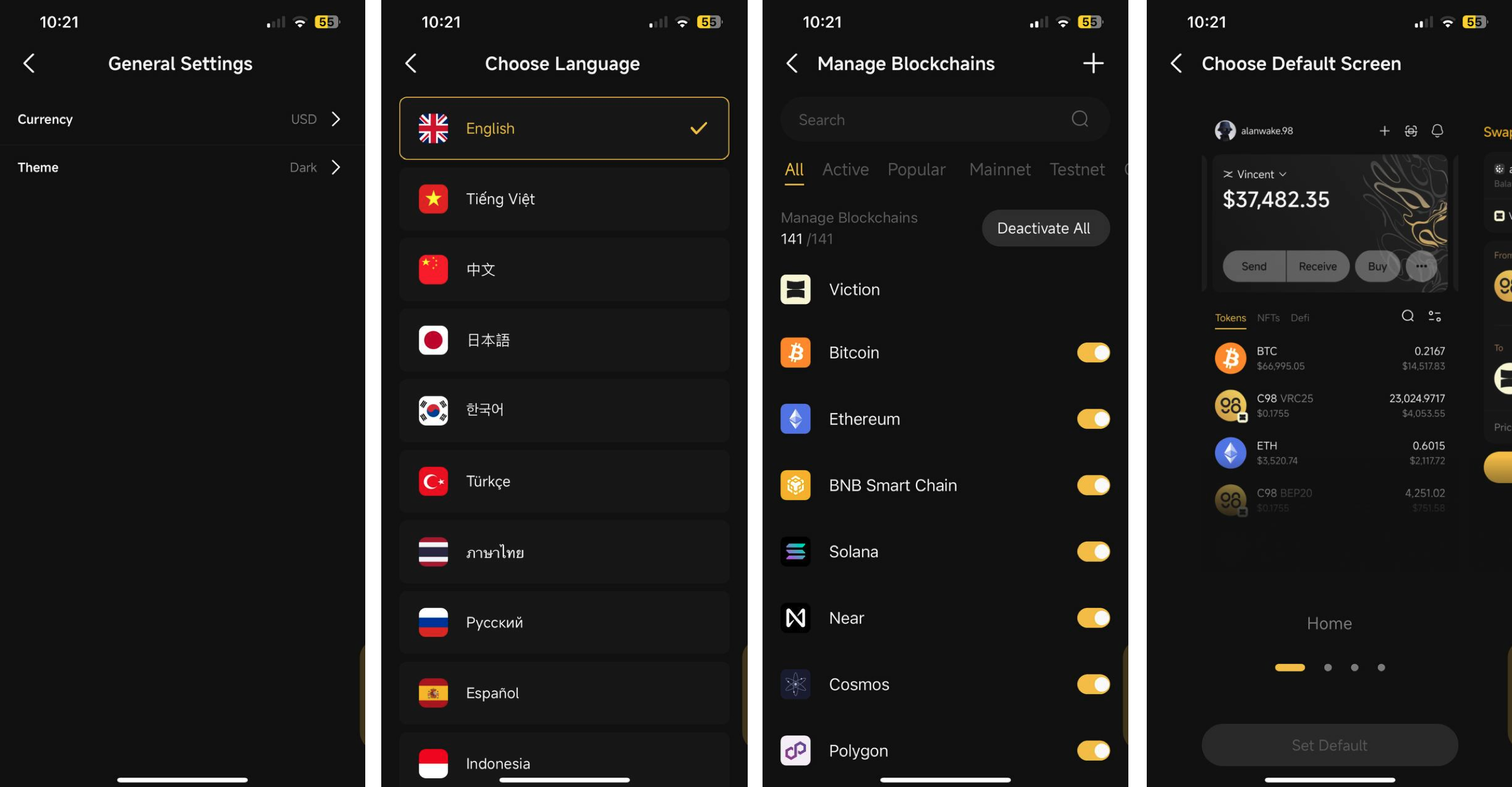
\[7] [**Settings**](https://docs.coin98.com/products/coin98-super-wallet/mobile/getting-started/general-settings)**:** set a Pincode, FaceID/Fingerprint, and customize app language, theme, currency, and default screen upon opening the app;&#x20;

\[8] [**Live Support**](https://livechat.coin98.com/): contact our support team for instant help with any issue;

\[9] **App Mode**: sets mode for your app: Dark or Light

\[10] **App Version**

## 2.&#x20;

### 2.1. [SwapX](/products/coin98-super-wallet/mobile/swapx)

SwapX is a feature that allows you to swap tokens on the same network or convert the supported tokens from one network to another.

<figure><img src="https://2549780185-files.gitbook.io/~/files/v0/b/gitbook-x-prod.appspot.com/o/spaces%2FirKWZRA5WMZ5uBeDGB96%2Fuploads%2FZVE3S5oSZfqW9NqynPKt%2FScreenshot%202026-03-18%20at%2016.34.00.png?alt=media&amp;token=d90c4c69-282a-4900-9725-762603b86321" alt="" width="345"><figcaption></figcaption></figure>

\[1] **Trade History:** Displays all transactions that have been completed in the wallet.

\[2] **Swap Transaction Information**:

* The wallet containing the tokens,
* Token pair,
* Blockchain

\[3] **Swap Parameters**

* [**Slippage**](https://docs.coin98.com/products/coin98-super-wallet/mobile/swap/faqs/slippage-tolerance)**:** 0.5% by default. Users can adjust it to fit their needs. Note that changing this parameter may impact the number of tokens received;
* Rate
* Fee
* Smart Routing

### 2.2 . [Futures](/products/coin98-super-wallet/mobile/futures)

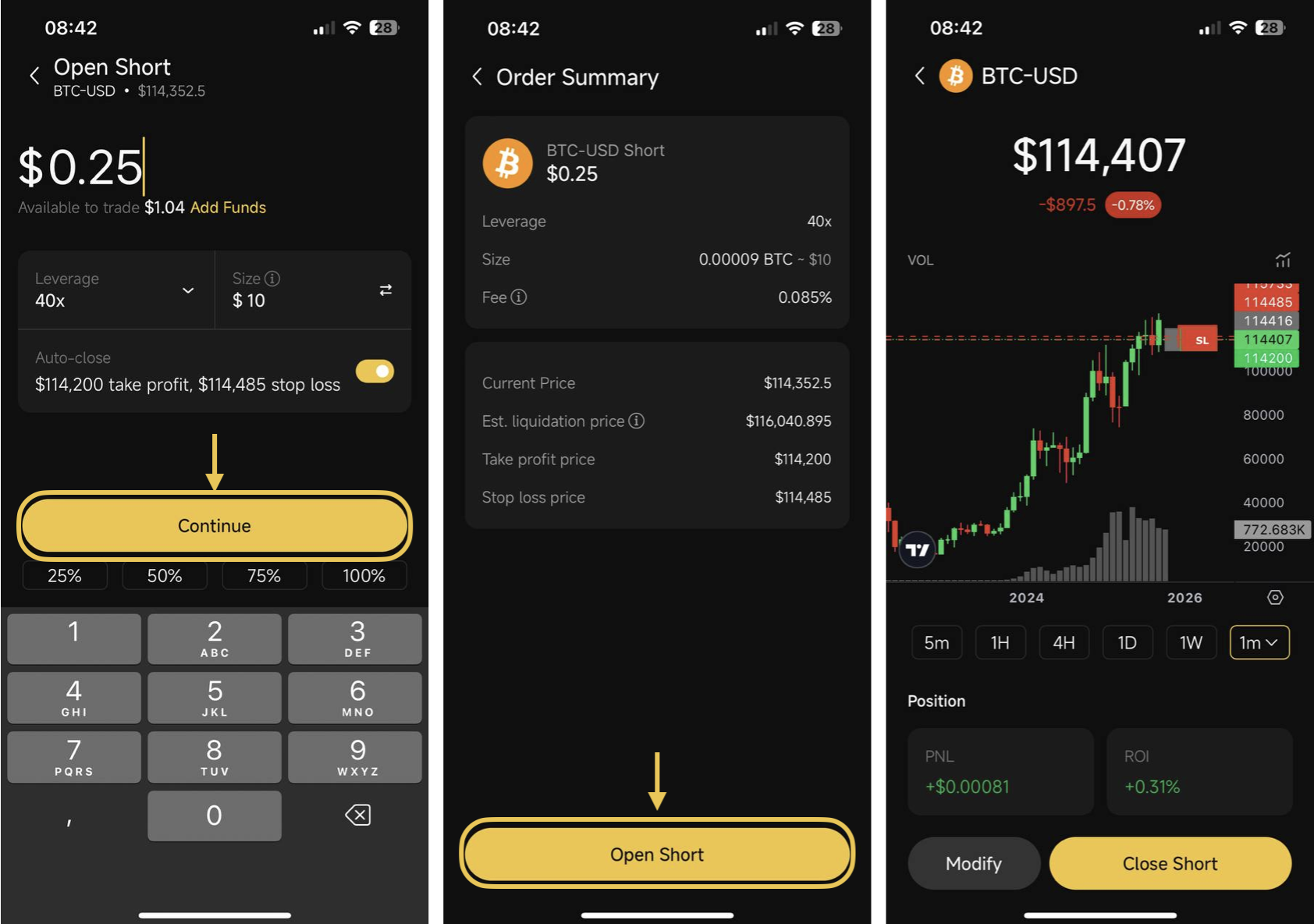
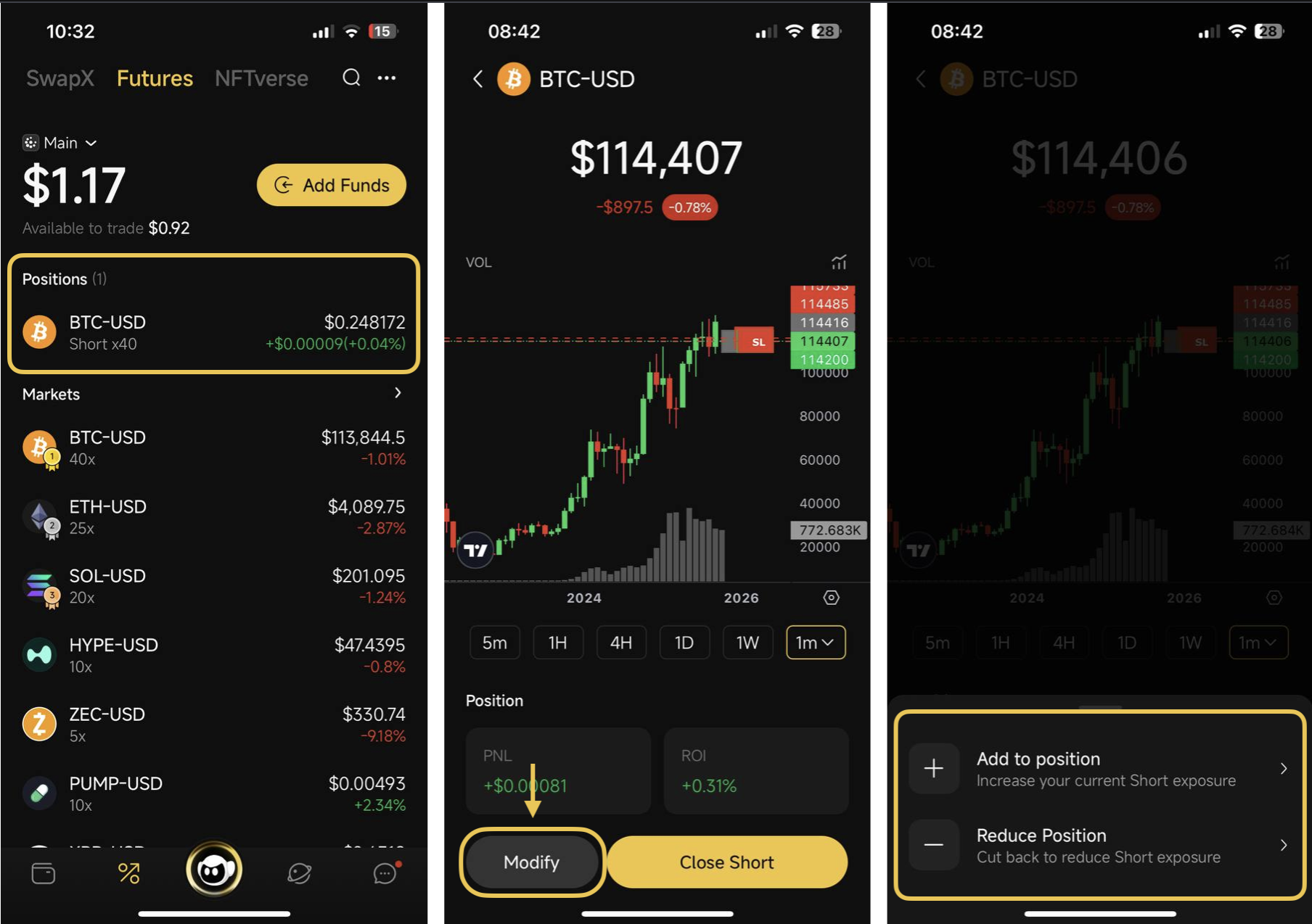
Futures is a new feature in the Coin98 Super Wallet, allows you to speculate on the price movement of assets **without expiration**, providing full on-chain transparency, security, and efficiency. Whether you want to go **long** (buy) or **short** (sell), this powerful tool helps you navigate market opportunities.

<figure><img src="https://2549780185-files.gitbook.io/~/files/v0/b/gitbook-x-prod.appspot.com/o/spaces%2FirKWZRA5WMZ5uBeDGB96%2Fuploads%2FeqMrL1T79GK0zEUHQuLV%2F79D2971F-B85C-412F-913A-9D94329CE2F8.png?alt=media&amp;token=610cb9e2-e3f4-488c-bfe7-4563db9c0328" alt="" width="375"><figcaption></figcaption></figure>

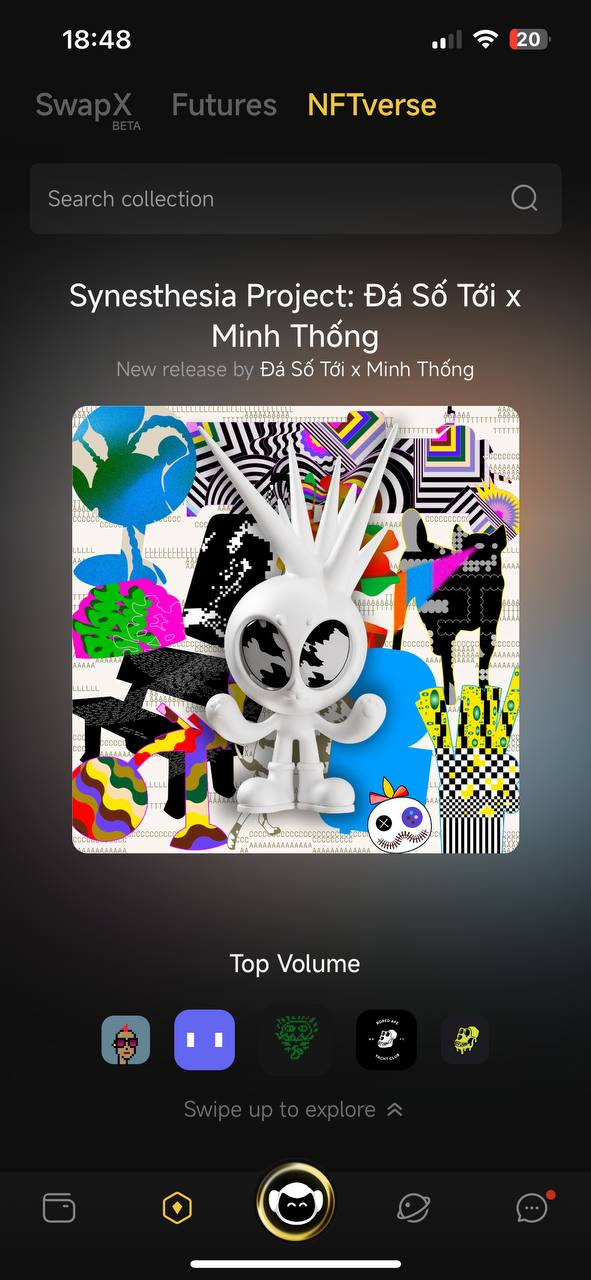
### 2.3. [NFTverse](/products/coin98-super-wallet/mobile/nfts/marketplace)

NFTverse is designed to offer users a seamless experience as they explore the exciting world of NFTs. This integration will help users to discover, purchase and trade unique digital assets directly within the app.

<figure><img src="https://2549780185-files.gitbook.io/~/files/v0/b/gitbook-x-prod.appspot.com/o/spaces%2FirKWZRA5WMZ5uBeDGB96%2Fuploads%2FQeWDOGaKKY4u0gNiOJBH%2F75BFB2F8-F4D9-4E7B-9C0F-E5FCB8912C7B.png?alt=media&amp;token=543ce895-16c4-4764-8408-9a0ad6637604" alt="" width="375"><figcaption></figcaption></figure>

## 3. [Cypheus Assistant](https://docs.coin98.com/products/coin98-super-wallet/mobile/coin98-messenger/cypheus-assistant-bot)

Providing comprehensive support for all users’ Web3 needs when interacting with Cypheus by typing or voicing questions on a wide range of topics, from Web3 terms to product guides. Additionally, users can generate images based on their descriptions and preferred art styles.&#x20;

<figure><img src="https://2549780185-files.gitbook.io/~/files/v0/b/gitbook-x-prod.appspot.com/o/spaces%2FirKWZRA5WMZ5uBeDGB96%2Fuploads%2FcKCPso621sewbXWGGbXh%2FScreenshot%202025-06-08%20at%209.47.08%E2%80%AFPM.png?alt=media&amp;token=8c071af8-369b-4d1a-aeab-5c0f26e1d41c" alt="" width="563"><figcaption></figcaption></figure>

## 4. Discover

### 4.1. [dApps](https://docs.coin98.com/products/coin98-super-wallet/mobile/third-party-platforms-and-dapps/dapp-browser)

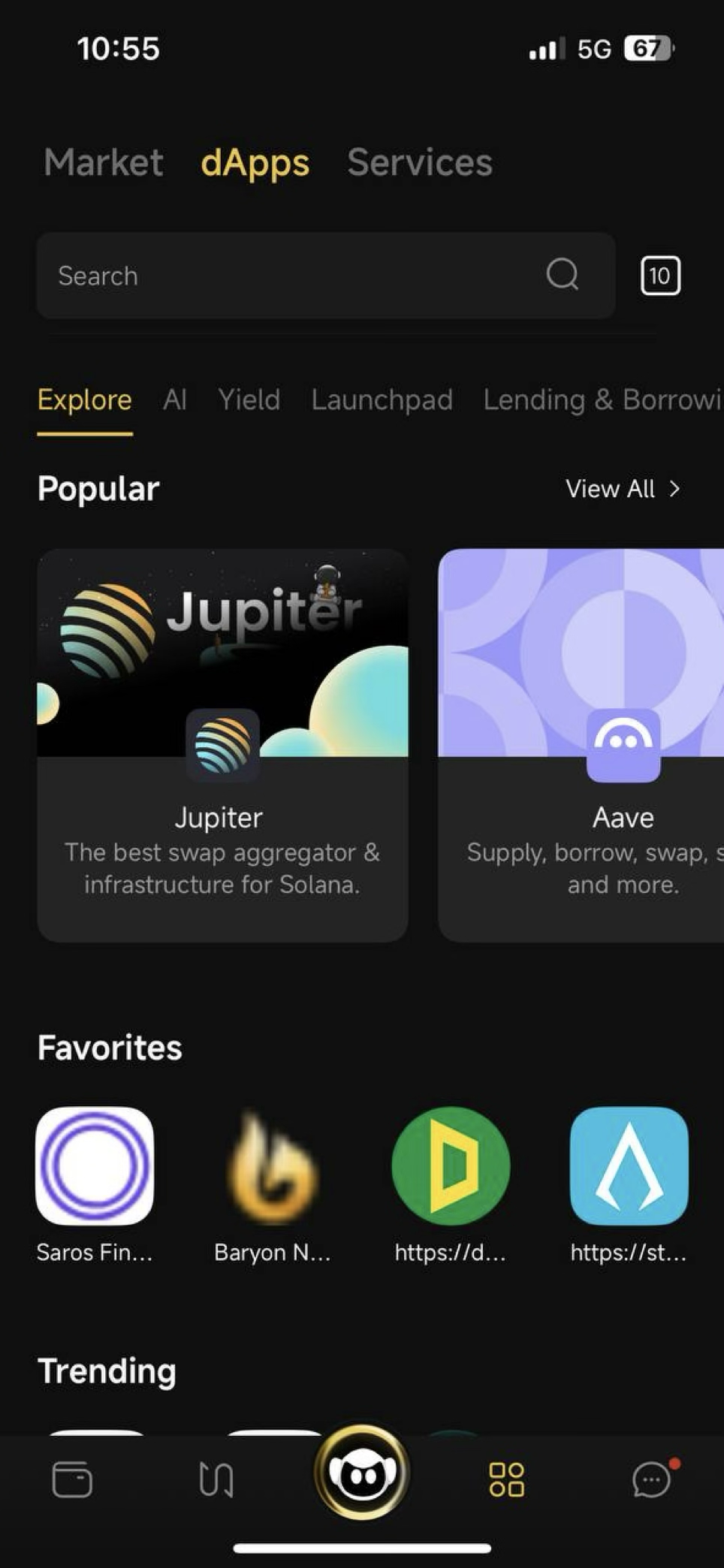
This feature acts as a gateway for users to interact with external platforms by connecting their wallet on Coin98 Super Wallet to any DEX.

<figure><img src="https://2549780185-files.gitbook.io/~/files/v0/b/gitbook-x-prod.appspot.com/o/spaces%2FirKWZRA5WMZ5uBeDGB96%2Fuploads%2FkCk3ogYrC4KYt3T7x20K%2Fimage.png?alt=media&amp;token=c6b13744-70ab-4285-b4b1-09f08507032a" alt="" width="375"><figcaption></figcaption></figure>

\[1] **Search**: Users can search dApps by entering dApps name or URL;

\[2] **Opened Tabs;**

\[3] **dApps Category**: DEX, NFT Marketplace and trading, Yield, Launchpad, and Others;

\[4] **Favorite dApps**: Users can add frequently used dApps to their favorites list for quicker access;

\[5] **Trending dApps:** Users can explore and easily access popular dApps available on the market here.

### 4.2. [Market](/products/coin98-super-wallet/mobile/market)

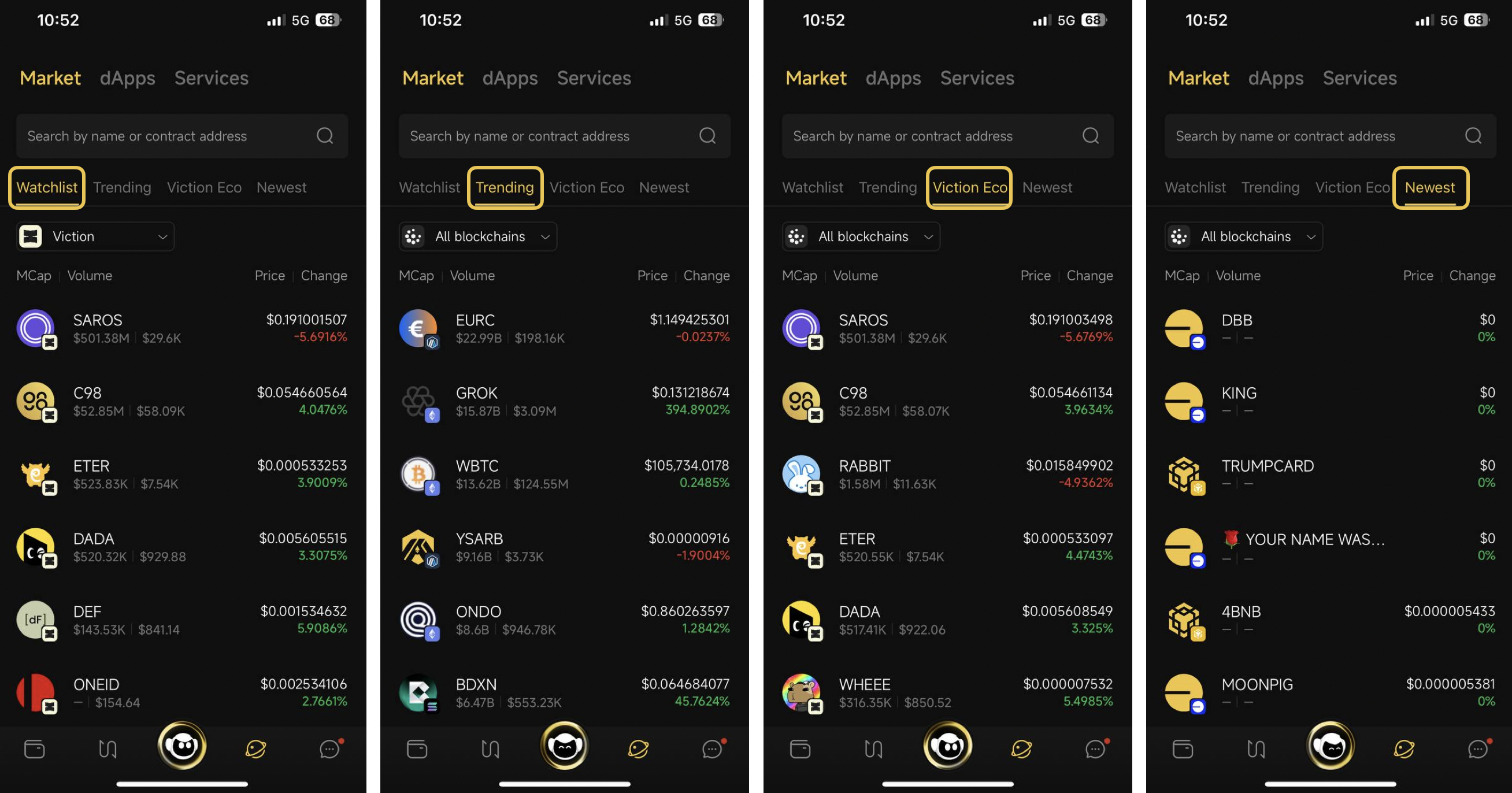
The Market section allows you to explore tokens based on popularity, the newest releases, those within the Viction ecosystem, or build your own custom watchlist to learn more about them effortlessly.

1. **Watchlist:** Your saved tokens for quick access and tracking.
2. **Trending:** Tokens currently gaining attention, volume, or price movement.
3. **Viction Eco:** Tokens within the Viction ecosystem.
4. **Newest:** Recently listed or newly added tokens.

<figure><img src="https://2549780185-files.gitbook.io/~/files/v0/b/gitbook-x-prod.appspot.com/o/spaces%2FirKWZRA5WMZ5uBeDGB96%2Fuploads%2FNgHjH7B1xqCxuOohfQYh%2FScreenshot%202025-06-08%20at%2010.14.35%E2%80%AFPM.png?alt=media&amp;token=cb39b289-dca7-4fa2-8b2d-76f451ed355a" alt=""><figcaption></figcaption></figure>

### 4.3. Services

Users can access all services by clicking on the More button or switching to the Services tab on Discover or on the sidebar section.

<figure><img src="https://2549780185-files.gitbook.io/~/files/v0/b/gitbook-x-prod.appspot.com/o/spaces%2FirKWZRA5WMZ5uBeDGB96%2Fuploads%2FLU8HW1oSz8xsePAVtfB5%2FScreenshot%202025-09-16%20at%204.31.50%E2%80%AFPM.png?alt=media&amp;token=ac1fbce1-61da-4d3a-b393-b8a0a2d86b81" alt=""><figcaption></figcaption></figure>

This is a summary of the features supported on Coin98 Super Wallet, divided into three categories:

#### 4.3.1. Earn

<figure><img src="https://2549780185-files.gitbook.io/~/files/v0/b/gitbook-x-prod.appspot.com/o/spaces%2FirKWZRA5WMZ5uBeDGB96%2Fuploads%2FOzKvZk7boNzNJL0CIcn3%2FScreenshot%202025-06-08%20at%2010.45.10%E2%80%AFPM.png?alt=media&amp;token=1bf9f45c-9afb-4c85-87d4-9e6d985a28b3" alt="" width="371"><figcaption></figcaption></figure>

\[1] **Rewards Hub:** Users can earn rewards through the following categories:

* **Boba Point:** BOBA is an on-chain point system that rewards users for on-chain activities within Coin98 Super Wallet. These points are issued as non-transferable VRC25 tokens on the Viction blockchain.
* **Mission**: Coming soon

\[2] **Stake Master**

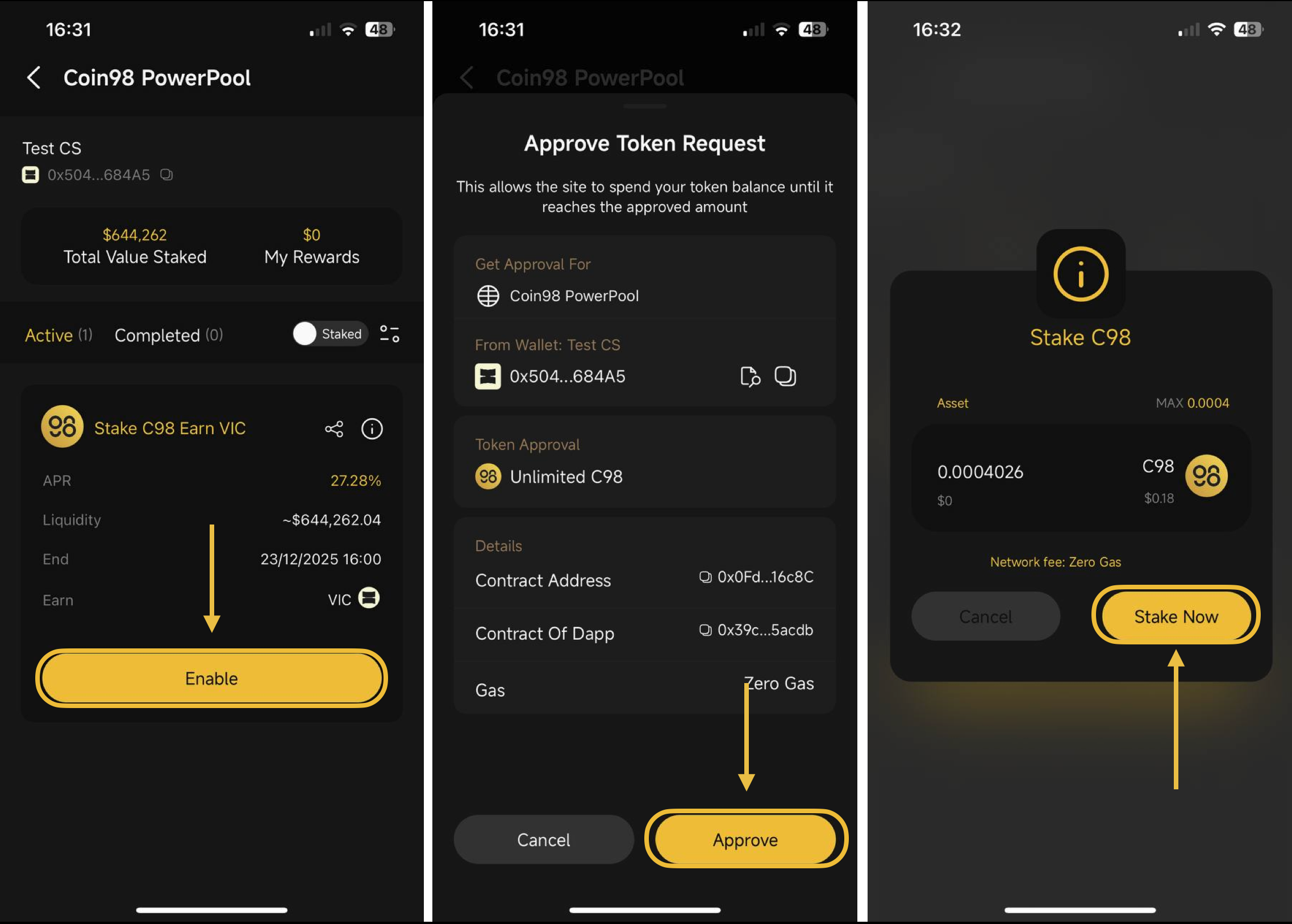
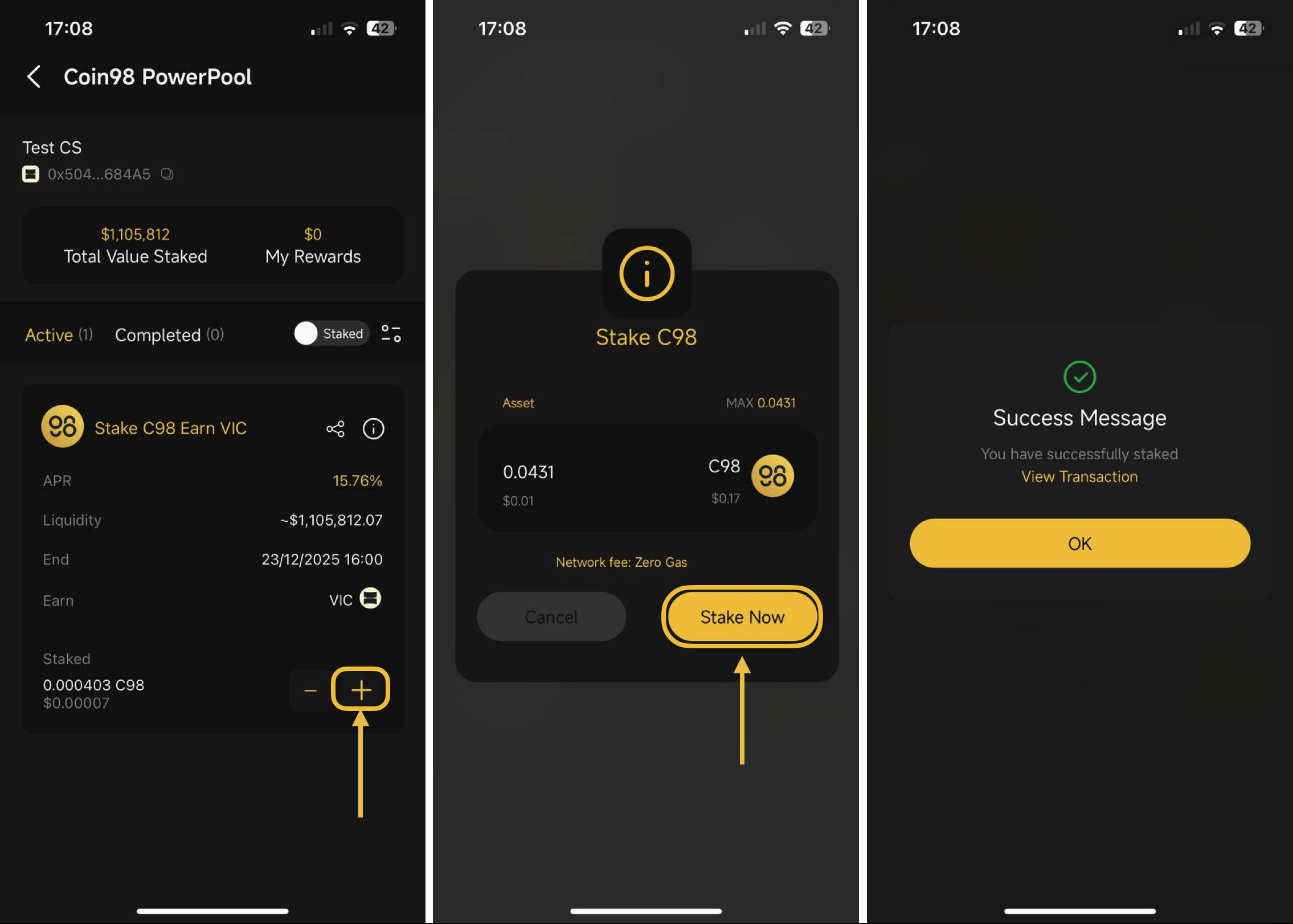
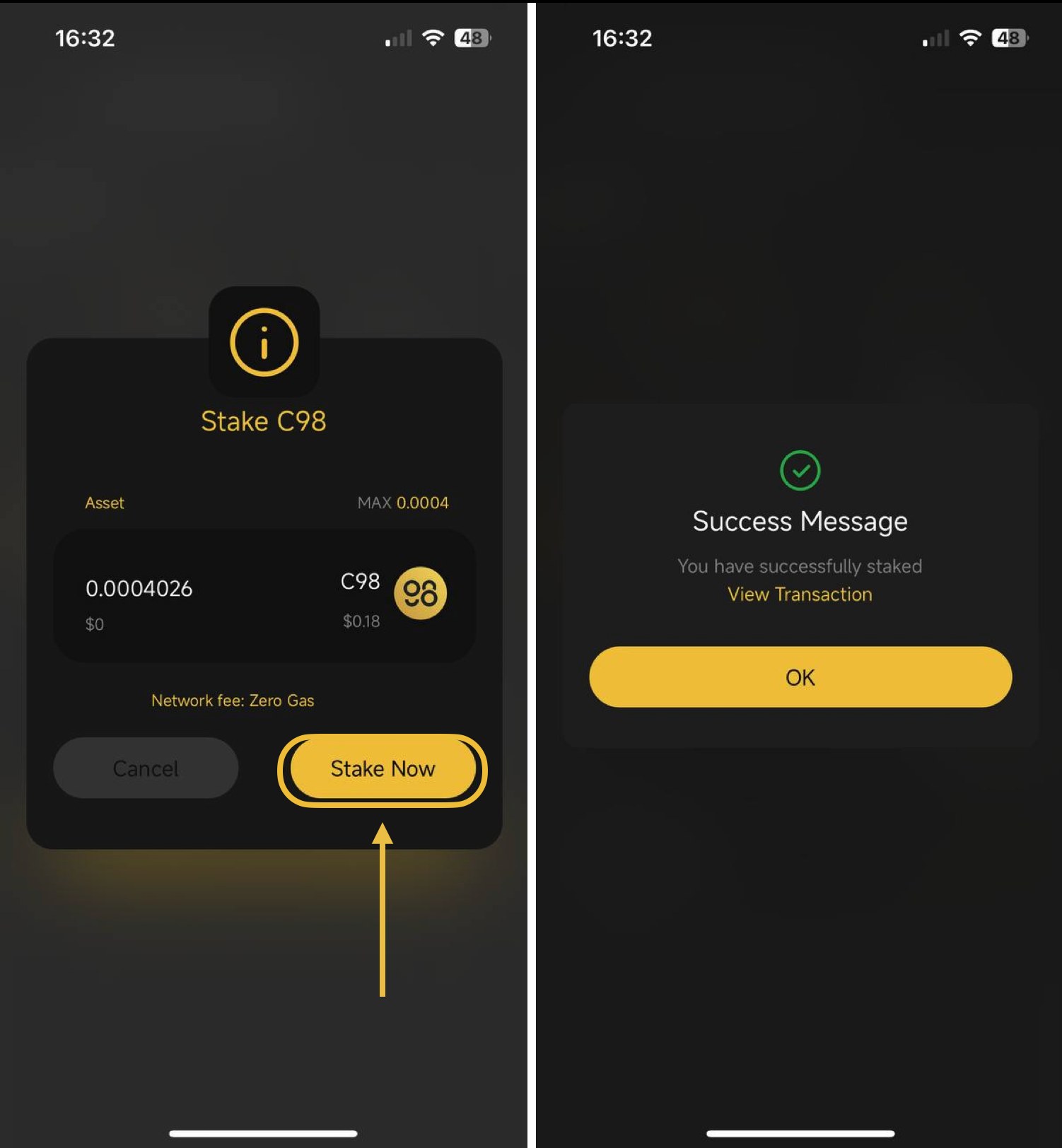
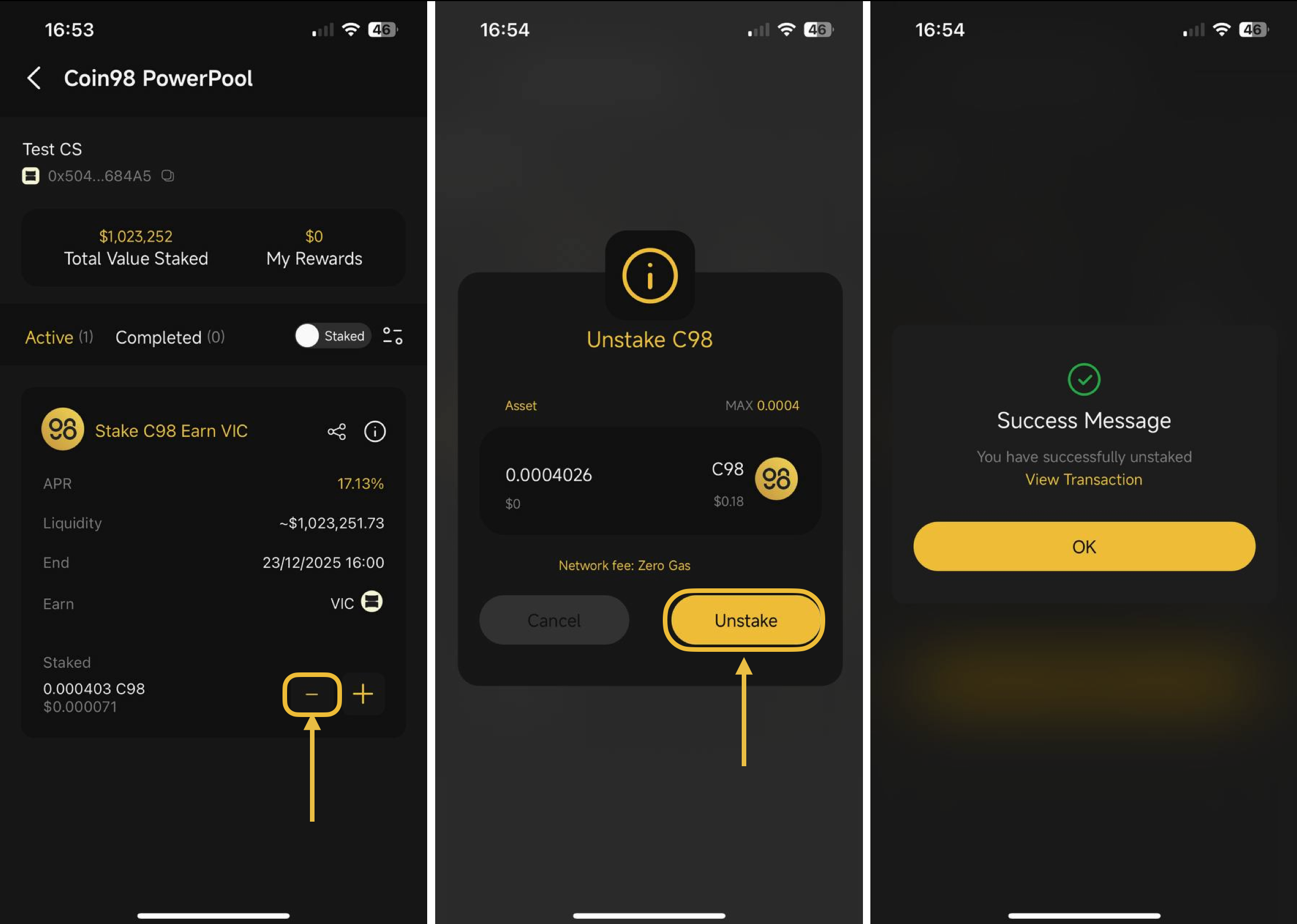
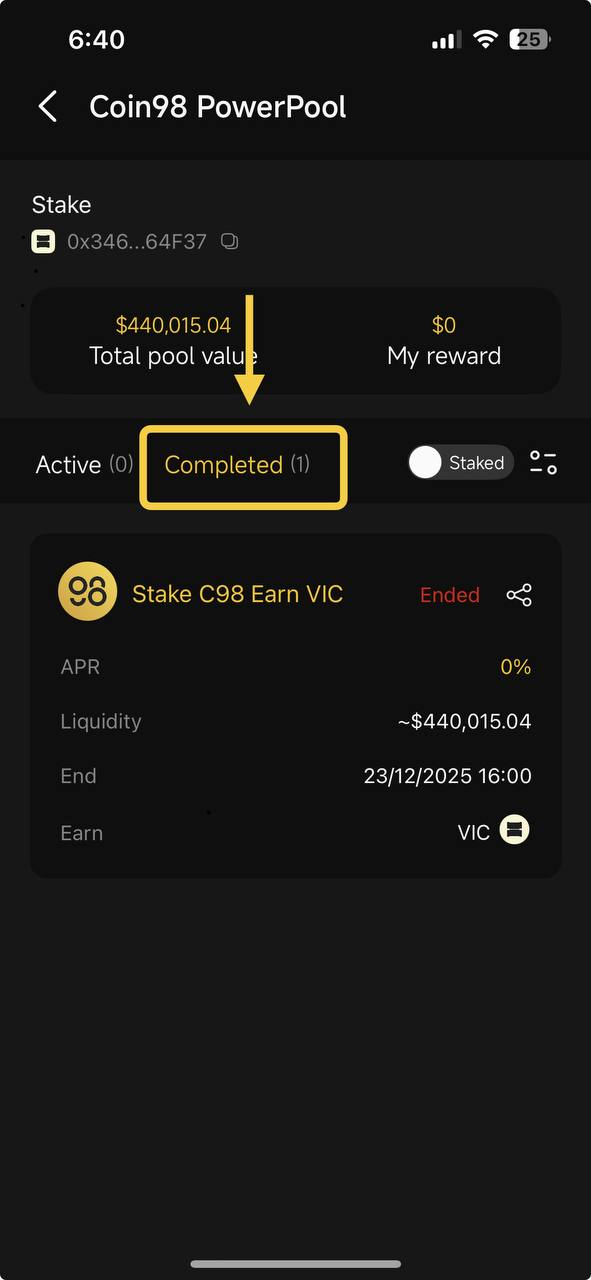
* **Coin98 PowerPool:** A new staking program designed to deliver better rewards through improved, flexible mechanisms.
* **Fixed Rate Staking**: Allows users to unstake their staked C98 tokens on Viction, BNB Smart Chain, and Ethereum via the old staking system (V1)
* **Dynamic Rate Stake**: Allows users to stake directly on Baryon Staking, where the interest rate fluctuates based on the total volume of tokens staked;

\[3] [**Vault**](https://docs.coin98.com/products/coin98-super-wallet/mobile/coin98-vault/how-to-use-coin98-vault-on-coin98-super-wallet)**:** Allows users to manage, view, and claim tokens/rewards.

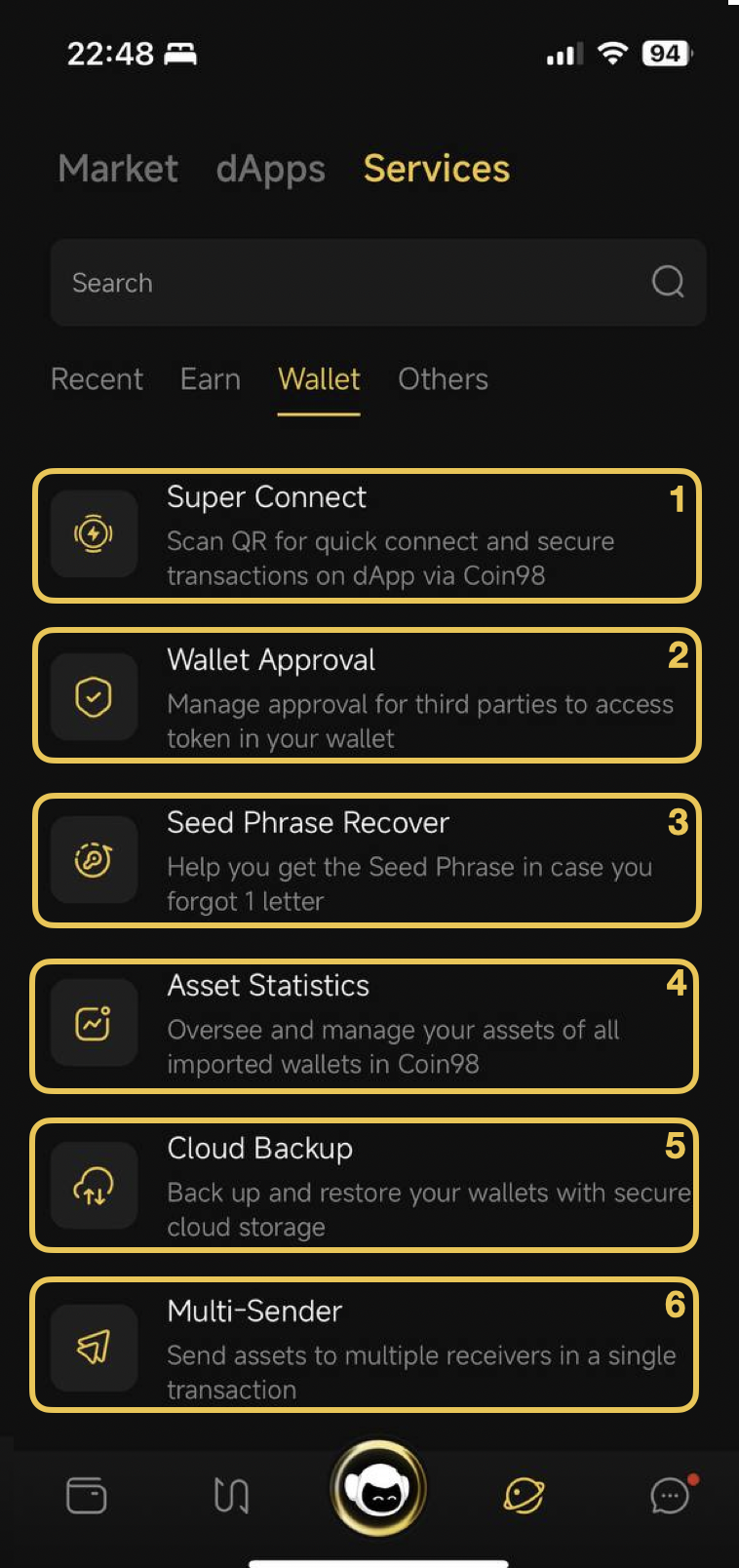
#### 4.3.2. Wallet

<figure><img src="https://2549780185-files.gitbook.io/~/files/v0/b/gitbook-x-prod.appspot.com/o/spaces%2FirKWZRA5WMZ5uBeDGB96%2Fuploads%2FL4IyVXyVTVupbkIsoLNu%2FScreenshot%202025-06-08%20at%2010.51.39%E2%80%AFPM.png?alt=media&amp;token=0353fd41-9e34-4bf5-bcc1-832f5437e9ea" alt="" width="375"><figcaption></figcaption></figure>

\[1] **Super Connect:** allows wallets to connect and interact with DApps using mobile devices or computers.

\[2] [**Wallet Approval**](https://docs.coin98.com/products/coin98-super-wallet/mobile/security-and-privacy/wallet-approval)**:** users can view and revoke approval from third parties (dApps/contracts);

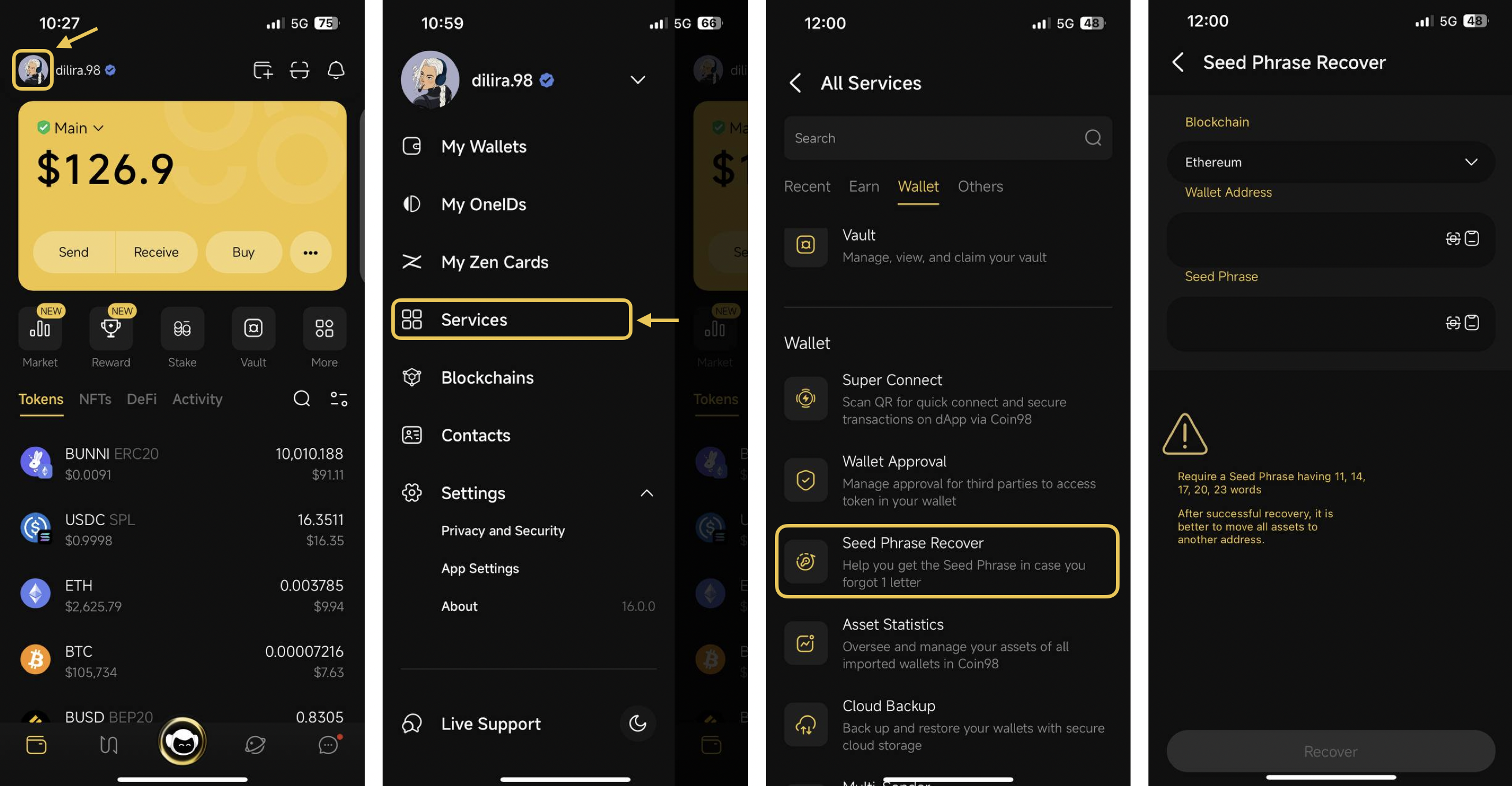
\[3] [**Seed Phrase Recovery**](https://docs.coin98.com/products/coin98-super-wallet/mobile/wallet-management/how-to-use-seed-phrase-recovery-tool)**:** supports users recover their Seed Phrase if they forgot 1 letter;

\[4] **Asset Statistic:** helps users oversee and manage their assets of all imported wallets in Coin98 Super Wallet;

\[5] [**Cloud Backup**](https://docs.coin98.com/products/coin98-super-wallet/mobile/security-and-privacy/use-cloud-sync)**:** allows users to back up their wallets via cloud services (Drive or iCloud). With the option to back up multiple wallets at once, it simplifies restoring multiple wallets simultaneously and makes switching between devices easier;

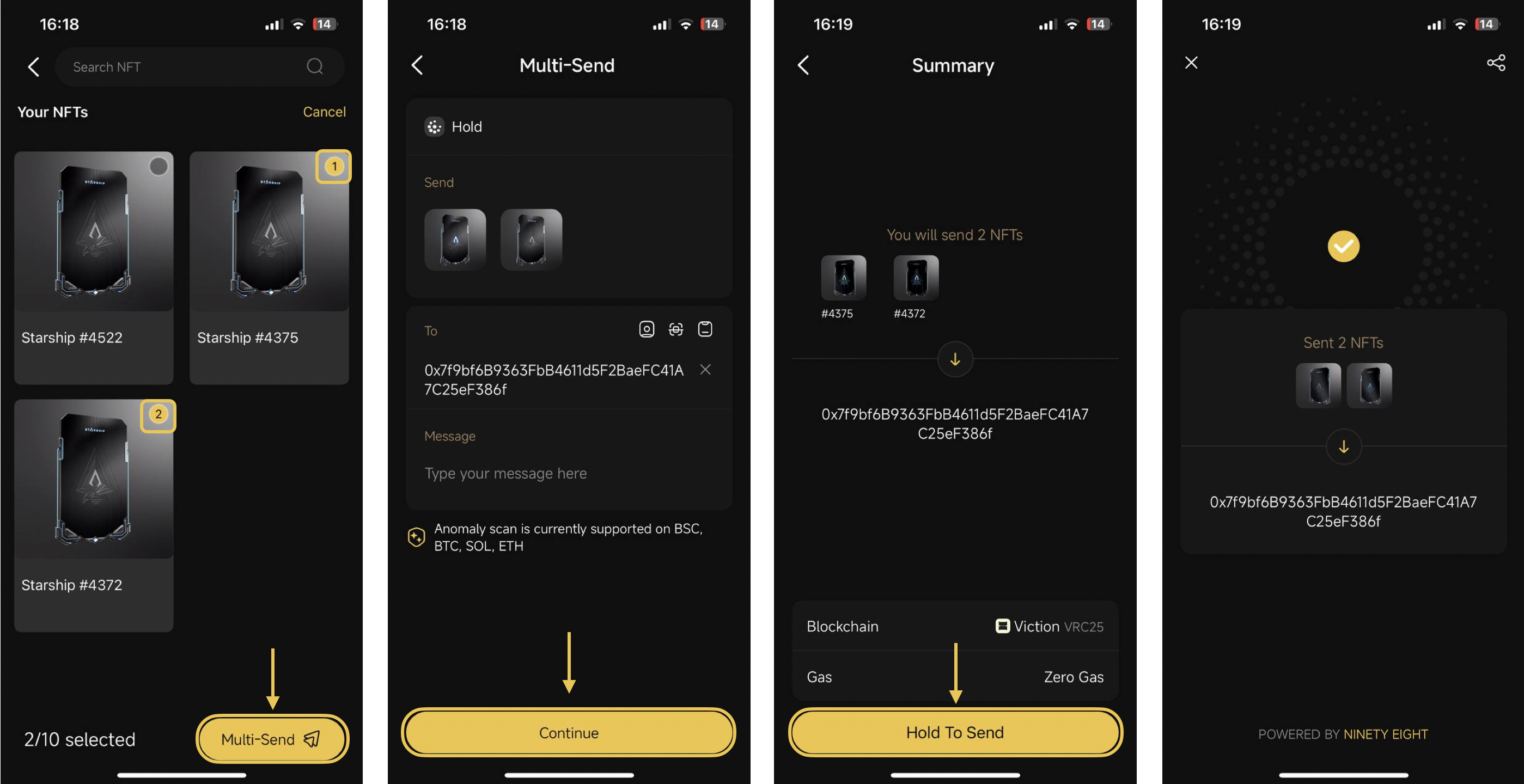
\[6] [**Multi-Sender**](https://docs.coin98.com/products/coin98-super-wallet/mobile/asset-management/how-to-send-a-token-to-multiple-addresses): allows users to send assets to multiple addresses in a single transaction.

#### 4.3.3. Other Features:

<figure><img src="https://2549780185-files.gitbook.io/~/files/v0/b/gitbook-x-prod.appspot.com/o/spaces%2FirKWZRA5WMZ5uBeDGB96%2Fuploads%2FbUqXPU3faJy1zVhDtReX%2FScreenshot%202025-06-08%20at%2010.58.03%E2%80%AFPM.png?alt=media&amp;token=0a64b543-bfa0-4c92-9e4d-4bd18a3fa47c" alt="" width="374"><figcaption></figcaption></figure>

\[1] **Live Support**: contact our support team to get instant help with any issues;

\[2] [**Clear Clipboard**](https://docs.coin98.com/products/coin98-super-wallet/mobile/security-and-privacy/how-to-use-clear-clipboard-on-coin98-super-wallet): allows users to delete copied data within the app, including keys to ensure wallet security;

\[3] [**OneID KYC**](https://docs.coin98.com/products/coin98-super-wallet/mobile/oneid/how-to-perform-kyc-verification-on-coin98-super-wallet): supports OneID verification to qualify for participation in Launchpad. Note that this is optional, meaning users can still use the wallet normally without completing KYC;

\[4] [**Faucet**](https://docs.coin98.com/products/coin98-super-wallet/mobile/third-party-platforms-and-dapps/how-to-use-faucet-on-coin98-super-app)**:** allows users to receive free tokens from Testnet or Devnet blockchain;

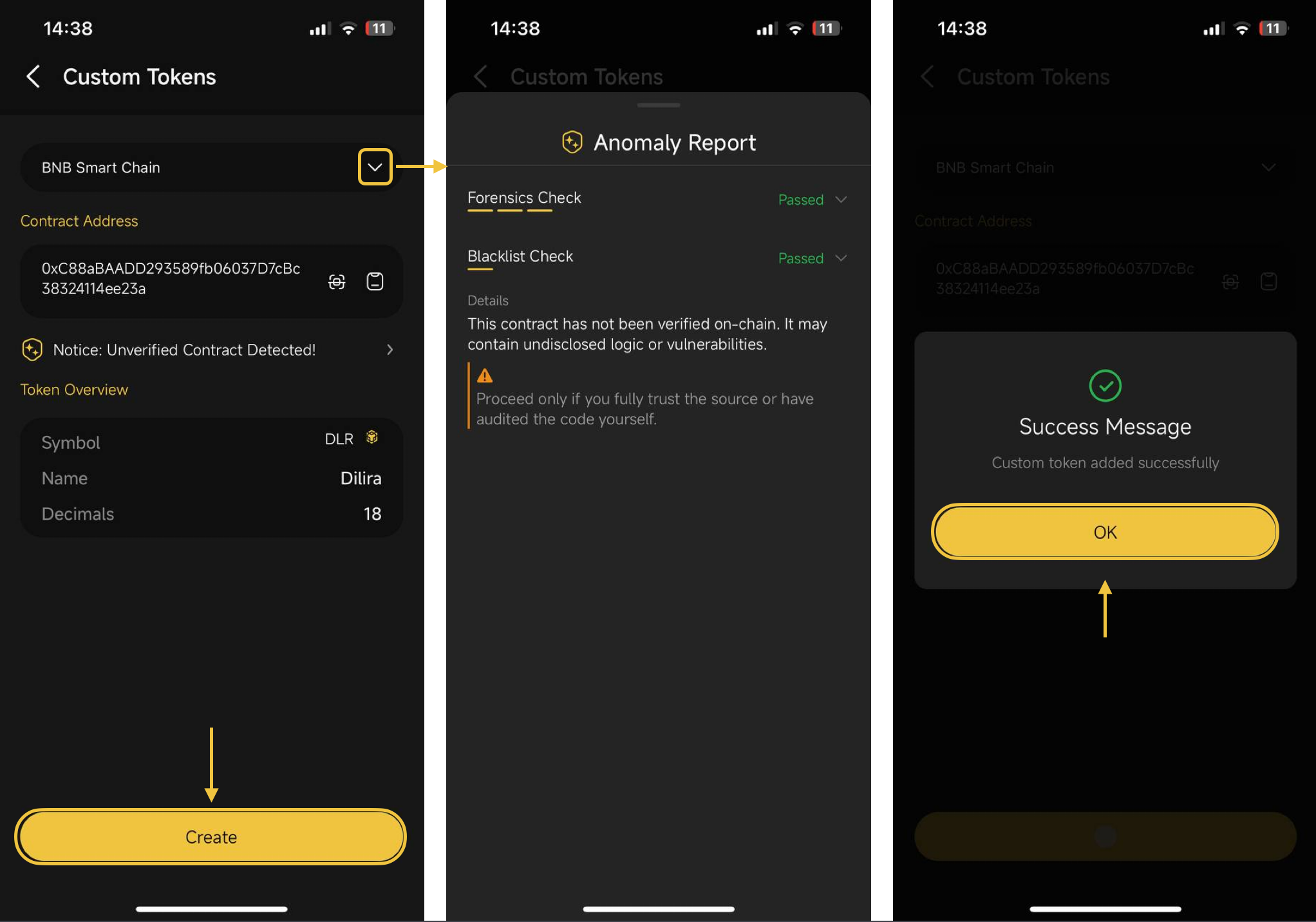
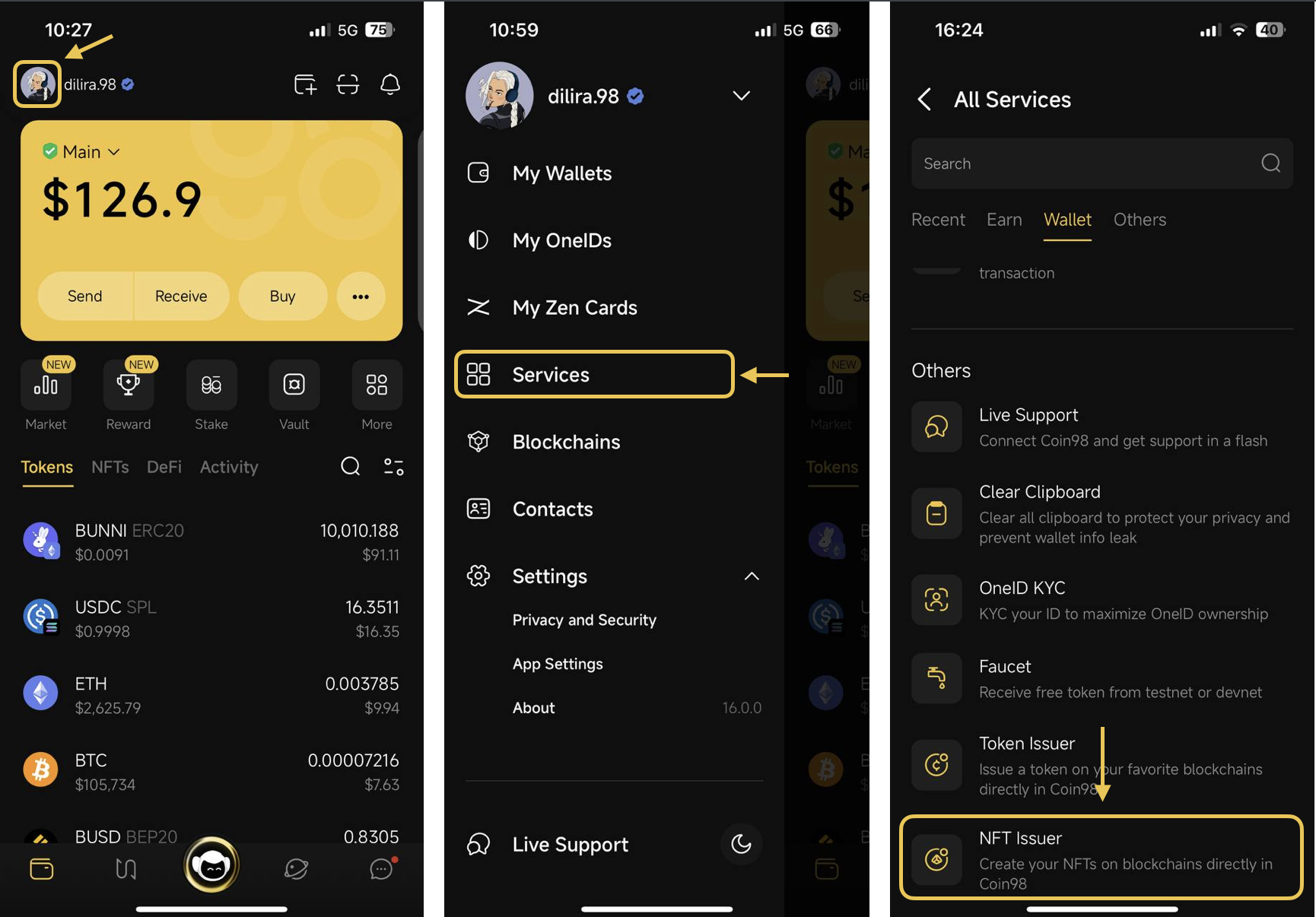
\[5] [**Token Issuer**](https://docs.coin98.com/products/coin98-super-wallet/mobile/asset-management/how-to-create-a-token-using-token-issuer)**:** a tool that helps users create/issue their own token;

\[6] [**NFT Issuer**](https://docs.coin98.com/products/coin98-super-wallet/mobile/nfts/how-to-create-a-nft-using-nft-issuer): a tool that helps users create/issue their own NFT.

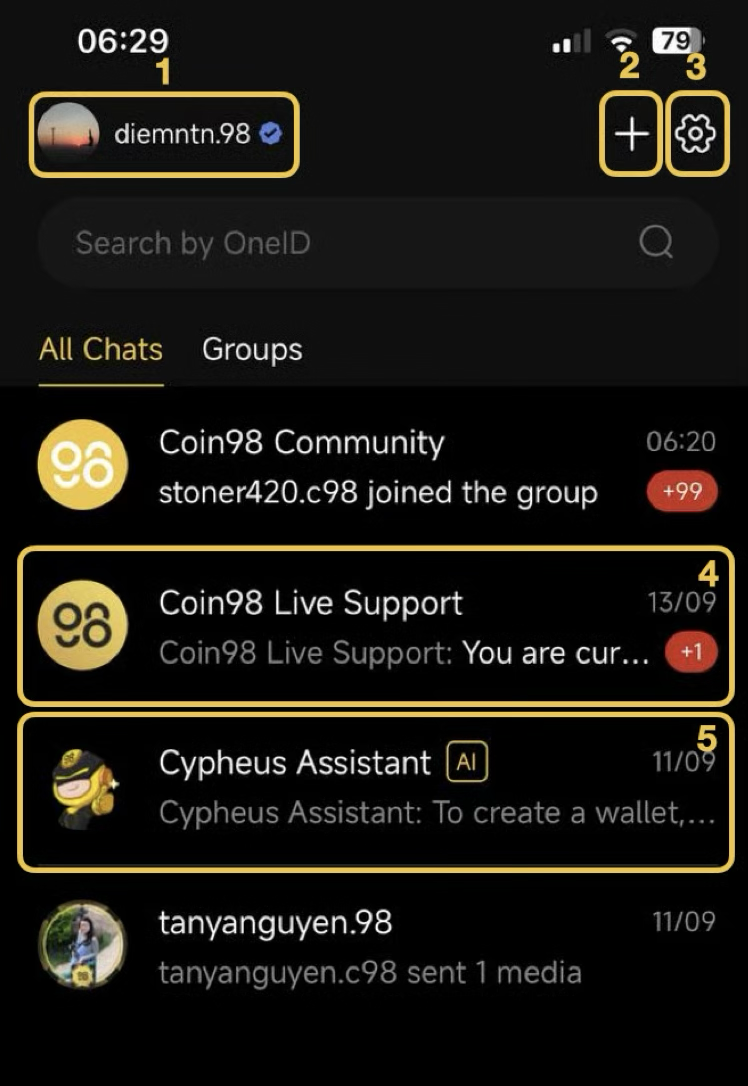
## 5. Coin98 Chat

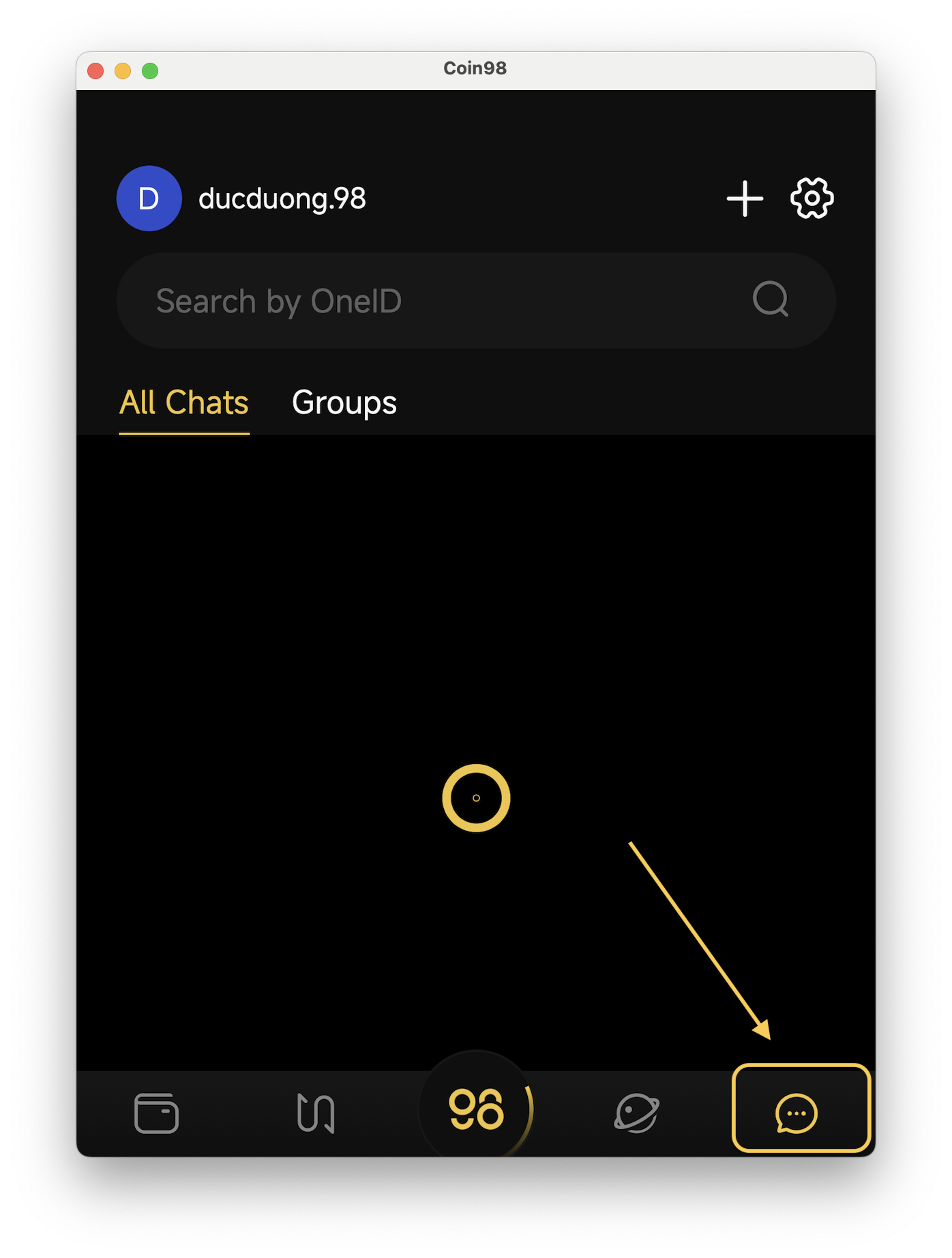
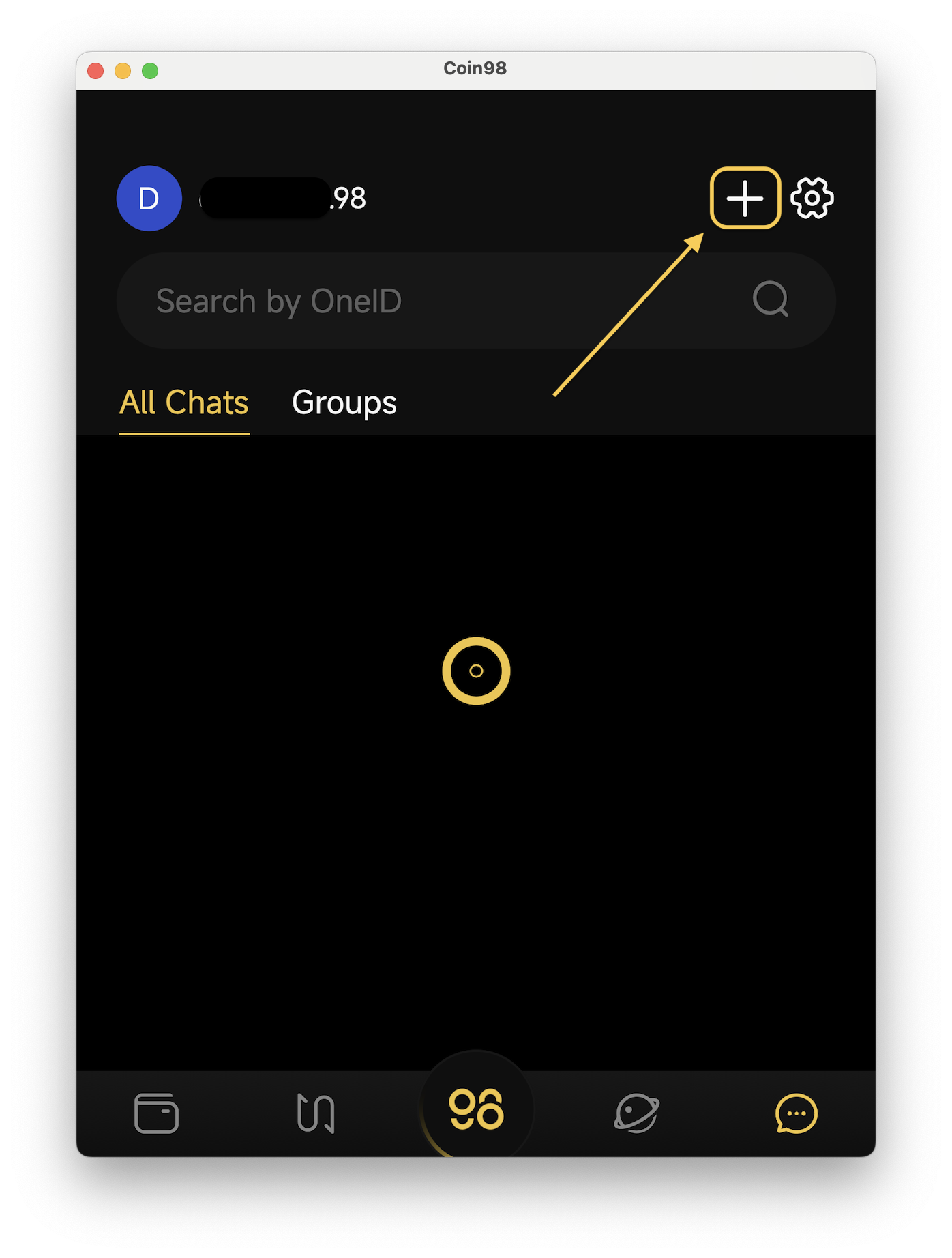
Coin98 Chat allows users to easily connect and chat through OneID.

<figure><img src="https://2549780185-files.gitbook.io/~/files/v0/b/gitbook-x-prod.appspot.com/o/spaces%2FirKWZRA5WMZ5uBeDGB96%2Fuploads%2FVXgsFV7GfljAa8iISxnJ%2FScreenshot%202026-03-18%20at%2015.42.04.png?alt=media&amp;token=97c72748-3cf2-4f57-99b7-f3f666a880e4" alt="" width="228"><figcaption></figcaption></figure>

\[1] **Log in with wallet or OneID;**

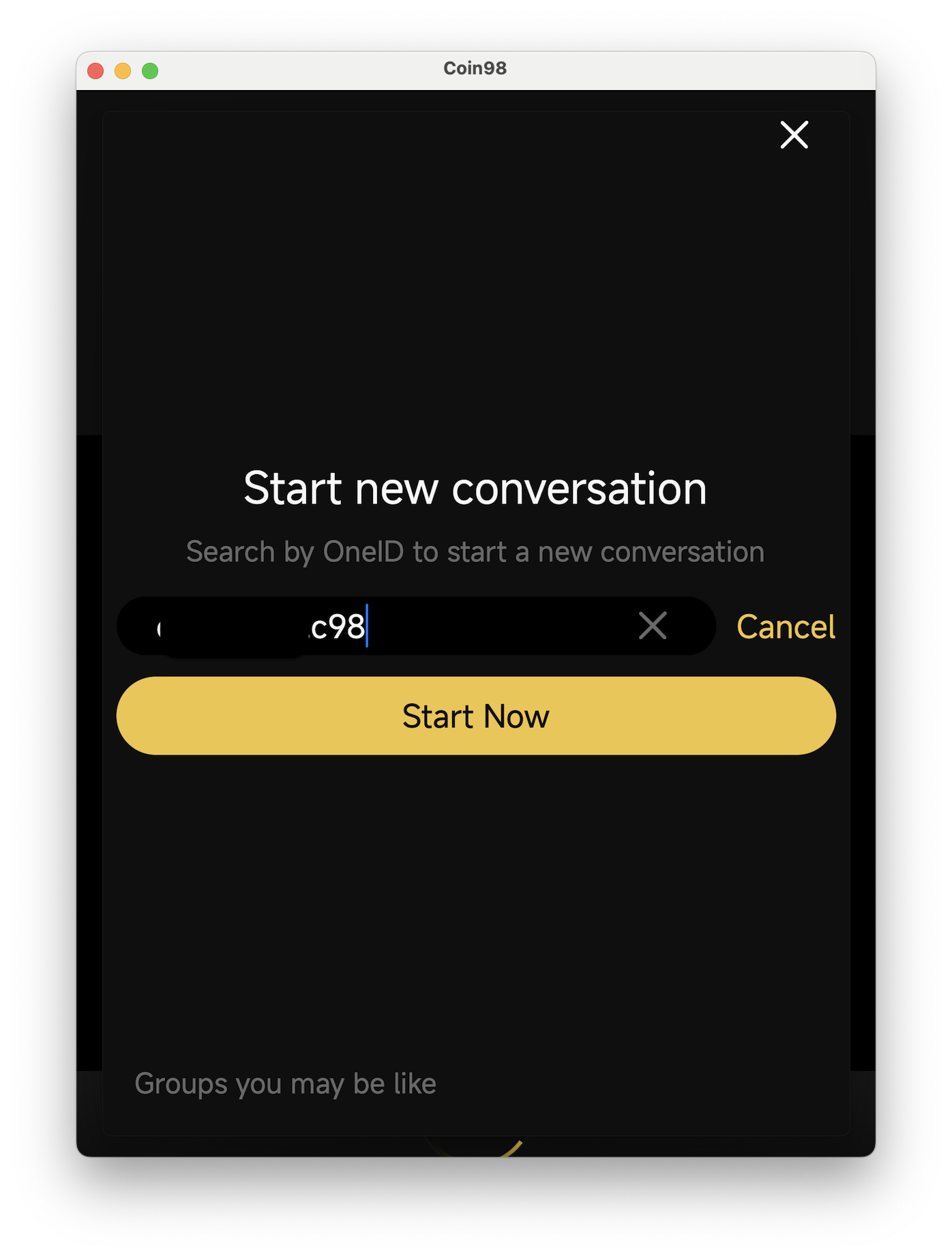
\[2] [**Start a new conversation**](https://docs.coin98.com/products/coin98-super-wallet/mobile/coin98-chat/how-to-start-new-conversation): users can search by OneID to start a new conversation;

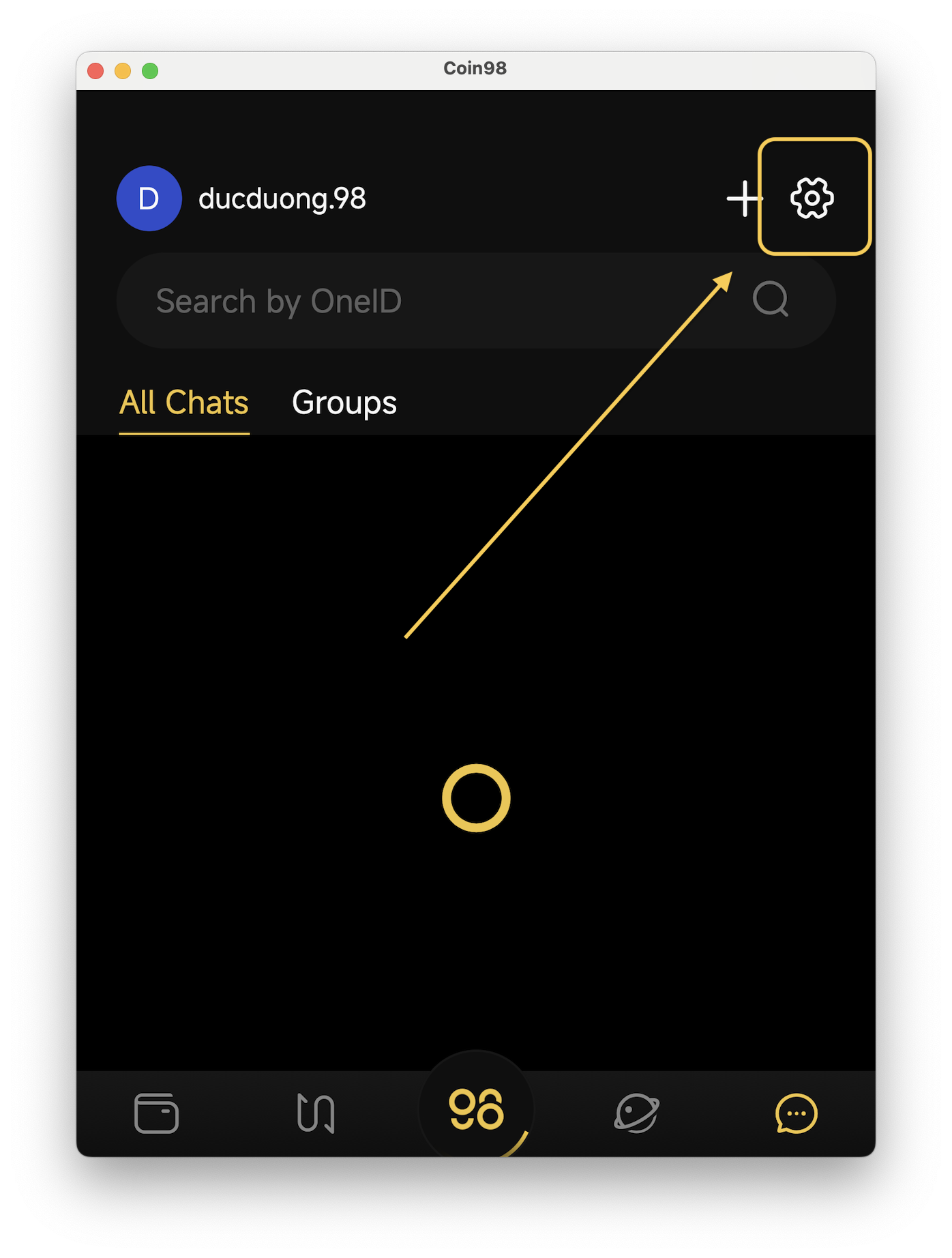
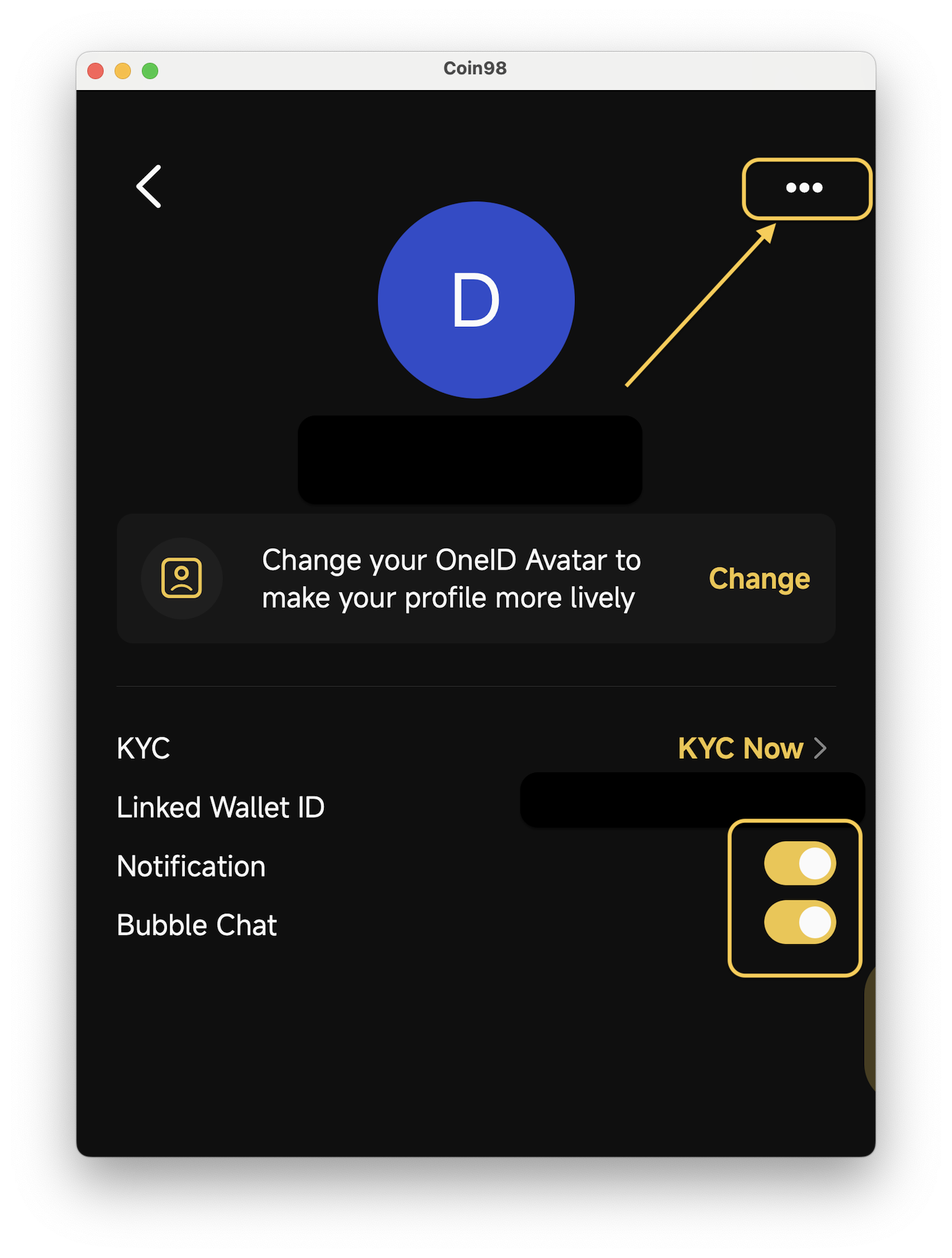
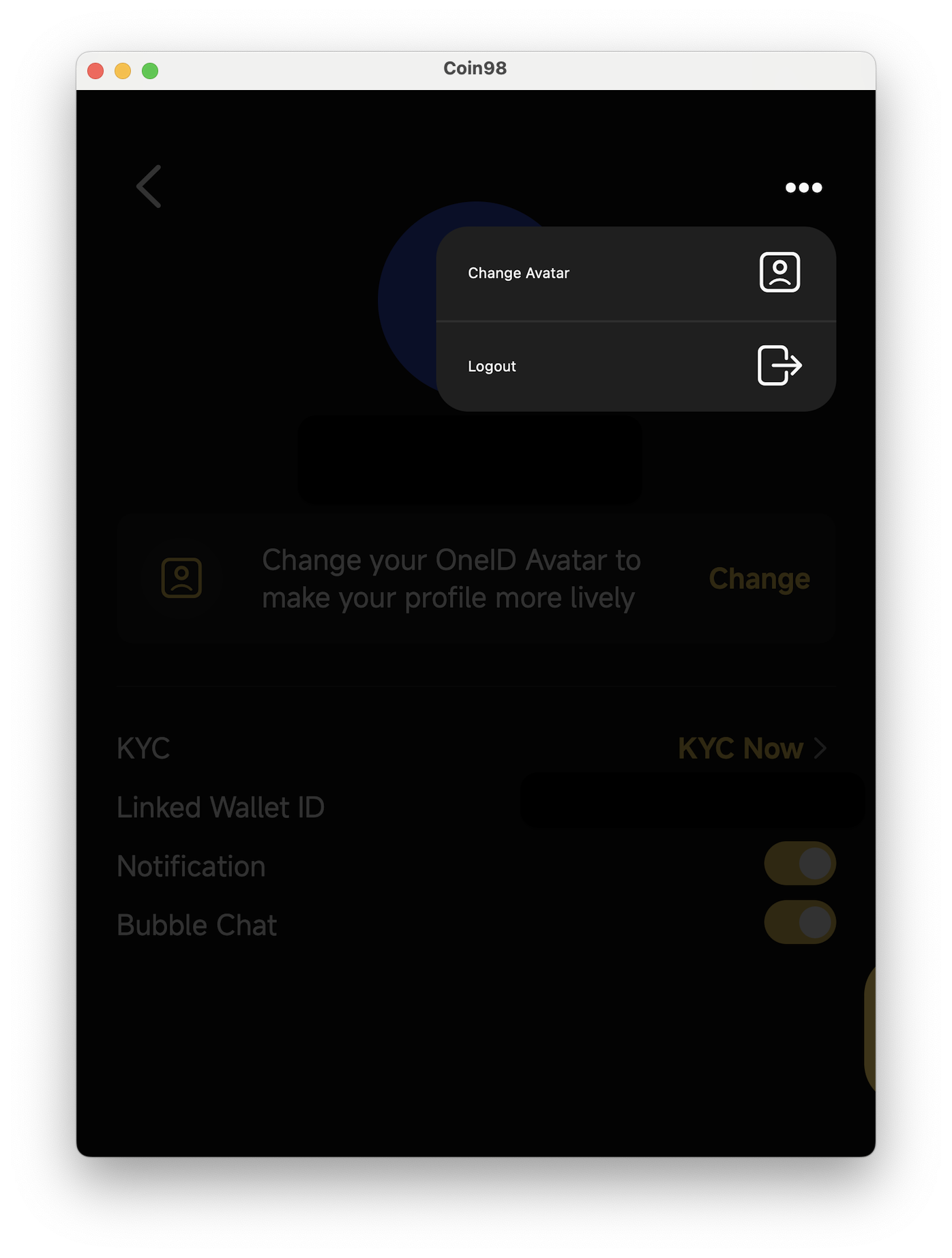
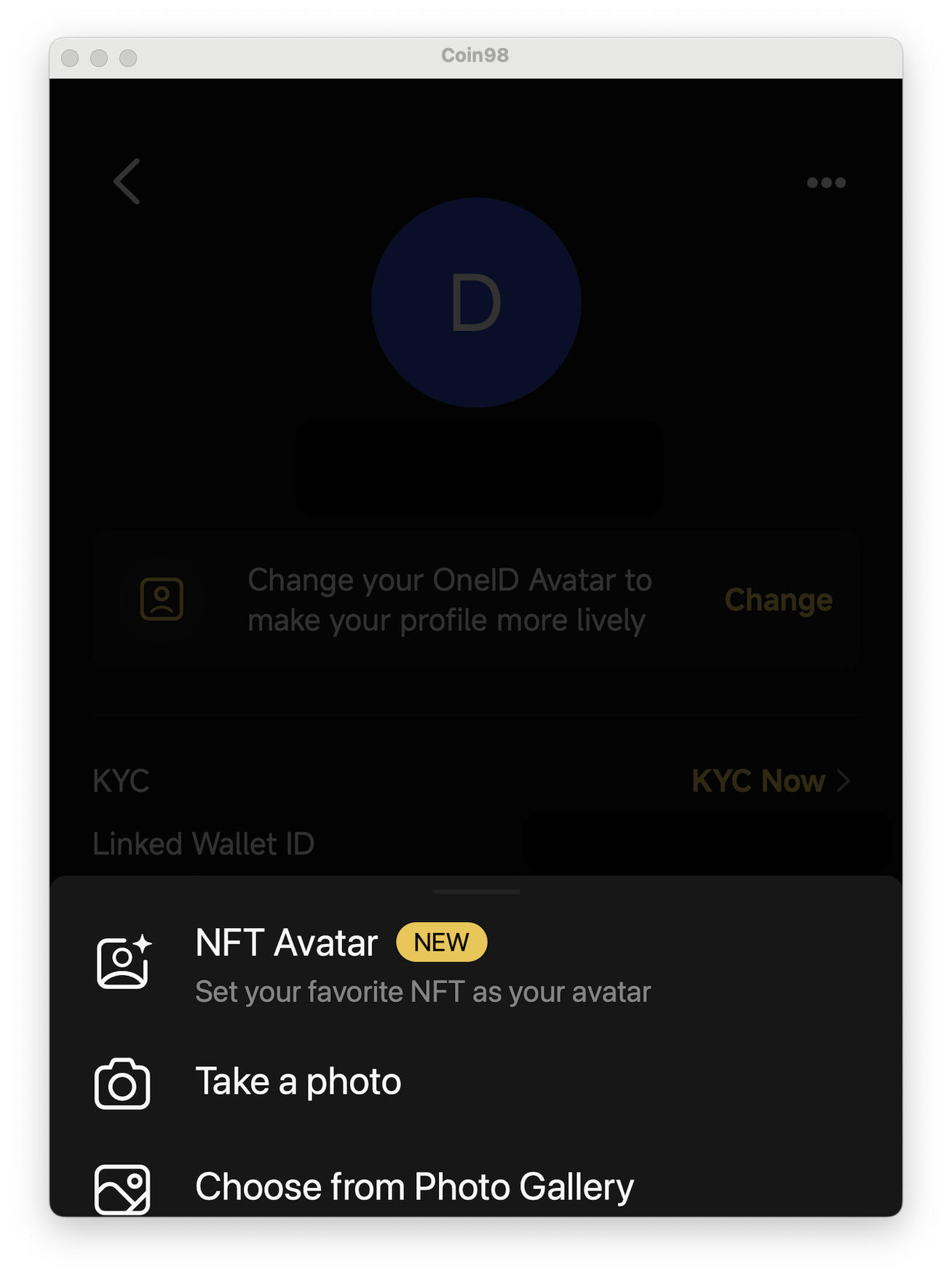
\[3] [**Chat Settings:**](https://docs.coin98.com/products/coin98-super-wallet/mobile/coin98-chat/how-to-change-chat-settings) Users can check OneID’s information including KYC status & linked wallet and set up to receive notifications or change avatar.

<figure><img src="https://2549780185-files.gitbook.io/~/files/v0/b/gitbook-x-prod.appspot.com/o/spaces%2FirKWZRA5WMZ5uBeDGB96%2Fuploads%2FJreUCbXkiZll8KCMgeRP%2Fcoin98-app-messenger-2.png?alt=media&amp;token=a5f2c3aa-8c15-4d80-990d-ad68ddbcfe9f" alt="" width="563"><figcaption></figcaption></figure>

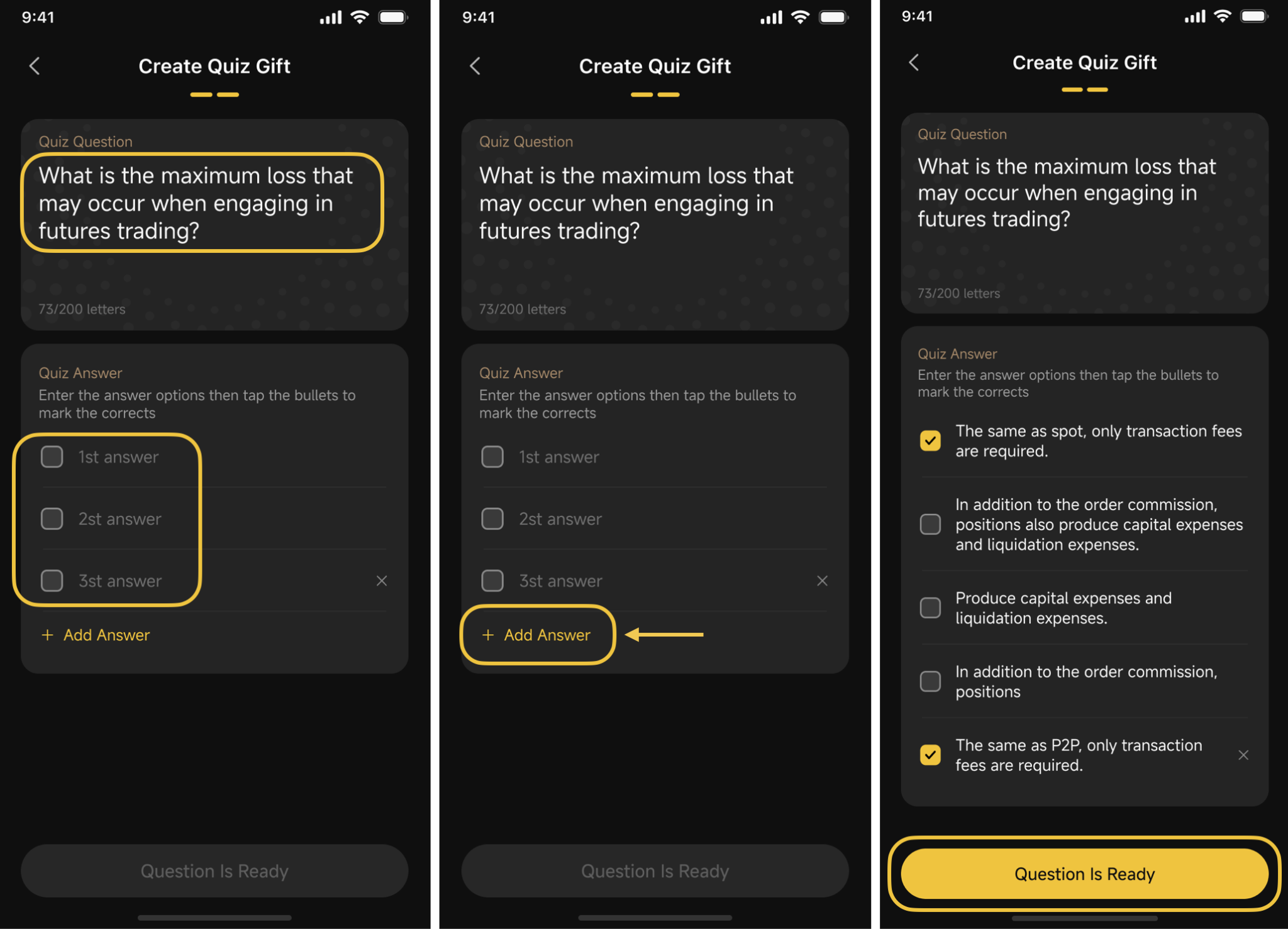
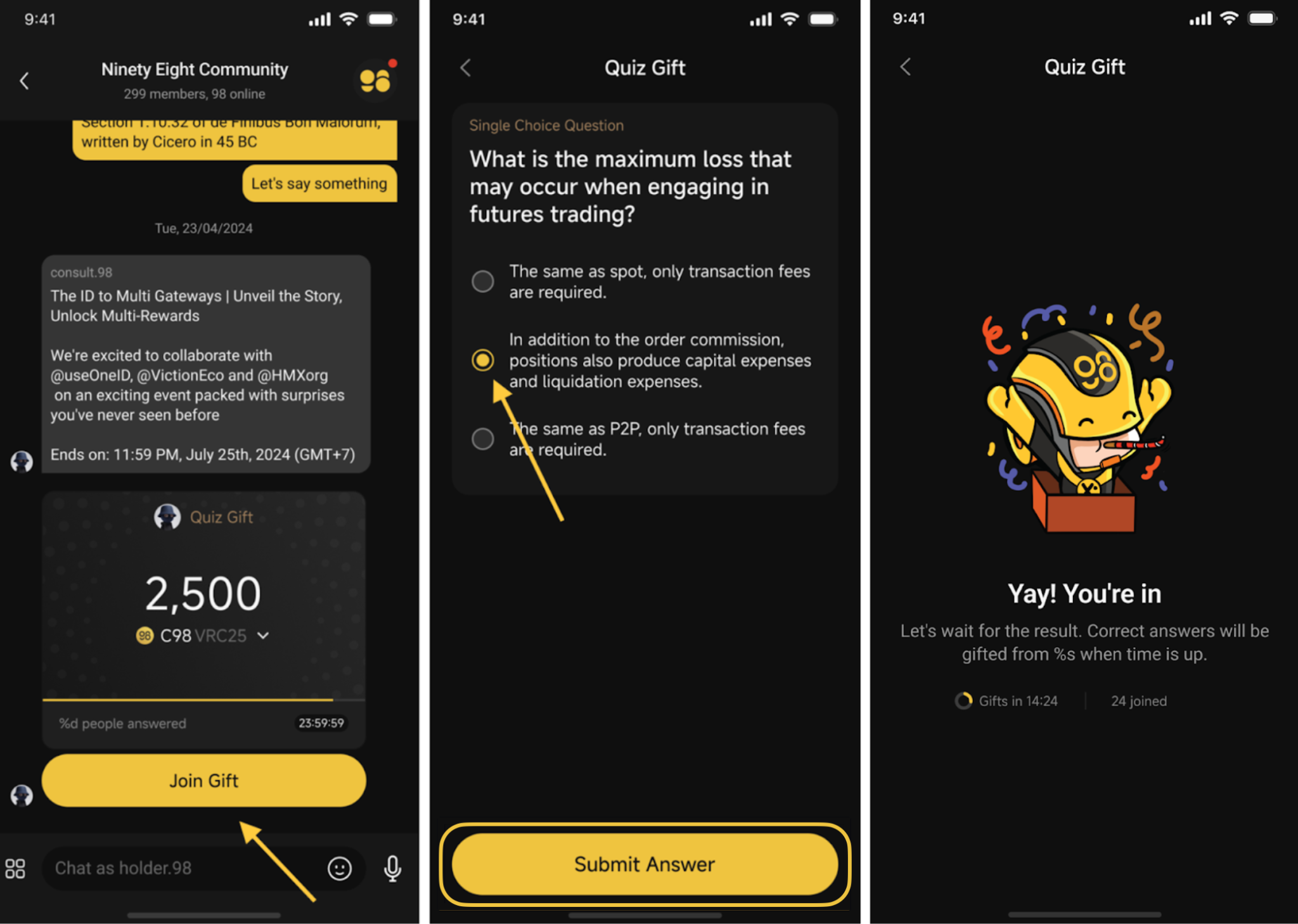
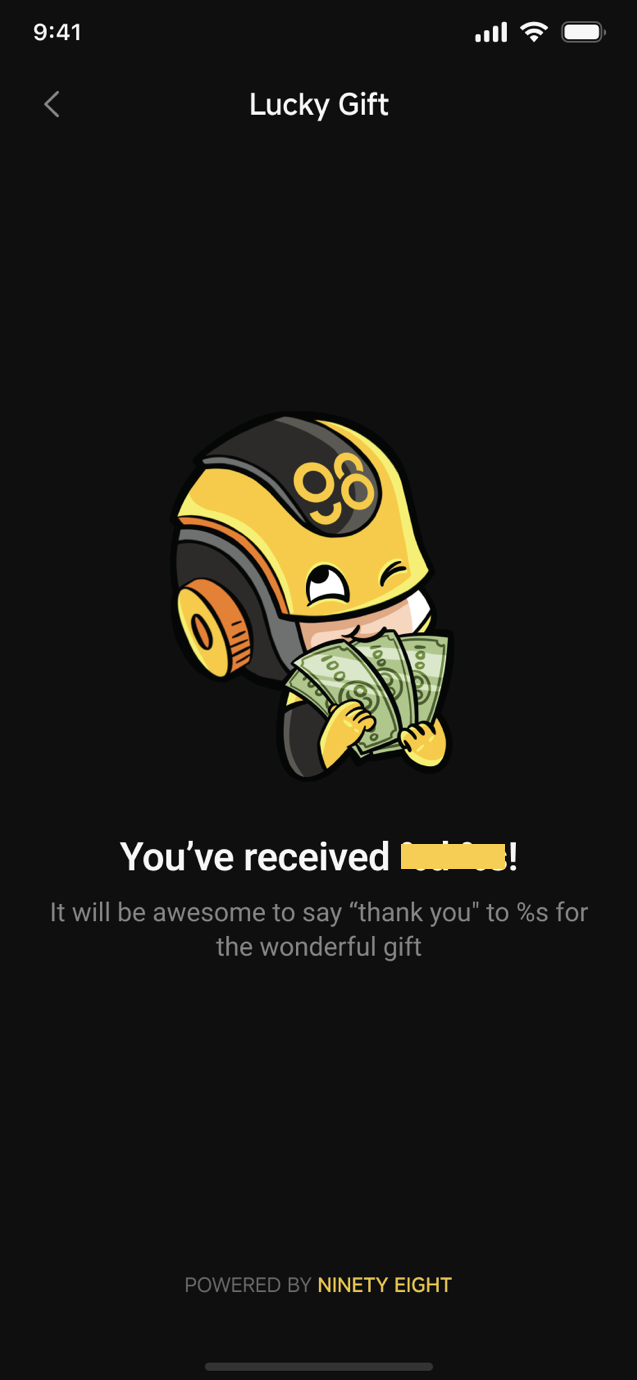
**Community Chat:** users can interact with communities and create gifts to send to the community through features like [Set up](https://docs.coin98.com/products/coin98-super-wallet/mobile/coin98-chat/how-to-set-up-a-lucky-gift) I [Claim](https://docs.coin98.com/products/coin98-super-wallet/mobile/coin98-chat/how-to-receive-a-lucky-gift) Lucky Gift or [Set up](https://docs.coin98.com/products/coin98-super-wallet/mobile/coin98-chat/how-to-set-up-a-quiz-gift) I [Claim](https://docs.coin98.com/products/coin98-super-wallet/mobile/coin98-chat/how-to-receive-a-quiz-gift) Quiz Gift;

**1:1 Chat:** Users can chat directly with each other through their OneID and additionally can send or receive tokens and request others to send assets directly within the chat;

* **Transfer:** transfer tokens to the OneID that you're chatting with,
* **Receive:** create a Send Request for the OneID that you're chatting with;


# Getting Started


# How to download and install Coin98 Super Wallet

## How to download and install Coin98 Super Wallet on Mobile <a href="#docs-internal-guid-9ddb1ed8-7fff-61cd-a78e-5f298f1391b0" id="docs-internal-guid-9ddb1ed8-7fff-61cd-a78e-5f298f1391b0"></a>

Coin98 Super Wallet is now available on the App Store (iOS) and Google Play (Android).

### Android

There are two options to install Coin98:

**Option 1:** Find and select Coin98 Super Wallet by typing *"Coin98"* in the search bar on the Google Play Store app then click on download.

**Option 2:** Click on this link: <https://android.coin98.com> and download.

### iOS

There are two options to install Coin98:

**Option 1:** Find and select Coin98 - Crypto & AI Wallet by typing *"Coin98"* in the search bar on the App Store, then click on download.

**Option 2:** Click on this link: <https://ios.coin98.com> and download.


# General Settings

### Where can I find Settings? <a href="#where-can-i-find-settings" id="where-can-i-find-settings"></a>

You can access the Settings section by following the steps:

**Step 1:** Click on the icon at the top left corner of the main screen

**Step 2:** Click **Settings**

<figure><img src="https://2549780185-files.gitbook.io/~/files/v0/b/gitbook-x-prod.appspot.com/o/spaces%2FirKWZRA5WMZ5uBeDGB96%2Fuploads%2FR9TwtOONWUehGdmbpdZJ%2FScreenshot%202026-04-09%20at%209.38.23%E2%80%AFAM.png?alt=media&amp;token=4b9e9c57-fdfe-4cb0-aa81-d6a0aa9b54a9" alt=""><figcaption></figcaption></figure>

### What can I do in the Settings? <a href="#what-can-i-do-in-the-settings" id="what-can-i-do-in-the-settings"></a>

**Set up your Privacy and Security Settings**

1. Set up and change PIN Code:  6-digits
2. Set up FaceID/Fingerprint: Only displayed on the devices that support these features
3. Authenticate to access the app: Only displayed after FaceID or Fingerprint is set up. The app will automatically require FaceID or Fingerprint upon opening the app
4. Auto-lock: This setting allows the app to lock after a specified period of inactivity. If the Never option is selected, FaceID or Fingerprint authentication will only be required upon reopening the app after closing it.

{% hint style="info" %}

* You can remove these settings whenever you want, simply by turning off Set up FaceID or Fingerprint. The app will then require your PIN Code for verification before restoring your settings to the original condition.
* We strongly recommend keeping the PIN Code & Biometrics Authentication activated to prevent risks of losing your assets.
  {% endhint %}

**App Settings**

1. General Settings: Set your app's currency and mode (dark/light mode)
2. Change your language: The supported languages in Coin98 Super Wallet include Vietnamese, English, Chinese, Japanese, Korean, Turkish, Thai, Spanish, Indonesian, Greek, Portuguese, French, and coming soon.
3. Set up your Privacy and Security Settings
4. Manage blockchains: Activate chains according to your preference
5. Rate the app

<figure><img src="https://2549780185-files.gitbook.io/~/files/v0/b/gitbook-x-prod.appspot.com/o/spaces%2FirKWZRA5WMZ5uBeDGB96%2Fuploads%2FSY4D5CJXJD2Q6VEtSJbl%2Fimage.png?alt=media&amp;token=e55e02b4-a14c-4f82-bd79-cefe8242c469" alt="" width="563"><figcaption></figcaption></figure>


# How to automatically update Coin98 Super Wallet

New features of Coin98 Super Wallet are updated very often. After installing, you can enable Auto-Update on both iOS and Android operating systems to always enjoy the latest version of the application.

### iOS

**Step 1:** Open Settings on your iPhone.

**Step 2:** Select AppStore → After sliding, turn on "Auto-Update".

![](https://lh3.googleusercontent.com/y9jqKgEy90_T6NZie1QPMHjKdoHlDNpaxy5wf-izVVrSG5P8nHbSvws75apxO0ML5Xj1qp4XjvUGViDDYKjWaD-0lFbbrKMebWyGgwR3giyq9fKW5P09gnrwMauNouc_6xhSOjzk=s1600)

### Android

**Step 1:** Open the Google Play Store app.

**Step 2**: Search "Coin98" and select Coin98 Super Wallet

**Step 3:** Click on the three dots icon in the upper right corner.

**Step 4**: Select Enable Auto-Update.<br>

<br>

![](https://lh5.googleusercontent.com/FEcdKJdLRKZbkXV_fXjSVgVDd1gEabkgQEzjjjKcDWSRSHDL9Ed3dGPLd6p8E-t54dIpFQrsfLPFB7J-1YbBYWX9Xy2ZG6zOLu5eIyejv7sROan3WJWM4XUvGsv5yuteBh5CjnZo=s1600)


# How to manage notifications on Coin98 Super Wallet

### Notification Management

The push notification feature is now available on Coin98 Super Wallet, allowing users to receive notification messages for various on-chain activities performed on their wallets, such as token/NFT transfer, swap, approval, etc., as well as exciting news like campaigns, new feature updates, and important announcements from Coin98.

Currently, this feature is available for Ethereum, BNB Smart Chain, Viction, Arbitrum, Avalanche C-Chain, Fantom, Optimism, and Polygon. More chains are coming soon.

### How to manage In-App Notifications

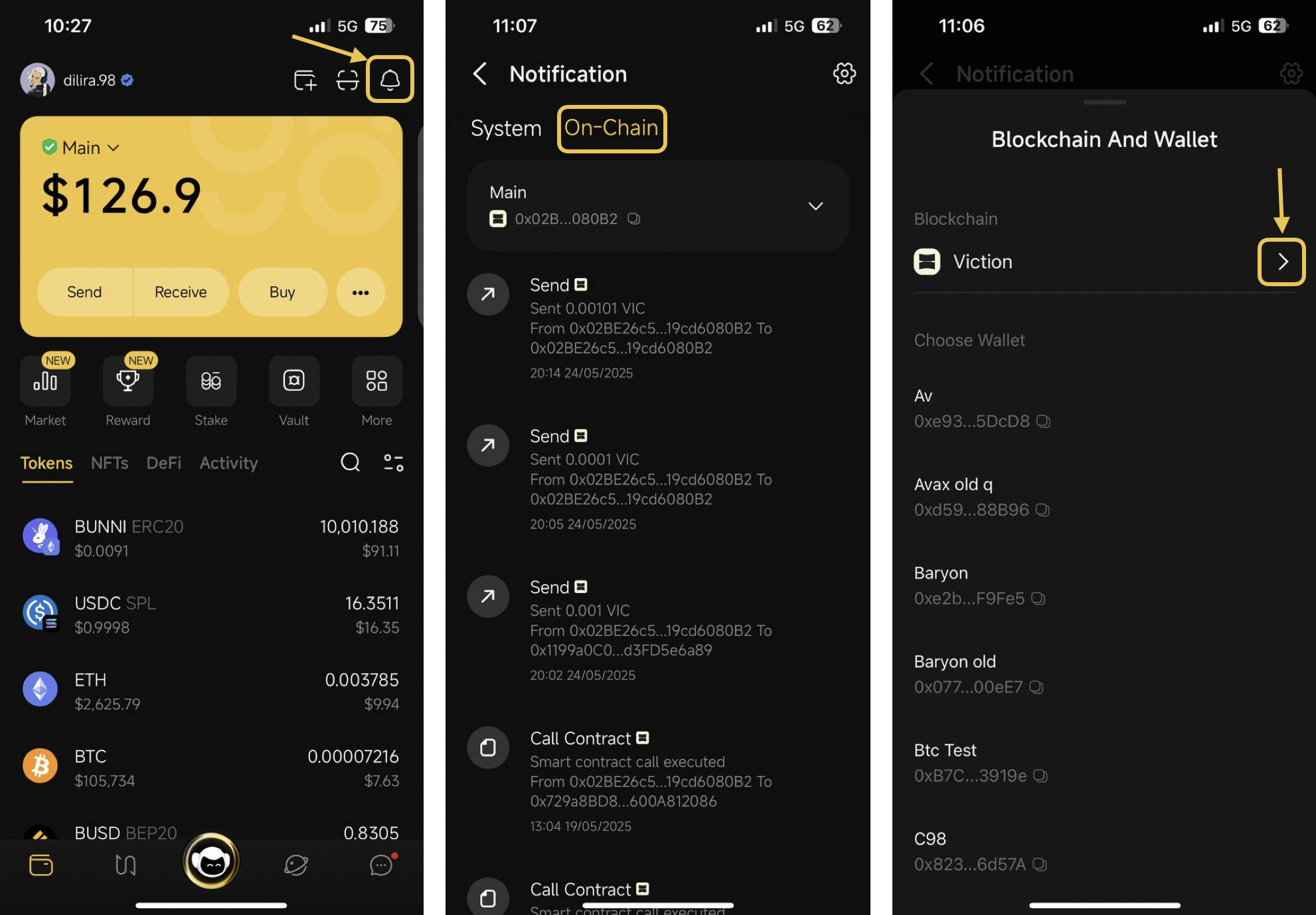
**Step 1**: Open the app and click the notification icon at the top right corner.

**Step 2:** Click the settings icon at the top right corner.

**Step 3**: Toggle the button next to the wallets for which you wish to receive notifications.

<figure><img src="https://2549780185-files.gitbook.io/~/files/v0/b/gitbook-x-prod.appspot.com/o/spaces%2FirKWZRA5WMZ5uBeDGB96%2Fuploads%2FCyuYWFQ4VR91STUEw7gq%2FScreenshot%202026-04-09%20at%209.43.46%E2%80%AFAM.png?alt=media&amp;token=e6c4a24a-5087-4fa0-9173-27239b694219" alt="" width="563"><figcaption></figcaption></figure>

#### How to check on-chain activities

**Step 1:** Open the app and click the notification icon at the top right corner.

**Step 2**: Select the "On-chain" tab and click the ">" icon next to the current wallet

<figure><img src="https://2549780185-files.gitbook.io/~/files/v0/b/gitbook-x-prod.appspot.com/o/spaces%2FirKWZRA5WMZ5uBeDGB96%2Fuploads%2FrT1e2VNCVmHjza5aPVfx%2FScreenshot%202026-04-09%20at%209.45.37%E2%80%AFAM.png?alt=media&amp;token=cd8eed57-700f-43b2-ba0c-65720a1961fc" alt="" width="563"><figcaption></figcaption></figure>

**Step 3:** Select the blockchain and the wallet you want to check transactions.

<figure><img src="https://2549780185-files.gitbook.io/~/files/v0/b/gitbook-x-prod.appspot.com/o/spaces%2FirKWZRA5WMZ5uBeDGB96%2Fuploads%2F3Cf2kdCMDFq269eE64hh%2FScreenshot%202025-06-09%20at%204.10.08%E2%80%AFPM.png?alt=media&amp;token=780b3c45-d1db-42d5-84df-10057772d50f" alt="" width="563"><figcaption></figcaption></figure>

You can also check official announcements on the System tab of the Notification section.

<figure><img src="https://2549780185-files.gitbook.io/~/files/v0/b/gitbook-x-prod.appspot.com/o/spaces%2FirKWZRA5WMZ5uBeDGB96%2Fuploads%2FsgXOnU8rvwUoWpJKV4x0%2FScreenshot%202026-04-09%20at%209.46.50%E2%80%AFAM.png?alt=media&amp;token=7685216c-1e7a-40cc-91f6-27053296e44a" alt="" width="375"><figcaption></figcaption></figure>


# How to create or import a Multichain Wallet to Coin98 Super Wallet

## Introduction

With the increasing number of public chains, most users prefer to hold multiple digital assets of the public chain at the same time. If each digital asset of a chain is placed in a single-chain wallet for storage and circulation, multiple assets would need to have multiple wallets. It is clearly very cumbersome for users to install and with multiple corresponding single-chain wallets at the same time, so we - **Coin98 Super Wallet,** have developed a multi-chain wallet to help users both hold and interact easily.

## What is a Multi-Chain Wallet?

A Multi-Chain Wallet allows users to keep more than one crypto asset belonging to multiple blockchain networks.

Our latest version supports more than 100 blockchains such as Bitcoin, Ethereum, BNB Smart Chain, Solana, Near, Avalanche, TRON, Polygon, Fantom, Heco Chain, OKExChain, GateChain, KuCoinChain, xDaiChain, Polkadot, Kusama, Cosmos, THORChain, Terra, BandChain, Kava, Persistence, Viction, KardiaChain, Ronin, Celo, Klaytn, Harmony, Optimism, Boba Network, Arbitrum, Arbitrum on xDai, Cronos, PlatON, Moonbeam, Bittorrent, TON, Terra 2.0, etc

## **Step-by-step to create a Multi-chain wallet**

Coin98 Super Wallet supports the following wallet types:

1. Social Wallet
2. Hot Wallet
3. Zen Card
4. Hardware Wallet
5. Watch-only

In this article, we will guide you on how to create a Hot Wallet. You can refer to the links below for instructions on other types of wallets.

{% content-ref url="/pages/ps0w5T4JXtsotiED1i7H" %}
[How to create a Social Wallet](/products/coin98-super-wallet/mobile/social-wallet/how-to-create-a-social-wallet-1)
{% endcontent-ref %}

{% content-ref url="/pages/Wr1zyonkALfHqEzZdXSi" %}
[How to Create a Zen Card Wallet](/products/physical-cards/hybrid-wallet/zen-card-beginner-guide/how-to-create-a-zen-card-wallet)
{% endcontent-ref %}

{% content-ref url="/pages/v8zbXzHViQw1HvRhvlsz" %}
[How to use Watch-only Wallet](/products/coin98-super-wallet/mobile/wallet-management/how-to-use-watch-only-wallet-1)
{% endcontent-ref %}

{% content-ref url="/pages/PjJarYF8IxsqTKrHzUMB" %}
[How to connect Hardware Wallet on Coin98 Super Wallet](/products/coin98-super-wallet/mobile/wallet-management/connect-hardware-wallet-ledger-1)
{% endcontent-ref %}

**Step 1:** Download the Coin98 Super Wallet;

{% embed url="<https://apps.apple.com/us/app/coin98-wallet/id1561969966>" %}

{% embed url="<https://play.google.com/store/apps/details?id=coin98.crypto.finance.media>" %}

**Step 1**: At the top right corner of the home page, choose **Add Wallet** icon

**Step 2:** Click **Create a New Wallet**, then select your desired wallet type&#x20;

If you're unclear about these wallet types, you can refer to a wallet comparison by clicking the icon in the top right corner.

<figure><img src="https://2549780185-files.gitbook.io/~/files/v0/b/gitbook-x-prod.appspot.com/o/spaces%2FirKWZRA5WMZ5uBeDGB96%2Fuploads%2FbQzYp9IIS2muSJbXcNDF%2FScreenshot%202026-04-09%20at%209.53.23%E2%80%AFAM.png?alt=media&amp;token=406423ae-5ef2-4a6e-9667-602891a3f933" alt=""><figcaption></figcaption></figure>

**Step 3**: Select the blockchain you'd like to create, and choose Seed Phrase Type. As this guide focuses on creating a Multichain wallet, choose **Multichain** and click **Continue**

{% hint style="info" %}
Coin98 supports generating 2 types of Seed Phrases: 12 words and 24 words. The 24-word seed phrase is set as default when creating Hot and Zen Wallet.
{% endhint %}

**Step 4:** Read the warnings carefully, click **Reveal my seed phrase,** and backup Seed phrase/Private Keys in a safe place.
{% hint style="danger" %}
**Important note:**

Please pay attention to every word and make sure you back up the Seed Phrase correctly and in a safe place.
{% endhint %}

**Step 5:** Verify the seed phrase and click **Confirm** to complete

<figure><img src="https://2549780185-files.gitbook.io/~/files/v0/b/gitbook-x-prod.appspot.com/o/spaces%2FirKWZRA5WMZ5uBeDGB96%2Fuploads%2Fi9uapPf3XMp1622ck0h0%2FScreenshot%202026-09-11%20at%2011.13.33%E2%80%AFAM.png?alt=media&amp;token=7c03aae3-9ac7-48cf-befb-35e07f6c2f5e" alt=""><figcaption></figcaption></figure>

After created successfully, your wallet will be shown automatically in the All Wallets section.

{% hint style="info" %}

* Once your wallet has been successfully created, a pop-up will appear prompting you to back up its seed phrase via Cloud.
* This provides an additional layer of protection in case your seed phrase is lost, enabling you to recover your wallet using the Cloud backup feature.

{% endhint %}

<figure><img src="https://2549780185-files.gitbook.io/~/files/v0/b/gitbook-x-prod.appspot.com/o/spaces%2FirKWZRA5WMZ5uBeDGB96%2Fuploads%2FvT2jdPBihxnouaxlAPWp%2Fimage.png?alt=media&amp;token=16d76ac6-0a35-43a4-a079-144970864eba" alt="" width="296"><figcaption></figcaption></figure>

## **Step-by-step to import a Multi-chain wallet**

If you already have a wallet, you can simply import it to Coin98 Super Wallet to store coins/tokens as well as experience multiple AMMs and the Web3 Dapp Browser directly on the Mobile App.

To import a wallet to Coin98 Super Wallet, you need its **Seed phrase**. Therefore, you should store the Seed phrase carefully from the moment of creating the wallet.

{% hint style="info" %}
Seed phrase and Private Key are security keys that can be understood as a type of password in which the Seed phrase consists of 12 random English keywords, while the Private Key consists of a string of letters and numbers.

If you want to restore access to your wallets, you must have ownership of the Seed phrases (used for restoring both Single Chain Wallet and Multichain Wallet) or Private Key (only used for restoring Single Chain Wallet).
{% endhint %}

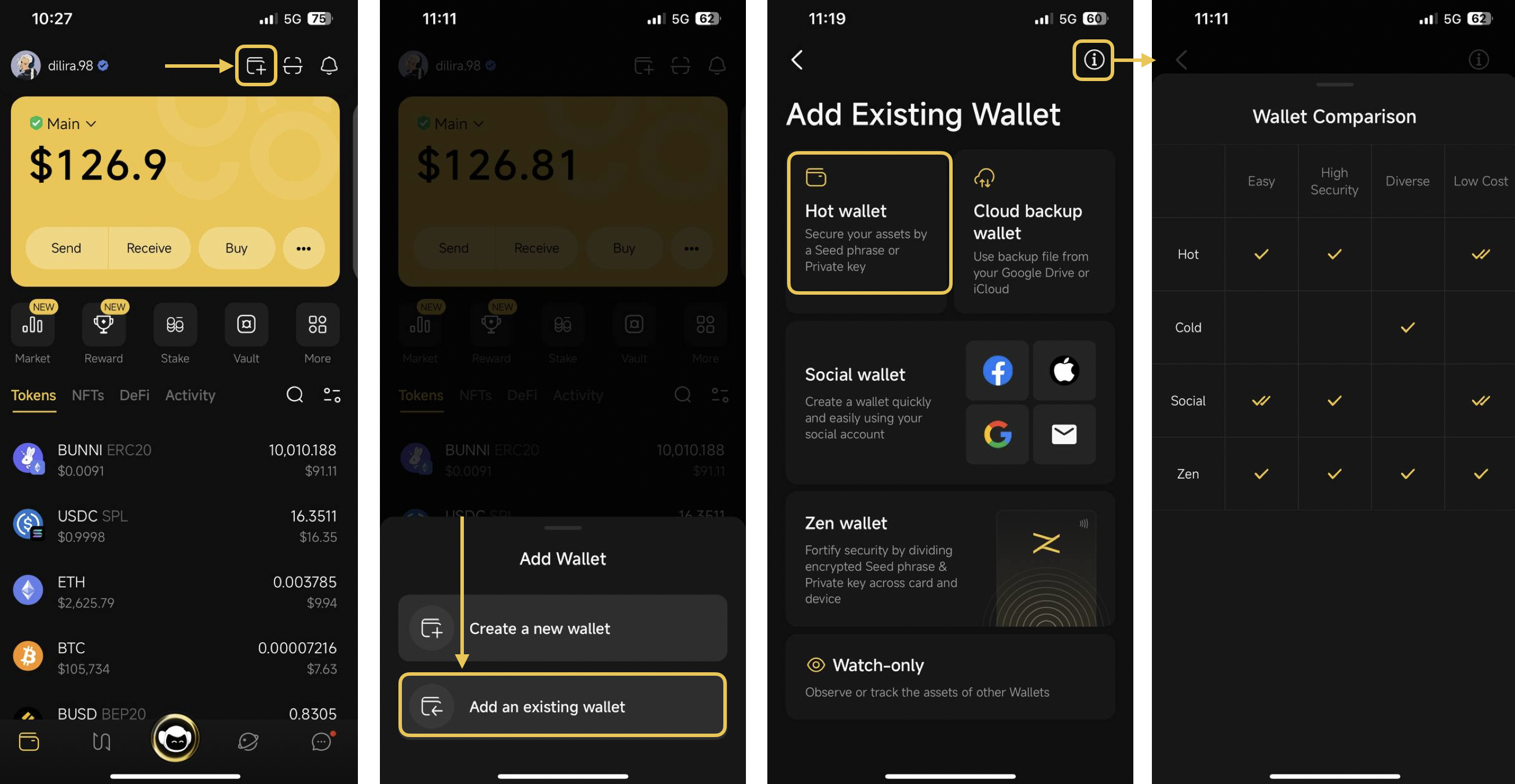
**Step 1**: At the top right corner of the home page, choose **Add Wallet** icon

**Step 2:** Click **Add an Existing Wallet**, then select your desired wallet type&#x20;

If you're unclear about these wallet types, you can refer to a wallet comparison by clicking the icon in the top right corner.

<figure><img src="https://2549780185-files.gitbook.io/~/files/v0/b/gitbook-x-prod.appspot.com/o/spaces%2FirKWZRA5WMZ5uBeDGB96%2Fuploads%2F4NWrKvg0UgnUkFwMSo8s%2FScreenshot%202026-04-09%20at%209.56.45%E2%80%AFAM.png?alt=media&amp;token=b2f25347-bb57-4941-995d-5100340159b6" alt=""><figcaption></figcaption></figure>

**Step 3:** Name the walle and choose **Multi-Chain**

**Step 4:** Paste Seed Phrase into the Seed Phrase box and click **Restore** to complete.

<figure><img src="https://2549780185-files.gitbook.io/~/files/v0/b/gitbook-x-prod.appspot.com/o/spaces%2FirKWZRA5WMZ5uBeDGB96%2Fuploads%2F9vU52kpFak1BBjHFQPTN%2FScreenshot%202025-06-09%20at%204.57.49%E2%80%AFPM.png?alt=media&amp;token=a0bb776d-8c69-4351-9d38-13bb75927d81" alt=""><figcaption></figcaption></figure>

{% hint style="warning" %}
**Note:**&#x20;

Coin98 supports 2 import options (New Standard or Old Standard) for each wallet on some blockchains such as Bitcoin, Solana, Avalanche C-chain, Viction (formerly Tomochain), Celo, Injective, The Open Network, Tron, Persistence and Aptos (including Aptos Testnet, Aptos Devnet and Aptos mainnet). If the correct standard is not selected, the wallet cannot be properly recovered.
{% endhint %}

<figure><img src="https://2549780185-files.gitbook.io/~/files/v0/b/gitbook-x-prod.appspot.com/o/spaces%2FirKWZRA5WMZ5uBeDGB96%2Fuploads%2FYFjc91kLSazFop2R4GcG%2FScreenshot%202025-06-09%20at%204.59.37%E2%80%AFPM.png?alt=media&amp;token=a655ae39-868b-4fcd-ae93-d05f5a5943c8" alt="" width="563"><figcaption></figcaption></figure>


# How to Log In

### Overview

You can now log in using your Multichain wallets to access chat features, save personalized settings, and unlock additional functionalities.

### How It Works

#### 1. Wallet NOT linked to OneID

If your multichain wallet is not linked to any OneID, your username will be auto-generated with the format:

```
[First 4 characters of EVM address (without 0x)] + [Last 4 characters of EVM address]
```

*Example:*

* *Wallet address: 0x71079E7acaB18242B292DbFb451c25155b8fC7c2*
* *Username: 7107C7c2*

You can update your username by purchasing a OneID and linking it to your wallet after logging in.

#### 2. Wallet linked to OneID

If your wallet is already linked to one or more OneIDs:

* Your username is the linked OneID
* If multiple OneIDs are linked, the primary OneID will be used as your username.

*Example:*

* *Linked OneID: csw\.98*
* *Username: csw\.98*

### How to Log In

Follow these steps to log in with your wallet:

**Step 1:** Download and install the app

{% embed url="<https://docs.coin98.com/products/coin98-super-wallet/mobile/getting-started/how-to-download-install>" %}

**Step 2**: Create or import your multichain wallet

{% embed url="<https://docs.coin98.com/products/coin98-super-wallet/mobile/getting-started/v15-how-to-create-or-import-a-multichain-wallet>" %}

**Step 3:** Click **Log in with wallet** at the top left corner

**Step 4:** Select the wallet you want to log in with

<figure><img src="https://2549780185-files.gitbook.io/~/files/v0/b/gitbook-x-prod.appspot.com/o/spaces%2FirKWZRA5WMZ5uBeDGB96%2Fuploads%2F1xSq0xlUTeHfT4xmDeBh%2Funknown.png?alt=media&amp;token=b81e3459-8f51-423c-868e-1945024c8c32" alt=""><figcaption></figcaption></figure>

Once logged in, your username will automatically reflect on your main screen

{% hint style="info" %}
**Note:**

* If your wallet’s linked OneID changes, your username will update automatically
* You can log in with any Multichain wallet available on your device
* You can only log in with 1 wallet at a time, logging in with a new wallet will log out the previous one.
  {% endhint %}

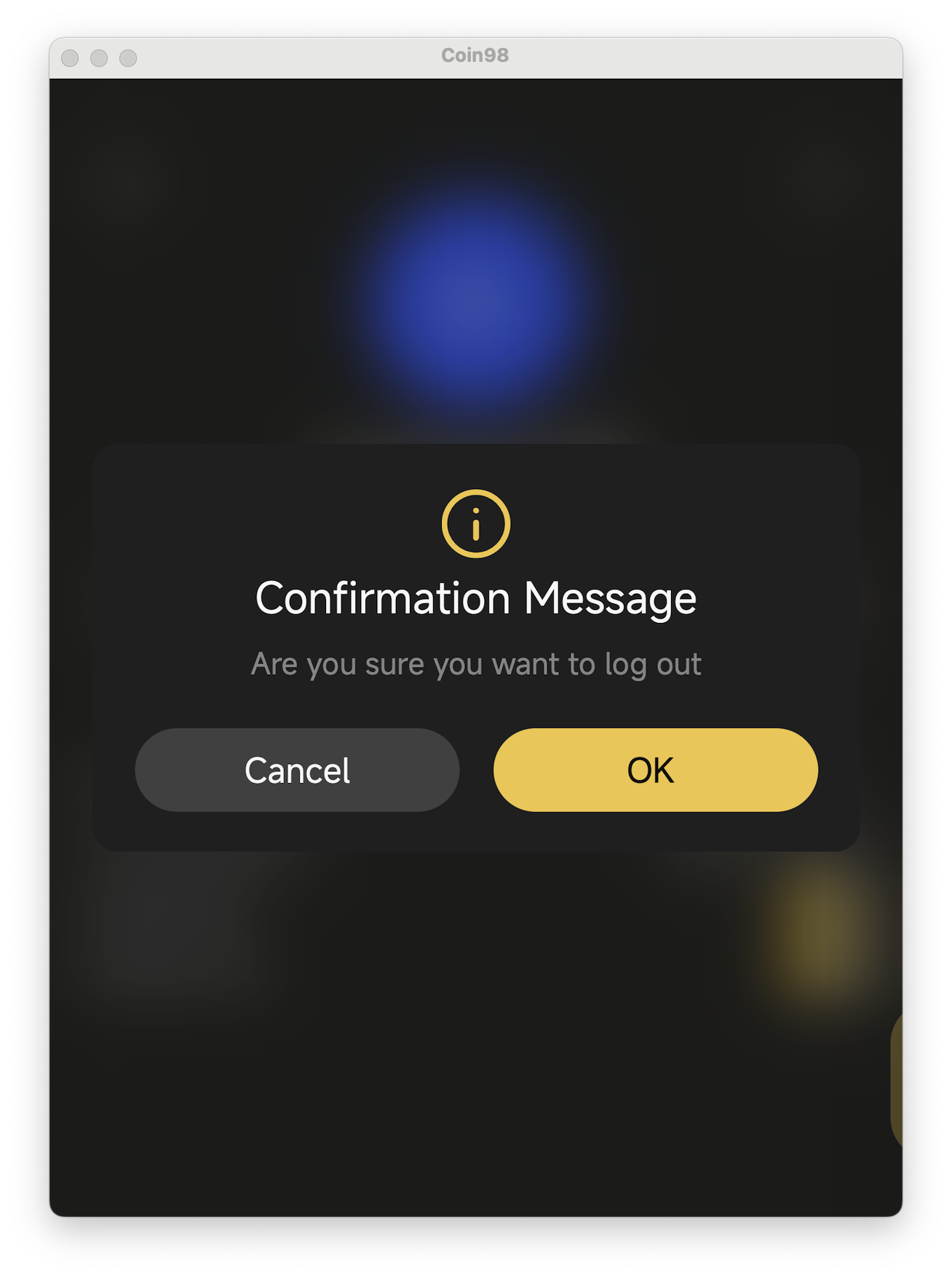
### How to Log Out

**Step 1:** Click **the logged-in wallet** at the top left corner

**Step 4:** Click Log out icon

<figure><img src="https://2549780185-files.gitbook.io/~/files/v0/b/gitbook-x-prod.appspot.com/o/spaces%2FirKWZRA5WMZ5uBeDGB96%2Fuploads%2FN3sQ9LV99XdezanTy5f9%2FScreenshot%202026-03-21%20at%205.09.53%E2%80%AFPM.png?alt=media&amp;token=3ac2dd73-f515-4515-b7cc-3602f0cacd9b" alt="" width="375"><figcaption></figcaption></figure>


# How to buy cryptocurrency by fiat on Coin98 Super Wallet?

Coin98 Super Wallet has integrated MoonPay, enabling users to access DeFi without relying on centralized exchanges. With just a single app, users can seamlessly enter the crypto world. [Coin98 Super Wallet](https://coin98.net/coin98-wallet-is-now-coin98-super-app)!

## **Preparation**

Before we begin, you need to install or update your Coin98 Super Wallet to the latest version:

* iOS: [https://ios.coin98.com](https://ios.coin98.com/)
* Android: [https://android.coin98.com](https://android.coin98.com/)

We recommend you create a Multi-Chain wallet on Coin98 Super Wallet to easily manage and get access to all single-blockchain wallets with only one single Seed Phrase.

## How to buy cryptocurrency by fiat on Coin98 Super Wallet

**Step 1**: On the main screen of the App, select **Buy**.

**Step 2**: Select the token and fill in the amount for the purchase → the system will automatically compare price quotes from providers and find the best rate for users

**Step 3**: Choose the wallet address to receive the token

**Step 4:** Double-check and click **Buy**

<figure><img src="https://2549780185-files.gitbook.io/~/files/v0/b/gitbook-x-prod.appspot.com/o/spaces%2FirKWZRA5WMZ5uBeDGB96%2Fuploads%2FiVTH2pxusLD0Lwp9Vd2h%2FScreenshot%202026-04-09%20at%209.27.36%E2%80%AFAM.png?alt=media&amp;token=0fec4d9d-3b08-48c4-bdc5-5595f4e8ed5f" alt="" width="563"><figcaption></figcaption></figure>

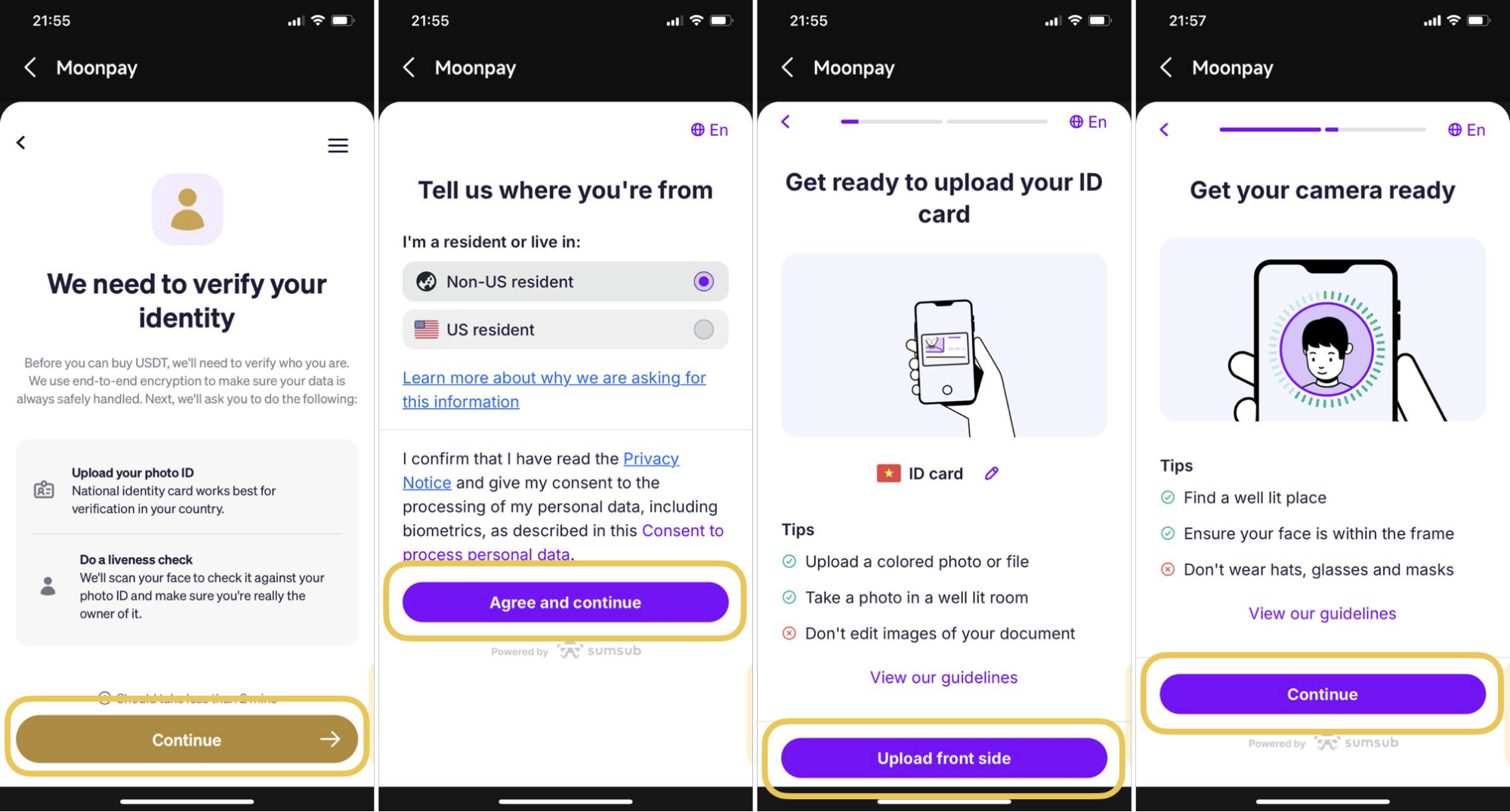
**Step 4**: On the next screen of MoonPay’s interface, please confirm the coin/token and the amount you want to buy by clicking **Continue**

**Step 5**: Fill in your email to get code verification, and enter the Code sent to your email to confirm → click **Continue**

<figure><img src="https://2549780185-files.gitbook.io/~/files/v0/b/gitbook-x-prod.appspot.com/o/spaces%2FirKWZRA5WMZ5uBeDGB96%2Fuploads%2Fi4bIApBD8vWokw3AjQUA%2Fcoin98-app-buy-crypto-3.png?alt=media&amp;token=fd86ba73-d70d-4368-a5b2-5a97e8369a48" alt=""><figcaption></figcaption></figure>

**Step 6**: Enter your basic details

<figure><img src="https://2549780185-files.gitbook.io/~/files/v0/b/gitbook-x-prod.appspot.com/o/spaces%2FirKWZRA5WMZ5uBeDGB96%2Fuploads%2FuPtK9SirEfKwcuvR5pbP%2Fcoin98-app-buy-crypto-6.png?alt=media&amp;token=1ec4ac4f-ef81-4b2a-b2b9-d94929806495" alt="" width="563"><figcaption></figcaption></figure>

**Step 7**: The new user for the first time making the transaction with Moonpay will be prompted to enter your information and upload personal documents → so please fill in your personal information. Then, Moonpay will verify your identity and approve your transaction, provided you have met the requirements.

{% hint style="info" %}

* You can refer to more details [here](https://support.moonpay.com/hc/en-gb/articles/360011931677-How-can-I-verify-my-identity).
* It takes you a short time to review your KYC, please wait for its status before going to the next steps.
* In some cases, such as users from high-risk geographies detected by MoonPay, an additional financial verification step may be required as part of the KYC process.

  Please acknowledge and provide accurate supporting documents when prompted
  {% endhint %}

<figure><img src="https://2549780185-files.gitbook.io/~/files/v0/b/gitbook-x-prod.appspot.com/o/spaces%2FirKWZRA5WMZ5uBeDGB96%2Fuploads%2FF49E27PkQF21WDPHS9Ws%2Fcoin98-app-buy-crypto-5.png?alt=media&amp;token=6ac188b4-ddc0-490f-aae4-cd1d70c55d0c" alt=""><figcaption></figcaption></figure>

**Step 8**: Enter your wallet address, which will receive coins after purchase. The wallet address depends on the blockchain of the coin you will buy, so please read the information carefully to avoid loss.&#x20;

<figure><img src="https://2549780185-files.gitbook.io/~/files/v0/b/gitbook-x-prod.appspot.com/o/spaces%2FirKWZRA5WMZ5uBeDGB96%2Fuploads%2F6px43RR8lzxKNJ1AHgLl%2Fcoin98-app-buy-crypto-7.jpeg?alt=media&amp;token=121756b9-bf95-4ef0-9932-0ba81f12d68f" alt="" width="296"><figcaption></figcaption></figure>

**Step 9**: Select your payment method, then click **Continue**

<figure><img src="https://2549780185-files.gitbook.io/~/files/v0/b/gitbook-x-prod.appspot.com/o/spaces%2FirKWZRA5WMZ5uBeDGB96%2Fuploads%2Fx8xVrE16NOxYlHz0ga3E%2Fcoin98-app-buy-crypto-7.png?alt=media&amp;token=22b0d484-f8c1-4483-8376-8d69f0be036a" alt="" width="295"><figcaption></figcaption></figure>

{% hint style="info" %}
**Notes:**

* Each service provider has the minimum and maximum purchase amount for each transaction.
* The transaction cost will depend on the coin/token and the corresponding network.
  {% endhint %}


# How to add a contact on Coin98 Super Wallet

Adding a contact feature on Coin98 Super Wallet makes sending tokens or NFTs to frequently used addresses easier by allowing you to quickly get the wallet address.

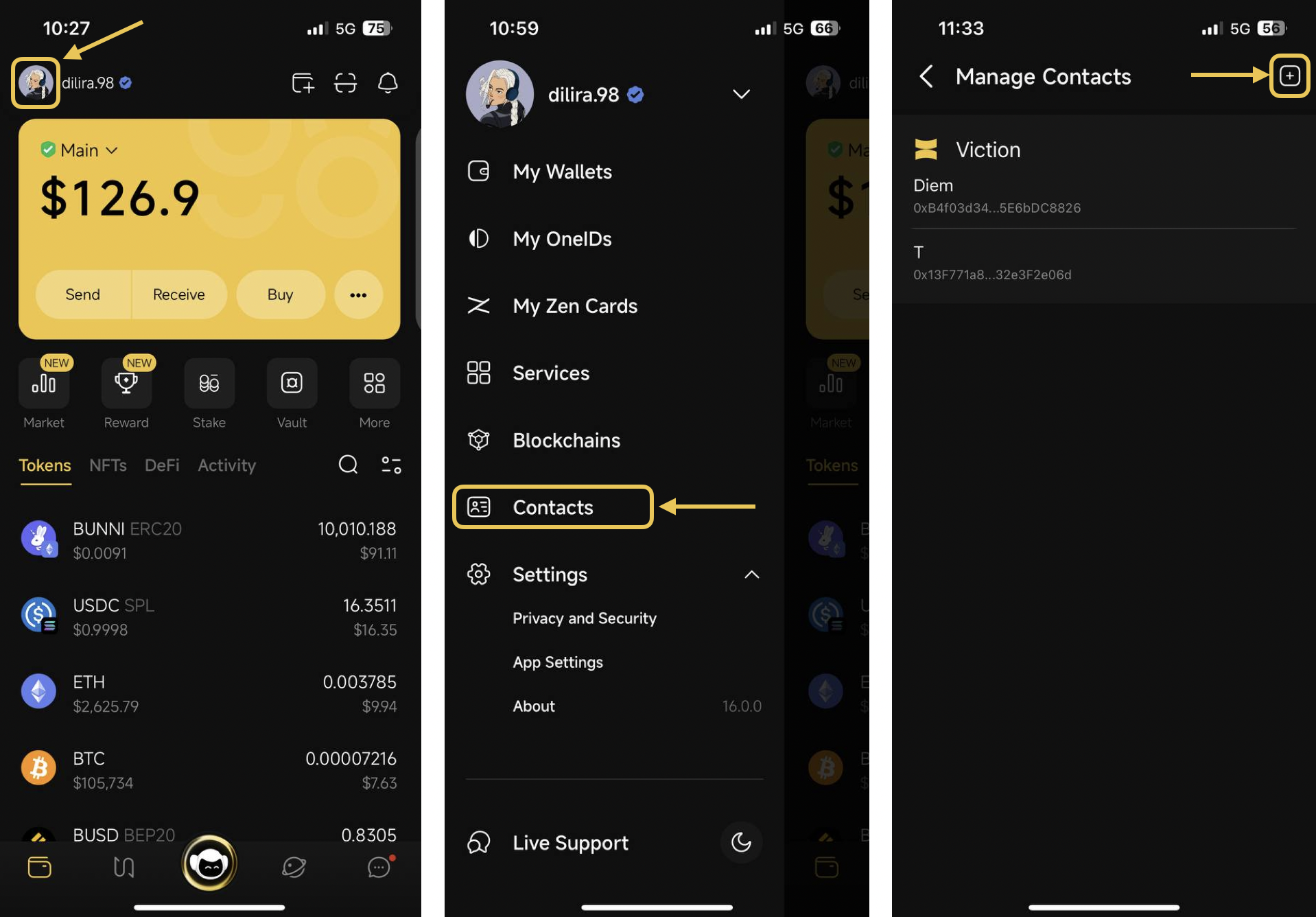
**Step 1:**  Click on the OneID icon at the top left corner of the main screen.

**Step 2:** Choose **Contacts** and click on the + icon at the top right corner of the screen

<figure><img src="https://2549780185-files.gitbook.io/~/files/v0/b/gitbook-x-prod.appspot.com/o/spaces%2FirKWZRA5WMZ5uBeDGB96%2Fuploads%2FwrAvz8pgBC7wv5y3aaS8%2FScreenshot%202026-04-09%20at%2010.09.06%E2%80%AFAM.png?alt=media&amp;token=4afa9560-9ad4-441f-8baf-e5464493172b" alt=""><figcaption></figcaption></figure>

**Step 4**: Fill in the required information:

1. Contact Name
2. Wallet Address
3. Blockchain&#x20;

**Step 5**: Click **Create**

<figure><img src="https://2549780185-files.gitbook.io/~/files/v0/b/gitbook-x-prod.appspot.com/o/spaces%2FirKWZRA5WMZ5uBeDGB96%2Fuploads%2F0VkKZQxz7wNuJeXWubM1%2Fimage.png?alt=media&amp;token=08332d3d-cc97-46a7-acf8-ebae7db43384" alt="" width="296"><figcaption></figcaption></figure>

&#x20;Back to **Manage Contacts** interface to recheck. You can edit or remove existing contacts by selecting the contact you would like to modify.

<figure><img src="https://2549780185-files.gitbook.io/~/files/v0/b/gitbook-x-prod.appspot.com/o/spaces%2FirKWZRA5WMZ5uBeDGB96%2Fuploads%2FHtgeSNfI5iOr7G3mIA3W%2Fcoin98-app-add-contact-2.png?alt=media&amp;token=8ab14d87-c828-4ae4-a379-f6f007ff9a44" alt="" width="563"><figcaption></figcaption></figure>


# FAQs


# What is the difference between Private Key and Seed phrase?

### What is a Private Key?

A Private Key is a string of random characters, representing a cryptocurrency wallet address, allowing you to access, receive, and send your crypto funds. The Private Key is created from mixed letters and letters. Similar to a Password, it’s the key of your crypto account.

A Private Key is a string of numbers and letters with the following form:

0xb46e06d22ce739ce1961724c45acd57831a21eca12fcf691c25d0f0562b5b5f6

Main features of Private key:

* Private Key contains characters including uppercase letters, lowercase letters, and numbers.
* The complexity of the Private Key is reflected in the random mixing of characters, without any rules, which makes it difficult for hackers to crack.
* The Private Key is generated from the Seed Phrase by encrypting it.
* Each Private Key can generate an address that allows you to make transactions in your wallet.

### What is a Seed Phrase?

A Seed Phrase is a sequence of words used to control access, secure, and recover your wallet in case you cannot access your main wallet. The wallet service provider will issue you a Seed Phrase as soon as you create the wallet.

A Seed Phrase is a sequence of words with the following form: *race fog come flash position garbage glass rule dizzy behind use tape*

Main features of Seed Phrase:

* Seed Phrase is usually a sequence of readable English words, from 12 to 24 words, randomly generated.
* Seed Phrase is mainly used to create and restore crypto wallets.

### The common point of Private Key and Seed Phrase

* Private Key and Seed Phrase are used to secure the account.
* Both allow you to restore your wallet and grant access to your wallet.
* Private Key and Seed Phrase both help to strengthen the security of the account, it is more difficult for hackers to attack.

### Private Key vs Seed Phrase

* Seed Phrase is preferred over Private Key because of its logic and it is easy to read, easy to remember, and can be easily noted on paper.
* You can use Seed Phrase to regenerate your Private Key.
* A Seedphrase can create wallets containing multiple Private Keys.
* Seed Phrase has control over all your Private Keys.


# Do I have to backup every time my Wallet updates?

No, you don't. After any updates, your wallet will continuously be backed up. So you can use your wallet as normal.

Coin98 Super Wallet doesn’t change users’ Private key and Seed phrase after updating.

You only need to back up your Private key and Seed phrase once. We recommend that you do this as soon as you create a new wallet.

You can access your wallet at any time as long as you keep your Private key and Seed phrase.


# Does Coin98 Super Wallet hold my funds?

**No!**

Coin98 is the #1 crypto super wallet designed to seamlessly connect a billion users to the crypto world safely and securely. We offer users across the globe a comprehensive and trusted ecosystem of essential services including but not limited to a non-custodial, multi-chain NFT & cryptocurrency wallet, built-in DEXs, Cross-chain Bridge & DApp Browser, a powerful Terminal, attractive Earn, Gift & Campaign, and Others.

* Coin98 Super Wallet has absolutely no control over your assets but rather lets you have absolute control over their key and assets.
* You need to save and store your private key carefully to avoid some risks, such as your phone being tapped, stolen, or loss of seed phrase/private key.


# I can't find an answer to my question. Where do I find an answer?

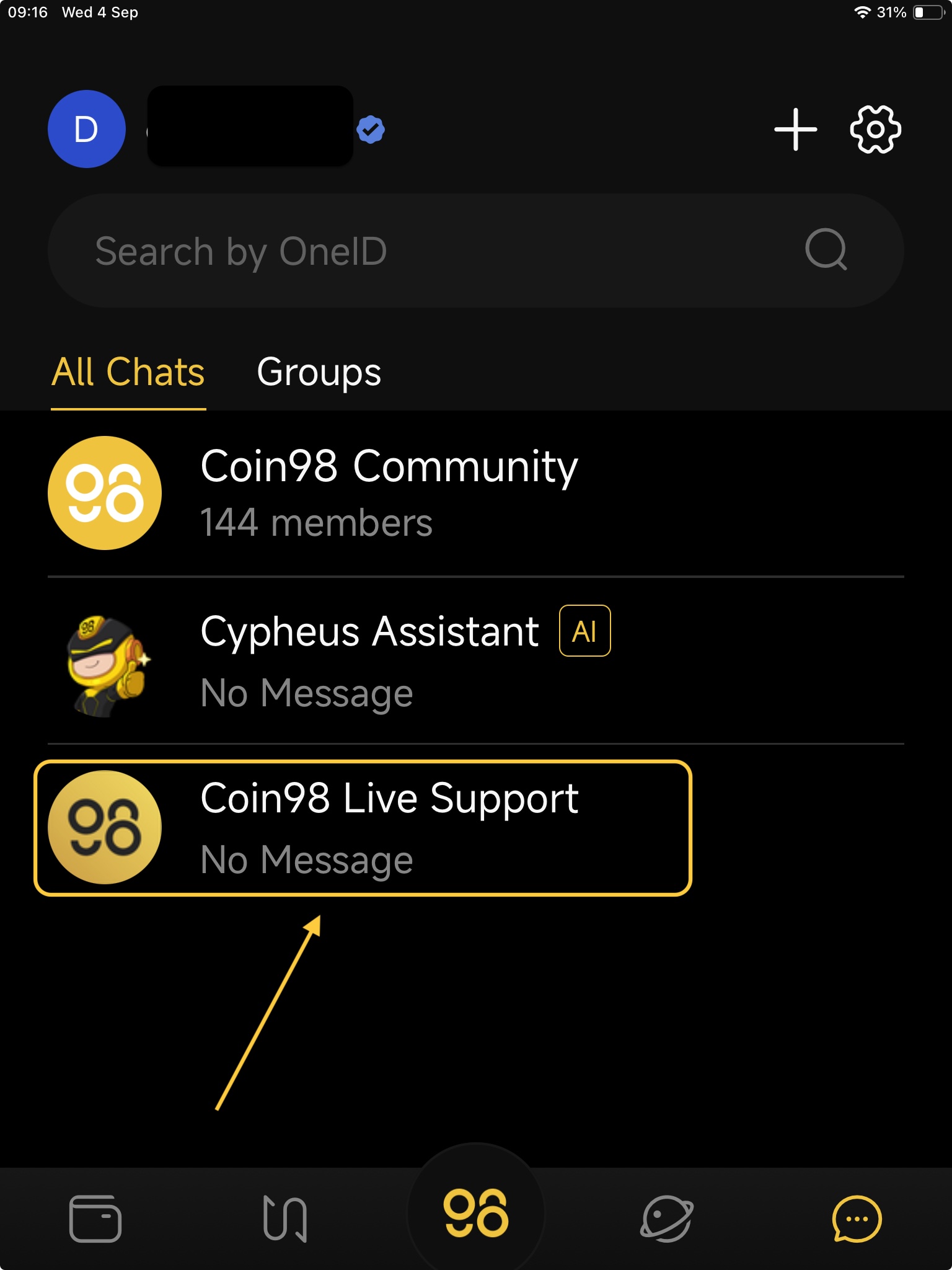
If you have any questions or problems that you can't find the answer here, please contact [**Live Support**](https://livechat.coin98.com/) for support. Coin98 team will assist you 24/7 and help you to avoid scams.

* Desktop/ laptop: <https://livechat.coin98.com/>
* Mobile:&#x20;

Open Coin98 Super Wallet, click the OneID icon at the top left corner then choose **Live Support.**

<figure><img src="https://2549780185-files.gitbook.io/~/files/v0/b/gitbook-x-prod.appspot.com/o/spaces%2FirKWZRA5WMZ5uBeDGB96%2Fuploads%2F9iD9udUUqA8YCFhJYAdB%2Fcoin98-app-live-support.png?alt=media&amp;token=e43d1088-0e2a-4bbc-ac1d-6b86e2bc10ef" alt=""><figcaption></figcaption></figure>


# Wallet Management


# How to activate a wallet on Coin98 Super Wallet

In the 14.1.1 version, Coin98 Super App supports the following wallet types:

1. Social Wallet: Create a wallet quickly and easily using your social account
2. Hot Wallet: Secure your assets by a Seed Phrase or Private KeyNon-custodial Wallet is used via Seed Phrase or Private Key
3. Zen Card: Fortify security by dividing encrypted Seed Phrase & Private Key across card and device
4. Cold Wallet: Safeguard your assets with secure hardware device
5. Watch-only: Observe or track the assets of other wallets

### How to activate a wallet?

We have developed the Manage Wallets feature to activate or inactivate your wallets.&#x20;

**Step 1:** Click on the OneID icon at the top left corner of the main screen;

**Step 2:** Choose **My Wallets** to access the All Wallets section

**Step 3:** Toggle the button next to the wallet as desired to activate/deactivate.

{% hint style="info" %}
**Note:** You can only activate one wallet at a time. When the wallet A is activated in the app, all other wallets will be deactivated. As a result, assets in deactivated wallets will not be displayed in the app.
{% endhint %}

<figure><img src="https://2549780185-files.gitbook.io/~/files/v0/b/gitbook-x-prod.appspot.com/o/spaces%2FirKWZRA5WMZ5uBeDGB96%2Fuploads%2FUE4P3xbAAsdyfa8RDErx%2FScreenshot%202025-06-10%20at%208.33.33%E2%80%AFAM.png?alt=media&amp;token=3ad75b34-3e2c-479e-a3cc-e0742348c3c2" alt=""><figcaption></figcaption></figure>

You can also change the active wallet by clicking on the wallet on the main screen, and then selecting the wallet you want to activate.

<figure><img src="https://2549780185-files.gitbook.io/~/files/v0/b/gitbook-x-prod.appspot.com/o/spaces%2FirKWZRA5WMZ5uBeDGB96%2Fuploads%2FTMLyRC7nRgqIHuRpACFI%2FScreenshot%202025-06-10%20at%208.35.22%E2%80%AFAM.png?alt=media&amp;token=89f1eca1-3cd6-4cf7-84b0-33b8ed5a9e29" alt="" width="563"><figcaption></figcaption></figure>


# How to use Coin98 Testflight version

## Understanding the TestFlight version of Coin98 Super Wallet

TestFlight is Apple’s official platform that allows users to install **beta version** of iOS apps before they are released on the App Store. These versions are usually used to test new features, apply temporary fixes, or resolve specific issues before an official public update is launched.

**Why Coin98 uses TestFlight?** In certain urgent situations, the Coin98 team may decide to build and release a special TestFlight version of the Coin98 Super Wallet to provide a temporary solution that helps resolve the user’s issue in a timely manner.

{% hint style="info" %}
**Important Notes**

* Not every issue will receive a TestFlight build. The decision depends on multiple factors, such as the **severity, urgency, and scope** of the issue. Our team will proactively inform users when a TestFlight version is available and provide the necessary installation instructions.
* Only install the TestFlight app using the link provided to you **directly through Coin98 Live Chat or Ticket email**. Scammers may attempt to impersonate Coin98 and send fake TestFlight links. If you are unsure about the authenticity of the TestFlight, please confirm with our team at: [https://livechat.coin98.com](https://livechat.coin98.com/)
* The TestFlight version should be used **only for the specific issue it was provided for**, and may not be as stable as the official version. After resolving the issue, you should delete the TestFlight version and reinstall the official version from the App Store for regular use.
  {% endhint %}

## How to install Coin98 TestFlight version

{% hint style="info" %}
**Requirements**

Since the TestFlight version will replace your main Coin98 Super Wallet app, please note that **there is a small (but never zero) chance that the app may reset and erase all wallets within it**. Don’t worry — you can always restore your wallets using your seed phrase by following [this guide](https://docs.coin98.com/products/coin98-super-wallet/mobile/wallet-management/v15-how-to-import-multi-chain-wallets-to-coin98-super-wallet).

However, this is only possible **if you have your seed phrase already backed up**. Hence, you must back up your wallets’ seed phrase in the Coin98 Super Wallet app **before installing the TestFlight version**. If you have not done so yet:

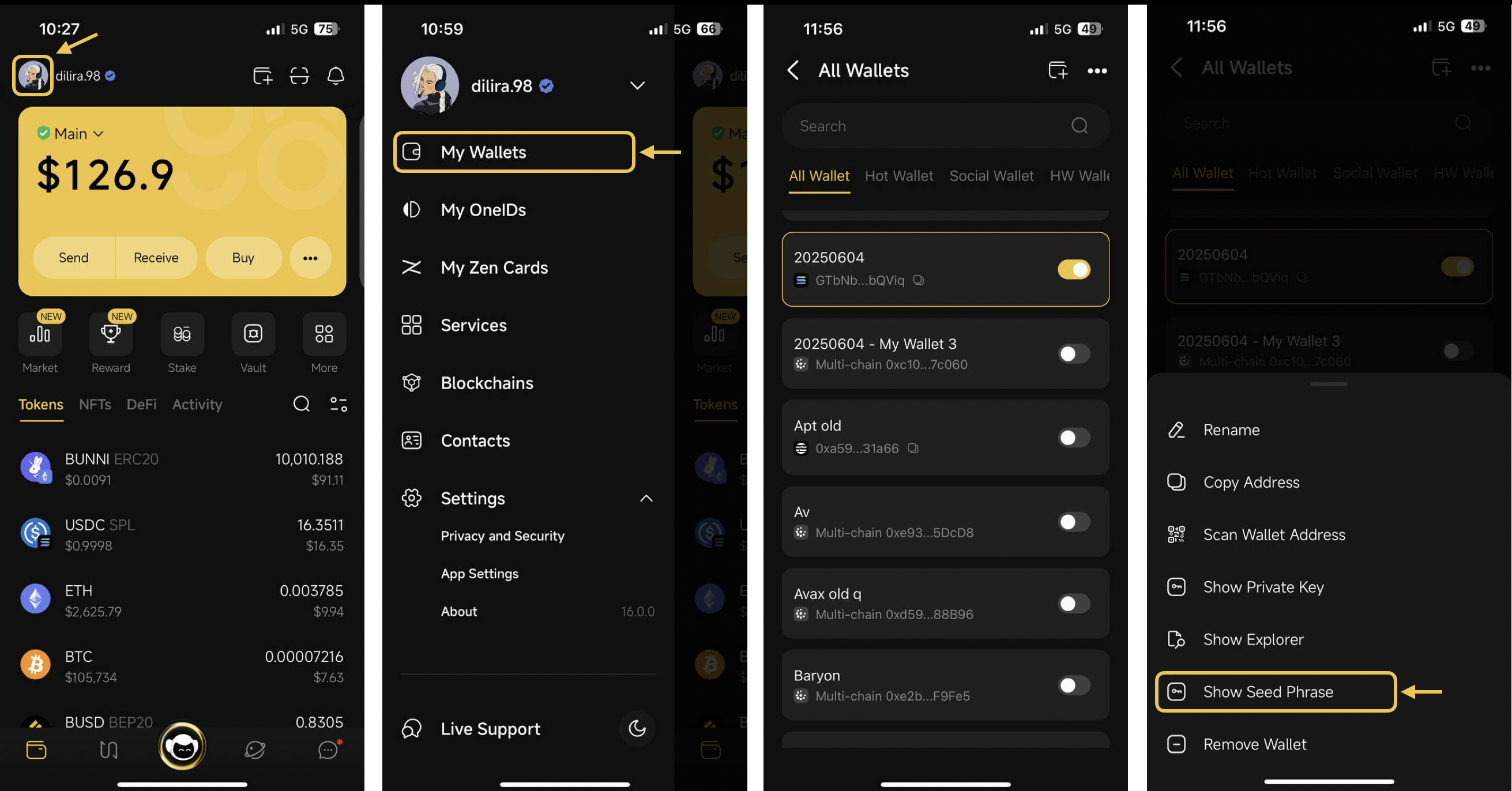
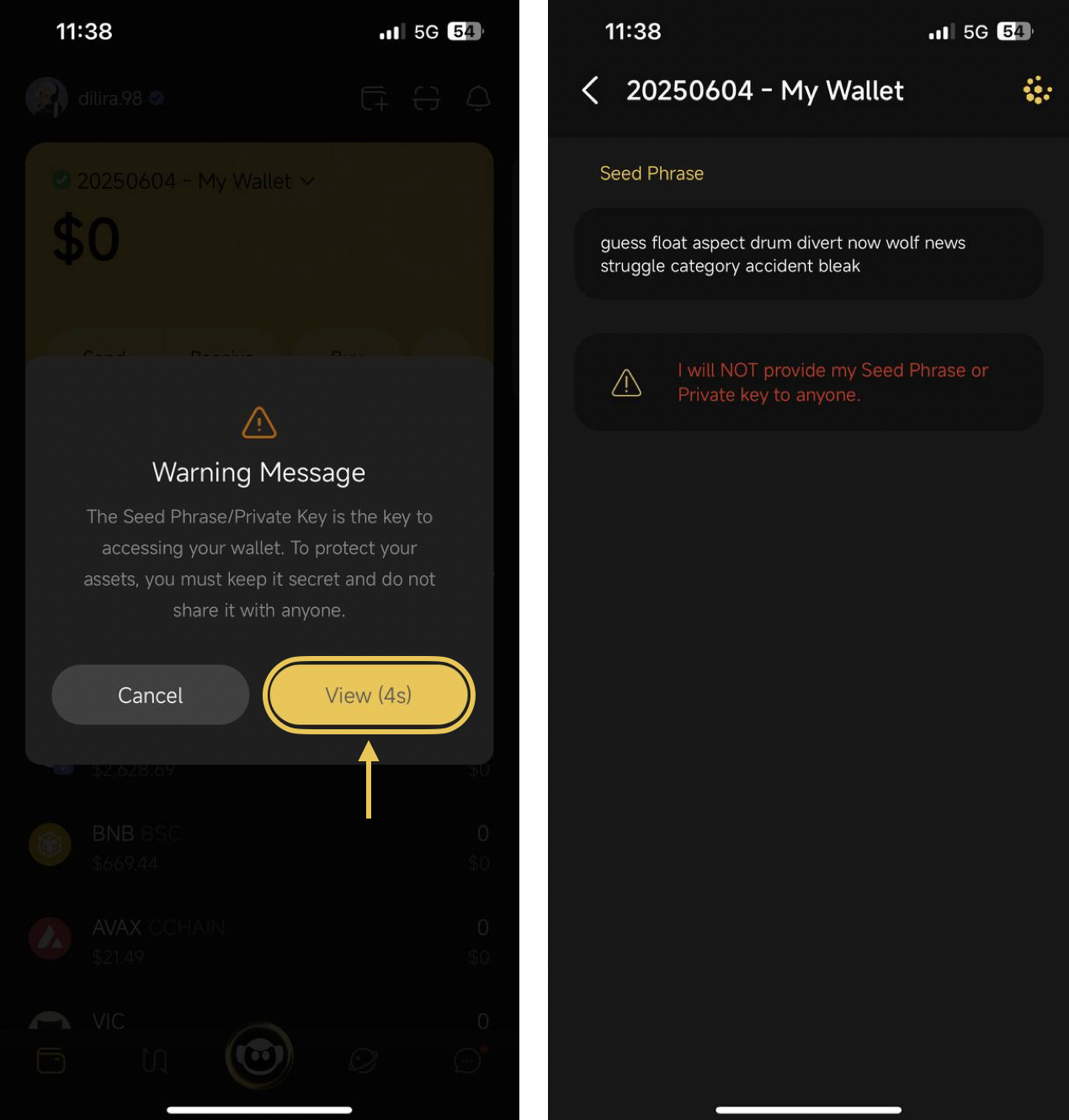
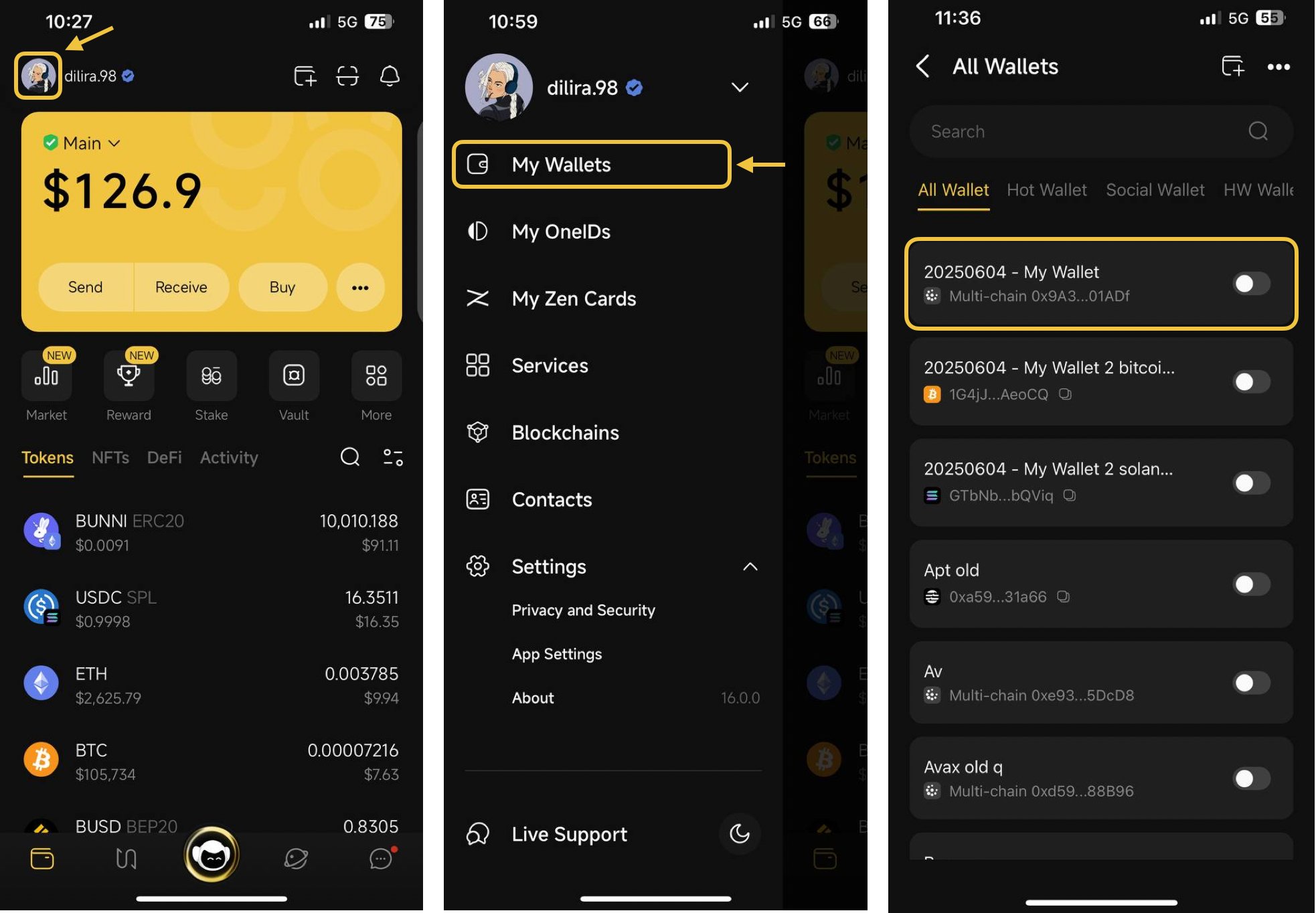
* Please refer to this guide on [how to retrieve your seed phrase or private key](https://docs.coin98.com/products/coin98-super-wallet/mobile/wallet-management/v15-how-to-show-seed-phrase-private-key) and back up your wallet’s seed phrase immediately.
* You may use [Cloud Backup](https://docs.coin98.com/products/coin98-super-wallet/mobile/security-and-privacy/use-cloud-sync-1) to quickly back up multiple seed phrases in bulk, but note that it should **not be used as your primary backup method**.
  {% endhint %}

{% stepper %}
{% step %}

### Install **TestFlight app**

Make sure **TestFlight app** is installed on your device. If it have not been installed yet, please click on this link to install: <https://apps.apple.com/vn/app/testflight/id899247664>
{% endstep %}

{% step %}

### Install **Coin98 TestFlight version**&#x20;

After installing TestFlight, click on the **Coin98 TestFlight link** provided to you. The link format is: `https://testflight.apple.com/join/{some_code_here}.` The TestFlight app will open automatically and redirect you to the Coin98 TestFlight version.

> **Note:** Only use the link provided to you directly from **Coin98 Support** via **Live Chat** or **Ticket email**.

* Tap **Install** to begin the installation. This process will **replace your existing Coin98 official app**.
* Tap **Open** once the **Open** button appears
* Tap **Start Testing** to finish the setup.

Please refer to visualization of the steps in image below

<figure><img src="https://2549780185-files.gitbook.io/~/files/v0/b/gitbook-x-prod.appspot.com/o/spaces%2FirKWZRA5WMZ5uBeDGB96%2Fuploads%2FxHTofHM1Tk1NS5DTTovG%2Fimage.png?alt=media&amp;token=88b1ccff-25bf-490e-9516-25465acd832c" alt=""><figcaption></figcaption></figure>
{% endstep %}

{% step %}

### Resolve your issue with Coin98 TestFlight version

You have now successfully installed the **TestFlight version** of the Coin98 Super Wallet app. Please continue with the steps provided by our support team to resolve your issue.
{% endstep %}
{% endstepper %}

## How to reinstall official Coin98 Super Wallet app from Coin98 Testflight version

The TestFlight version is provided **only to help you resolve your specific issue** and is **not recommended for other features**. After you have resolved your issue with TestFlight version, you should not continue using it for other purposes. At this step, you have 2 options:

* You can wait for next version of the app to be available, then you can access App Store > Search for "Coin98 Super Wallet" > Click **Update** to update the app. This option does not require you to delete the app, but you cannot use the Coin98 Super Wallet during the wait time.
* You can delete the Coin98 TestFlight version and reinstall the official Coin98 Super Wallet from the App Store. This options let you continue using the app without wait time, but requires complex steps. If you choose this option, please refer to guide below

### Steps to reinstall official Coin98 Super Wallet app

{% stepper %}
{% step %}

### Ensure the seed phrase are properly backed up

As the next step will remove the app from your phone, you must make sure the seed phrase in your app are properly backed up. If you have not done so yet, please refer to this guide on [how to retrieve your seed phrase or private key](https://docs.coin98.com/products/coin98-super-wallet/mobile/wallet-management/v15-how-to-show-seed-phrase-private-key) and back up your wallet’s seed phrase immediately.
{% endstep %}

{% step %}

### Uninstall the Coin98 TestFlight version

Please exit the app, then touch and hold the app on the Home Screen, tap Remove App, then tap Delete App to delete it from iPhone.
{% endstep %}

{% step %}

### Reinstall Coin98 Super Wallet from App Store

Please go to **App Store**, search for "Coin98 Super Wallet" and then click on **Install** button next to the app's name.
{% endstep %}

{% step %}

### Restore your wallets into Coin98 Super Wallet

After you have successfully installed Coin98 Super Wallet, you can now restore your wallets into Coin98 Super Wallet. Please refer to guides below:

* [How to import Multi-chain wallets to Coin98 Super Wallet](/products/coin98-super-wallet/mobile/wallet-management/v15-how-to-import-multi-chain-wallets-to-coin98-super-wallet)
* If you have used Cloud Backup before: [How to use Cloud Backup on the Coin98 Super Wallet](/products/coin98-super-wallet/mobile/security-and-privacy/use-cloud-sync-1#section-5)
  {% endstep %}
  {% endstepper %}

\ <br>


# How to show Seed Phrase / Private key

When creating a wallet on the Coin98 Super Wallet, it's essential to securely store your Seed Phrase or Private Key in a safe location

If you happen to lose or forget your recovery keys, this tutorial will guide you on how to retrieve them, provided the wallet whose keys you forgot is still active on your App

{% hint style="info" %}
Note: You cannot retrieve recovery keys for the Watch-only wallet
{% endhint %}

## How to show Seed Phrase

**\*The first way:**&#x20;

**Step 1:** On the main screen of the App, click **More** icon

**Step 2**: Click **Show Seed Phrase**

**Step 3**:  A warning message will appear, reminding you to keep your wallet's seed phrase private and not to share it with anyone. If you understand and accept this warning, click **View** to proceed

<figure><img src="https://2549780185-files.gitbook.io/~/files/v0/b/gitbook-x-prod.appspot.com/o/spaces%2FirKWZRA5WMZ5uBeDGB96%2Fuploads%2F229Qxkq98zJ9tdyQA6UG%2FScreenshot%202025-06-10%20at%208.37.16%E2%80%AFAM.png?alt=media&amp;token=89009ef6-66dc-45af-87e4-8c15ba123552" alt=""><figcaption></figcaption></figure>

**\*The second way:**

**Step 1**: Click on the OneID icon at the top left corner of the main screen.

**Step 2**: Choose **My Wallets**

**Step 3**: Select the wallet that you would like to retrieve its Seed Phrase

**Step 4**: Click **Show Seed Phrase**

<figure><img src="https://2549780185-files.gitbook.io/~/files/v0/b/gitbook-x-prod.appspot.com/o/spaces%2FirKWZRA5WMZ5uBeDGB96%2Fuploads%2Fa0I30D21zn2Vl3Xa4lSG%2FScreenshot%202025-06-10%20at%208.40.23%E2%80%AFAM.png?alt=media&amp;token=a3d4a63d-043b-4391-9a83-be975c10566e" alt=""><figcaption></figcaption></figure>

**Step 5**: A warning message will appear, reminding you to keep your wallet's seed phrase private and not to share it with anyone. If you understand and accept this warning, click **View** to proceed

<figure><img src="https://2549780185-files.gitbook.io/~/files/v0/b/gitbook-x-prod.appspot.com/o/spaces%2FirKWZRA5WMZ5uBeDGB96%2Fuploads%2FLvTiw3FD4gqAZ2gO5wbq%2FScreenshot%202025-06-10%20at%208.41.20%E2%80%AFAM.png?alt=media&amp;token=540a46b7-57ec-4baf-a869-3938724f64b4" alt="" width="563"><figcaption></figcaption></figure>

## How to show Private Key

**\*The first way:**

**Step 1**: On the main screen of the App, click **More** icon

**Step 2**: Click **Show Private Key**

**Step 3**:  A warning message will appear, reminding you to keep your wallet's seed phrase private and not to share it with anyone. If you understand and accept this warning, click **View** to proceed

**Step 4**: Select the blockchain of the wallet you would like to retrieve its private key

<figure><img src="https://2549780185-files.gitbook.io/~/files/v0/b/gitbook-x-prod.appspot.com/o/spaces%2FirKWZRA5WMZ5uBeDGB96%2Fuploads%2FVTUxv5TcV5jX0EQyYnAK%2FScreenshot%202025-06-10%20at%208.42.28%E2%80%AFAM.png?alt=media&amp;token=5a1f596a-30e4-49e6-a071-550be988e49d" alt=""><figcaption></figcaption></figure>

**\*The second way:**

**Step 1**: Click on the OneID icon at the top left corner of the main screen.

**Step 2**: Choose **My Wallets**

**Step 3**: Select the wallet that you would like to retrieve its Private Key

**Step 4**: Click **Show Private Key**

<figure><img src="https://2549780185-files.gitbook.io/~/files/v0/b/gitbook-x-prod.appspot.com/o/spaces%2FirKWZRA5WMZ5uBeDGB96%2Fuploads%2Fe7Rah2D7pkYcDrIrSIAF%2FScreenshot%202025-06-10%20at%208.44.19%E2%80%AFAM.png?alt=media&amp;token=d6e9982c-0dd8-457f-be39-fb9a190d3f6c" alt=""><figcaption></figcaption></figure>

**Step 4**: A warning message will appear, reminding you to keep your wallet's Seed Phrase/Private Key private and not to share it with anyone. If you understand and accept this warning, click **View** to proceed

**Step 5**: Select the blockchain of the wallet that you would like to retrieve its Private Key

<figure><img src="https://2549780185-files.gitbook.io/~/files/v0/b/gitbook-x-prod.appspot.com/o/spaces%2FirKWZRA5WMZ5uBeDGB96%2Fuploads%2F7vhzC3PW7q5ueKWR4Vm0%2FScreenshot%202025-06-10%20at%208.47.06%E2%80%AFAM.png?alt=media&amp;token=b9d8ccc2-d13c-4819-937e-6bba25d9d04c" alt=""><figcaption></figcaption></figure>


# How to import Multi-chain wallets to Coin98 Super Wallet

If you already have a Multi-chain wallet, you can simply import it to Coin98 Super Wallet to store coins/tokens as well as experience multiple AMMs and the Web3 Dapp Browser directly on the Mobile App by following these steps:

## How to import Multi-chain wallets to Coin98 Super Wallet

To import a Multi-chain wallet to Coin98 Super Wallet, you need its Seed phrase. Therefore, you should store the Seed phrase carefully from the moment of creating the wallet.

{% hint style="info" %}
Seed phrase and Private Key are security keys that can be understood as a type of password in which the Seed phrase consists of 12 random English keywords, while the Private Key consists of a string of letters and numbers. If you want to restore access to your wallets, you must have ownership of the Seed phrases (used for restoring both Single Chain Wallet and Multichain Wallet) or Private Key (only used for restoring Single Chain Wallet).
{% endhint %}

**Step 1**: At the top right corner of the home page, choose **Add Wallet** icon

**Step 2:** Click **Add an Existing Wallet**, then select your desired wallet type

If you're unclear about these wallet types, you can refer to a wallet comparison by clicking the icon in the top right corner;

<figure><img src="https://2549780185-files.gitbook.io/~/files/v0/b/gitbook-x-prod.appspot.com/o/spaces%2FirKWZRA5WMZ5uBeDGB96%2Fuploads%2FXQl47jz69lFGOCDp8pFG%2Fimage.png?alt=media&amp;token=52ac77eb-31ab-4c97-8c0f-0c528c142d26" alt=""><figcaption></figcaption></figure>

**Step 3:** Select the blockchain on which you want to restore your wallet, and click **Continue**.&#x20;

{% hint style="info" %}
*You can:*

* *Restore a wallet on a specific blockchain based on your preference; or*
* *Restore a multichain wallet containing all the blockchains that Coin98 Super Wallet supports. Currently, Coin98 Super Wallet supports more than 100 blockchains, and many more to come in the future.*
  {% endhint %}

**Step 4:** Name the wallet, backup Seed phrase/Private Keys, and read the warnings carefully.

{% hint style="danger" %}
**Important note:**

Please pay attention to every word and make sure you back up the Seed Phrase correctly and in a safe place.
{% endhint %}

**Step 5:** Tick three checkboxes to confirm your awareness of the risks when losing keys and click **Restore** to complete

<figure><img src="https://2549780185-files.gitbook.io/~/files/v0/b/gitbook-x-prod.appspot.com/o/spaces%2FirKWZRA5WMZ5uBeDGB96%2Fuploads%2FUyFCEXfi6LqQGTVHmW8l%2Fimage.png?alt=media&amp;token=011afcff-ad20-4f35-b295-2c65e1fbddab" alt=""><figcaption></figcaption></figure>

{% hint style="warning" %}
**Note:** Coin98 supports 2 import options (New Standard or Old Standard) for each wallet on some blockchains such as Bitcoin, Solana, Avalanche C-chain, Viction (formerly Tomochain), Celo, Injective, The Open Network, Tron, Persistence and Aptos (including Aptos Testnet, Aptos Devnet and Aptos mainnet). If the correct standard is not selected, the wallet cannot be properly recovered.
{% endhint %}

<figure><img src="https://2549780185-files.gitbook.io/~/files/v0/b/gitbook-x-prod.appspot.com/o/spaces%2FirKWZRA5WMZ5uBeDGB96%2Fuploads%2FXE0a7OxUSBj9iiGx5COQ%2Fimage.png?alt=media&amp;token=3b3e4508-856e-487e-adcd-35eec181ee71" alt="" width="563"><figcaption></figcaption></figure>


# How to switch a single-chain wallet to another chain wallet on Coin98 Super Wallet

{% hint style="info" %}
This guide is for users who already have a wallet on a single blockchain *(eg. Ethereum wallet)* and want to experience other blockchains using the same Seed Phrase and at the same time, having **the same wallet address** across all EVM-based blockchains *(like Viction, BNB Smart Chain, etc.)*
{% endhint %}

## How to switch wallets on Coin98 Super Wallet

### I. Get the Seed Phrase

Seed Phrase must be saved in a safe place when you create a wallet. You can copy your backed-up Seed Phrase and move on to the **Restore Wallet** part.

However, if you accidentally deleted, or forgot your keys, here’s how to retrieve them:

**Step 1:** Open the Coin98 Super Wallet & click on the OneID icon at the top left corner;

**Step 2:**  Choose **My Wallets**

**Step 3:** Click on the desired wallet&#x20;

**Step 4:** Click **Show Seed Phrase;**

<figure><img src="https://2549780185-files.gitbook.io/~/files/v0/b/gitbook-x-prod.appspot.com/o/spaces%2FirKWZRA5WMZ5uBeDGB96%2Fuploads%2FxxJHqvwLgVfSGDsu6Yl6%2Fimage.png?alt=media&amp;token=8664c304-7dd9-4490-adb6-9b42900d1629" alt=""><figcaption></figcaption></figure>

**Step 5:** Read carefully the warning pop-up and click **View** to continue

**Step 6:** Copy the **Seed Phrase.**&#x20;

<figure><img src="https://2549780185-files.gitbook.io/~/files/v0/b/gitbook-x-prod.appspot.com/o/spaces%2FirKWZRA5WMZ5uBeDGB96%2Fuploads%2FjfI4a8xRgq1VQsAtpQBl%2Fcoin98-app-seedphrase-2.png?alt=media&amp;token=695d64f3-2aa6-4c35-a5e1-cf6c05f50519" alt="" width="375"><figcaption></figcaption></figure>

### II. Restore the wallet

**Step 1:** Back to the main screen  → click the Add Wallet icon at the top right corner;

**Step 2:** Click **Add an Existing Wallet**, then select your desired wallet type

<figure><img src="https://2549780185-files.gitbook.io/~/files/v0/b/gitbook-x-prod.appspot.com/o/spaces%2FirKWZRA5WMZ5uBeDGB96%2Fuploads%2F1SYrhkYlWZyjogm5GCY2%2Fimage.png?alt=media&amp;token=4b2d0288-920a-4404-b293-d6751aaf56fb" alt=""><figcaption></figcaption></figure>

**Step 3:** Select the blockchain on which you want to restore your wallet, and click **Continue**.&#x20;

{% hint style="info" %}
*You can:*

* *Restore a wallet on a specific blockchain based on your preference; or*
* *Restore a multichain wallet containing all the blockchains that Coin98 Super Wallet supports. Currently, Coin98 Super Wallet supports more than 100 blockchains, and many more to come in the future.*
  {% endhint %}

**Step 4:** Name the wallet, backup Seed phrase/Private Keys, and read the warnings carefully.

{% hint style="danger" %}
**Important note:**

Please pay attention to every word and make sure you back up the Seed Phrase correctly and in a safe place.
{% endhint %}

**Step 5:** Tick three checkboxes to confirm your awareness of the risks when losing keys and click **Restore** to complete

<figure><img src="https://2549780185-files.gitbook.io/~/files/v0/b/gitbook-x-prod.appspot.com/o/spaces%2FirKWZRA5WMZ5uBeDGB96%2Fuploads%2FmVobCnmploBrWSlhmDTW%2Fimage.png?alt=media&amp;token=bc072544-30a9-4e33-8c3e-4362384a61db" alt=""><figcaption></figcaption></figure>

After restoring your wallet, go to the **Manage Wallets** section to check.&#x20;


# How to use Seed Phrase Recover Tool

## What is a seed phrase?

A seed phrase is similar to a password. However, the password is created by users, the seed phrase is auto-generated randomly from the standard of wallet generators. Seed Phrase generally tend to be longer and more complex than the average password, which increases overall security. As a result, it is harder to remember 12- or 24-word random phrases than 12- or 24-word phrases made up of your own words.

## **Problems with Seed Phrase**

A wallet address is like a house. The seed phrase is the key, and logging in is like walking through the front door. When a user couldn't remember their seed phrase, it’s like losing their keys. There are some ways to store your seed phrase such as seed phrase encryption, written in your notebook, or syncing- cloud. But somehow we miss the last character of the seed phrase.

## **Seed Phrase Recover Tool**

We have received many cases from Customer Support to help them recover (manually querying) missing words from their 12-word or 24-word seed phrase. In the past, we did not offer a public tool for our users, however, we realized the demand is increasing. We are launching the tool to help users recover their seed phrase.

## **Seed Phrase Recover Process**

*Our supported blockchains: Ethereum, Ethereum PoW, BNB Smart Chain, HECO Chain, OKXChain, Terra 2.0, GateChain, KuCoin Community Chain, Solana, Near, Avalanche C-Chain, Tron, Polygon, Fantom, Gnosis Chain, Polkadot, Kusama, Cosmos, THORChain, Aura Xstaxy Mainnet, Old Terra, BandChain, Kava, Secret Network, Persistence, BNB Beacon Chain, f(x) Core, f(x) Core EVM, MultiversX, Tezos, Celo, Viction, Viction Testnet, Algorand, Casper, KardiaChain, Ronin, Klaytn, Harmony, Conflux Core Space, Optimism, Boba Network, Polygon zkEVM, zkSync Era, Arbitrum, Aurora, The Open Network, Cronos, BitTorrent Chain, Theta Network, PlatON Network, Moonbeam, Aptos, Injective, Osmosis, Evmos, Juno Network, Agoric, Oasis Network, Kujira, Stargaze, Umee, Stride, BAse Testnet, Base, Aptos Testnet, Aptos Devnet, Sui, Sei Testnet, Sei Mainnet, Archway Testnet, Archway, Chiliz, Nautilus, Mantle, Scroll, Dogecoin, XRP Ledger, Bitcoin Testnet, Bitkub Chain, ZeteChain Testnet, ZetaChain, Humanode, opBNB, Shardeum Testnet, Ancient8 Testnet V2, Ancient8, Linea, Taiko Jolnir Testnet, Kroma, Core, Xion Testnet, Celestia, Cardano, Sei EVM Testnet, Manta Pacific, Berachain Testnet, Xai Network, Bitgert, Skarknet, Kava EVM, Conflux eSpace, Metis, Blast, Mode, Zora, ZKFair, Skatechain Testnet, Wanchain, Mint, IoteX Network, zkLink Nova, Neon EVM, X Layer, Taiko, Aura EVM.*

**Step 1**: Click on the OneID icon at the top left corner of the main screen.

**Step 2**: Choose **Services**

**Step 2:** Scroll down or search for the **Seed Phrase Recover**

**Step 3:** Fill out the required information to trigger the recovery tool => Click **Recover** button and wait for the completion.

* Blockchain&#x20;
* Wallet Address&#x20;
* Seed Phrase (you have to correctly input the wording position each.)

{% hint style="warning" %}
*We only support the case missing two last words in 12 wording seed phrase, 15 wording seed phrase, 18 wording seed phrase, 21 wording seed phrase, and 24 wording seed phrase.*
{% endhint %}

<figure><img src="https://2549780185-files.gitbook.io/~/files/v0/b/gitbook-x-prod.appspot.com/o/spaces%2FirKWZRA5WMZ5uBeDGB96%2Fuploads%2FSiZJyPmAZzAhFB3ESsEj%2FScreenshot%202025-06-10%20at%209.03.06%E2%80%AFAM.png?alt=media&amp;token=dd9d4423-6172-49ff-9247-4a31f367ebd9" alt=""><figcaption></figcaption></figure>

**Step 4:** Once it's done, you can click on the **Restore Wallet** button to restore the wallet on the app.

Make sure to backup the Seed Phrase when the recovery process is completed.

<figure><img src="https://2549780185-files.gitbook.io/~/files/v0/b/gitbook-x-prod.appspot.com/o/spaces%2FirKWZRA5WMZ5uBeDGB96%2Fuploads%2Flqmn9kpUJKcDrlNEwogi%2Fimage.png?alt=media&amp;token=136a9ad4-d2df-49fa-b753-0061e55adaf2" alt=""><figcaption></figcaption></figure>

{% hint style="danger" %}
:sos:**Pay Attention:** while using Seed Phrase Recover, please make sure you are patient to wait for our crawling data from the wording combination. Those of the following **DON'T**:&#x20;

:x:Kill App&#x20;

:x:Turn off your phone&#x20;

:x:Shut down your phone&#x20;

If you do those following DON'T items, the Recovery Tool will understand you are about to cancel the action.
{% endhint %}


# How to connect Hardware Wallet on Coin98 Super Wallet

### **How to prepare and set up a Ledger device** <a href="#tnkva2xdhqle" id="tnkva2xdhqle"></a>

{% hint style="info" %}
Before connecting Ledger with Coin98 Super Wallet, you need to [download Ledger Live](https://www.ledger.com/ledger-live/download) to:

* Create a new wallet or restore the wallet on the Ledger device;
* Connect the device to the app for installing apps, adding accounts to your hardware wallet device, etc.
  {% endhint %}

**Step 1:** Open Ledger Live → Click **Get started** → Read the terms of service and privacy policy → Select **Accept all** → Choose your device (In this article, we will use the Nano X wallet as an example) → Click **Set up your Ledger**;

![](https://2549780185-files.gitbook.io/~/files/v0/b/gitbook-x-prod.appspot.com/o/spaces%2FirKWZRA5WMZ5uBeDGB96%2Fuploads%2FWIuQ5OyW6hDkj9xQDibo%2Fcoin98-app-connect-hardware-wallet-1.png?alt=media\&token=7b4a2cce-e734-4351-83df-6f3f64178fd6)

**Step 2:** Open your Ledger device by pressing the left black button for one second and then:

* Read Ledger’s instructions on the device;
* Press the black and white button at the same time to select **Set up a new device**;
* Insert 4 to 8 digits long to set up PIN code for your device → Reconfirm the PIN;
* Pay attention to each word of the Recovery Phrase and write down the 24 words correctly and in the right order → After having written them down, input them into the device to confirm *(Scroll through until you find the correct word by pressing the right button and repeat for all words)*.

***Note:** This* Recovery Phrase *is extremely important. If you lose this recovery phrase, you will not be able to access your crypto in case you lose the device.*

* Press two buttons at the same time to move to **Dashboard** after the device shows **Your device is now ready**;

![](https://2549780185-files.gitbook.io/~/files/v0/b/gitbook-x-prod.appspot.com/o/spaces%2FirKWZRA5WMZ5uBeDGB96%2Fuploads%2FlZ7bmn1aAgJVqFerLYOP%2Fcoin98-app-connect-hardware-wallet-2.png?alt=media\&token=f86c4480-e95c-4f52-8323-16cdba667375)

**Step 3:** Connect your device with Ledger Live:

* Complete Ledger’s quiz → Open the phone’s Bluetooth or connect with a USB cable → Click **Let’s pair my Nano** → **Add new Ledger Nano X**;

![](https://2549780185-files.gitbook.io/~/files/v0/b/gitbook-x-prod.appspot.com/o/spaces%2FirKWZRA5WMZ5uBeDGB96%2Fuploads%2FGnEgO2NerEGWz0MUT344%2Fcoin98-app-connect-hardware-wallet-3.png?alt=media\&token=348c6be4-db0f-4afd-a708-faf3869db3bf)

**Step 4:** Install apps and create accounts:

* Open Ledger Live → Access the **My Ledger** section → Select your device → Search the application corresponding to the coin/token you want to store → Click **+** symbol to install;

**For example:** To store Ethereum (ETH) → Install the Ethereum app.

<img src="https://2549780185-files.gitbook.io/~/files/v0/b/gitbook-x-prod.appspot.com/o/spaces%2FirKWZRA5WMZ5uBeDGB96%2Fuploads%2Fd1sOn4hlTDn3X6QLQ9Tb%2Fcoin98-app-connect-hardware-wallet-4.png?alt=media&amp;token=10b2d19e-88f1-427f-bcbb-782b601839b5" alt="" width="375">

* Access the **Wallet** section → Select **Add Account** → Choose one of the following options: **Add with your Wallet** or **Import from Desktop** → Click **Continue** → Choose the crypto asset → Select Device → Synchronize Account and complete the process.

![](https://2549780185-files.gitbook.io/~/files/v0/b/gitbook-x-prod.appspot.com/o/spaces%2FirKWZRA5WMZ5uBeDGB96%2Fuploads%2FMNbmeQqOdAfZUYQVyyIZ%2Fcoin98-app-connect-hardware-wallet-5.png?alt=media\&token=afcdf2f3-9c21-42a1-b319-846f52f8a31e)

For more detailed instructions from Ledger, kindly check them out here: [LEDGER DOCS](https://support.ledger.com/hc/en-us/categories/4404376139409-Documentation-?docs=true)

### **How to connect your Ledger on Coin98 Super Wallet** <a href="#mm696sprta7h" id="mm696sprta7h"></a>

{% hint style="warning" %}
**Before connecting Ledger to Coin98 Super Wallet, please notice:**

1. Ledger Nano S can’t be connected with iOS devices as the mentioned hardware wallet neither has Bluetooth function nor supports cable connection for iOS. You can use an OTG-cable to connect Nano S with Android smartphones by the way.

* *Cable requirements:* An Android phone (Android 10 or above recommended) and an OTG cable. The [Ledger OTG kit](https://shop.ledger.com/products/ledger-otg-kit) supports almost all smartphones. Make sure to use a cable that can transfer data and not a simple charging cable.
* *Cable setup steps:* Ensure you have an OTG cable compatible with your Android device ⇒ Open Ledger Wallet on your Android smartphone ⇒ Connect your Ledger device to your smartphone using the OTG cable ⇒ Unlock your Ledger device by entering your PIN.

2. Make sure Bluetooth is enabled on your smartphone and your Ledger Nano X. For Android in particular, make sure location services are enabled in your phone's **Permission settings**, this is [a requirement for Bluetooth on Android](https://developer.android.com/guide/topics/connectivity/bluetooth/ble-overview#permissions).
3. Make sure to enable Blind Signing on your Ledger device before connecting as this feature is required for signing transactions involving smart contracts that come from third-party products like the Coin98 Super Wallet.

You can enable this feature by following this: Open the coin/token’s app on your hardware wallet device → Press the right button to navigate to **Settings** → Press both buttons to enable **Blind Signing** if it is being disabled.
{% endhint %}

**Step 1**: At the top right corner of the home page, choose **Add Wallet** icon

**Step 2:** Click **Create a New Wallet**, then select **Cold Wallet**

**Step 3:** Enable Bluetooth for Coin98 Super Wallet following on-screen instructions. Once enabled, the detected hardware wallet will appear for pairing

**Step 4:** You can choose the network that you want connect at the top right screen;

**Step 5:** Select the Wallet Name, confirm on your Ledger to display the wallet address, then click Connect.

After connecting successfully, your wallet will be automatically displayed on the home screen. You can access the **Manage Wallet** section to review & manage all restored/ created wallets, get addresses, etc.

<figure><img src="https://2549780185-files.gitbook.io/~/files/v0/b/gitbook-x-prod.appspot.com/o/spaces%2FirKWZRA5WMZ5uBeDGB96%2Fuploads%2FCTa6BJPCAeVKP3pM3OLm%2FScreenshot%202025-06-10%20at%209.04.25%E2%80%AFAM.png?alt=media&amp;token=7f10724a-e835-4757-aded-d17085c2af2a" alt=""><figcaption></figcaption></figure>

{% hint style="info" %}
You can use the connected hardware wallet like other wallets created on Coin98. However, before receiving any coin/token, you need to make sure that coin/token is supported on Ledger devices by searching for the name of the coin [here](https://www.ledger.com/supported-crypto-assets).
{% endhint %}


# How to use CloudKit Wallet

## **What is CloudKit Wallet?**

CloudKit Wallet is generated from your iCloud account that logged into your iOS device. It is automatically initiated upon completing the wallet setup or when you update the Coin98 app to the latest version 16.2.0.

## **How to get the CloudKit Wallet**

### For existing users:

After updating to the latest version 16.2.0 you will see the CloudKit Wallet in My Wallets section. No action needed to generate the wallet.

<figure><img src="https://2549780185-files.gitbook.io/~/files/v0/b/gitbook-x-prod.appspot.com/o/spaces%2FirKWZRA5WMZ5uBeDGB96%2Fuploads%2FKU0VriBo7wgNEpsUQMTN%2FScreenshot%202025-08-08%20at%2014.54.33.png?alt=media&amp;token=88e1c9ac-d6ee-40fd-a0f5-61c07c924bd5" alt="" width="375"><figcaption></figcaption></figure>

### **For new users:**

**Step 1:** [Download and install the Coin98 Super Wallet app](/products/coin98-super-wallet/mobile/getting-started/how-to-download-install)

**Step 2:** Open the app and click **Get Started** to accept the Terms and Conditions (T\&C)&#x20;

**Step 3:** Set up your PIN

**Step 4:** The system will automatically create or restore the CloudKit Wallet and direct you to the wallet interface.

You can now use CloudKit Wallet exactly like Hot Wallets.

{% hint style="info" %}
**Notes:**

* Make sure you have backed up your **Seed Phrase** before using the wallet. Anyone who has the Seed Phrase will be able to access your wallet as well as the assets inside it. Check [How to retrieve the Seed Phrase](/products/coin98-telegram-wallet/how-to-retrieve-seed-phrase-private-key-on-coin98-telegram-wallet).
* Currently available only on iOS devices.
* Devices logged into the same iCloud account will generate the same CloudKit Wallet address.
* The CloudKit Wallet cannot be deleted or renamed
* Make sure there is sufficient storage in your device
  {% endhint %}

<figure><img src="https://2549780185-files.gitbook.io/~/files/v0/b/gitbook-x-prod.appspot.com/o/spaces%2FirKWZRA5WMZ5uBeDGB96%2Fuploads%2FAUwljIBp9wnOqUHQeoPV%2Fphoto_2025-08-08_14-24-15.jpg?alt=media&amp;token=648dfde2-bd7b-431e-92e0-e1be9c083667" alt="" width="296"><figcaption></figcaption></figure>


# How to use Watch-only Wallet

## What is the Watch-only Wallet feature?

A watch-only wallet within Coin98 Super Wallet serves as a read-only representation of a cryptocurrency wallet. It allows you to observe the wallet's balance and transactions without the ability to initiate transactions or access private keys. This feature is often utilized for the purposes of enhanced security and monitoring.

## How to add a Watch-only Wallet <a href="#h.ay5q84rn1xda" id="h.ay5q84rn1xda"></a>

**Step 1**: At the top right corner of the home page, choose **Add Wallet** icon

**Step 2:** Click **Add an Existing Wallet**, then select **Watch-only**

<figure><img src="https://2549780185-files.gitbook.io/~/files/v0/b/gitbook-x-prod.appspot.com/o/spaces%2FirKWZRA5WMZ5uBeDGB96%2Fuploads%2FdxdEd58QP02IczJHpxo1%2FScreenshot%202025-06-10%20at%209.07.53%E2%80%AFAM.png?alt=media&amp;token=1cda1b87-2218-4710-8457-dc725343073b" alt=""><figcaption></figcaption></figure>

**Step 3**: Choose the Blockchain, the Name of the Wallet, and input the wallet address that you want to observe -> then click **Next**.

{% hint style="warning" %}
**Note**: Please ensure that you input the accurate address associated with the correct blockchain. Failing to do so will result in an inability to proceed to the next step or monitor the desired wallet's balance.
{% endhint %}

**Step 4**: There'll be a pop-up that notifies you in case you add a watch-only wallet successfully, then click **OK**

**Step 5**: After successfully adding the Watch-only wallet, you will be navigated back to the Wallet main screen with the recently created Watch-only wallet.

<figure><img src="https://2549780185-files.gitbook.io/~/files/v0/b/gitbook-x-prod.appspot.com/o/spaces%2FirKWZRA5WMZ5uBeDGB96%2Fuploads%2FyVm1VuC05FYyZ82FVqjE%2FScreenshot%202025-06-10%20at%209.08.31%E2%80%AFAM.png?alt=media&amp;token=f1ebcd03-3689-4e98-b8be-ce2e1a9cfc1d" alt=""><figcaption></figcaption></figure>

## How to manage a Watch-Only wallet

* To conveniently manage all watch-only wallets on your App, simply click the “Watch-only” category within the Wallet Management section.
* If you have multiple wallets with the same blockchain on the App, you can only enable one wallet in the All Wallets section.

<figure><img src="https://2549780185-files.gitbook.io/~/files/v0/b/gitbook-x-prod.appspot.com/o/spaces%2FirKWZRA5WMZ5uBeDGB96%2Fuploads%2FWtjlCzX2Yv3n0vLsafhk%2FScreenshot%202025-06-10%20at%209.09.52%E2%80%AFAM.png?alt=media&amp;token=3936adf3-07be-4d1f-9ae6-d1f1744ef3c1" alt=""><figcaption></figcaption></figure>

## FAQs <a href="#h.fpvq0kug4tf0" id="h.fpvq0kug4tf0"></a>

#### Can I withdraw funds from the Watch-only wallet in Coin98 Super Wallet? <a href="#h.fpvq0kug4tf0" id="h.fpvq0kug4tf0"></a>

**-> No**, since the purpose of a watch-only wallet is to exclusively monitor the funds and assets of a wallet. To access the wallet's funds, you must possess the Seed phrase or private key. Once you have the seed phrase or private key, you can restore the wallet in the same manner as a hot wallet.


# How to rename/remove Wallet

## **How to rename a wallet**

**Step 1:** Click on the OneID icon at the top left corner of the main screen;

**Step 2:** Choose **My Wallets** to access the All Wallets section

**Step 3:** Choose the wallet you want to rename

<figure><img src="https://2549780185-files.gitbook.io/~/files/v0/b/gitbook-x-prod.appspot.com/o/spaces%2FirKWZRA5WMZ5uBeDGB96%2Fuploads%2F90rwlyNTUtoLGdC2bV7v%2FScreenshot%202025-06-10%20at%209.11.21%E2%80%AFAM.png?alt=media&amp;token=c49c60ad-ab04-4d9d-b461-57d6dfdd4c3f" alt=""><figcaption></figcaption></figure>

**Step 4**: Click the edit icon → Enter the wallet name you want  →click Save to complete.

<figure><img src="https://2549780185-files.gitbook.io/~/files/v0/b/gitbook-x-prod.appspot.com/o/spaces%2FirKWZRA5WMZ5uBeDGB96%2Fuploads%2F5ojlDfIZR5xgJidYbGqI%2FScreenshot%202026-09-11%20at%2011.47.30%E2%80%AFAM.png?alt=media&amp;token=797135dd-e36f-4ef4-a4c8-0faecfff0cdf" alt="" width="563"><figcaption></figcaption></figure>

## **How to remove a wallet**

#### **The first way**

**Step 1:** Click on the OneID icon at the top left corner of the main screen;

**Step 2:** Choose **My Wallets** to access the All Wallets section

**Step 3:** Choose a wallet you want to remove

<figure><img src="https://2549780185-files.gitbook.io/~/files/v0/b/gitbook-x-prod.appspot.com/o/spaces%2FirKWZRA5WMZ5uBeDGB96%2Fuploads%2FeJxbzcX4dqCHwxD03SoG%2Fimage.png?alt=media&amp;token=0a0195e9-0471-4816-80aa-1c8952d6ec12" alt=""><figcaption></figcaption></figure>

**Step 4**: Click the edit icon → click the remove icon → click **Remove** to complete.

<figure><img src="https://2549780185-files.gitbook.io/~/files/v0/b/gitbook-x-prod.appspot.com/o/spaces%2FirKWZRA5WMZ5uBeDGB96%2Fuploads%2FVtJ5ZxT18vg0k1RVCKFH%2FScreenshot%202026-09-11%20at%2011.57.57%E2%80%AFAM.png?alt=media&amp;token=e04c6ded-0d0b-4b4f-a484-e4efbd1fc6f5" alt=""><figcaption></figcaption></figure>

{% hint style="info" %}
**Note:**&#x20;

* Coin98 Super Wallet requires inputting a PIN Code or biometrics authentication whenever removing wallets.&#x20;
  {% endhint %}


# FAQ: Why did I recover a wallet but my balance shows 0 and the addresses are changed?

First, if you encounter this situation while using Seed Phrase, try to use Private Key to recover the wallet because one Seed phrase will be able to generate many private keys -> multiple wallet addresses. If this method still does not work, you can refer to the following ways:

### 1. The Seed Phrase/ Private Key wasn't correctly input.

The Seed Phrases/ Private Keys may have missing letters or typos. Check to see if you entered anything incorrectly.&#x20;

### 2. The Seed Phrase/ Private Key was correctly input but in the wrong order.

Please keep in mind that different seed phrase orders will result in different wallets. Make sure the seed phrase is entered in the correct order.

### 3. The seed phrase/ private key wasn't correctly written down originally

The seed phrase/private key wasn't written down correctly the first time. In this case, we can't assist you in retrieving your wallet because we don't have access to or save your seed phrase or private key.

### 4. T**he seed phrase is not in the right standard**‌

Coin98 supports 2 import options (New Standard or Old Standard) for each wallet on some blockchains such as Bitcoin, Solana, Avalanche C-chain, Viction (formerly Tomochain), Celo, Injective, The Open Network, Tron, Persistence and Aptos (including Aptos Testnet, Aptos Devnet and Aptos mainnet). If you did not choose the right standard that the initial wallet belongs to, it cannot be properly recovered.&#x20;

<figure><img src="https://2549780185-files.gitbook.io/~/files/v0/b/gitbook-x-prod.appspot.com/o/spaces%2FirKWZRA5WMZ5uBeDGB96%2Fuploads%2FMCojKih8SN8UqDWytKNk%2Fimage.png?alt=media&amp;token=8c20963a-be92-40bf-baed-f33ae4597a26" alt="" width="563"><figcaption></figcaption></figure>

The default standard on Coin98 upon creating a new wallet/importing an existing wallet is the new one. If you wish to restore using the old standard, you can select it in the advanced options.


# Social Wallet


# How to create a Social Wallet

{% hint style="info" %}
Before you get started, please ensure you have an active social media account (e.g., Facebook, Google, Email) that you intend to utilize for setting up a wallet.
{% endhint %}

**Step 1**: At the top right corner of the home page, choose **Add Wallet** icon

**Step 2:** Click **Create a New Wallet**, then select the **Social Wallet** option

<figure><img src="https://2549780185-files.gitbook.io/~/files/v0/b/gitbook-x-prod.appspot.com/o/spaces%2FirKWZRA5WMZ5uBeDGB96%2Fuploads%2FYho7QslEMShusGajCi2N%2FScreenshot%202025-06-08%20at%2012.12.44%E2%80%AFAM.png?alt=media&amp;token=14564883-6d20-41c8-88c6-4cc07cf043fe" alt=""><figcaption></figcaption></figure>

**Step 3**: Choose the social media platform you prefer for authentication (e.g., Facebook, Google, Email, Apple).

{% hint style="info" %}
**Note**: For a smoother experience, Google and Email login options are now combined. If your email is new to Coin98, both options will create the same wallet.
{% endhint %}

**Step 4**: Authorize Access

* You will be redirected to the login page of the selected social media platform.
* If you're not already logged into your social media account, you'll be asked to enter your social media credentials (username and password).

Here, we use Google login as an example for your reference.

<figure><img src="https://2549780185-files.gitbook.io/~/files/v0/b/gitbook-x-prod.appspot.com/o/spaces%2FirKWZRA5WMZ5uBeDGB96%2Fuploads%2FNE5l7cnaGb8OLE9sQMbd%2FScreenshot%202025-06-08%20at%2012.31.23%E2%80%AFAM.png?alt=media&amp;token=0d0a6d57-1414-40d8-9e5b-dae67d1f4ca0" alt=""><figcaption></figcaption></figure>

You will be navigated back to the **Wallets** main screen with the recently created Social Wallet selected. The newly created Social Wallet is a Multi-chain Wallet.

<figure><img src="https://2549780185-files.gitbook.io/~/files/v0/b/gitbook-x-prod.appspot.com/o/spaces%2FirKWZRA5WMZ5uBeDGB96%2Fuploads%2FIrdfGr659U38Lzt2cuf6%2Fimage.png?alt=media&amp;token=48478532-5950-469d-998a-b62cabb94aba" alt=""><figcaption></figcaption></figure>


# How to restore a Social Wallet logged via Email

Since Google and Email login options are now unified, if your email has never been used to log in to Coin98 before, logging in with either option will create the same new wallet

However, if you have previously logged in using the Email option with that email address

* Logging in with Google will create a new wallet linked to your Google account.&#x20;
* Logging in with Email will restore your previous wallet associated with the Email login.

To access your previous wallet created via Email login, please follow the instructions below.

## The first way: via Social Wallet

**Step 1**: At the top right corner of the home page, choose **Add Wallet** icon

**Step 2:** Click **Create a New Wallet** or **Add an Existing Wallet,** then select the **Social Wallet** option

<figure><img src="https://2549780185-files.gitbook.io/~/files/v0/b/gitbook-x-prod.appspot.com/o/spaces%2FirKWZRA5WMZ5uBeDGB96%2Fuploads%2FYho7QslEMShusGajCi2N%2FScreenshot%202025-06-08%20at%2012.12.44%E2%80%AFAM.png?alt=media&amp;token=14564883-6d20-41c8-88c6-4cc07cf043fe" alt=""><figcaption></figcaption></figure>

**Step 3**: Choose **Email** option

**Step 4:** Enter the email address associated with the wallet you want to restore.

After you enter your email, the Coin98 Super Wallet will check its login history. If this email was previously used to log in via the Email option, the app will display two login methods:&#x20;

1. **Use Gmail Wallet**
2. **Use** **Email Wallet**.&#x20;

To restore your previous wallet, please select the **Use** **Email Wallet** option.

**Step 5:** Check your email and complete the required verification steps.&#x20;

Once you see the message **You're all set**, return to the app, and your restored wallet will appear on the main screen.

<figure><img src="https://2549780185-files.gitbook.io/~/files/v0/b/gitbook-x-prod.appspot.com/o/spaces%2FirKWZRA5WMZ5uBeDGB96%2Fuploads%2FtXRlPaV8o37GgxhRaXjF%2FScreenshot%202025-06-08%20at%2012.57.28%E2%80%AFAM.png?alt=media&amp;token=fdab863f-1ccb-49e8-8ea1-d87ba6f61463" alt=""><figcaption></figcaption></figure>

## The second way: via recovery keys

If you wish to restore a social wallet from another party such as Ramper Wallet into Coin98 Super Wallet, you will need to import the wallet in the same manner as a Hot Wallet, **using the Seed phrase or Private key**.

You can refer to the document below for more detailed instructions on how to restore a wallet with its Seed Phrase

{% content-ref url="/pages/RXBc5EkpsJZssDTIc6Nm" %}
[How to import Multi-chain wallets to Coin98 Super Wallet](/products/coin98-super-wallet/mobile/wallet-management/v15-how-to-import-multi-chain-wallets-to-coin98-super-wallet)
{% endcontent-ref %}


# How to manage a Social Wallet

#### 1. You can only display one Social wallet in the All Wallets or Social Wallet section if you have multiple social wallets

#### 2. How to show the Seed Phrase / Private Key of the Social Wallet

Social Wallet is managed by Seed Phrase exactly like Hot Wallets, so you also need to back up the Seed Phrase in a safe place and not share it with anyone. Anyone who has the Seed phrase will be able to access your wallet as well as the assets inside it.&#x20;

To retrieve the Seed Phrase, please refer to the steps below:

**Step 1:** Click on the OneID icon at the top left corner of the main screen.

**Step 2:** Choose **My Wallets**

**Step 3**: Navigate to the **Social Wallet** tab

**Step 4:** Choose the wallet you want to manage. You can:

* Show its Seed Phrase or Private Key
* View all wallet addresses
* Remove the wallet from your device

**Step 5**: Select the action you wish to perform

<figure><img src="https://2549780185-files.gitbook.io/~/files/v0/b/gitbook-x-prod.appspot.com/o/spaces%2FirKWZRA5WMZ5uBeDGB96%2Fuploads%2FLT6RBaOFjnq4b3tqmlgS%2FScreenshot%202025-06-10%20at%209.18.52%E2%80%AFAM.png?alt=media&amp;token=b5e3a4cf-53d2-47a9-bf45-724314c9b0c0" alt=""><figcaption></figcaption></figure>


# Asset Management

### Asset Management

Asset Management covers everything related to managing, moving, and monitoring your crypto assets inside Coin98 Super Wallet. This section brings together the core wallet actions, including blockchain management, token transfers, portfolio tracking, and asset customization.

### What features does Coin98 Super Wallet have for managing assets?

Users can:

* Manage and customize the blockchains supported in Coin98 Super Wallet, including enabling and disabling networks in your wallet view.
* Add any custom blockchain or custom token to Coin98 Super Wallet
* Deposit, send tokens across supported networks directly from Coin98 Super Wallet.
* Send tokens to multiple wallet addresses in a single transaction flow using the Multi Send feature in Coin98 Super Wallet.
* Create a payment request in Coin98 Super Wallet to share a preset token amount and address for someone else to fulfill.
* Use Private Send on Coin98 Super Wallet to transfer tokens with an additional layer of privacy that obscures transaction details.
* Hide or unhide specific tokens in Coin98 Super Wallet to control which assets appear in your wallet view.
* Create and track investment portfolios in Coin98 Super Wallet to monitor the combined value of selected holdings over time.
* Use Asset Scan in Coin98 Super Wallet to automatically detect and display all tokens associated with your wallet address across supported networks.
* Create new tokens directly from Coin98 Super Wallet using Token Issuer, without needing a third-party deployment tool.
* Find answers to common questions about asset management in Coin98 Super Wallet through the FAQs and troubleshooting guides.

These documents are designed to help both new and experienced users manage their assets safely and efficiently on Coin98 Super Wallet.


# How to manage blockchains on Coin98 Super Wallet

Coin98 Super Wallet lets you choose which blockchains are active in the app, so you can focus on the networks you use most and keep wallet management simpler

### What is Manage Blockchains in Coin98 Super Wallet?

Manage Blockchains is a Coin98 Super Wallet feature that lets you turn supported blockchains on or off with a single tap on mobile. When you change your blockchain settings, your multichain wallets are updated automatically based on your selection.

### Why I should use Manage Blockchains in Coin98 Super Wallet?

Manage Blockchains helps you personalize Coin98 Super Wallet around the blockchains you use most. This can make the app easier to navigate, reduce clutter, and help you manage assets across multiple chains more efficiently.

### How do I update Coin98 Super Wallet before managing blockchains?

Before using Manage Blockchains, make sure you install or update Coin98 Super Wallet to the latest version:

* iOS: <https://ios.coin98.com>
* Android: <https://android.coin98.com>

### How do I manage blockchains in Coin98 Super Wallet?

When everything is all set, follow these steps to activate or deactivate blockchains in Coin98 Super Wallet:

**Step 1:** Open the Coin98 Super Wallet.

**Step 2**: Click on the username/OneID icon at the top left corner of the main screen.

**Step 3:** Choose **Blockchains**.

**Step 4:** Choose the blockchains you often use (such as BNB Smart Chain) by toggling on the icon next to the chains. You can also click **Activate All/Deactivate All** if you prefer to activate or deactivate all blockchains at once.

After using this feature, please refresh all of the wallets in the Manage interface that are linked to blockchains and dapps in the browser screens you chose will be updated.

You can always use this feature to modify which blockchains you use the most to optimize your asset management on various chains.

<figure><img src="https://2549780185-files.gitbook.io/~/files/v0/b/gitbook-x-prod.appspot.com/o/spaces%2FirKWZRA5WMZ5uBeDGB96%2Fuploads%2FwwutDv7vICWB8eW5rro2%2FScreenshot%202025-06-11%20at%2010.29.55%E2%80%AFAM.png?alt=media&amp;token=10a39f85-1176-4704-bd00-f2340a35e360" alt=""><figcaption></figcaption></figure>

### How do I search for a blockchain in Manage Blockchains?

You can search for a chain by clicking the search field of the Manage Blockchains screen. This is useful when you want to find a specific blockchain quickly instead of scrolling through the full list.

### What should I do if a blockchain is not listed in Coin98 Super Wallet?

If a blockchain does not appear in Manage Blockchains, Coin98 Super Wallet has not integrated that chain yet. In that case, you can add it as a custom network.

To add a custom network:

1. Tap the **+** icon in the top-right corner of the Manage Blockchains screen.
2. Open **Custom Blockchain.**
3. Tap the **+** icon in the top-right corner of the Custom Blockchain interface.
4. Fill in the required network information.

For detailed instructions, see: [How to add custom blockchain](https://docs.coin98.com/products/coin98-super-wallet/mobile/beginners-guide/how-to-manage-wallets#how-to-add-custom-network)

<figure><img src="https://2549780185-files.gitbook.io/~/files/v0/b/gitbook-x-prod.appspot.com/o/spaces%2FirKWZRA5WMZ5uBeDGB96%2Fuploads%2FI8TVHyIpUFRAHD4AA5xc%2FScreenshot%202025-06-11%20at%2010.31.23%E2%80%AFAM.png?alt=media&amp;token=b83224be-cbef-49fd-9e80-a6ed5ce7b0da" alt=""><figcaption></figcaption></figure>

### Frequently Asked Questions

#### What is Manage Blockchains in Coin98 Super Wallet?

Manage Blockchains is the setting that lets you activate or deactivate supported blockchains in Coin98 Super Wallet.

#### Can I turn on all blockchains at once?

Yes. Coin98 Super Wallet includes **Activate All** and **Deactivate All** options for managing all supported blockchains together.

#### What happens after I change my blockchain settings?

Your multichain wallets update automatically based on the blockchains you choose.

#### How do I find a specific blockchain quickly?

Use the search icon in the top of the Manage Blockchains screen to search for the chain you want.

#### Why is a blockchain missing from the list?

If a blockchain is missing, it usually means Coin98 Super Wallet has not integrated that chain yet. You can add it as a custom network by using the + icon on the top right corner of the screen.

#### Can I add a blockchain that is not supported yet?

Yes. You can add the blockchain as a custom network by using the + icon on the top right corner of the screen. Usually the EVM-based networks are supported for adding Custom Blockchain.

### Related guides

* [How to add custom network](/products/coin98-super-wallet/mobile/asset-management/v15-how-to-add-custom-network-on-coin98-super-wallet)


# How to add Custom Blockchain on Coin98 Super Wallet

Coin98 Super Wallet lets you add a custom blockchain so you can use a blockchain that is not supported by default (including Testnet or Devnet).

{% hint style="info" %}
Please check carefully before receiving any assets on the unsupported networks:

* Coin98 currently supports displaying only the network’s native token on unsupported networks.
* Coin98 does not yet support adding tokens on unsupported networks, so unsupported tokens may not appear in your app.
  {% endhint %}

### What is a custom blockchain on Coin98 Super Wallet?

A custom blockchain on Coin98 Super Wallet is a network you manually add when the chain is not available in the supported network list. After you add it, the custom network appears in the blockchain list when you create or import a wallet.

### When should you add a custom blockchain?

You should add a custom blockchain when you want to use:

* A network that Coin98 Super Wallet has not supported yet
* A testnet for development or testing

### **How to add a blockchainlockchain on Coin98 Super Wallet** <a href="#how-to-add-a-network-on-coin98-super-wallet" id="how-to-add-a-network-on-coin98-super-wallet"></a>

**Step 1:** Click the More icon **"..."** on the main screen;

**Step 2:** Click on the **"V"** icon next to the More Wallet Features to show additional features supported on Coin98 Super Wallet;

**Step 3:** Choose **Custom B**

**Step 4:** Click on the Add icon **"+"** at the top right corner;

**Step 5:** You can select from a predefined Custom Blockchain Profile list in the **Profile** section. If the network you want to add is not available in the Profile list, you can manually input the following information about the Network:

1. Network
2. Chain Name
3. RPC URL
4. Chain ID
5. Symbol
6. Block Explorer URL (Optional)

**Step 6**: After filling in the required fields, select **Create**

<figure><img src="https://2549780185-files.gitbook.io/~/files/v0/b/gitbook-x-prod.appspot.com/o/spaces%2FirKWZRA5WMZ5uBeDGB96%2Fuploads%2Fc6v7PfWTBhPIYzdp0siZ%2FScreenshot%202025-06-11%20at%2010.32.32%E2%80%AFAM.png?alt=media&amp;token=f0ebe41d-d1ac-48f7-af72-b9a681badfac" alt=""><figcaption></figcaption></figure>

**Step 7:** Back to your All Wallets section, then [create](/products/coin98-super-wallet/mobile/getting-started/v15-how-to-create-or-import-a-multichain-wallet) or[ import](/products/coin98-super-wallet/mobile/wallet-management/v15-how-to-import-multi-chain-wallets-to-coin98-super-wallet) the new wallet for the newly created Custom Blockchain.

<figure><img src="https://2549780185-files.gitbook.io/~/files/v0/b/gitbook-x-prod.appspot.com/o/spaces%2FirKWZRA5WMZ5uBeDGB96%2Fuploads%2Fxost9TNaL07F6gIG1qEd%2Fcoin98-app-custom-network-2.png?alt=media&amp;token=c7665580-5c82-40f7-a62c-20bef20e99cd" alt="" width="375"><figcaption></figcaption></figure>

### FAQ

#### What information do you need to add a custom blockchain?

To add a custom blockchain successfully, you usually need these network details:

* Network: The name shown in Coin98 Super Wallet
* Chain Name: The blockchain’s official name
* RPC URL: The endpoint used to connect to the network via Remote Procedure Calls.
* Chain ID: The Chain ID for the blockchain network
* Symbol: The network’s native token symbol
* Block Explorer URL: Optional link to the network explorer

#### What happens after you create a custom blockchain?

After you create a custom blockchain, Coin98 Super Wallet adds it to the available blockchain list. You can then create a new wallet or import an existing wallet for that network.

#### Can I add any blockchain to Coin98 Super Wallet?

You can add a custom blockchain if you have the correct network details, such as the RPC URL and Chain ID. However, supported token display on unsupported networks is limited.

#### Why is my token not showing after I add a custom blockchain?

Coin98 Super Wallet currently supports displaying only the network’s native token on unsupported networks. Other tokens on that network may not appear.

#### Do I need the RPC URL to add a custom blockchain?

Yes. The RPC URL is required because Coin98 Super Wallet uses it to connect to the blockchain network.

#### Is the block explorer URL required?

No. The block explorer URL is optional, but adding it can make it easier to check transactions and addresses later.

#### Can I import an existing wallet after adding a custom blockchain?

Yes. After you create the custom blockchain, you can go to **All Wallets** and either create or import a wallet for that network.

### Related articles

* [How to create or import a multichain wallet](/products/coin98-super-wallet/mobile/getting-started/v15-how-to-create-or-import-a-multichain-wallet)

<br>


# How to withdraw tokens from Binance to Coin98 Super Wallet

Binance Withdraw in Coin98 Super Wallet lets you send supported tokens from Binance to a Coin98 Super Wallet address

### What is Binance Withdraw in Coin98 Super Wallet?

Binance Withdraw is a transfer flow inside Coin98 Super Wallet that opens the Binance app so you can withdraw crypto directly to a Coin98 Super Wallet receiving address. You choose the token, select the blockchain network, enter the destination, and confirm the withdrawal in Binance.

### How to withdraw tokens from Binance to Coin98 Super Wallet?

**Step 1**: On the main screen of the App, click the **More** icon → choose **Binance Withdraw**

<figure><img src="https://2549780185-files.gitbook.io/~/files/v0/b/gitbook-x-prod.appspot.com/o/spaces%2FirKWZRA5WMZ5uBeDGB96%2Fuploads%2FrKasVfislpXLKS87ZPNP%2FScreenshot%202026-05-19%20at%2015.16.55.png?alt=media&amp;token=76f3a093-325b-47d9-8e76-b7e87df72821" alt=""><figcaption></figcaption></figure>

**Step 2**: Select the token and its blockchain that you want to receive on Coin98 Super Wallet. We’ll take C98 BEP20 (BNB Smart Chain) as an example.

<figure><img src="https://2549780185-files.gitbook.io/~/files/v0/b/gitbook-x-prod.appspot.com/o/spaces%2FirKWZRA5WMZ5uBeDGB96%2Fuploads%2Fm4s74A4kighd5tjsgT7B%2Fcoin98-app-binance-withdraw-2.png?alt=media&amp;token=3b4f53ef-b3f1-440a-a57d-47e0c3b14fa3" alt=""><figcaption></figcaption></figure>

**Step 3**: Input the receiving wallet address to which you would like to send from Binance&#x20;

{% hint style="info" %}
Note: You can input the receiving wallet by entering OneID or the email address linked to it&#x20;
{% endhint %}

**Step 4:** Click **Continue To Binance**. Then, you'll be directed to the Binance App platform

<figure><img src="https://2549780185-files.gitbook.io/~/files/v0/b/gitbook-x-prod.appspot.com/o/spaces%2FirKWZRA5WMZ5uBeDGB96%2Fuploads%2FYtQUzRjY6R7WlW8rWvp1%2Fcoin98-app-binance-withdraw-3.jpg?alt=media&amp;token=f02abdc0-8bb1-4693-9033-2c8bb268de44" alt=""><figcaption></figcaption></figure>

**Step 5**: On the Binance App, input the amount of the token you would like to receive, then click **Confirm**

{% hint style="info" %}
Note: Please be aware that Binance will charge network and platform fees. Make sure to check the final amount you'll receive after charged fees at the "You Receive" section
{% endhint %}

**Step 6**: Review the transfer information, then click **Continue**.

**Step 7**: Process with Security Verification on your Binance. Then please wait for the transaction to complete on the blockchain, and then check the balance displayed on your Coin98 Super Wallet

<figure><img src="https://2549780185-files.gitbook.io/~/files/v0/b/gitbook-x-prod.appspot.com/o/spaces%2FirKWZRA5WMZ5uBeDGB96%2Fuploads%2FMA1eqYgBLheWW85kFvEo%2Fcoin98-app-binance-withdraw-4.png?alt=media&amp;token=4486ea8c-4060-4f5e-9bca-aa4a1b117ef2" alt=""><figcaption></figcaption></figure>

### What should you check before confirming the withdrawal?

Before you confirm the withdrawal, make sure you have checked these items:

* The token matches the asset you want to receive.
* The blockchain network matches the receiving wallet network.
* The receiving address is correct.
* If you are using OneID linked to your wallet or email address, double check the wallet address is the correct one.
* The You Receive amount in Binance is acceptable after platform fees.

### Frequently asked questions

#### Can I use OneID instead of a wallet address?

Yes. In this flow, you can enter the receiving wallet by using OneID or the email address.

#### Why do I need to choose a blockchain network?

You need to choose the blockchain network so Binance sends the token to the correct chain in Coin98 Super Wallet. The token and network must match the receiving wallet setup.

#### What fees will I pay when withdrawing from Binance?

Binance may charge network fees and platform fees. Check the You Receive section before confirming the withdrawal.

#### What should I do if the balance does not appear right away?

Wait for the transaction to complete on the blockchain, then refresh or check your Coin98 Super Wallet balance again.

#### Can I withdraw any token from Binance to Coin98 Super Wallet?

* If the token is on a supported blockchain but is not listed on CoinGecko yet, it will not appear automatically in the app. In this case, you need to add the token manually as a custom token.
* If the token is on the not supported blockchain, you can add a custom blockchain first, and then withdraw the token from Binance to Coin98 Super Wallet. However, please check carefully before receiving assets:
* Coin98 currently supports displaying only the network’s native token on unsupported blockchains.
* Coin98 does not yet support adding custom tokens on unsupported blockchains, so non-native tokens may not display in your wallet, even after you added a custom blockchain. You can consider this before withdrawing the token from Binance to Coin98 Super Wallet.

#### What happens after I tap Continue To Binance?

You will be redirected to the Binance app, where you enter the withdrawal amount, review the details, and complete security verification.

### Related

* [Binance](https://www.binance.com/en): The exchange app used to complete the withdrawal.
* [How to add Custom Blockchain on Coin98 Super Wallet](https://docs.coin98.com/products/coin98-super-wallet/mobile/asset-management/v15-how-to-add-custom-network-on-coin98-super-wallet)
* [How to add a Custom Token on Coin98 Super Wallet](https://docs.coin98.com/products/coin98-super-wallet/mobile/asset-management/v15-how-to-add-a-custom-token-on-coin98-super-wallet)


# How to create a send request for someone

A Request token in Coin98 Super Wallet lets you ask another user to send a specific token to your wallet, either from the Wallet section or from a private message with another OneID holder.

### What is Request Send?

Request Send is a feature in Coin98 Super Wallet that creates a transfer request for a specific token, blockchain, amount, and receiving wallet address.

### What do I need before creating a Request Send?

Ask the sender to install Coin98 Super Wallet and prepare the tokens you request as this is the built-in feature in the app.

If you haven't logged in with your wallet or your OneID yet, you will not be able to use Chat section. To start chatting with friends and sending request token, please click **Log in to chat** on the screen

<figure><img src="https://2549780185-files.gitbook.io/~/files/v0/b/gitbook-x-prod.appspot.com/o/spaces%2FirKWZRA5WMZ5uBeDGB96%2Fuploads%2FYXxJv4iePPf2L2KiLcYv%2FScreenshot%202026-05-18%20at%2009.31.50.png?alt=media&amp;token=703dbb04-6e64-44b8-a35c-2a7c1440f75e" alt="" width="375"><figcaption></figcaption></figure>

### How to create a Request Send?

#### **\*The first way**: Directly Request Send from More section&#x20;

**Step 1**: On the main screen of the Wallet section, choose the **three dots icon** → then click on the **Request token**

<figure><img src="https://2549780185-files.gitbook.io/~/files/v0/b/gitbook-x-prod.appspot.com/o/spaces%2FirKWZRA5WMZ5uBeDGB96%2Fuploads%2FzShb8X71he4hcfuHytXw%2FScreenshot%202026-05-18%20at%2009.11.18.png?alt=media&amp;token=2f1d821e-d3b9-4bd1-88e2-0f81520fa8c6" alt=""><figcaption></figcaption></figure>

**Step 2**: Select the token and its blockchain that you want the sender to send to you

**Step 3**: Input the amount of the token, and the receiving wallet address where you would like the sender to send → click **Create Request**

**Step 4**: Copy the share link to the sender

<figure><img src="https://2549780185-files.gitbook.io/~/files/v0/b/gitbook-x-prod.appspot.com/o/spaces%2FirKWZRA5WMZ5uBeDGB96%2Fuploads%2FeFOGyRHeAelLluyHAt0I%2FScreenshot%202026-05-18%20at%2009.19.51.png?alt=media&amp;token=0f79a70f-0777-4fe8-83db-b1f0010270bc" alt=""><figcaption></figcaption></figure>

Or, you can share this link through your social accounts, such as Telegram, Messenger, etc.

{% hint style="info" %}
Note: To send request link works perfectly on the sender side, please ensure that the sender is also  using Coin98 Super Wallet
{% endhint %}

<figure><img src="https://2549780185-files.gitbook.io/~/files/v0/b/gitbook-x-prod.appspot.com/o/spaces%2FirKWZRA5WMZ5uBeDGB96%2Fuploads%2F4jHnXuydsgbeKHdLl5vJ%2Fcoin98-app-send-request-first-way-3.png?alt=media&amp;token=90e3d51a-4d15-43a2-a51a-6215b3eb6d50" alt=""><figcaption></figcaption></figure>

#### **\*The second way: Request Send through the Chat section**

The Chat section is used for only Private Messages  (Private Messages) between users who already logged in with their wallet on the App. If you chat with someone (logged in by OneIDs or wallets), you can send them a send request.&#x20;

**Step 1**: In Private Message, click on **More** Options icon

**Step 2**: Select **Utilities** → choose **Receive**

<figure><img src="https://2549780185-files.gitbook.io/~/files/v0/b/gitbook-x-prod.appspot.com/o/spaces%2FirKWZRA5WMZ5uBeDGB96%2Fuploads%2FSQJBzo1uVUbhjISjK4Sw%2Fcoin98-app-send-request-second-way-1.png?alt=media&amp;token=6dfc5202-533d-402a-bad8-926a63287679" alt=""><figcaption></figcaption></figure>

**Step 3**: Select the token and its blockchain that you want the sender to send to you

**Step 4**: Input the amount of the token, and the receiving wallet address where you would like the sender to send to → click **Request**

<figure><img src="https://2549780185-files.gitbook.io/~/files/v0/b/gitbook-x-prod.appspot.com/o/spaces%2FirKWZRA5WMZ5uBeDGB96%2Fuploads%2FQCLbXlzKLcRUHadCcIyv%2Fcoin98-app-send-request-second-way-2.png?alt=media&amp;token=9d98d43d-c33b-4066-a889-b9eeddf3cdfe" alt=""><figcaption></figcaption></figure>

### What should I know about Request Send status?

1. Send Request through the Chat section is valid for 24 hours with the countdown. After this duration, it will show **Expired**

<figure><img src="https://2549780185-files.gitbook.io/~/files/v0/b/gitbook-x-prod.appspot.com/o/spaces%2FirKWZRA5WMZ5uBeDGB96%2Fuploads%2FbMet9pCkJrrdw2ZymiBg%2Fcoin98-app-send-request-second-way-3.png?alt=media&amp;token=f923db4a-522a-4004-9bb3-84ac36ab9818" alt="" width="563"><figcaption></figcaption></figure>

2. &#x20;Once the sender declines your transfer request or sends your token to you, the status will update you:

* \[Sender's username] declined: Sender declines your request
* Received: You already received the token successfully from the sender<br>

<figure><img src="https://2549780185-files.gitbook.io/~/files/v0/b/gitbook-x-prod.appspot.com/o/spaces%2FirKWZRA5WMZ5uBeDGB96%2Fuploads%2FIofWz8fAqw0PsKkwBJc1%2Fcoin98-app-send-request-second-way-4.png?alt=media&amp;token=73b172bb-c887-48b3-b9a9-addaa02f76c8" alt=""><figcaption></figcaption></figure>

By clicking on the Send Request that the sender has already executed, you can view the detailed transaction information.

<figure><img src="https://2549780185-files.gitbook.io/~/files/v0/b/gitbook-x-prod.appspot.com/o/spaces%2FirKWZRA5WMZ5uBeDGB96%2Fuploads%2F2HnSIoybi7xJoN5M0Xwq%2Fcoin98-app-send-request-second-way-5.png?alt=media&amp;token=6d25f783-125e-456b-bcd0-e0a51ae3ac8c" alt=""><figcaption></figcaption></figure>

### Frequently asked questions

#### Can I use Request Send without linking OneID to a wallet?

Yes. Make sure to log in with your wallet or OneID. If you haven't logged in yet, you will not be able to use the Chat section.&#x20;

#### Can I share a Request Send link on Telegram or Messenger?

Yes. You can share the request link through Telegram, Messenger, or other social channels.

#### How long is a Request Send valid in Private Messages?

A Request Send created in the Chat section is valid for 24 hours with the countdown. After this duration, it will show Expired

#### What happens if the sender declines my request?

The status changes to \[Sender's username] declined, which means the sender declined your request.

#### How do I know if the token was sent successfully?

The status changes to Received when the sender sends the token successfully.


# How to Send a Token

Sending a token in Coin98 Super Wallet means selecting an asset, entering a recipient wallet address or OneID, then transferring to the recipient address.

### What does “send” mean in Coin98 Super Wallet? <a href="#uf1j32a2efk5" id="uf1j32a2efk5"></a>

"Send" means **transfer** or **withdraw** your assets (including tokens and NFTs) from your Coin98 Super Wallet to another wallet address. Make sure to select the correct network before sending your assets.

### How to send a token in Coin98 Super Wallet? <a href="#uf1j32a2efk5" id="uf1j32a2efk5"></a>

**Step 1:** Select the token you want to send

***Option 1:*** Click on **Send** from the Home page => select or search for the token you want to send

<figure><img src="https://2549780185-files.gitbook.io/~/files/v0/b/gitbook-x-prod.appspot.com/o/spaces%2FirKWZRA5WMZ5uBeDGB96%2Fuploads%2Fqe2Cvu2PGZFkFO2N7fpT%2FScreenshot%202026-05-18%20at%2009.55.31.png?alt=media&amp;token=cf5fd73b-35b2-4778-8cef-938d97230a8f" alt=""><figcaption></figcaption></figure>

***Option 2:*** Choose the token on the Home page => click the **Send** button

<figure><img src="https://2549780185-files.gitbook.io/~/files/v0/b/gitbook-x-prod.appspot.com/o/spaces%2FirKWZRA5WMZ5uBeDGB96%2Fuploads%2F95v6DySSXghHTvLG5BfR%2FApp-V16-%20Send-1.png?alt=media&amp;token=633d117c-f396-4882-ab22-97d046e893ed" alt=""><figcaption></figcaption></figure>

**Step 2:** Input the Recipient's Wallet Address => Click the **Continue** button

Once you enter the recipient address, Coin98 will automatically verify it and generate an anomaly report to alert you of any potential risks before you proceed with the transaction. Anomaly scan is currently supported on BSC, BTC, SOL and ETH.

{% hint style="info" %}
Note:

The recipient’s wallet address can be:

* a wallet address (e.g: 0x3350beB9Fc5a8E5f3f998aA98Ab3Fdb250C3dA64)
* a OneID (e.g: csteam.c98)
  {% endhint %}

**Step 3:** Review the information, then press and hold the **Hold To Send** button

<figure><img src="https://2549780185-files.gitbook.io/~/files/v0/b/gitbook-x-prod.appspot.com/o/spaces%2FirKWZRA5WMZ5uBeDGB96%2Fuploads%2FbbdA9ceZDL11EuWdjVvr%2FScreenshot%202025-06-07%20at%2011.55.59%E2%80%AFPM.png?alt=media&amp;token=09ff45a4-791d-4828-a7d3-e797f224ce69" alt=""><figcaption></figcaption></figure>

{% hint style="info" %}
**Note**: Here you can check the Gas Fee and adjust the Custom gas. Make sure to prepare a small amount of father token for the gas fee.
{% endhint %}

### What does Coin98 Super Wallet check before you send a token?

Coin98 Super Wallet checks the recipient address before the transaction is sent. This helps you review possible risks before you confirm the transfer.

The anomaly scan is currently supported on:

* BSC
* BTC
* SOL
* ETH

### What recipient address formats can you use?

Coin98 Super Wallet supports two recipient address formats when sending a token:

* **Wallet address:** a standard blockchain address such as 0x3350beB9Fc5a8E5f3f998aA98Ab3Fdb250C3dA64
* **OneID** such as csteam.c98
* **Social wallet** (Email address): <abc@gmail.com>&#x20;

### What should you check before you confirm a token transfer?

Before you press **Hold To Send**, review these items carefully:

* **Recipient address:** Make sure the address or OneID is correct.&#x20;
* **Token**: Confirm that you selected the right token.
* **Network**: Confirm that the token is being sent on the correct network.
* **Gas fee:** Check the estimated gas fee before confirming.
* **Custom gas**: Adjust the gas setting only if you understand the impact on transaction speed and cost.

### Frequently asked questions

#### Can I send a token using OneID?

Yes. Coin98 Super Wallet supports OneID as a recipient address format

#### Does Coin98 Super Wallet verify the recipient address?

Yes. Coin98 Super Wallet automatically verifies the recipient address on the supported network BSC, BTC, SOL, and ETH.

#### Can I adjust the gas fee before sending a token?

Yes. You can review the gas fee and adjust the custom gas setting before you confirm the transfer.

#### Why do I need to keep a small amount of native token in my wallet?

You need a small amount of the network’s native token to pay for the gas fee required to send the transaction

<br>


# How to use Private Send on Coin98 Super Wallet

Private Send on Coin98 Super Wallet is a private send mode powered by Houdini Swap that routes a transfer through an intermediary asset so the sender and recipient are not directly linked on-chain.

### What is Private Send on Coin98 Super Wallet?

Private Send on Coin98 Super Wallet is a send flow designed to make on-chain transfers harder to trace by avoiding a direct visible link between the sender and recipient addresses. It is provided by Houdini Swap and is intended for users who want more privacy when sending tokens.

**Key highlights**:

* **No direct link:** The sender and receiver addresses are not linked on-chain, and never appear in the same transaction, making Private Send the ideal choice for privacy in crypto.
* **No identifiable traces:** The transactions look like normal on-chain activities, with no signs indicating they are part of a “Houdini Swap” flow.

### How does Private Send work on Coin98 Super Wallet?

Private Send works in two independent steps so the original send transaction and the final receive transaction are separated.

**Step 1: Source Chain**

You send Token A from your wallet. It is routed through a non-custodial exchange and converted into a temporary, privacy-focused intermediary asset on another Layer 1 chain.

{% hint style="info" %}
**Intermediary step:**\
This temporary asset acts as a “buffer,” helping disconnect your original transaction from the final outcome.
{% endhint %}

**Step 2: Destination Wallet**

The intermediary asset is then sent to a second non-custodial exchange, where it is swapped back into Token A and delivered to the recipient wallet.

By the time the funds arrive, there is no direct on-chain link between the original sender and the final receiver, making the transaction extremely difficult to trace.

### How to use Private Send on Coin98 Super Wallet?

You can use Private Send from the send flow in Coin98 Super Wallet.

**Step 1:** On the main screen of the Coin98 Super Wallet, select the token you want to send

Or you can click on **Send** from the Home page, select or search for the token you want to send.

**Step 2:** Toggle on the **Private** button to start sending in the private mode

{% hint style="info" %}
**Note:** If it is your first time using Private Send mode, there is a pop-up to confirm the Terms & Conditions, click **Confirm** button to continue.
{% endhint %}

<figure><img src="https://2549780185-files.gitbook.io/~/files/v0/b/gitbook-x-prod.appspot.com/o/spaces%2FirKWZRA5WMZ5uBeDGB96%2Fuploads%2FXpRNz1rOspx8MH4q7uaA%2Funknown.png?alt=media&amp;token=d3dcd8a0-353a-4811-ad1a-804385eef129" alt=""><figcaption></figcaption></figure>

**Step 3:** Enter the amount of tokens and the recipient's wallet address.

{% hint style="info" %}
**Note:** You’ll need at least **25 USD** to make a transaction.
{% endhint %}

**Step 4:** Click **Continue** to view a summary of your send details

{% hint style="info" %}
Here you can modify the gas fee based on your preferences by selecting one of the available levels (Slow, Standard, Fast, Super Fast) or customizing it manually to balance speed and cost.
{% endhint %}

**Step 5:** If you agree, **Slide to Send** to finish your transaction

<figure><img src="https://2549780185-files.gitbook.io/~/files/v0/b/gitbook-x-prod.appspot.com/o/spaces%2FirKWZRA5WMZ5uBeDGB96%2Fuploads%2FaBf1mopjOCmSdc1Vefqz%2Funknown.png?alt=media&amp;token=e8d8a6d0-8872-424e-80f7-ff4a419e08d2" alt=""><figcaption></figcaption></figure>

### What should I know before using Private Send?

Private Send is designed to improve transaction privacy, but there are a few important things to keep in mind:

* The recipient address must be correct. Transfers sent to the wrong address cannot be reversed.
* Gas fees still apply and charged by blockchain. You can choose a preset gas fee level or customize it before sending.
* A minimum value is required, the transaction must be at least 25 USD.

### Frequently asked questions

#### Is Private Send on Coin98 Super Wallet completely anonymous?

Yes. Private Send, powered by[ Houdini Swap](https://houdiniswap.com?utm_source=chatgpt.com), is designed to make transactions untraceable by the recipient, exchanges, and blockchain explorers. The sender and receiver addresses are not linked on-chain, and they do not appear in the same transaction.

#### Why does Private Send use an intermediary asset?

The intermediary asset helps separate the original transaction from the final transfer, which makes the send flow harder to trace on-chain.

#### What is the minimum amount I can send with Private Send?

You need at least 25 USD to make a Private Send transaction.

#### Do I need to confirm Terms & Conditions before using Private Send?

Yes. If it is your first time using Private Send mode, Coin98 Super Wallet shows a confirmation pop-up for the Terms & Conditions before you can continue.

#### Can I adjust the gas fee for a Private Send transaction?

Yes. You can choose Slow, Standard, Fast, or Super Fast, or customize the gas fee manually.

#### Will the sender and receiver addresses appear in the same transaction?

No. The sender and receiver addresses are not linked on-chain in the same transaction.

#### What happens if I enter the wrong recipient address?

The transfer may be sent to the wrong wallet, and blockchain transactions are generally irreversible. Always verify the recipient address before you confirm.

<br>


# How to send a token to multiple addresses

Send/transfer one token to multiple wallet addresses at once right on the Coin98 Super Wallet.

### What is multi-send?

Multi-send is a sending mode that lets you transfer the same token to several wallet addresses in one transaction flow. Instead of sending one by one, you enter multiple recipient addresses and their amounts, then confirm the batch transfer.

### How to send a token to multiple addresses?

**Step 1:** Select the token you want to send

*Option 1:* Click on **Send** from the Home page => select or search for the token you want to send

<figure><img src="https://2549780185-files.gitbook.io/~/files/v0/b/gitbook-x-prod.appspot.com/o/spaces%2FirKWZRA5WMZ5uBeDGB96%2Fuploads%2FN5dJ3Eip2nN4P2oZLe7t%2Fimage.png?alt=media&amp;token=663a6d38-8dcc-4f66-b1e5-1fc3e165bc8a" alt=""><figcaption></figcaption></figure>

*Option 2:* Choose the token on the Home page => click the **Send** button

<figure><img src="https://2549780185-files.gitbook.io/~/files/v0/b/gitbook-x-prod.appspot.com/o/spaces%2FirKWZRA5WMZ5uBeDGB96%2Fuploads%2F6RroosXIMXLAsHZY38el%2Fimage.png?alt=media&amp;token=f7a40922-aad7-42bf-99be-b2d6935f48e3" alt=""><figcaption></figcaption></figure>

**Step 2:** Click on the icon on the top right corner to switch from normal Send to Multi-send

**Step 3:** Enter the recipient's wallet addresses and sending amount following the syntax: **address?amount;address?amount;address?amount**

\=> Then click **Continue** button

![](https://2549780185-files.gitbook.io/~/files/v0/b/gitbook-x-prod.appspot.com/o/spaces%2FirKWZRA5WMZ5uBeDGB96%2Fuploads%2F7qWyYQ7MbekABy8MrC5m%2F2.png?alt=media)

*‌For example:*

‌0xAC75c347083a833BA8717fEC02C64d65CdDE7F40?1;0x3870Bda477474bF0c5cDA6cB44c36B061f510bC9?2;0x286bB01FEe2f8617DA83A522Ef27E3A96807fed6?3

**Step 4**: Review the information, then press and hold the **Hold To Send** button

Once it's done, you can click on the Share icon on the top right corner to choose the options:

* Screenshot
* Share
* Show Explorer
* Copy Hash Link

![](https://2549780185-files.gitbook.io/~/files/v0/b/gitbook-x-prod.appspot.com/o/spaces%2FirKWZRA5WMZ5uBeDGB96%2Fuploads%2FtkNxis7k7P4YxQGCUW7Q%2F3.png?alt=media)

{% hint style="info" %}
**Note**: Make sure to prepare a small amount of father token for the gas fee.
{% endhint %}

### Frequently asked questions

#### Can I send different amounts to each address?

Yes. The Multi-send format lets you enter a different amount for each wallet address by using address?amount for every recipient.

#### Do I need to send the same token to every address?

Yes. This flow is for sending one selected token to multiple addresses in the same batch.

#### What separates each recipient in the Multi-send format?

Use a semicolon (;) to separate each recipient entry.

#### What separates the address from the amount?

Use a question mark (?) between the wallet address and the amount.

#### What gas fee do I need for Multi-send?

You need a small amount of the chain's native token to cover gas fees for the transaction.

#### What can I do after the transaction is sent?

After sending, you can use the Share icon to take a screenshot, share the transaction, view it in the explorer, or copy the hash link.

### Related&#x20;

* [Send a token to one address](/products/coin98-super-wallet/mobile/asset-management/v15-how-to-send-a-token)


# How to add a Custom Token on Coin98 Super Wallet

A Custom Token lets you manually add a token to Coin98 Super Wallet by entering its blockchain and parameters, so you can view and interact with tokens that are not yet supported.

### What is a Custom Token on Coin98 Super Wallet?

A Custom Token is a token you add manually when it does not appear automatically in Coin98 Super Wallet, because it is not officially supported yet. After you enter the correct blockchain and contract address, Coin98 Super Wallet can usually fill in the remaining token details automatically.

If a token is not supported on Coin98 Super Wallet yet, make it available for display by adding the token manually with its contract address, decimals, symbol, and name. Note that you can only add the token on the supported blockchains on Coin98.

### How to add a Custom Token on Coin98 Super Wallet?

**Step 1:** Click the Avatar/Username on the top left side of the main screen top open side bar.

**Step 2:** Choose **"My Wallet"** to open **All Wallets** screen

**Step 3:** Click on the "..." icon on the top right side and choose **Custom Tokens**&#x20;

<figure><img src="https://2549780185-files.gitbook.io/~/files/v0/b/gitbook-x-prod.appspot.com/o/spaces%2FirKWZRA5WMZ5uBeDGB96%2Fuploads%2FhkAh3XFe851EVmXALK88%2FScreenshot%202026-05-20%20at%2011.09.06.png?alt=media&amp;token=44a3a4f7-6c41-436a-8110-db8361b55d70" alt=""><figcaption></figcaption></figure>

**Step 4:** Click on the Add icon **"+"** at the top right;

**Step 5:** Select the Blockchain and enter the Contract Address of the token correctly. The remaining parameters will be updated automatically in the Overview section.

**Step 6:** Recheck the following parameters in the Overview section and select **Create**

1. Symbol
2. Name
3. Decimals
4. Anomaly Report

{% hint style="info" %}
Note: Anomaly scan is currently supported on BSC, BTC, SOL, and ETH
{% endhint %}

<figure><img src="https://2549780185-files.gitbook.io/~/files/v0/b/gitbook-x-prod.appspot.com/o/spaces%2FirKWZRA5WMZ5uBeDGB96%2Fuploads%2F4GT8UWi65rLjbdsMb8Vy%2FScreenshot%202025-06-11%20at%202.53.23%E2%80%AFPM.png?alt=media&amp;token=4287c7ab-82be-46dd-8768-3ae4ef41688d" alt=""><figcaption></figcaption></figure>

**Step 7:** Back to the main screen of the Wallet tab to check the token balance.

### Why might a token not show up automatically in Coin98 Super Wallet?

Some tokens are not included in the default token list yet. In that case, Coin98 Super Wallet may not display them automatically, and you need to add them manually with the Custom Tokens feature.

### Frequently asked questions

#### What is the difference between a custom token and a supported token?

A supported token already appears in Coin98 Super Wallet’s token list, while a custom token must be added manually using its blockchain and contract address.

#### Do I need the contract address to add a Custom Token?

Yes. The contract address is required because it identifies the exact token on the correct blockchain.

#### Will Coin98 Super Wallet fill in the token details automatically?

Yes. After you enter the correct blockchain and contract address, Coin98 Super Wallet can automatically update the remaining token information in the Overview section.

#### Why is my token balance not visible after I add it?

If the token balance does not appear, check that you selected the correct blockchain, entered the correct contract address, and created the token successfully in Coin98 Super Wallet.

If all is correct, contact the Coin98 Support Team for further investigation.

#### Can I add any token I want?

You can manually add tokens that exist on a supported blockchain and have a valid contract address. Always verify the token details before creating it.

### Related

* [Why are balances not loading or showing in Coin98 Super Wallet?](/products/coin98-super-wallet/mobile/asset-management/faqs/balances-not-loading-or-showing-on-my-wallet)


# How to Receive (Deposit) a Token

## Can one wallet address receive multiple tokens? <a href="#uf1j32a2efk5" id="uf1j32a2efk5"></a>

Yes, a single wallet address can receive multiple tokens on the same blockchain. For example, one address on BNB Smart Chain can receive any BEP-20 token (BNB, USDT, C98, and others) without needing a separate address per token.

{% hint style="warning" %}
**Important:** Before sharing your address to receive funds, always confirm that the selected network in Coin98 exactly matches the sender's withdrawal network. Sending assets over the wrong network (for example, sending BEP-20 tokens to an ERC-20 address) may result in permanent asset loss that cannot be reversed.
{% endhint %}

## How to receive a token <a href="#uf1j32a2efk5" id="uf1j32a2efk5"></a>

Receiving a token in Coin98 Super Wallet means copying the wallet address for the correct wallet and network, then sharing that address with the sender or exchange so they can send funds to you.

***Option 1**:*&#x20;

**Step 1:** Click on **Receive** from the Home page => select or search for the token you want to receive

**Step 2:** If the wallet you want to receive the token to is not the currently active one, tap the expand icon to switch to your desired wallet.

**Step 3**: Copy the wallet address

<figure><img src="https://2549780185-files.gitbook.io/~/files/v0/b/gitbook-x-prod.appspot.com/o/spaces%2FirKWZRA5WMZ5uBeDGB96%2Fuploads%2FhkdTAnhwVp39HjrVNjAl%2FScreenshot%202025-06-11%20at%203.42.38%E2%80%AFPM.png?alt=media&amp;token=4090b4cc-63e6-489b-84ed-1e460255343d" alt=""><figcaption></figcaption></figure>

***Option 2**:*&#x20;

If the wallet you want to use is already active, you can open the token first and then click **Receive**.

<figure><img src="https://2549780185-files.gitbook.io/~/files/v0/b/gitbook-x-prod.appspot.com/o/spaces%2FirKWZRA5WMZ5uBeDGB96%2Fuploads%2FjAjE97l3GupJiFZT0As0%2FScreenshot%202025-06-11%20at%203.22.23%E2%80%AFPM.png?alt=media&amp;token=e6193de6-a4e4-4cf2-aeb0-0d03d99e481f" alt=""><figcaption></figcaption></figure>

***Option 3**:*&#x20;

You can also copy the wallet address from the **Manage Walle**t section. This is useful when you want to get the address for a specific wallet directly instead of accessing it from a token screen.

{% hint style="warning" %}
Tokens on the same blockchain network share the same wallet address. Always make sure you select the correct network for the token you want to receive to avoid asset loss.
{% endhint %}

**Step 1**: On the Home screen, click on the OneID logo at the top left corner.

**Step 2**: Click on **My Wallets** => Choose the wallet that you want to receive the tokens

**Step 3**: Click **View all wallet addresses** => Click on Copy icon next to the wallet whose address you want to get

<figure><img src="https://2549780185-files.gitbook.io/~/files/v0/b/gitbook-x-prod.appspot.com/o/spaces%2FirKWZRA5WMZ5uBeDGB96%2Fuploads%2FlwasFlYzcpVnVwjMNoO6%2FScreenshot%202025-06-11%20at%204.04.37%E2%80%AFPM.png?alt=media&amp;token=79009111-3fe9-4ff7-9cf1-67459f3c5267" alt=""><figcaption></figcaption></figure>

### How do you choose the correct network when receiving a token?

You should choose the network that matches the token transfer you expect to receive. As the same wallet can have different addresses on different networks, and choosing the wrong network can result in a deposit that does not arrive in the intended wallet.

#### Key terms

* **Wallet address:** A unique string of characters used to receive tokens on a blockchain network. Share this address with the sender so they can transfer tokens to your wallet
* **Network**: The blockchain where the token is transferred and stored, such as Ethereum, BNB Smart Chain, or Solana. The selected network must match the sender’s transfer network.
* **Active wallet:** The wallet currently selected and in use in Coin98 Super Wallet. Any received assets will appear in this wallet if the correct network is chosen.
* **Token:** A digital asset supported by a network that can be stored, sent, and received in your wallet.

### FAQs

#### Can I receive different tokens to the same wallet address?

Yes. Tokens supported on the same network can use the same wallet address. The important part is that the transfer must be sent on the correct network.

#### Where can I find all of my wallet addresses?

Open the Sidebar, go to My Wallets, select a wallet, then choose View all wallet addresses.

#### What happens if I choose the wrong network?

If you choose the wrong network, the deposit may not show up in the wallet you expected. Always confirm the network before sharing the address.

#### Why does the same wallet address receive multiple tokens?

Because tokens on the same network share the same wallet address. The token type changes, but the receiving address stays the same for that network.

### Risks and considerations

* Always confirm the token network before sharing your address.
* Do not send funds to an address on the wrong network.
* Double-check the copied address before using it for a transfer.
* If a transfer is sent incorrectly, recovery may not be possible.


# How to hide/unhide tokens on Coin98 Super Wallet

Coin98 Super Wallet lets you hide individual tokens, unhide tokens, and control whether small-balance and non-listed tokens appear on the Wallet.

### How do you hide a token in Coin98 Super Wallet?

Follow these steps to hide individual tokens:

**Step 1**: On the main screen of the Wallet section, press and hold the token you want to hide for about 2-3 seconds

**Step 2**: When the eye icon appears → click on this **Eye icon** to hide the token

<figure><img src="https://2549780185-files.gitbook.io/~/files/v0/b/gitbook-x-prod.appspot.com/o/spaces%2FirKWZRA5WMZ5uBeDGB96%2Fuploads%2F5BuU1HivVOGCRPHQ1qVh%2FScreenshot%202026-05-17%20at%2010.47.38%E2%80%AFPM.png?alt=media&amp;token=792baddb-19f6-403f-a919-1bb727c3a181" alt=""><figcaption></figcaption></figure>

### How to unhide the token on Coin98 Super Wallet

To show hidden tokens again, please follow these steps:

**Step 1**: On the main screen of the Wallet section, click the icon at the top left corner to open the sidebar

**Step 2**: Select **My Wallet**

**Step 3**: Click on the '...' icon at the top right corner, then choose **Hidden Token**

<figure><img src="https://2549780185-files.gitbook.io/~/files/v0/b/gitbook-x-prod.appspot.com/o/spaces%2FirKWZRA5WMZ5uBeDGB96%2Fuploads%2FkwjSIdv9lHek90VCeLee%2FScreenshot%202026-05-17%20at%2010.59.58%E2%80%AFPM.png?alt=media&amp;token=9d76d2f9-d24f-46d0-9bde-bade0d361b72" alt=""><figcaption></figcaption></figure>

**Step 4**: Click on the **Eye icon** next to the token that you would like to unhide

**Step 5**: Click **Confirm** on the popup that requests your confirmation to unhide the token

<figure><img src="https://2549780185-files.gitbook.io/~/files/v0/b/gitbook-x-prod.appspot.com/o/spaces%2FirKWZRA5WMZ5uBeDGB96%2Fuploads%2FX0lIT9uMf4hqGv5gN31S%2FScreenshot%202026-05-17%20at%2010.59.49%E2%80%AFPM.png?alt=media&amp;token=44a8037e-f6fd-4318-acd8-bff7a428d0e9" alt="" width="563"><figcaption></figcaption></figure>

### How does the "Hide small balance Tokens" setting work?

The "Hide small balance Tokens" feature allows you to hide the token with a balance value under $1 on the Wallet tab

{% hint style="info" %}
**Note**: This feature only applies to tokens officially supported by Coin98 Super Wallet. Custom tokens cannot be hidden when this feature is enabled.
{% endhint %}

You can:

* To enable the feature, switch the toggle to on. The toggle turns yellow when enabled.
* To disable the feature, switch the toggle back to off.

<figure><img src="https://2549780185-files.gitbook.io/~/files/v0/b/gitbook-x-prod.appspot.com/o/spaces%2FirKWZRA5WMZ5uBeDGB96%2Fuploads%2FfMJ32Ox6MEPqsHv2hlCo%2FScreenshot%202026-05-17%20at%2011.04.37%E2%80%AFPM.png?alt=media&amp;token=4e9999f7-70fd-4553-82ee-daba3796a0ee" alt="" width="563"><figcaption></figcaption></figure>

### How does the "Hide non-listed tokens" setting work?

The “Hide non-listed tokens" feature allows tokens that haven't been officially supported to Coin98 Super Wallet to be displayed automatically on the App's Wallet tab without requiring you to add custom tokens manually.

* To enable the feature, switch the toggle to on. The toggle turns yellow when enabled.
* To disable the feature, switch the toggle back to off.

<figure><img src="https://2549780185-files.gitbook.io/~/files/v0/b/gitbook-x-prod.appspot.com/o/spaces%2FirKWZRA5WMZ5uBeDGB96%2Fuploads%2Fv3fuRQ0fG00iIgGgUDNu%2FScreenshot%202026-05-17%20at%2011.07.08%E2%80%AFPM.png?alt=media&amp;token=19af2982-3321-4beb-aa0e-302414242439" alt="" width="563"><figcaption></figcaption></figure>

### What do the key terms on this page mean?

* **Hidden token**: A token that no longer appears on the main Wallet screen until you unhide it.
* **Small balance token:** A token with a balance value under $1.
* **Non-listed token**: A token that is not officially supported by Coin98 Super Wallet.
* **Eye icon:** The control used to hide or unhide a token.

### FAQs

#### Can I recover a token after I hide it?

Yes. Coin98 Super Wallet lets you recover a hidden token from the Hidden Tokens list.

#### Does hiding a token remove it from my wallet?

No. Hiding a token only removes it from view on the Wallet tab. The token is still part of your wallet in Coin98 Super Wallet.

#### Can I hide custom tokens with the "Hide small balance Tokens" setting?

No. The "Hide small balance Tokens" feature only applies to tokens officially supported by Coin98 Super Wallet.

#### Why can’t I see a token after I hide it?

A hidden token does not appear on the main Wallet screen until you unhide it from Hidden Tokens.

#### What is the difference between hidden tokens and non-listed tokens?

Hidden tokens are tokens you manually hide. Non-listed tokens are tokens that are not officially supported by Coin98 Super Wallet and can be shown or hidden with the "Hide non-listed tokens" setting.

#### Can I turn these token display settings off later?

Yes. Both the "Hide small balance Tokens" and "Hide non-listed tokens" settings can be switched off at any time by toggling them back to off.


# How to create a token using Token Issuer

Token Issuer is a Coin98 tool that lets you create a token on a supported blockchain from Coin98 Super Wallet, without writing code.

## **What is Token Issuer** <a href="#pqyv0s6kft9e" id="pqyv0s6kft9e"></a>

**Token Issuer** is a token creation tool available in Coin98 Super Wallet. It lets users define a token name, symbol, logo, total supply, decimals, and optional mint or burn permissions, then issue the token on-chain from a connected wallet.

Coin98 currently does not charge a service fee for Token Issuer. However, since token creation happens on the blockchain, you will still need to pay the network fee (gas). Therefore, the wallet used for issuance must have enough native token balance to cover the network fee.

## **How to issue a token on Token Issuer** <a href="#id-1axl8zdk40nb" id="id-1axl8zdk40nb"></a>

Creating a token with Token Issuer only takes a few minutes. Simply enter your token details, confirm the network fee, and check the issuance history once the transaction is completed.

**Step 1:** On the Home screen, click on the **Discover** icon => switch to the **Services** tab

**Step 2**: Scroll down or search for the **Token Issuer**.

<figure><img src="https://2549780185-files.gitbook.io/~/files/v0/b/gitbook-x-prod.appspot.com/o/spaces%2FirKWZRA5WMZ5uBeDGB96%2Fuploads%2F0mAme7jgFX8h5pTUFDek%2FScreenshot%202026-05-17%20at%207.45.44%E2%80%AFAM.png?alt=media&amp;token=03c05cd7-31b1-4a04-8c41-eb9616828df0" alt=""><figcaption></figcaption></figure>

**Step 3:** Select the wallet address and the network you want to use for token issuance.&#x20;

{% hint style="info" %}
The wallet address you select will receive the issued token.
{% endhint %}

![](https://2549780185-files.gitbook.io/~/files/v0/b/gitbook-x-prod.appspot.com/o/spaces%2FirKWZRA5WMZ5uBeDGB96%2Fuploads%2FC0pHupeRtj3jkNfknkuy%2F1.png?alt=media)

**Step 4:** Fill in the following information:

* **Logo:** Click on the Logo icon to upload the token's logo.
* **Name:** Enter the name of the token
* **Symbol:** Enter the symbol of the token
* **Total supply:** Enter the total amount of tokens you wish to issue.
* **Decimals:** Enter the number of decimal places in the token's unit. The default is 18.
* **Token Burn & Token Mint:** You can consider two options when issuing the token. You can choose or not choose both options but bear in mind that if you don't choose any, your initial aggregate supply will not be allowed to change.

**Note:** When issuing, the token issue fee is still charged on the connected wallet.

**Step 5:** The system will ask users to pay **a network fee** to issue tokens.

Users need to prepare enough fees for this step. If you agree, click **Confirm** on the pop-up Confirmation Message.

![](https://2549780185-files.gitbook.io/~/files/v0/b/gitbook-x-prod.appspot.com/o/spaces%2FirKWZRA5WMZ5uBeDGB96%2Fuploads%2Feb0QaRVOn0yXeISwltL2%2F2.png?alt=media)

After the transaction is completed, you can click the History icon to open Token Issuer History.

From there, you can copy the contract address for the token you created.

![](https://2549780185-files.gitbook.io/~/files/v0/b/gitbook-x-prod.appspot.com/o/spaces%2FirKWZRA5WMZ5uBeDGB96%2Fuploads%2FBbfv3tmPbhnWadPgTU9k%2F3.png?alt=media)

Your tokens will automatically be added to the Custom Token and be displayed on the home screen. To send and receive tokens do the same steps as normal tokens.

### What do the token settings mean?

These are the key terms used in Token Issuer:

* Logo: The token image shown in wallets and token listing platforms.
* Name: The full token name.
* Symbol: The short token ticker, usually 3–5 characters (for example: BTC, USDT).
* Total supply: The number of tokens created at issuance.
* Decimals: The number of decimal places the token supports, which determines how divisible the token is.
* Token Burn: If enabled, tokens can be permanently removed from circulation, reducing the total supply.
* Token Mint: If enabled, additional tokens can be created after the initial issuance, increasing the total supply.
* Contract address: The unique on-chain address of the token smart contract.

### What should you know before issuing a token?

Token issuance is an on-chain action, so the transaction requires network gas and cannot be completed without enough funds in the connected wallet.

If you do not enable minting or burning, the initial total supply is fixed after issuance. Make sure the token name, symbol, and supply are correct before you confirm the transaction.

### FAQs

#### What is Token Issuer?

Token Issuer is a Coin98 tool for creating a token on a supported blockchain from Coin98 Super Wallet.

#### Does Coin98 charge a service fee for Token Issuer?

Coin98 currently does not charge a service fee for Token Issuer. You still need to pay the network fee (gas).

#### What does the decimals field mean?

The decimals field sets how many decimal places the token supports. The default value is 18.

#### What happens if I do not choose Token Burn or Token Mint?

If you do not choose either option, the initial total supply cannot be changed after the token is issued.

#### Where can I find the contract address after issuance?

Open Token Issuer History by clicking the History icon at the top right, then copy the contract address right on that screen.

#### Will my token appear in Coin98 after I issue it?

Yes. The token is automatically added to Custom Token and shown on the Home screen.


# How to create and manege a portfolio on Coin98 Super Wallet

Coin98 Super Wallet lets you create multiple custom portfolios to track, organize, and monitor your crypto holdings.

### What is the Portfolio feature in Coin98 Super Wallet?

The Portfolio feature in Coin98 Super Wallet lets you group coins and tokens into named, color-coded portfolios so you can track the total value and performance of different sets of assets separately. You can create multiple portfolios and add or remove tokens at any time.

### How to create a portfolio on Coin98 Super Wallet

Follow these steps to set up a new portfolio inside Coin98 Super Wallet:

**Step 1**: On the Home screen, place your finger on the **Wallets** interface

**Step 2**: Swipe left to reveal the Portfolio tab.

**Step 3:** Click the plus icon, enter a name for your portfolio, choose the theme color, and click the plus icon.

**Step 4:** Click **Create** to confirm

Your own portfolio has been created. You can create multiple portfolios as needed by swiping the Portfolio tab to the left.

<figure><img src="https://2549780185-files.gitbook.io/~/files/v0/b/gitbook-x-prod.appspot.com/o/spaces%2FirKWZRA5WMZ5uBeDGB96%2Fuploads%2FxOZ8GbVjVGYzcMuOVP3Z%2FScreenshot%202025-06-11%20at%204.34.04%E2%80%AFPM.png?alt=media&amp;token=1a129c5b-f4a4-4185-b902-9fee96496cce" alt=""><figcaption></figcaption></figure>

## **How to add coins/tokens to your portfolio** <a href="#id-6832bmuikze9" id="id-6832bmuikze9"></a>

Once your portfolio is created, add assets to it by following these steps:

**Step 1**: Click **Add Token** on the Portfolio tab.

**Step 2**: Insert the information as follows:

* **Token name:** Search the Coin/Token’s name.
* **Amount**: Enter the Amount you’re holding.
* **Buy price**: Optionally edit the Buy Price to reflect the price at the time you invested. The current market price is pre-filled by default.

**Step 3:** Click **Add To Portfolio**.

Repeat these steps for each coin or token you want to track. After adding all assets, your portfolio will display the total value of your holdings alongside each token's amount.

<figure><img src="https://2549780185-files.gitbook.io/~/files/v0/b/gitbook-x-prod.appspot.com/o/spaces%2FirKWZRA5WMZ5uBeDGB96%2Fuploads%2FF35XfLllcyh78VuzQUBf%2FScreenshot%202025-06-11%20at%204.36.41%E2%80%AFPM.png?alt=media&amp;token=59ac6d27-3fe8-457b-a5a5-2f0661f6fae1" alt=""><figcaption></figcaption></figure>

### How to edit or delete a portfolio on Coin98 Super Wallet

Coin98 Super Wallet gives you full control to manage your portfolios after creation.

### **Delete a portfolio**

Click **Manage** & click the trashcan icon to delete a portfolio.

<figure><img src="https://2549780185-files.gitbook.io/~/files/v0/b/gitbook-x-prod.appspot.com/o/spaces%2FirKWZRA5WMZ5uBeDGB96%2Fuploads%2FP2zvmcvMH5nOQZTENodv%2FScreenshot%202026-05-17%20at%207.28.28%E2%80%AFAM.png?alt=media&amp;token=6963f060-7446-478b-ae83-6a113e71796b" alt=""><figcaption></figcaption></figure>

### **Edit or Delete coins/tokens**

Click **Manage** & then click the edit or delete icon next to the coin or token you want to change.

<figure><img src="https://2549780185-files.gitbook.io/~/files/v0/b/gitbook-x-prod.appspot.com/o/spaces%2FirKWZRA5WMZ5uBeDGB96%2Fuploads%2Fn2LZUn02Yhfd1wOFuGbY%2FScreenshot%202026-05-17%20at%207.28.46%E2%80%AFAM.png?alt=media&amp;token=dcb9c198-3589-4787-acc4-6c987fc6701b" alt=""><figcaption></figcaption></figure>

### FAQs

#### Can I have more than one portfolio on Coin98 Super Wallet?

Yes. Coin98 Super Wallet supports multiple portfolios. Swipe left on the Portfolio tab and click the plus icon to add a new one at any time.

#### Can I change the buy price of a token in my portfolio?

Yes. When adding a token, the current market price is pre-filled as the buy price. You can overwrite it with the actual price you paid to get an accurate profit/loss view.

#### How do I delete a token or portfolio in Coin98 Super Wallet?

Tap Manage on the Portfolio tab. Use the trash icon to delete a portfolio, or the edit/delete icons next to individual tokens to modify or remove them.


# How to track your portfolio on Coin98 Super Wallet

Coin98 Super Wallet lets you track your portfolio in the Statistics section, where you can see how your assets are divided and which tokens contribute the most to your total asset value.

### What is portfolio tracking in Coin98 Super Wallet?

Portfolio tracking in Coin98 Super Wallet is the Statistics view for a selected portfolio. It shows your asset allocation and highlights the tokens that make up the largest share of your total asset value.

### How do you track your portfolio on Coin98 Super Wallet?

**Step 1**: On the Home screen, place your finger on the **Wallets** interface

**Step 2**: Slide to the left

**Step 3:** Choose the portfolio you want to view.

**Step 4:** Click on Statistics and check your portfolio

<figure><img src="https://2549780185-files.gitbook.io/~/files/v0/b/gitbook-x-prod.appspot.com/o/spaces%2FirKWZRA5WMZ5uBeDGB96%2Fuploads%2F5QCIU3UxQkIz85hhR1xz%2FScreenshot%202025-06-11%20at%204.46.43%E2%80%AFPM.png?alt=media&amp;token=7dc1a9a0-00b9-453b-ae6d-6f3d92f35289" alt=""><figcaption></figcaption></figure>

### What does the Statistics section show?

The Statistics section shows:

* How your portfolio is divided
* Which tokens contribute the most to your total asset value

### Key terms

* Portfolio: The asset group you want to review.
* Statistics: The section in Coin98 Super Wallet that displays portfolio breakdown and asset contribution.

### FAQs

#### What can I see in Statistics?

The Statistics section shows how your portfolio is divided and which tokens contribute the most to your total asset value.

#### Do I need to choose a portfolio before viewing Statistics?

Yes. Select the portfolio you want to review before clicking Statistics.

#### Can I use Statistics to check which token has the largest value in my portfolio?

Yes. The Statistics view helps you identify which tokens contribute the most to your total asset value.


# How to use Asset Scan on Coin98 Super Wallet

Asset Scan is a Coin98 Super Wallet feature that scans wallet addresses created from different indexes so you can view the aggregated balance and move assets into a single address if needed.

### What is Asset Scan on Coin98 Super Wallet?

Coin98 Super Wallet displays the default wallet address at index 0. Asset Scan scans all addresses derived from the same seed phrase on supported blockchains and shows the combined balance across those addresses.

### Why should you use Asset Scan?

Use Asset Scan when the balance on the main screen looks lower than expected. In many cases, the wallet is only showing the balance at index 0, while some assets are stored at other addresses created from the same seed phrase.

Asset Scan helps you:

* Scan all addresses derived from different indexes
* Display the aggregated balance across all scanned addresses
* Allow you to transfer assets into one address for easier management

### How do you use Asset Scan?

Follow these steps to scan a wallet and move assets if needed.

**Step 1:** Open Coin98 Super Wallet and access the **Services** section by clicking the **More** icon on the main screen.

Alternatively, you can access **Services** from the Sidebar or via Discover.

**Step 2:** Scroll down to the **Wallet** section => select **Asset Scan**.

<figure><img src="https://2549780185-files.gitbook.io/~/files/v0/b/gitbook-x-prod.appspot.com/o/spaces%2FirKWZRA5WMZ5uBeDGB96%2Fuploads%2F9WUVc939WFCqmfahM7ui%2Funknown.png?alt=media&amp;token=99aae384-52ae-4976-b7a9-6a4e4833593d" alt="" width="375"><figcaption></figcaption></figure>

**Step 3:** Select the wallet you want to scan.

{% hint style="success" %}
Note: Supported wallets include:

\- Multi-chain wallets, or

\- Single-chain wallets such as Bitcoin, Avalanche (X-Chain), and Dogecoin
{% endhint %}

**Step 4:** Select the blockchain:

Supported blockchains are:

* Bitcoin
* Avalanche (X-Chain)
* Dogecoin

**Step 5:** Review the aggregated balance across all indexes, then select a token to transfer.

**Step 6:** Enter the amount and the recipient’s wallet address.

You can send tokens to an external address, or you can consolidate your assets into a single address by transferring them to the current address displayed in the app (index 0).

<figure><img src="https://2549780185-files.gitbook.io/~/files/v0/b/gitbook-x-prod.appspot.com/o/spaces%2FirKWZRA5WMZ5uBeDGB96%2Fuploads%2F5erKJOQuZHkzHDW3kqki%2FScreenshot%202026-03-29%20at%2008.45.47.png?alt=media&amp;token=78719168-f524-4e89-9c61-b92d12ebd3e2" alt="" width="375"><figcaption></figcaption></figure>

### How do you interpret the Asset Scan result?

Asset Scan can show two common outcomes.

* If the balance shown in Asset Scan matches the balance on the main screen, it means the main screen is displaying your total balance across all indexes.
* If the balance shown in Asset Scan is higher than the balance on the main screen, it means your assets may be distributed across multiple addresses. For easier management, you can transfer your assets to a single address, such as Index 0.

### What terms should you know?

Asset Scan uses a few wallet and blockchain terms that are helpful to understand:

* **Seed phrase:** The recovery phrase used to generate and restore a wallet.
* **Index:** A number used to derive different wallet addresses from the same seed phrase.
* **Index 0**: The default wallet address displayed on the main screen of Coin98 Super Wallet.
* **Aggregated balance**: The combined total balance across all scanned addresses.

### Can you consolidate assets into one address with Asset Scan?

Yes. After the Asset Scan shows the balances across indexes, you can transfer tokens to the address you want to use as your main address, including the current address displayed in Coin98 Super Wallet (index 0).

### What should you keep in mind before transferring assets?

Asset Scan helps you view balances and transfer assets, but you should still verify the recipient details before sending.

* Confirm the correct blockchain before transferring.
* Double-check the recipient address before confirming the transaction.
* If you send assets to the wrong address or network, recovery may not be possible.

### FAQs

#### Why does Coin98 Super Wallet show a lower balance than expected?

Coin98 Super Wallet may currently show only the balance for the address at Index 0, while some assets are stored in other addresses derived from the same seed phrase.

#### Does Asset Scan move my assets automatically?

No. Asset Scan displays the total balances across addresses and lets you choose a token to transfer. You still need to confirm the transfer manually.

#### Which blockchains does Asset Scan support?

Asset Scan currently supports Bitcoin, Avalanche (X-Chain), and Dogecoin.

#### Can I use Asset Scan with a multi-chain wallet?

Yes. Asset Scan supports multi-chain wallets as well as single-chain wallets.

#### **What should I do if the balance shown in Asset Scan matches the balance on the main screen?**

If the balance shown in Asset Scan matches the balance on the main screen, it means the main screen is already displaying your total balance across all scanned indexes.

If you still cannot find the assets you expected, please check whether the assets were sent to another wallet address.

#### Can I send assets to an external address?

Yes. You can enter an external recipient address or consolidate assets to the current address displayed in Coin98 Super Wallet.


# FAQs


# Why are balances not loading or showing in Coin98 Super Wallet?

If balances are not loading or showing in Coin98 Super Wallet, the issue is usually caused by internet connectivity, an outdated app version, unstable RPC, inactive wallet or blockchain settings, a hidden token, an unsupported token, a wrong network or chain, or a temporary bug.

### What should I check first?

Follow these checks in order to find the most common reasons a balance does not appear in Coin98 Super Wallet.

#### 1. Check your internet connection

Make sure your Wi-Fi or mobile data connection is stable. A weak connection can prevent Coin98 Super Wallet from loading balance data correctly.

#### 2. Update Coin98 Super Wallet to the latest version

An outdated app version can cause display issues or missing balances.

* iOS: [https://ios.coin98.com/ ](<https://ios.coin98.com/ >)
* Android: <https://android.coin98.com/>

#### 3. Wait if the RPC is unstable

If the blockchain RPC is unstable, Coin98 Super Wallet may not be able to fetch your balance correctly. In this case, please wait for the RPC to stabilize and try again later.

#### 4. Check whether the wallet and blockchain are activated

Your balance may not appear if the wallet is inactive in Manage Wallets or if the blockchain is inactive in Manage Blockchains.

* Check whether you have activated the blockchain that holds your funds in Manage Blockchains.

<figure><img src="https://2549780185-files.gitbook.io/~/files/v0/b/gitbook-x-prod.appspot.com/o/spaces%2FirKWZRA5WMZ5uBeDGB96%2Fuploads%2F1vYZ6oOeOAvqLWAgiy5M%2FScreenshot%202026-05-19%20at%208.12.29%E2%80%AFAM.png?alt=media&amp;token=906859da-47b8-4482-a5b1-0b66fc9bac5b" alt=""><figcaption></figcaption></figure>

* Check whether the wallet that holds your funds is activated in Manage Wallets.

<figure><img src="https://2549780185-files.gitbook.io/~/files/v0/b/gitbook-x-prod.appspot.com/o/spaces%2FirKWZRA5WMZ5uBeDGB96%2Fuploads%2Fu4EhdFRhleKyFtKN4pm4%2FScreenshot%202026-05-19%20at%208.14.10%E2%80%AFAM.png?alt=media&amp;token=e13e4b98-4ed8-4768-808f-348533a07071" alt=""><figcaption></figcaption></figure>

{% embed url="<https://docs.coin98.com/products/coin98-super-wallet/mobile/beginners-guide/v15-how-to-activate-a-wallet-on-coin98-super-wallet>" %}

#### 5. Check whether the token is hidden

If the token is hidden, it will not appear in your wallet balance view. Open the hidden token section and confirm whether the token has been hidden.

<figure><img src="https://2549780185-files.gitbook.io/~/files/v0/b/gitbook-x-prod.appspot.com/o/spaces%2FirKWZRA5WMZ5uBeDGB96%2Fuploads%2Ft5LOgt1yOymIxL21qU2n%2Fimage.png?alt=media&amp;token=cfe3a25d-3399-42f0-9f92-941b1ee28993" alt=""><figcaption></figcaption></figure>

#### 6. Check whether the token is unsupported

If the token is not supported yet, add it as a custom token first. If the token is listed on Coingecko, contact the Coin98 Support team through [Live Support](https://livechat.coin98.com/), and request support for the token in Coin98 Super Wallet.

<figure><img src="https://2549780185-files.gitbook.io/~/files/v0/b/gitbook-x-prod.appspot.com/o/spaces%2FirKWZRA5WMZ5uBeDGB96%2Fuploads%2FXQKKCuIctJA9pUC1knmy%2FScreenshot%202026-05-19%20at%208.38.15%E2%80%AFAM.png?alt=media&amp;token=66c58734-fc2b-44bc-b103-dd20ebaaefd5" alt=""><figcaption></figcaption></figure>

{% hint style="info" %}
The token may be supported, but you may be using or activating the wallet for the wrong network or blockchain in Manage Wallets. Please make sure the wallet address containing the token balance is activated on the same blockchain or network as the token. If necessary, restore the wallet on the correct blockchain
{% endhint %}

#### 7. Check whether the issue is a temporary bug&#x20;

If all settings are correct and the balance still does not show, the issue may be caused by a bug. Wait for the dev team to fix the problem, or report the issue through [Live Support](https://livechat.coin98.com/).

<figure><img src="https://2549780185-files.gitbook.io/~/files/v0/b/gitbook-x-prod.appspot.com/o/spaces%2FirKWZRA5WMZ5uBeDGB96%2Fuploads%2FCkVZhctwHCGf4YOKXJI2%2FScreenshot%202026-05-19%20at%208.37.28%E2%80%AFAM.png?alt=media&amp;token=fb7cff70-59a7-4202-9670-9a1aefa99a97" alt="" width="563"><figcaption></figcaption></figure>

### What do the key terms mean?

* **RPC:** The connection Coin98 Super Wallet uses to read data from a blockchain.
* **Manage Wallets**: The section where you activate or deactivate wallets in Coin98 Super Wallet.
* **Manage Blockchains**: The section where you activate or deactivate blockchain networks in Coin98 Super Wallet.
* **Hidden token**: A token that is turned off in the wallet view, so it does not appear in the balance list.
* **Unsupported token:** A token that Coin98 Super Wallet does not currently support for automatic display when a balance is detected, and may need to be added manually as a custom token.

### When should I contact Coin98 Support?

Contact Live Support if you have checked all possible causes and your balance is still incorrect. Please beware of scammers pretending to be support staff.

{% hint style="info" %}

* **Live Support hours:** 10:00–17:00 (UTC+7), Monday to Friday.
* If you contact us outside Live Support hours, please leave the details of your issue, and the Coin98 Support team will get back to you via email as soon as possible. Alternatively, you can return during our support hours.
  {% endhint %}

### FAQs

#### Why is my balance not showing even though the funds are on-chain?

This usually happens because Coin98 Super Wallet is unable to display the balance properly due to common causes such as an unstable RPC, a hidden token, an inactive wallet, or the wrong network being activated.

#### Can a hidden token still be in my wallet?

Yes. A hidden token can still exist in the wallet, but it will not appear in the visible balance list until it is unhidden.

#### What should I do if the token is supported but the balance still does not appear?

Check that the wallet address and the blockchain or network match the token’s chain. If the network is correct and the balance still does not show, contact Live Support.

#### Do I need to activate both the wallet and the blockchain?

Yes. Coin98 Super Wallet may not show balances correctly unless both the wallet and the relevant blockchain are activated in the app.

#### How do I fix an unsupported token in Coin98 Super Wallet?

Add the token as a custom token first. If the token is listed on Coingecko, contact Coin98 Support through Live Support and request support for the token.

#### What if none of the troubleshooting steps work?

If the app is updated, the connection is stable, the wallet and blockchain are activated, the token is not hidden, and the network is correct, the issue may be a temporary bug. Contact Live Support for help.

#### How can I avoid scam support messages?

Use only official Coin98 support channels, especially Live Support (<https://livechat.coin98.com/>). Do not share your seed phrase, private key, or recovery information with anyone.


# Why can't I withdraw tokens to other wallets?

You cannot send tokens such as USDT if you don't have enough of the blockchain's native token to pay the gas fee. Every transaction on a blockchain, including USDT transfers, requires a gas fee paid in that chain's native token, not in USDT itself.

### Understanding Token blockchain standards

Tokens like USDT (Tether) may exist on multiple blockchains, each with its own gas fee token. The two most common standards are:

* USDT ERC20 is issued on the Ethereum blockchain. To send USDT ERC20, you must hold ETH (Ethereum) in the same wallet to cover the gas fee.
* USDT TRC20 is issued on the Tron blockchain. To send USDT TRC20, you must hold TRX (Tron) in the same wallet to cover the gas fee.

The same rule applies to any token: you always need the native token of that token's blockchain to pay the gas fee.

### Which native token does each blockchain require?

* Ethereum (ERC20 tokens) → ETH&#x20;
* Tron (TRC20 tokens) → TRX&#x20;
* Solana (SOL and SPL tokens) → SOL&#x20;
* BNB Smart Chain (BEP20 tokens) → BNB&#x20;
* Base (ERC20 Base tokens) → ETH BASE

USDT is available on various blockchains. The most common standards are USDT-ERC20 and USDT-TRC20.

### What is a gas fee?

A gas fee is the fee required by a blockchain to process and confirm a transaction. On Coin98 Super Wallet, the gas fee displayed before you send is an estimate, the actual fee may be higher depending on real-time network conditions. If your native token balance is too close to the estimated fee, the transaction may still fail. Always keep a buffer above the estimated amount.

Learn more: What is a gas fee? →[ https://coin98.net/what-is-gas-fee](https://coin98.net/what-is-gas-fee)

### FAQs

#### Why does Coin98 Super Wallet show a gas fee error when I try to send USDT?&#x20;

This usually means your wallet doesn't have enough of the blockchain's native token (e.g., ETH for USDT ERC20, or TRX for  USDT TRC20) to pay the gas fee. Deposit the native token and try again.

#### Can I pay the gas fee using USDT?&#x20;

No. Gas fees must be paid in the native token of the blockchain on which the transaction runs. You cannot use USDT itself to cover gas.

#### Why is the gas fee on Coin98 Super Wallet an estimate?&#x20;

Gas fees fluctuate in real time based on network congestion. The fee shown in Coin98 Super Wallet is calculated at the moment you initiate the transaction, but the actual fee charged by the network may differ. Always maintain a small buffer above the displayed estimate.

#### What happens if I don't have enough native tokens for the gas fee?&#x20;

The transaction will fail and will not go through. Your token balance will remain unchanged, but you may lose a small amount of native token if the transaction was partially broadcast. Make sure your native token balance exceeds the estimated gas fee before sending.

#### How do I know which native token I need for my USDT transfer?&#x20;

Check which blockchain your token is on ERC20 (Ethereum), TRC20 (Tron), BEP20 (BNB Smart Chain), etc. Then, ensure you hold the corresponding native token: ETH, TRX, or BNB, respectively.


# How To Transfer Coins From Binance Exchange To Coin98 Super Wallet and Vice Versa

## How to withdraw coins/tokens from Binance Exchange to Coin98 Super Wallet <a href="#docs-internal-guid-4169b5c9-7fff-1511-f267-133d8a1e295c" id="docs-internal-guid-4169b5c9-7fff-1511-f267-133d8a1e295c"></a>

The Process is the same on both of the Coin98 Super Wallet and the Coin98 Extension Wallet, you can follow these steps:

**Step 1:** Open and log in to the Binance app. In the main interface, choose **Wallets**, then click **Spot**.

If you don’t have a Binance account, read the instructions on how to register for an account and start using Binance Exchange.

![](https://lh4.googleusercontent.com/wYqlmOOEcv-Ziour3JgG9qcmLFUzt2nmiGQLH4pU68pRoBFhSFYFfBVU5xBYjC5_fbIYqjrM_re9IdP--T8zyNyleLfBKn43hPLy0FEPFrGyzW8WxBY0djNN8HAKo1Z03ihIZN9Y=s1600)

**Step 2:** Click **Withdraw**

**Step 3:** Enter the coin/token’s name that you want to withdraw on the search bar. To demonstrate, we will take an example of the C98 token.

**Step 4:** Click **C98** Wallet and select the **Send via Crypto Network** option. You’ll need to insert the receiving wallet address, and the amount on this screen.

<figure><img src="https://2549780185-files.gitbook.io/~/files/v0/b/gitbook-x-prod.appspot.com/o/spaces%2FirKWZRA5WMZ5uBeDGB96%2Fuploads%2Fon2dizkJq87XLg8SWwhS%2FScreenshot%200005-12-12%20at%2023.09.00.png?alt=media&amp;token=57e7f8ba-9fe8-4f1c-979f-a4496e5c3ef0" alt=""><figcaption></figcaption></figure>

**Step 5:** Get the C98 Receiving Address from Coin98 Super Wallet/Coin98 Extension.&#x20;

Open Coin98 super Wallet/Coin98 Extension => Click the Receive icon on the Wallets interface => Search for the C98 token and select the corresponding blockchain => Choose the wallet address you want to receive C98 token => Click the Copy Address icon.

<figure><img src="https://2549780185-files.gitbook.io/~/files/v0/b/gitbook-x-prod.appspot.com/o/spaces%2FirKWZRA5WMZ5uBeDGB96%2Fuploads%2FURQCHBrT2aeLQPweVB9h%2Fimage.png?alt=media&amp;token=2e307ed7-4a93-4a69-b1f5-dccd73630fd3" alt=""><figcaption></figcaption></figure>

<figure><img src="https://2549780185-files.gitbook.io/~/files/v0/b/gitbook-x-prod.appspot.com/o/spaces%2FirKWZRA5WMZ5uBeDGB96%2Fuploads%2FQc4chqxihhknmCMH02oK%2Fimage.png?alt=media&amp;token=11cc86f9-08f5-4fd7-affa-50f482ae7e6d" alt=""><figcaption></figcaption></figure>

Step 6: Go back to Binance and  fill in these 3 types of information precisely to withdraw:

* **Address**: Paste the C98 wallet address that you have copied.
* **Network**: According to the Receiving Wallet’s network, choose the appropriate wallet (the networks are supported C98 on Binance: BEP-20, ERC-20).
* **Amount**: the amount you want to withdraw.

**Note**: Binance will charge transaction fees when you withdraw coins/tokens. The fee will be deducted directly from the assets you’ve withdrawn. &#x20;

Step 7: After you have filled in all information, click **Withdraw**

<figure><img src="https://2549780185-files.gitbook.io/~/files/v0/b/gitbook-x-prod.appspot.com/o/spaces%2FirKWZRA5WMZ5uBeDGB96%2Fuploads%2Fm1RyulRuyOb5ZLVIuxRe%2FScreenshot%200005-12-12%20at%2023.13.55.png?alt=media&amp;token=b0a87404-9038-4896-9862-2a816b572079" alt=""><figcaption></figcaption></figure>

Step 8: Enter the Confirmation Code from your mobile or email, then click **Submit**, and wait a few minutes for the system to process the transaction.

<figure><img src="https://2549780185-files.gitbook.io/~/files/v0/b/gitbook-x-prod.appspot.com/o/spaces%2FirKWZRA5WMZ5uBeDGB96%2Fuploads%2FwISzghw10OOtI9po4A8F%2FScreenshot%200005-12-12%20at%2023.16.10.png?alt=media&amp;token=7c2a0c23-f687-4ac9-8609-99e7a15b7cb1" alt=""><figcaption></figcaption></figure>

You can perform the same token/coin withdrawal steps on the Binance website version.

## How to send a coin/token from Coin98 Super Wallet to Binance Exchange?

The Process is the same on both the Coin98 Super Wallet and Coin98 Extension Wallet, youcan follow these steps:

**Step 1:** Open the Coin98 Super Wallet, select the **Wallet** tab or directly choose a token and click **Send**.

Step 2: In the **Sending** interface, you need to choose and fill in the following information:

* **Wallets**: Choose the wallet which contains the asset you want to send.
* **Coin**/**Token**: Choose the coin/token you want to send.
* **Amount**: Enter the sending amount.
* **Recipient**: Enter the Receiving Wallet.
* **Message**: Optional, you can leave it blank

Step 3: To fill in the Receiving Wallet address, go to Binance and get the wallet address by doing the same steps as withdrawing coins/tokens.

* Open the app, choose Wallets, and at the **Spot** section => choose **Deposit**.
* Click **USDT**.
* Choose a network and copy the address of that network (in this article, we choose the TRC-20 network).

![](https://lh4.googleusercontent.com/r0whVMXZOCvRWh_QSkEnOUVQvmQMoNblz2aK-jKHHsRpQ7fivXHhZh-SlPKrD1k30dKPFnAvClWa6Pu4tTEanX1F6sBv87Tk5Yejwe6YwCs1aG9-Tq19c6x9CgNAQOk8JsjdiqjB=s1600)

Step 4: Paste the address you have copied. Slide the **Send** button and wait a few minutes for the system to process.

{% hint style="info" %}
**Note**: For the process to be successful, you need to have TRX to pay for the transaction fee when you send tokens on the Tron Blockchain. Each transaction will cost about 28 TRX and the fee is charged by Tron Blockchain, not Coin98.
{% endhint %}

**Step 5:** After sending, the received coin will be displayed in the **Spot** section on Binance.

![](https://lh5.googleusercontent.com/pF0mwR68AKKyc6Ng0g4o7DHNFuZzSsPZ0KviAbHrC8YAa4oHtptFQmhcKxuwNu3286_8eJ5lYvqSoVL7KogzEtvHy3huTJbO0WJh2EuSjI4KecDWUfeIL21nxkKBV_42CnwEV7nb=s1600)

The process of depositing/withdrawing the crypto assets between Coin98 Super Wallet and other exchanges is similar to those steps on Binance, you can refer to and follow them.&#x20;


# NFTs

### What are NFTs?

NFTs are non-fungible tokens: unique blockchain records that can represent ownership of a specific digital item, membership right, collectible, or other asset. Unlike fungible assets such as Bitcoin or stablecoins, each NFT has its own token ID, metadata, and ownership history.

### What can NFTs represent?

NFTs can represent digital art, collectibles, game items, access passes, event tickets, domain names, memberships, and proof of ownership for specific assets. The main purpose of an NFT is to make a specific token distinguishable from every other token.

### What is the difference between NFTs and cryptocurrencies?

NFTs are unique and non-interchangeable, while most cryptocurrencies are fungible and meant to be exchanged one-for-one. One NFT does not equal another NFT in the same way one unit of a cryptocurrency equals another unit of the same currency.

### How do you verify an NFT?

To verify an NFT, check the official collection contract address, the creator profile, the marketplace listing, and the transfer history. Verification helps reduce the risk of counterfeit collections, copied artwork, and impersonation scams.

### What are the risks of NFTs?

NFTs can be volatile, illiquid, and difficult to resell. Buyers also face risks such as fake collections, phishing links, misleading marketing, smart contract issues, and loss of access if a wallet is compromised.

### Frequently asked questions

#### What does NFT stand for?

NFT stands for non-fungible token.

#### Are NFTs the same as crypto?

No. NFTs are unique tokens, while cryptocurrencies are generally fungible and interchangeable.

#### Can an NFT be copied?

The image or file associated with an NFT can often be copied, but the on-chain token ownership and history are what make the NFT distinct.

#### Why do people buy NFTs?

People buy NFTs for collecting, creator support, access to communities, in-game utility, digital identity, and speculation.

#### Can NFTs lose value?

Yes. NFT values can fall quickly, and some NFTs may have little or no resale demand.

#### How do I know if an NFT is real?

Check the official collection contract, creator links, marketplace verification, and transfer history before buying.<br>


# How to create a NFT using NFT Issuer in Coin98 Super Wallet

### **What is NFT Issuer?** <a href="#v7gwgsryqrrn" id="v7gwgsryqrrn"></a>

**NFT Issuer** is a feature in Coin98 Super Wallet that lets users easily create NFTs, such as graphics and collectible cards, without coding or blockchain expertise. Simply upload an image, pay the network fee, and Coin98 Super Wallet handles the rest.

### How does NFT Issuer work?

NFT Issuer works by taking the image and metadata you provide, then creating the NFT on the network you select after you confirm the transaction and pay the network fee.

### What do you need before minting an NFT?

* Coin98 Super Wallet installed and ready to use.
* An NFT image to upload.
* A wallet address for minting and storing.
* Enough native tokens to cover the network fee and confirm the transaction.
* A name and description for the NFT.

### **How to create an NFT on NFT Issuer** <a href="#id-5acif8k4qkp3" id="id-5acif8k4qkp3"></a>

**Step 1:** On the Home screen, click on the **Discover** icon => switch to the **Services** tab

**Step 2**: Scroll down or search for the **NFT Issuer**

<figure><img src="https://2549780185-files.gitbook.io/~/files/v0/b/gitbook-x-prod.appspot.com/o/spaces%2FirKWZRA5WMZ5uBeDGB96%2Fuploads%2F7LMc1xnTd9ESjGZxXP1d%2FScreenshot%202026-06-02%20at%208.41.46%E2%80%AFAM.png?alt=media&amp;token=bcf523fb-4ae7-48c0-82f3-b6c240fefdd1" alt=""><figcaption></figcaption></figure>

**Step 2:** Select the wallet address and the network which you wish to issue tokens. The address receiving the issued tokens. The system will automatically fill in the connected wallet address but you can still use another wallet address.

In this example, we chose the Viction (VRC25). Next, select the wallet that will receive the issued NFTs and be responsible for the gas fee payment.

**Step 3:** Click on the Logo icon, and choose the image you want to mint from the library.

**Step 4:** Fill in the following information:

* **Name:** The name of the NFT
* **Description:** The story of the attributes behind the NFTs. Something you want to highlight about your NFT.

![](https://2549780185-files.gitbook.io/~/files/v0/b/gitbook-x-prod.appspot.com/o/spaces%2FirKWZRA5WMZ5uBeDGB96%2Fuploads%2FPMmJOAt8RPZ43BI7pK9q%2F1.png?alt=media)

* Then click **Create.**

**Step 5:** The system will ask you to pay a network fee to issue tokens. Please prepare enough fees for this step. If you agree, click **Confirm** on the pop-up Confirmation Message.

![](https://2549780185-files.gitbook.io/~/files/v0/b/gitbook-x-prod.appspot.com/o/spaces%2FirKWZRA5WMZ5uBeDGB96%2Fuploads%2FUbJ84IoHo651rCVuwVLI%2F2.png?alt=media)

If successful, your NFT will display in the NFT tab on the main home screen.

To check your minting history, select the **History** icon, and click on the minted NFT which will redirect you to Block Explorer to view your NFT information.

![](https://2549780185-files.gitbook.io/~/files/v0/b/gitbook-x-prod.appspot.com/o/spaces%2FirKWZRA5WMZ5uBeDGB96%2Fuploads%2FUf3RwDT2yOfuKDmfrik4%2F3.png?alt=media)

### How to check the NFT after minting?

If minting succeeds, your NFT appears in the NFT tab on the main Home screen. To review minting history, click History (clock icon) and open the minted NFT to view its details in the block explorer.

### Key terms

* **NFT Issuer:** A feature in Coin98 Super Wallet that allows users to mint NFTs.
* **Wallet Address:** The blockchain address that receives the minted NFT.
* **Network Fee:** The fee charged by the blockchain network to process the minting transaction.
* **Minting History:** A record of NFTs created through NFT Issuer.
* **Block Explorer:** An external tool used to view on-chain transactions and NFT details.

### Risks and considerations

* NFT minting requires a network fee, so make sure the selected wallet has enough balance before you confirm the transactions.
* Review the NFT name, description, and image carefully before minting, because those details are submitted as part of the minting transaction.
* Choose the correct chain before you create the NFT.

### Frequently asked questions

#### Do I need coding knowledge to use NFT Issuer?

No. NFT Issuer is designed so you can mint a simple NFT by uploading an image and filling in basic details.

#### What does the network fee cover?

The network fee covers the blockchain transaction required to mint the NFT on the selected network. This fee is charged by the blockchain network itself and is not collected or controlled by Coin98.

#### How do I check minting history?

After successfully minting, your NFT will appear in the NFT tab of your app. You can also verify it on the blockchain explorer by:

1. Searching for the blockchain explorer of the network and entering your wallet address to view all on-chain activities.
2. Opening NFT Issuer → History, selecting the minted NFT, and viewing its details on the blockchain explorer.

#### What should I do if I do not have enough balance for the fee?

Add enough balance to the selected wallet before you try to mint again.


# How to Receive an NFT in Coin98 Super Wallet

### **Can one wallet address receive multiple NFTs?**

Yes, a single wallet address can receive multiple NFTs on the same blockchain. For example, one address on BNB Smart Chain can receive multiple BEP-721 or BEP-1155 NFTs without needing a separate address for each NFT.

{% hint style="info" %}
**Important:** Before sharing your address to receive an NFT, always confirm that the selected network in Coin98 matches the network on which the NFT is being sent. Sending an NFT to an address on the wrong network may cause the NFT to not appear in your wallet and could result in permanent asset loss.
{% endhint %}

### How do you find your NFT receiving wallet address?

To receive an NFT, you need to get the wallet address of the desired wallet and copy it to enter in the sending platform. Make sure that you choose the correct network of the NFT you want to receive.

You can get the wallet address of the desired receiving wallet, follow the steps below:

**Step 1**: On the Home screen, click on your OneID or Login with OneID on the top left corner.

**Step 2**: Click on **My Wallets** => Choose the wallet that you want to receive the tokens

**Step 3**: Click the view all wallet addresses icon => Click on Copy icon next to the wallet whose address you want to get

Then send the NFT to the copied wallet address to receive it in the Coin98 Super Wallet.

<figure><img src="https://2549780185-files.gitbook.io/~/files/v0/b/gitbook-x-prod.appspot.com/o/spaces%2FirKWZRA5WMZ5uBeDGB96%2Fuploads%2F1qYFhd1ctcmQngIubNqA%2FScreenshot%202026-06-02%20at%202.56.56%E2%80%AFPM.png?alt=media&amp;token=f2d329f1-1748-4c8c-9e42-ff198fdfebbc" alt=""><figcaption></figcaption></figure>

### What should you check before sending the NFT?

* Wallet address: Confirm that you copied the correct receiving address.
* Network: Ensure the recipient wallet address belongs to the same blockchain as the NFT being sent. For example, an NFT on BNB Smart Chain should be sent to a BNB Smart Chain address.
* Recipient wallet: Confirm that you selected the intended wallet in Coin98 Super Wallet.

### Key terms

* NFT: A non-fungible token that represents a unique digital asset.
* Wallet address: The public address used to receive crypto assets and NFTs.
* Network: The blockchain/network used to send and receive crypto assets and NFTs.

### Frequently asked questions

#### Can I receive an NFT to any wallet in Coin98 Super Wallet?

Yes. You can receive an NFT to the wallet address you select in Coin98 Super Wallet, as long as the sending platform uses the correct address and network.

#### Do I need to copy the wallet address manually for every NFT transfer?

Yes. For each transfer, you should confirm and copy the correct receiving wallet address before sending the NFT.

#### Why does the network matter when receiving an NFT?

The network matters because an NFT must be sent on the same network as the receiving wallet address. If the network does not match, the NFT may not show up in the expected wallet.


# How to Send NFT

Send an NFT by opening the NFT detail page, entering the recipient's wallet address, and confirming the transfer with enough native token to pay the gas fee.

### What do you need before sending an NFT?

* The NFT you want to transfer.
* The recipient's correct wallet address.
* A small amount of native token in your wallet to cover the gas fee.

### How do you send an NFT?

**Step 1:** On the Home screen, click on the **NFTs** tab and choose specific NFT to open the NFT detail page

**Step 2**: On the NFT detail page, click the **Send** button

<figure><img src="https://2549780185-files.gitbook.io/~/files/v0/b/gitbook-x-prod.appspot.com/o/spaces%2FirKWZRA5WMZ5uBeDGB96%2Fuploads%2Fdi6wjAfbmGsPkgHV5lhl%2FScreenshot%202026-06-09%20at%2011.15.35%E2%80%AFAM.png?alt=media&amp;token=041047cf-c57a-4bd1-ad56-90d1f38d5ee7" alt=""><figcaption></figcaption></figure>

**Step 3:** Input the Recipient’s Wallet Address and click the **Continue** button

**Step 4:** Review the information, then press and hold the **Hold To Send** button

<figure><img src="https://2549780185-files.gitbook.io/~/files/v0/b/gitbook-x-prod.appspot.com/o/spaces%2FirKWZRA5WMZ5uBeDGB96%2Fuploads%2FmHm0ry4PUXJyxTjFETba%2FScreenshot%202025-06-16%20at%204.16.41%E2%80%AFPM.png?alt=media&amp;token=54380d00-96b0-431e-8e2b-f797ee89d51f" alt=""><figcaption></figcaption></figure>

{% hint style="info" %}
**Note**: Make sure to prepare a small amount of father token for the gas fee.
{% endhint %}

### What should you check before confirming an NFT transfer?

An NFT transfer is usually irreversible once it is confirmed on-chain, so double-check these details before you send:

* The recipient's wallet address is correct.
* You selected the right NFT.
* Your wallet has enough native token for gas fees.
* You are sending on the correct network.

### Frequently asked questions

#### Can I cancel an NFT transfer after I confirm it?

No. Once the transaction is confirmed on-chain, the NFT transfer cannot usually be canceled.

#### Why do I need native token to send an NFT?

Native token is used to pay the blockchain gas fee required to process the NFT transfer.

#### What happens if I enter the wrong wallet address?

If you send an NFT to the wrong address, the transfer may be permanent and the NFT may not be recoverable.

#### Do I need to send the NFT to the same network as my wallet?

Yes. The recipient wallet address and network must be compatible with the NFT you are transferring.

#### Why is my NFT send transaction failing?

Common reasons include not having enough native token for gas fees, entering an invalid wallet address.

### Key terms

* NFT: A non-fungible token that represents a unique digital asset.
* Wallet address: The public address used to receive crypto or NFTs.
* Gas fee: A network fee paid to process a blockchain transaction.
* Native token: The main token used to pay gas fees on a blockchain network.


# How to send multiple NFTs to an address

You can send up to 10 NFTs in one transaction on Coin98 Super Wallet by selecting multiple NFTs, entering the recipient's wallet address, reviewing the gas fee, and holding to confirm the transfer.

### What is Multi-Send for NFTs on Coin98 Super Wallet?

Multi-Send for NFTs on Coin98 Super Wallet is a feature that lets you send several NFTs to one wallet address in a single transfer transaction. It is designed to save time when you want to move multiple NFTs at once instead of sending them one by one.

### How do you send multiple NFTs to an address?

**Step 1:** On the mainscreen of the App, choose the **NFTs** section

**Step 2**: On the NFTs section, choose multiple NFTs you would like to send

2.1. Start to select the multiple NFTs for one transfer transaction

2.2. Tick the NFTs you would like to send&#x20;

{% hint style="info" %}
Note: You can only maximum 10 NFTs in one transaction&#x20;
{% endhint %}

<figure><img src="https://2549780185-files.gitbook.io/~/files/v0/b/gitbook-x-prod.appspot.com/o/spaces%2FirKWZRA5WMZ5uBeDGB96%2Fuploads%2FtIZDZTWd0uIpHcvSgddI%2FScreenshot%202026-06-09%20at%201.08.03%E2%80%AFPM.png?alt=media&amp;token=a6c3d546-50e2-4b1d-b9f0-74e846bae923" alt=""><figcaption></figcaption></figure>

**Step 3:** Click **Multi-Send**

**Step 4:** Input the Recipient’s Wallet Address and click the **Continue** button

**Step 5**: On the Summary screen, review the transfer details and adjust the gas fee if needed. You can choose Standard, Fast, or Slow. Then click **Hold To Send** to execute the transaction.

Wait until the transfer is completed.

<figure><img src="https://2549780185-files.gitbook.io/~/files/v0/b/gitbook-x-prod.appspot.com/o/spaces%2FirKWZRA5WMZ5uBeDGB96%2Fuploads%2F0588SAYRcnlzOO4XcUtS%2FScreenshot%202025-06-16%20at%204.24.06%E2%80%AFPM.png?alt=media&amp;token=b3f89bda-3783-4c87-8621-60ee606de7ba" alt=""><figcaption></figcaption></figure>

{% hint style="info" %}
**Note**:

* The gas fee varies depending on the blockchain of the NFT project. You need to ensure you have the appropriate father tokens to cover gas fees in your transfer transactions (e.g., ETH for Ethereum network transfers, SOL for Solana network, etc.). For a clearer understanding of gas fees on different blockchains, refer to this article:  <https://coin98.net/what-is-gas-fee>
* By default, on Coin98 Super Wallet, the gas fee is set at the Standard rate that offers the most optimized speed at a reasonable cost.
  {% endhint %}

### What should you know before sending multiple NFTs?

Multi-send transactions still require gas fees, and the fee depends on the blockchain used by the NFT project. Make sure you have enough native tokens to cover the network fee before sending. For exampl

* ETH for Ethereum network transfers.
* SOL for Solana network transfers.

By default, Coin98 Super Wallet sets the gas fee to Standard, which aims to balance speed and cost.

### Key terms

* NFT: A non-fungible token that represents a unique digital asset.
* Multi-Send: A transfer option that lets you send multiple NFTs in one transaction.
* Gas fee: The network fee required to process a blockchain transaction.
* Recipient's wallet address: The destination address that will receive the crypto assets (Token & NFTs)

### Frequently asked questions

#### How many NFTs can I send at once on Coin98 Super Wallet?

You can send up to 10 NFTs in one multi-send transaction on Coin98 Super Wallet.

#### Do I need gas to send NFTs?

Yes. Every NFT transfer requires gas fees, and the required token depends on the blockchain where the NFT lives.

#### What happens if I do not have enough native tokens for gas?

The transfer cannot be completed until you add enough native tokens to cover the network fee.

#### Can I change the gas speed before sending?

Yes. On the Summary screen, you can choose Standard, Fast, or Slow before holding to send the transaction.


# NFTverse

NFTverse is the NFT discovery and trading tab inside Coin98 Super Wallet, where users can search for collections or NFTs, browse listed assets, and purchase NFTs directly in the app.

### What is NFTverse?

NFTverse is designed to give Coin98 Super Wallet users a seamless way to explore the NFT market. It combines discovery, browsing, and purchasing in one interface so users can interact with unique digital assets without leaving the app.

### How to access NFTverse in Coin98 Super Wallet?

Tap the **Swap** icon on the Home screen, then switch to the **NFTverse** tab.

### What can you do in NFTverse?

* **Search for a collection or an NFT:** Enter a collection name directly or use filters to narrow results.
* **Filter NFT results:** Use criteria such as blockchain, floor price, and trading volume.
* **Explore Top Collections**: Review popular NFT collections in one place.
* **Browse Listed NFTs:** See NFTs that are currently listed for trading.
* **Purchase NFTs:** Buy your favorite NFT directly within Coin98 Super Wallet.

<figure><img src="https://2549780185-files.gitbook.io/~/files/v0/b/gitbook-x-prod.appspot.com/o/spaces%2FirKWZRA5WMZ5uBeDGB96%2Fuploads%2FfmfsZLwzJys2RS8nwLYX%2FScreenshot%202025-06-07%20at%206.29.49%E2%80%AFPM.png?alt=media&amp;token=1268defc-3e08-4a82-b864-ad549888171b" alt=""><figcaption></figcaption></figure>

### How does NFT search work in NFTverse?

NFTverse helps users locate NFTs by combining direct search with filters. If you already know the collection name, you can search for it directly. If you want to compare options, you can filter by blockchain, floor price, or trading volume to narrow the results.

### What terms should you know in NFTverse?

* Collection: A group of NFTs released under the same project or brand.
* Blockchain: The network where the NFT exists.
* Floor price: The lowest listed price for an NFT in a collection.
* Trading volume: The amount of NFT trading activity in a collection or market.

### Frequently asked questions

#### What is NFTverse in Coin98 Super Wallet?

NFTverse is the NFT discovery and trading section inside Coin98 Super Wallet. It lets users search for NFTs, explore collections, and purchase NFTs in the app.

#### How do I open NFTverse?

Open NFTverse by tapping the Swap icon on the Home screen and then switching to the NFTverse tab.

#### Can I search for a specific NFT collection in NFTverse?

Yes. You can search by entering a collection name directly.

#### Can I filter NFTs in NFTverse?

Yes. NFTverse supports filters such as blockchain, floor price, and trading volume.

#### What can I do after I find an NFT in NFTverse?

After finding an NFT, you can review the listing and purchase your favorite NFT directly in Coin98 Super Wallet.

#### What kinds of NFT content does NFTverse show?

NFTverse shows searchable collections, listed NFTs, and top collections so users can explore the NFT market more easily.

With this NFTverse, Coin98 Super Wallet integrates a gateway to the NFT universe, making it simple and convenient for users to explore and engage with digital assets.


# How to buy NFT in Coin98 Super Wallet

You can buy an NFT directly in Coin98 Super Wallet by opening NFTverse, finding a collection, reviewing the listing, and confirming the purchase in your wallet.

### What is NFTverse in Coin98 Super Wallet?

NFTverse is the NFT discovery and trading tab inside Coin98 Super Wallet, where you can search for collections or NFTs, browse listed assets, and buy NFTs directly in the app.

### How to buy an NFT in Coin98 Super Wallet?

**Step 1**: Access NFTverse by clicking on the **Swap** icon on the main screen, then choose **NFTverse**

**Step 2**: Search for the NFT collection that you want to buy. You can either enter the collection name directly or use filters such as blockchain, floor price, or trading volume to find the NFTs you're looking for

<figure><img src="https://2549780185-files.gitbook.io/~/files/v0/b/gitbook-x-prod.appspot.com/o/spaces%2FirKWZRA5WMZ5uBeDGB96%2Fuploads%2FfmfsZLwzJys2RS8nwLYX%2FScreenshot%202025-06-07%20at%206.29.49%E2%80%AFPM.png?alt=media&amp;token=1268defc-3e08-4a82-b864-ad549888171b" alt=""><figcaption></figcaption></figure>

**Step 3:** Click on your desired NFT collection, then select the specific NFT you want to buy.

**Step 4:** Check NFT information, including *Details, Trait*s and *Activity* if needed, then click **Buy With The Best Price**

<figure><img src="https://2549780185-files.gitbook.io/~/files/v0/b/gitbook-x-prod.appspot.com/o/spaces%2FirKWZRA5WMZ5uBeDGB96%2Fuploads%2FU0gmALHhLQo8jjo9PVwB%2FScreenshot%202025-06-07%20at%206.40.28%E2%80%AFPM.png?alt=media&amp;token=821a3730-1898-413c-be7c-3e98a4f54602" alt=""><figcaption></figcaption></figure>

**Step 5**: Approve Token Request to initiate the transaction, then press and hold **Hold to Buy** to complete your purchase.

<figure><img src="https://2549780185-files.gitbook.io/~/files/v0/b/gitbook-x-prod.appspot.com/o/spaces%2FirKWZRA5WMZ5uBeDGB96%2Fuploads%2FpLUiv1rtnuFI7ZCgmnQ1%2FScreenshot%202025-06-07%20at%206.49.27%E2%80%AFPM.png?alt=media&amp;token=e92be216-1fbe-4f6d-9407-1c6f0510658e" alt="" width="563"><figcaption></figcaption></figure>

You have successfully bought the NFT, now you can go back to **NFT** tab to check your NFT.

### What should you check before buying an NFT?

Before you buy an NFT in Coin98 Super Wallet, review the collection name, blockchain, listed price, and collection activity. Checking Traits and Activity can help you compare rarity and market interest before you confirm the purchase.

### What risks should you consider before buying an NFT?

NFT purchases are usually irreversible after confirmation. Make sure you are on the correct blockchain, that you trust the collection, and that your wallet has enough tokens to cover the NFT price and any network fees. Review every approval request carefully before you sign it.

### Frequently asked questions

#### Do I need crypto in my wallet to buy an NFT?

Yes. You need enough tokens in your wallet to pay for the NFT and gas fees on the blockchain that the NFT is listed on.

#### Can I filter NFT collections by blockchain, floor price, or trading volume?

Yes. NFTverse supports filters such as blockchain, floor price, and trading volume so you can narrow your search.

#### What does Buy With The Best Price do?

Buy With The Best Price helps you buy the selected NFT at the best available listing shown in NFTverse at that moment.

#### Why do I need to approve the token request?

The token approval step authorizes your wallet to complete your NFT purchase transaction.

#### Where can I find the NFT after I buy it?

After the transaction is confirmed, go to the NFT tab in Coin98 Super Wallet to view your purchased NFT.


# How to list an NFT on NFTverse

Coin98 Super Wallet lets you list and delist supported NFTs on the NFTverse directly in the app starting from V15.

### What is NFT listing on NFTverse?

NFT listing on NFTverse means putting an NFT up for sale from Coin98 Super Wallet by choosing a listing duration, a sale currency, and a price. After the NFT is listed, buyers can purchase it through the marketplace. The sale is subject to the platform fees and blockchain gas fees shown during the process.

## How to list an NFT on NFTverse

**Step 1**: Choose the NFT you want to list. There are 2 ways to do that

**Option 1:** On the main screen of the App, access the NFTs section, then choose the NFT you would like to list

<figure><img src="https://2549780185-files.gitbook.io/~/files/v0/b/gitbook-x-prod.appspot.com/o/spaces%2FirKWZRA5WMZ5uBeDGB96%2Fuploads%2Fq89dOkdsFttCGEL6JNaO%2FScreenshot%202025-06-07%20at%207.10.36%E2%80%AFPM.png?alt=media&amp;token=17fda54e-8700-49f6-84c1-af3a567c99e4" alt=""><figcaption></figcaption></figure>

**Option 2:** Click on the **Swap** icon on the main screen, navigate to the **NFTverse** tab, then search for your NFT that you wish to list

<figure><img src="https://2549780185-files.gitbook.io/~/files/v0/b/gitbook-x-prod.appspot.com/o/spaces%2FirKWZRA5WMZ5uBeDGB96%2Fuploads%2FGrhf1Oar21AAPsfUFpPl%2FScreenshot%202025-06-07%20at%207.16.27%E2%80%AFPM.png?alt=media&amp;token=fb36e114-1991-46ac-a86a-300f2f325c80" alt=""><figcaption></figcaption></figure>

**Step 2**: On the detail screen of the NFT, click **List**

**Step 3:** Choose the listing duration (currently, available options are 7, 30, 90, or 180 days) and marketplace (currently, Dagora is available), then click **Continue**

**Step 4:** Choose the type of currency for payment and enter the NFT price, then click **Review**

<figure><img src="https://2549780185-files.gitbook.io/~/files/v0/b/gitbook-x-prod.appspot.com/o/spaces%2FirKWZRA5WMZ5uBeDGB96%2Fuploads%2F4HvpdH3vRjl2Ac7brMq3%2FScreenshot%202025-06-07%20at%207.35.29%E2%80%AFPM.png?alt=media&amp;token=b43908ee-2454-4d80-ad62-24096da38ca1" alt=""><figcaption></figcaption></figure>

**Step 5:** Check your listing details carefully, approve your NFT for listing, then press and hold **Hold to List** to complete.

{% hint style="info" %}
**Note:**&#x20;

1. Be aware of the Protocol Fee and UI Fee, as these will be deducted from the NFT price paid by the buyer.
2. The gas fee varies depending on the blockchain of the NFT project. You need to ensure you have the appropriate father tokens to cover gas fees in your listing transactions (e.g., ETH for transactions on the Ethereum network, BEP20 for BNB Smart Chain, etc.). For more details on gas fees, see this article:<https://coin98.net/what-is-gas-fee>
   {% endhint %}

<figure><img src="https://2549780185-files.gitbook.io/~/files/v0/b/gitbook-x-prod.appspot.com/o/spaces%2FirKWZRA5WMZ5uBeDGB96%2Fuploads%2FnirAmjE8FcjxM8POQhVg%2FScreenshot%202025-06-07%20at%207.36.47%E2%80%AFPM.png?alt=media&amp;token=0eccff67-2563-482f-b443-92deec7b1882" alt=""><figcaption></figcaption></figure>

**Step 5**: Please wait for the transaction to be completed, then recheck&#x20;

## How to delist an NFT on Marketplace

**Step 1**: On the NFT section, click on the listed NFT

**Step 2**: On the detail screen of the listed NFT, choose **Delist**&#x20;

<figure><img src="https://2549780185-files.gitbook.io/~/files/v0/b/gitbook-x-prod.appspot.com/o/spaces%2FirKWZRA5WMZ5uBeDGB96%2Fuploads%2Fa0Y2eh6yK5ZscEF0ARAD%2Fcoin98-app-nft-delist-1.jpg?alt=media&amp;token=0ede687d-34fc-49b0-81fa-c2c715afc88e" alt="" width="563"><figcaption></figcaption></figure>

**Step 3**: On the next interface, you can review all listing information of your NFT, then choose **Continue**\
**Step 4:**  On the **Delist Review** screen, you can adjust the gas fee based on your preference (Standard, Fast, or Slow to process the transaction speed) and review the Delisting information. Then, click and hold **Hold to Delist** button to execute the transaction.

{% hint style="info" %}
*The gas fee varies depending on the blockchain of the NFT project. You need to ensure you have the appropriate father tokens to cover gas fees in your delisting transactions (e.g., ETH for transactions on the Ethereum network, BEP20 for BNB Smart Chain, etc.).* \
*For more details on gas fees, see this article:<https://coin98.net/what-is-gas-fee>*
{% endhint %}

<figure><img src="https://2549780185-files.gitbook.io/~/files/v0/b/gitbook-x-prod.appspot.com/o/spaces%2FirKWZRA5WMZ5uBeDGB96%2Fuploads%2F7vKW06C2sgynwTK6FOYf%2Fcoin98-app-nft-delist-2.png?alt=media&amp;token=e5562f46-4e9d-4f1d-8732-c95dc1c6941b" alt="" width="563"><figcaption></figcaption></figure>

### Frequently asked questions

#### Which marketplace is available for NFT listing in Coin98 Super Wallet?

Dagora is the available marketplace for NFT listing.

#### What listing durations are available?

The available listing durations are 7, 30, 90, and 180 days.

#### What fees should I expect when I list an NFT?

You should expect the protocol fee and UI fee to be deducted from the NFT sale price, and you also need to pay the blockchain gas fee for the transaction.

#### What token do I need to pay gas fees?

You need the native token of the blockchain where the NFT exists, such as ETH on Ethereum or BNB on BNB Smart Chain.


# Playground

Playground is a service that lets you create your own mascot as an NFT with your favourite traits

### What is Playground?

Playground is an NFT creation flow where you choose traits for a project mascot, review the item before minting, and send the finished NFT to a wallet address you control.

### How do you find Playground?

**Step 1:** On the Home screen, click on the **Discover** icon => switch to the **Services** tab

**Step 2**: Under the **Explore** tab, click **Playground**&#x20;

Other options:&#x20;

&#x20;1\. Scroll down until you see Playground among the available services.

2\. Use the search bar to look for **Playground**

<figure><img src="https://2549780185-files.gitbook.io/~/files/v0/b/gitbook-x-prod.appspot.com/o/spaces%2FirKWZRA5WMZ5uBeDGB96%2Fuploads%2FSqNBs8t7OBXqWB3GOWvD%2FScreenshot%202026-06-10%20at%209.53.57%E2%80%AFAM.png?alt=media&amp;token=3550d855-ac7c-4efd-9664-610abf32d48b" alt=""><figcaption></figcaption></figure>

### How do you create a mascot NFT in Playground?

**Step 1:** Open Playground from the Services tab. Under the **Minting** tab, scroll down to choose the project and click **View Details**.

**Step 2:** On the detail page, click on **Create Yours** button to start your creation

You can double check the connected wallet on the right corner of the screen.

<figure><img src="https://2549780185-files.gitbook.io/~/files/v0/b/gitbook-x-prod.appspot.com/o/spaces%2FirKWZRA5WMZ5uBeDGB96%2Fuploads%2Fj8gkPQycBIer42izpESV%2FScreenshot%202025-09-17%20at%2008.47.15.png?alt=media&amp;token=a442ee42-0e55-4803-81ee-b13de71c45d9" alt="" width="375"><figcaption></figcaption></figure>

**Step 3:** Select your favourite traits and click **Continue** button for free creation

{% hint style="info" %}
**Note:**&#x20;

* Required traits must have a value selected.
* For some traits, you can remove the trait value by clicking again on the selected trait.&#x20;
* Newly created NFTs will be displayed at the top under the "Freshly Created" section.
  {% endhint %}

**Step 4:** View your NFT and click **Review Item Purchase**

You can update the **Receive address** and the created NFT will be send directly to that wallet address.

<figure><img src="https://2549780185-files.gitbook.io/~/files/v0/b/gitbook-x-prod.appspot.com/o/spaces%2FirKWZRA5WMZ5uBeDGB96%2Fuploads%2F6i4qxGxP21zpFvn50O5a%2FScreenshot%202025-09-17%20at%2008.59.06.png?alt=media&amp;token=56505f26-91ff-4812-8254-ffea3c3b0802" alt=""><figcaption></figcaption></figure>

**Step 5:** Click **Confirm** to create and sign the Transaction Confirmation request on your wallet

<figure><img src="https://2549780185-files.gitbook.io/~/files/v0/b/gitbook-x-prod.appspot.com/o/spaces%2FirKWZRA5WMZ5uBeDGB96%2Fuploads%2FOkfs2YYf7imvp0YeEVuS%2FScreenshot%202025-09-17%20at%2009.07.21.png?alt=media&amp;token=2ad158fb-b982-4ddc-ae09-f66e3d603b4d" alt=""><figcaption></figcaption></figure>

Your DADA is ready and will join the Playground now

<figure><img src="https://2549780185-files.gitbook.io/~/files/v0/b/gitbook-x-prod.appspot.com/o/spaces%2FirKWZRA5WMZ5uBeDGB96%2Fuploads%2F4BtznW0i2OB0Kgo5w0j2%2Fimage.png?alt=media&amp;token=dc08cc54-c1af-435f-8936-3d8baa75416e" alt="" width="296"><figcaption></figcaption></figure>

### What do the key terms in Playground mean?

* Trait: A selectable attribute used to customize your mascot NFT.
* Minting: The process of creating the NFT on-chain.
* Receive address: The wallet address that will receive the created NFT.
* Transaction confirmation: The wallet approval required to finalize creation.

### Frequently asked questions

#### How do I open Playground in the app?

From the Home screen, click Discover, switch to the Services tab, and open Playground from the Explore tab, by scrolling, or by using search.

#### Do I need to check my wallet before creating an NFT?

Yes. You should double-check the connected wallet in the top-right corner before you continue.

#### Can I change a trait after selecting it?

For some traits, yes. You can remove a selected trait value by clicking the selected trait again.

#### Can I change where the NFT is sent?

Yes. Before you confirm, you can update the Receive address so the created NFT is sent directly to that wallet address.

#### What happens after I click Confirm?

You will sign the transaction confirmation request in your wallet. After the transaction is confirmed, the NFT is created and added to Playground.

#### Where will my newly created NFT appear?

Newly created NFTs will appear in the NFT tabs


# SwapX

SwapX is a feature that allows you to swap tokens on the same network or convert the supported tokens from one network to another.

### What is SwapX?

SwapX is a native swap (built-in feature) on the Coin98 Super Wallet that integrates multiple multi-chain DEX aggregators. It enables users to swap tokens within the same blockchain or across different blockchains using integrated bridging. SwapX automatically finds the best trading routes across liquidity sources to optimize price, speed, and slippage.

### Key Features of SwapX&#x20;

1. **Smart Routing:** Automatically analyzes liquidity sources and trading paths to find the most efficient route, reducing slippage and improving final swap rates.
2. **Support both Swap and Bridge in one place:** Swap tokens on the same network or convert the supported tokens from one network to another like Ethereum, Solana, BNB Chain, and more.
3. **Multi-chain Support:** Works across major networks including Ethereum, BNB Smart Chain, Polygon, Solana, Arbitrum, Base, and Sui.
4. **Flexible Swap Modes:** Normal Swap mode and Private Swap mode for different user needs

### SwapX Use cases and example

1. Swap tokens on the same network

Example: Swap BNB BEP20 to USDT BEP20

2. Convert/Bridge a token between two networks

Example: Convert/ Bridge ETH (on Arbitrum) to ETH (on Base)

3. Private Swap to reduce traceability<br>

**How it works Easy access and convenient usage for everyone, even those who are new in crypto world**

* [How to Swap Tokens Natively](/products/coin98-super-wallet/mobile/swapx/how-to-trade-natively)
* [How to Convert Tokens (Bridge)](/products/coin98-super-wallet/mobile/swapx/convert-tokens)
* [How to Use Private Swap](/products/coin98-super-wallet/mobile/swapx/how-to-use-private-swap-on-coin98-super-wallet)

{% embed url="<https://docs.coin98.com/products/coin98-super-wallet/mobile/swapx/how-to-trade-natively>" %}

{% embed url="<https://docs.coin98.com/products/coin98-super-wallet/mobile/swapx/convert-tokens>" %}


# How to swap tokens natively on SwapX

SwapX is a feature that allows you to swap tokens on the same network or convert the supported tokens (C98, VIC, SAROS, PENGU, ME, GSTS, MEW, MOCA, ANZ) from one network to another.

Since V15.10.0, you can access SwapX through the Coin98 Super Wallet (mobile app).&#x20;

SwapX is currently supported on the following networks: Viction, Ethereum, BNB Smart Chain, Polygon, Avalanche C-Chain, Solana, Arbitrum, Base, Sui and Optimism.

**Step 1**: Access the Swap feature

*Option 1:* Choose the token on the main screen => click the **Swap**

<figure><img src="https://2549780185-files.gitbook.io/~/files/v0/b/gitbook-x-prod.appspot.com/o/spaces%2FirKWZRA5WMZ5uBeDGB96%2Fuploads%2FIifad7f44du9Zgjob8KG%2FScreenshot%202025-06-17%20at%206.11.15%E2%80%AFPM.png?alt=media&amp;token=80af12ed-5a9a-4696-a32d-84b4ab519c34" alt=""><figcaption></figcaption></figure>

*Option 2:* On the main screen of the Coin98 Super Wallet, click the **Swap** icon at the bottom.

<figure><img src="https://2549780185-files.gitbook.io/~/files/v0/b/gitbook-x-prod.appspot.com/o/spaces%2FirKWZRA5WMZ5uBeDGB96%2Fuploads%2FCwsG8P17nDBzzQYHlff9%2FScreenshot%202025-06-17%20at%206.11.23%E2%80%AFPM.png?alt=media&amp;token=a7d176e6-cef1-48f9-aba6-a49c4de6dc5a" alt="" width="563"><figcaption></figcaption></figure>

**Step 2:** Select the wallet → Pick the correct blockchain → Choose the token

**\[1]** Select the wallet containing the token/coin you want to swap.

**\[2]** Select the desired token.&#x20;

{% hint style="info" %}

* The app will display your previously swapped pairs. Simply click on one to swap again.
* You can also search by symbol or name, or choose from the available list.
* For tokens that haven’t been listed yet, you can paste the token’s contract address to find them.
  {% endhint %}

**\[2a]** Select the desired blockchain for both **From** and **To**.

In this guide, we’ll use the **C98/SAROS** pair on the VRC25 network as an example.

<figure><img src="https://2549780185-files.gitbook.io/~/files/v0/b/gitbook-x-prod.appspot.com/o/spaces%2FirKWZRA5WMZ5uBeDGB96%2Fuploads%2FPS0MhCnNniFW3LUoPPaO%2FScreenshot%202025-06-17%20at%206.11.33%E2%80%AFPM.png?alt=media&amp;token=f4ebcdef-960d-4696-a88b-3a655508a601" alt=""><figcaption></figcaption></figure>

**Step 3**: Enter the amount of tokens ⇒ Adjust the Swap Mode and Slippage Tolerance if needed

**\[1]** Choose the Swap Mode:

* **Flash**: Faster execution
* **Standard**: More stable and reliable, suitable for most cases.

**\[2]** Adjust Slippage Tolerance:

Slippage Tolerance is the acceptable difference between the expected price and the actual execution price during the swap.

* The default rate is **1%**.
* This is one of the most common reasons for swap failure, adjusting it appropriately can increase your success rate.

**\[3] Fee:**&#x20;

When performing a swap, two types of service fees are automatically applied and cannot be adjusted:

* **Protocol Fee** (currently not applied): The amount that will be used to find the best route. The fee is charged by Stormlink and is approximately 0.1% of the total amount by default.
* **UI fee:** The fee for the swap interface and operation. The fee is charged by Coin98 and is calculated based on the swap amount, **0.1%** for stablecoin pairs and **0.5%** for other pairs.

{% hint style="warning" %}
Other key parameters to review, as they affect your final received amount:

* **Rate:** The current price ratio between the two tokens.
* **Price Impact:** Estimated percentage difference from the market price due to trade size. Higher impact may reduce the tokens received.
* **Smart Routing:** The optimized swap path across liquidity pools to secure the best price and minimize slippage.
  {% endhint %}

**Step 4**: Click **Review** to view a summary of your swap details

{% hint style="info" %}
You can modify the gas fee based on your preferences by selecting one of the available preset levels (Slow, Standard, Fast, Super Fast) or customize it manually to balance speed and cost.
{% endhint %}

<figure><img src="https://2549780185-files.gitbook.io/~/files/v0/b/gitbook-x-prod.appspot.com/o/spaces%2FirKWZRA5WMZ5uBeDGB96%2Fuploads%2FQZj6uyrxKjxfX1Xu3BEM%2FScreenshot%202025-06-17%20at%206.11.45%E2%80%AFPM.png?alt=media&amp;token=a526b9d3-0b57-425e-8b70-dc4775a23420" alt=""><figcaption></figcaption></figure>

**Step 5**: If you agree, click **Hold to Swap** to finish.

<figure><img src="https://2549780185-files.gitbook.io/~/files/v0/b/gitbook-x-prod.appspot.com/o/spaces%2FirKWZRA5WMZ5uBeDGB96%2Fuploads%2FN1GsPspuP9lx5KBnE0kz%2FScreenshot%202025-06-17%20at%206.11.53%E2%80%AFPM.png?alt=media&amp;token=40906fdb-18e4-41b9-9be5-534e708ce23d" alt=""><figcaption></figcaption></figure>

When the transaction is completed, you can check again the **SwapX History** section.

<figure><img src="https://2549780185-files.gitbook.io/~/files/v0/b/gitbook-x-prod.appspot.com/o/spaces%2FirKWZRA5WMZ5uBeDGB96%2Fuploads%2FE6KFqxNOhWrNV3EOzfF8%2FScreenshot%202025-06-17%20at%206.12.01%E2%80%AFPM.png?alt=media&amp;token=bc5e14a6-7e5f-4b13-bd2c-731935aebe26" alt="" width="563"><figcaption></figcaption></figure>

{% hint style="warning" %}
**Note**:

* The default [gas fee](https://www.google.com/url?q=https://coin98.net/what-is-gas-fee\&sa=D\&source=editors\&ust=1678071474327707\&usg=AOvVaw0eiOeskbFviPYzUyaBVvv2) on Coin98 Super Wallet has been set for the highest speed with the most reasonable cost.
* The arrow in the middle of the trading interface is used to switch between the buying and selling positions. You need to check the tokens’ positions carefully before making any transaction.
* You need to have the corresponding blockchain wallet and a proper balance of father tokens in this wallet to pay the fee before trading.
* The Approve step is only displayed in the very first trade. In the following trades, you only need to click Swap to complete the transactions.
  {% endhint %}


# How to use Private Swap on Coin98 Super Wallet

### Introduce&#x20;

SwapX now supports Private mode, which is provided by Houdini Swap, that allows users to perform token swaps in privacy.

**Key highlights**:

* **No direct link:** The sender and receiver addresses are not linked on-chain, and never appear in the same transaction, making Private Send the ideal choice for privacy in crypto.
* **No identifiable traces:** The transactions look like normal on-chain activities, with no signs indicating they are part of a “Houdini Swap” flow.

### How it works

A Private Swap processes your transaction through two independent steps to protect your privacy:

**Step 1: Source Chain**

You send Token A from your wallet. It is routed through a non-custodial exchange and converted into a temporary, privacy-focused intermediary asset on another Layer 1 chain.

{% hint style="info" %}
**Intermediary step:**\
This temporary asset acts as a “buffer,” helping disconnect your original transaction from the final outcome.
{% endhint %}

**Step 2: Destination Chain**

The intermediary asset is then sent to a second non-custodial exchange, where it is swapped into your desired Token B and delivered to the recipient wallet.

By the time the funds arrive, there is no direct on-chain link between the original sender and the final receiver, making the transaction extremely difficult to trace.

### How to use

**Step 1:** On the main screen of the Coin98 Super Wallet, click the **Swap** icon at the bottom.&#x20;

Or you can choose the token on the main screen and click **Swap** to access the Swap section

**Step 2:** Toggle on the **Private** button to start swapping in the private mode

{% hint style="info" %}
**Note:** If it is your first time using Private Swap mode, there is a pop-up to confirm the Terms & Conditions, click **Confirm** button to continue.
{% endhint %}

<figure><img src="https://2549780185-files.gitbook.io/~/files/v0/b/gitbook-x-prod.appspot.com/o/spaces%2FirKWZRA5WMZ5uBeDGB96%2Fuploads%2Fvp0ywAHS88uqw0doFNgU%2Funknown.png?alt=media&amp;token=7fc9e939-074a-46d2-8ca1-ef79711c3271" alt=""><figcaption></figcaption></figure>

**Step 3:** Select the desired token and blockchain&#x20;

**Step 4:** Enter the amount of tokens ⇒ Adjust the **Swap Mode** and **Slippage Tolerance** if needed.

{% hint style="info" %}
**Note:** You’ll need at least **25 USD** to make a transaction.
{% endhint %}

**Step 5**: Click **Review** to view a summary of your swap details

{% hint style="info" %}
Here you can modify the gas fee based on your preferences by selecting one of the available levels (Slow, Standard, Fast, Super Fast) or customizing it manually to balance speed and cost.
{% endhint %}

**Step 6:** If you agree, click **Swap** to finish.

<figure><img src="https://2549780185-files.gitbook.io/~/files/v0/b/gitbook-x-prod.appspot.com/o/spaces%2FirKWZRA5WMZ5uBeDGB96%2Fuploads%2FOoIsST5bEekJC8965sU5%2Funknown.png?alt=media&amp;token=9d467705-feb8-46a6-a959-efb94de9d994" alt=""><figcaption></figcaption></figure>


# How to convert tokens on SwapX?

SwapX is a feature that allows you to swap tokens on the same network or convert the supported tokens (C98, VIC, SAROS, PENGU, ME, GSTS, MEW, MOCA, ANZ, ETH) from one network to another.

Since V15.10.0, you can access SwapX through the Coin98 Super Wallet (mobile app).

## **How to convert tokens on Bridge?** <a href="#f27w4dkreqca" id="f27w4dkreqca"></a>

{% hint style="info" %}
In order to use the cross-chain bridges, you need to pay several types of fees as follows: protocol fees, bridging fees (withdraw fee), and network fees (which are charged in the father token of each blockchain such as BNB for converting C98 Bep20 to others, ETH for C98 ERC20, SOL for C98 SPL, and MATIC for C98 PRC20). Please check further details on the fees [**here**](https://docs.coin98.com/products/spacegate/faqs?ref=blog.coin98.com).

Coin98 always wants to make sure all the transactions are secured. Therefore, for some assets, it will have a limit on the number of tokens in a single conversion transaction:

1. For C98, you can convert a minimum of **10 C98** and a maximum of **49,999 C98** per transaction
2. For SAROS, you can convert a minimum of **100 SAROS** and a maximum of **499,999 SAROS** per transaction
3. For VIC, you can convert a minimum of **10 VIC** and a maximum of **5,000** per transaction
4. For GSTS, you can convert a minimum of **1000 GSTS** per transaction
5. For SDADA, you can convert a minimum of **51 SDADA** and a maximum of **1,000,000 SDADA** per transaction
6. For SETER, you can convert a minimum of **51 SETER** and a maximum of **1,000,000 SETER** per transaction
7. For SVIC, you can convert a minimum of 3 **SVIC** and a maximum of **1,000,000 SVIC** per transaction
   {% endhint %}

### **Supported bridge**

#### **SpaceGate**

Supported blockchain: Ethereum, Viction, Solana, BNB Smart Chain, Polygon

<table><thead><tr><th width="192.18359375">Token</th><th width="184.8994140625">From</th><th>To</th></tr></thead><tbody><tr><td>C98</td><td>BNB Smart Chain</td><td>Ethereum, Viction, Solana, Polygon</td></tr><tr><td>C98</td><td>Ethereum</td><td>BNB Smart Chain, Viction, Solana, Polygon</td></tr><tr><td>C98</td><td>Viction</td><td>BNB Smart Chain, Ethereum, Solana, Polygon</td></tr><tr><td>C98</td><td>Solana</td><td>BNB Smart Chain, Ethereum, Viction, Polygon</td></tr><tr><td>C98</td><td>Polygon</td><td>BNB Smart Chain, Ethereum, Viction, Solana</td></tr><tr><td>VIC</td><td>Ethereum</td><td>Viction</td></tr><tr><td>SAROS</td><td>Viction</td><td>Solana</td></tr><tr><td>GSTS</td><td>BNB Smart Chain</td><td>Viction</td></tr><tr><td>ANZ</td><td>Viction</td><td>Base</td></tr><tr><td>MEW</td><td>Viction</td><td>Solana</td></tr><tr><td>ME</td><td>Viction</td><td>Solana</td></tr><tr><td>DADA</td><td>Viction</td><td>Solana</td></tr><tr><td>ETER &#x3C;> SETER</td><td>Viction</td><td>Solana</td></tr><tr><td>VIC &#x3C;> SVIC</td><td>Viction</td><td>Solana</td></tr><tr><td>USDT, USDC, ETH</td><td>Ethereum</td><td>Optimism, BNB Smart Chain, Base</td></tr><tr><td>USDT, USDC, ETH</td><td>Base</td><td>Ethereum, Optimism, BNB Smart Chain</td></tr><tr><td>USDT, USDC, ETH</td><td>Optimism</td><td>Ethereum, BNB Smart Chain, Base</td></tr><tr><td>USDT, USDC, ETH</td><td>BNB Smart Chain</td><td>Ethereum, Optimism, Base</td></tr></tbody></table>

### Li.fi

From chain: Ethereum, BNB Smart Chain, Base, Optimism&#x20;

To chain: BNB Smart Chain, Ethereum, Base, Arbitrum, Optimism, Polygon, Avalanche, Arbitrum and Solana

| Token      | From            | To                                                                        |
| ---------- | --------------- | ------------------------------------------------------------------------- |
| ETH-ETH    | Ethereum        | Base, OP, Arbitrum                                                        |
| ETH-BNB    | Ethereum        | BNB Smart Chain                                                           |
| BNB-ETH    | BNB Smart Chain | Ethereum, Base, OP, Arbitrum                                              |
| BNB-POL    | BNB Smart Chain | Polygon                                                                   |
| ETH-ETH    | OP              | Ethereum, Base, Arbitrum                                                  |
| ETH-BNB    | OP              | BNB Smart Chain                                                           |
| ETH-ETH    | Base            | Ethereum, OP, Arbitrum                                                    |
| ETH-BNB    | Base            | BNB Smart Chain                                                           |
| USDT, USDC | BNB Smart Chain | Ethereum, Base, Arbitrum, Optimism, Polygon, Avalanche, Solana, Solana    |
| USDT, USDC | Optimism        | Base, Ethereum, BNB Smart Chain, Avalanche, Arbitrum, Polygon, Solana     |
| USDT, USDC | Base            | Ethereum, BNB Smart Chain, Avalanche, Arbitrum, Polygon, Optimism, Solana |
| USDT, USDC | Ethereum        | BNB Smart Chain , Avalanche, Base, Arbitrum, Polygon, Optimism, Solana    |

### **On Coin98 Super Wallet**

First, you need to install or update the Coin98 Super Wallet to the latest version:

* iOS: [https://ios.coin98.com](https://ios.coin98.com/)
* Android: [https://android.coin98.com](https://android.coin98.com/)

**Step 1**: Access the Swap feature

*Option 1:* Choose the token on the main screen => click the **Swap**

<figure><img src="https://docs.coin98.com/~gitbook/image?url=https%3A%2F%2F2549780185-files.gitbook.io%2F%7E%2Ffiles%2Fv0%2Fb%2Fgitbook-x-prod.appspot.com%2Fo%2Fspaces%252FirKWZRA5WMZ5uBeDGB96%252Fuploads%252FIifad7f44du9Zgjob8KG%252FScreenshot%25202025-06-17%2520at%25206.11.15%25E2%2580%25AFPM.png%3Falt%3Dmedia%26token%3D80af12ed-5a9a-4696-a32d-84b4ab519c34&#x26;width=768&#x26;dpr=4&#x26;quality=100&#x26;sign=9af78ebb&#x26;sv=2" alt=""><figcaption></figcaption></figure>

*Option 2:* On the main screen of the Coin98 Super Wallet, click the **Swap** icon at the bottom.

<figure><img src="https://docs.coin98.com/~gitbook/image?url=https%3A%2F%2F2549780185-files.gitbook.io%2F%7E%2Ffiles%2Fv0%2Fb%2Fgitbook-x-prod.appspot.com%2Fo%2Fspaces%252FirKWZRA5WMZ5uBeDGB96%252Fuploads%252FCwsG8P17nDBzzQYHlff9%252FScreenshot%25202025-06-17%2520at%25206.11.23%25E2%2580%25AFPM.png%3Falt%3Dmedia%26token%3Da7d176e6-cef1-48f9-aba6-a49c4de6dc5a&#x26;width=768&#x26;dpr=4&#x26;quality=100&#x26;sign=434205af&#x26;sv=2" alt="" width="563"><figcaption></figcaption></figure>

**Step 2:** Select the wallet → Pick the correct blockchain → Choose the token

**\[1]** Select the wallet containing the token/coin you want to convert.

{% hint style="info" %}
**Note:** Select a multichain wallet to convert tokens from one network to another.
{% endhint %}

**\[2]** Select the desired token.

* The app will display your previously converted pairs. Simply click on one to convert again.
* You can also search by symbol or name, or choose from the available list.
* For tokens that haven’t been listed yet, you can paste the token’s contract address to find them.

**\[2a]** Select the desired blockchain for both **From** and **To**.

**Step 3**: Select the blockchain and token you want to convert

{% hint style="info" %}
**Note:** Currently, you can choose to convert supported tokens such as C98, VIC, SAROS, PENGU, ME, GSTS, MEW, MOCA, ANZ, ETH, BASE, BNB on the networks where those tokens are available.
{% endhint %}

<figure><img src="https://2549780185-files.gitbook.io/~/files/v0/b/gitbook-x-prod.appspot.com/o/spaces%2FirKWZRA5WMZ5uBeDGB96%2Fuploads%2FOS4u2oDn4jPx9J6Ubprv%2Fimage.png?alt=media&amp;token=a96f2a84-598e-447f-aaf5-0e122f838530" alt=""><figcaption></figcaption></figure>

We will convert C98 on the Solana to C98 on the Viction network&#x20;

First, select the "From" token as C98 on the Solana network. After selecting the Solana network, choose C98  from the available list.

<figure><img src="https://2549780185-files.gitbook.io/~/files/v0/b/gitbook-x-prod.appspot.com/o/spaces%2FirKWZRA5WMZ5uBeDGB96%2Fuploads%2FIC12Abdu660PaJ3wWIrR%2FScreenshot%202025-06-20%20at%2010.27.55%E2%80%AFAM.png?alt=media&amp;token=84224b12-4401-4ba2-a785-b8731ec59684" alt=""><figcaption></figcaption></figure>

Next, select the "To" token as C98 on the Viction network. After selecting the Viction network, choose the C98 token from the available list or search for it in the search bar.

<figure><img src="https://2549780185-files.gitbook.io/~/files/v0/b/gitbook-x-prod.appspot.com/o/spaces%2FirKWZRA5WMZ5uBeDGB96%2Fuploads%2F0dQ9pAVelDnNjGeOvvBN%2FScreenshot%202025-06-20%20at%2010.28.05%E2%80%AFAM.png?alt=media&amp;token=ee3c134e-b1e8-42c0-85af-3a78bf541151" alt=""><figcaption></figcaption></figure>

You can use the search bar to find the token by name or paste its Token Contract address.

**Step 4:** Enter the amount of tokens you want to convert and click **Review**. Review your order along with the required fees (Read more about fees in the FAQ).

**Step 5:** If you agree, press and hold the **Hold to Swap** button to complete the transaction.

<figure><img src="https://2549780185-files.gitbook.io/~/files/v0/b/gitbook-x-prod.appspot.com/o/spaces%2FirKWZRA5WMZ5uBeDGB96%2Fuploads%2FwJMoH1BiNS0u5TUtbY8V%2FScreenshot%202025-06-20%20at%2010.28.15%E2%80%AFAM.png?alt=media&amp;token=6377348a-2c2b-4ebb-8726-32d0a5b846b3" alt=""><figcaption></figcaption></figure>

When the order is completed, you can check again the **History** section by clicking on the History icon on the top right corner, as below:

<figure><img src="https://2549780185-files.gitbook.io/~/files/v0/b/gitbook-x-prod.appspot.com/o/spaces%2FirKWZRA5WMZ5uBeDGB96%2Fuploads%2FEgJD6ft4VgtZ6iBpKE3w%2FScreenshot%202025-06-20%20at%2010.59.10%E2%80%AFAM.png?alt=media&amp;token=e4f6784f-ce45-4838-9d7e-cb6fd46b5f73" alt="" width="563"><figcaption></figcaption></figure>


# FAQs


# Why did my transaction fail?

There are many reasons why a transaction on Coin98 Super Wallet may be failed by the following reason:

### **Trading tokens with an insufficient balance of gas fee** <a href="#b3vdq4n4j3vu" id="b3vdq4n4j3vu"></a>

\=> You don’t have the native coin/ token on the corresponding blockchain to pay for the gas fee or the amount of this coin/token is not enough to conduct a swapping order.

Despite the fact that Coin98 has integrated the gas fee optimization mechanism, swapping via AMM goes through many routes and costs a lot of fees. So remember to save yourself a decent amount of this coin/token to avoid interrupting your transaction.

### **The number of tokens is insufficient for swap.** <a href="#id-39lampvlmd9v" id="id-39lampvlmd9v"></a>

\=> You don't have enough coins/ tokens balance compared with your entered amount. Please reduce the token amount (should be smaller a little bit than the quantity you have in the account) or deposit more coins/ tokens to the wallet.

### **Trading tokens with low liquidity or during a volatile market.** <a href="#id-53bq5jnynpxn" id="id-53bq5jnynpxn"></a>

\=> The tokens you're trying to swap are probably small-cap tokens that few people are trading or you're trying to buy or sell tokens during a big price movement.

Although the default Slippage on Coin98 Super Wallet is set at the standard rate of 1%, which is quite safe and applicable to most coins on the market, in the case of volatile markets or low-liquidity pools, you can complete the transactions faster and avoid failures by accepting a higher slippage and slippage tolerance percentage.

### **Trading tokens with too low gas fee** <a href="#ivpggixf609l" id="ivpggixf609l"></a>

\=> Slow gas fee leads to slow network and time-out. Also, transaction fees can be unexpectedly high when the network is congested.

If you have approved your transaction but still failed, you just need to swap with the same amount of token again without spending any extra approval fee. You should refer to the average transaction fees on blockchain explorers to adjust the reasonable gas fee, for example: [Ethereum Gas Tracker ](https://etherscan.io/gastracker)

### Reverted <a href="#reverted" id="reverted"></a>

In the event of a transaction marked as "Reverted," the transaction did not execute and all states have been reverted to the state before the transaction. Error messages may be included as defined in the contract.

![](https://2549780185-files.gitbook.io/~/files/v0/b/gitbook-x-prod.appspot.com/o/spaces%2FirKWZRA5WMZ5uBeDGB96%2Fuploads%2FA35Ei1noy15PEblqa9n0%2FScreen%20Shot%202021-12-13%20at%2013.40.41.png?alt=media\&token=72cef617-23b0-4883-99d2-a0b9616a74c6)

{% hint style="info" %}
**Note**:

* You can check your transaction status on the corresponding Blockchain Explorer such as [**Etherscan**](http://etherscan.io/),[ **BscScan**](https://bscscan.com/),[ **HECOScan**](https://scan.hecochain.com/)...
* Avoid trading when the market has major fluctuations.
* None of the decentralized exchanges could secure a 100% successful transaction. Coin98 Exchange offers the Gas Engine mechanism which helps to optimize the trading fee and reduces failed transactions.
* The gas fee and the processing time are different on each blockchain. You need to double-check the information carefully before approving any transaction. For example, BNB (for PancakeSwap), ETH (for UniSwap, SushiSwap), HT (for MDEX), etc
  {% endhint %}


# What is gas setting

Coin98 Super Wallet has integrated the most popular AMMs in the market to provide a seamless, simple, fast, and extremely safe trading experience for users. Besides the Swap feature that allows users to freely choose and swap any supported assets on reputable AMM platforms, Gas Setting is one of the advanced features that enable users to flexibly handle transactions.

## What is gas setting?

Gas setting is a feature that allows users to adjust the amount of Gas fee (transaction fee) according to their needs.

But first, what is Gas fee?

Gas is a measure for the computing energy required to process and validate a particular transaction on the network. Gas fee can be considered as transaction fee - a payment made by users to complete transactions on blockchains.

* The transaction fee in each blockchain is completely different.
* Before conducting any transactions on any blockchain, make sure that you have the father token of that blockchain to pay for the gas fee.

![](https://lh4.googleusercontent.com/Luk-s8Bvj6392cq27CLQ0mLfn2B-CTmh3h2YWeFZyZxoflx3grnLnUfnid2WeHgR0MbTQyMebuYL582O_wlZZyVBTxdEsIaoQLLRnzjWIqwruBY2mczDVqBO0BXtBfb6jzfkCxFn=s1600)

Gas Setting on Coin98 Super Wallet enables users to adjust the gas fees with different transaction processing speeds, bringing the trading experience to a new level.

## How to use the Gas settings

The default gas fee on Coin98 Super Wallet is set at the standard rate for the fastest speed at the most reasonable cost.

In addition to the default gas fee, Coin98 Super Wallet also has an optimized gas engine that allows adjusting the gas fee according to your needs.&#x20;

You can adjust the Gas fee as below:

In the Swap interface, slide the Gas Settings bar at the desired Gas fee level.

<figure><img src="https://2549780185-files.gitbook.io/~/files/v0/b/gitbook-x-prod.appspot.com/o/spaces%2FirKWZRA5WMZ5uBeDGB96%2Fuploads%2Fugfr5vjYk3cvBPzfHTMw%2Fimage.png?alt=media&amp;token=9d6a29cc-e53f-4150-a1ef-5a0f4eaf59ef" alt="" width="296"><figcaption></figcaption></figure>

{% hint style="info" %}
**Note**:

* Save some of the father tokens in advance to pay the transaction fee.
* Transaction fees can be unexpectedly high when the network is congested. In this case, you should refer to the average transaction fees on blockchain explorers before taking action.
* You can use the Gas Setting for both trading and transferring coins/tokens on Coin98 Super Wallet.<br>
  {% endhint %}


# Why did I have to pay gas fees for a failed transaction?

### **What is the gas fee?**&#x20;

Gas fee is a type of transaction fee that you have to pay for miners or validators to make a transaction, in which, gas is a unit of measurement for the amount of energy the computer needs to use to perform a specific transaction on the network: finalizing transactions, validating them into blocks, and securing the blockchain.&#x20;

### Why did the transaction fail and you had to pay the gas fee for that?&#x20;

When a transaction fails on the network, you are still charged for failed transactions because it still takes computational power for miners to validate and execute your transaction. So you have to pay for that regardless of your transaction going through or not. This is not a fee that Coin98 receives so we cannot refund it.


# What is slippage tolerance

Coin98 Super Wallet has integrated popular AMMs in the market to provide a seamless, simple, fast, and extremely safe trading experience for users. To help users have a better understanding of the advanced features when trading on Coin98 Super Wallet, let's take a closer look at the term “Slippage Tolerance”.&#x20;

### What is Slippage Tolerance?

Slippage Tolerance is the pricing difference between the price at the confirmation time and the actual price of the transaction users are willing to accept when swapping on AMMs. Slippage tolerance is set as a percentage of the total swap value.

In the case of volatile markets or low-liquidity pools, users can complete the transactions faster and avoid failures by accepting a higher slippage and slippage tolerance percentage.&#x20;

### How to use Max Slippage

The default Slippage on Coin98 Super Wallet is set at the standard rate of 0.5%, which is quite safe and applicable to most coins on the market. You can select the appropriate **Slippage Tolerance** level from the suggested rates like 0.5%, 1%, 5%, 10%, or fill in the number manually (maximum is 25%).

{% hint style="info" %}
**Note**:

* Avoid trading when the market has major fluctuations.
* Slippage Tolerance partly comes from the low-liquidity pools, not from Ninety Eight’s system. Coin98 Super Wallet is not responsible for any trading loss.
  {% endhint %}


# What is inverse rate

**The exchange rate** is also known as the token exchange rate or rate. This is the exchange rate between two currencies/tokens. This is the conversion of the price of one token into another token. Or more specifically, the amount of token needed to buy 1 unit of another token.

**The inverse rate** is the opposite ratio of the exchange rate.

For example,

* Rate \[a]: 1 ETH = 10,674 C98&#x20;
* Inverse rate \[b]: 1 C98 = 0.0001 ETH&#x20;

<figure><img src="https://2549780185-files.gitbook.io/~/files/v0/b/gitbook-x-prod.appspot.com/o/spaces%2FirKWZRA5WMZ5uBeDGB96%2Fuploads%2FZn1P1whfZAd0Jo2FM6Rd%2Finverse%20rate.jpeg?alt=media&amp;token=4202317c-20c9-465d-88e3-511fcce08b57" alt="" width="375"><figcaption></figcaption></figure>


# What is Unlimited approval?

Coin98 Super Wallet has integrated various popular AMMs in the market to provide a seamless, simple, fast, and extremely safe trading experience for users. To help you have a better understanding of the advanced features when trading on Coin98 Super Wallet, let's take a look at the term “Unlimited Approval” and see what it means.&#x20;

## What is Unlimited Approval?

Unlimited Approval is a feature that enables you to grant platforms and smart contracts permission to spend tokens/ coins on your behalf without limit.

Normally, when swapping on a specific AMM such as Uniswap, you need to approve the smart contract/ platform to transfer those tokens. When swapping a specific amount, you can choose to set an allowance of that exact amount.&#x20;

### Advantages

When the Unlimited Approval feature is activated, you can save time and gas fees as you only need to confirm the allowance once. The approval will then be automatically renewed in all transactions afterward.

### Risks

When giving these platforms/ smart contracts unlimited approval, you may face 2 main risks: malicious projects and bug exploits. This risk gives hackers the right to use the approved tokens for many lucrative purposes.

## How to select/deselect Unlimited Approval

Unlimited Approval is the default feature displayed in the confirmation popup for an approval transaction during the native swap on the Coin98 Super Wallet.

To select this option, choose the swapping pair with the desired amount of token in the Native Swap and click on the **Approve** button. There will be 2 options:&#x20;

1. Approve only the amount of token you desire to swap
2. Unlimited approval for this token

<figure><img src="https://2549780185-files.gitbook.io/~/files/v0/b/gitbook-x-prod.appspot.com/o/spaces%2FirKWZRA5WMZ5uBeDGB96%2Fuploads%2F3Iu9qh0nSNega8W8Wsfr%2Fcoin98-app-unlimited-approval.png?alt=media&amp;token=ad80c586-a947-4e4d-a9a7-891ea8c6e422" alt="" width="375"><figcaption></figcaption></figure>

The Unlimited Approval offers a superior user experience, but with the highlighted risks, please carefully take it into consideration.


# What is Transaction Deadline

Transaction deadline is the maximum transaction time that you can specify to avoid the case of long waiting time without any matching orders.&#x20;

For example, on Ethereum, when there are too many transactions that need to be processed or when the market fluctuates strongly, the transaction time difference is huge, from within 30 seconds to 15-20 minutes, or even for a few hours. When the Transaction Deadline is set at 15 minutes, any transactions that exceed this deadline will automatically be canceled.


# FAQs

### **1. What blockchains does Coin98 SwapX support?** <a href="#fnahw460usi4" id="fnahw460usi4"></a>

Coin98 SwapX has supported Ethereum, BNB Smart Chain, Solana, Polygon, Base, Optimism and Viction as of this writing.

### 2. Which tokens are supported?

Coin98 SwapX now supports converting C98, VIC, SAROS, DADA, ETER, PENGU, ME, GSTS, MEW, MOCA, ANZ, USDT, USDC and ETH tokens. In the future, Coin98 will bring more assets and bridges based on product development and user needs.

* ***Coin98 (C98)** is the native utility token of Coin98, powering the entire ecosystem, available on Ethereum, BNB Smart Chain, Solana, Polygon, and Viction.*
* ***Saros (SAROS)** is the native utility token of the SAROS Ecosystem, available on  Solana and Viction.*
* ***Viction (VIC)** is the native cryptocurrency of Viction and will be the reserve cryptocurrency for all third-party apps running on Viction.*

### **3. How long does** Coin98 SwapX **take to complete the transaction?** <a href="#bbymn2y8teqa" id="bbymn2y8teqa"></a>

Usually, the transaction will take approximately 2-5 minutes to finish.

### **4. Is there any limitation to each order?** <a href="#m1wlrh44u6xw" id="m1wlrh44u6xw"></a>

Coin98 always wants to make sure all the transactions are secured. Therefore, each asset will have a limit on the number of tokens in a single conversion transaction:

* For C98, you can convert a minimum of **10 C98** and a maximum of **50,000 C98** per transaction.
* For SAROS, you can convert a minimum of **100 SAROS** and a maximum of **499,999 SAROS** per transaction.
* For VIC, you can convert a minimum of **10 VIC** and a maximum of **5,000 VIC** per transaction.
* For GSTS, you can convert a minimum of **1000 GSTS** per transaction.

### **5. How much does** Coin98 SwapX **charge?** <a href="#lyd91lazhu3u" id="lyd91lazhu3u"></a>

Coin98 SwapX fees vary by bridge. For SpaceGate, the fees are charged as follows::&#x20;

* Cross-chain fee (Protocol fee): **0.1%** per transaction for C98, SAROS, GSTS, ETER (SOL⇒ VIC), DADA (SOL⇒ VIC), VIC (SOL⇒ VIC), **0% (free)** per transaction for ANZ, MEW, ME, MOCA, PENGU, ETER (VIC⇒ SOL), DADA (VIC⇒ SOL), VIC (VIC⇒ SOL) token.
* Bridge fee (Withdraw fee) for GTST, ANZ, MEW, ME, MOCA, PENGU token: free (0 token)
* Bridge fee (Withdraw fee) for C98, SAROS, VIC, DADA, ETER token according to the below table:

| Token | Chain From       | Chain To         | Bridge Fee |
| ----- | ---------------- | ---------------- | ---------- |
| C98   | Viction          | Ethereum         | 4 C98      |
| C98   | Viction          | BSC              | 2 C98      |
| C98   | Viction          | Solana           | 6 C98      |
| C98   | Ethereum         | Viction          | 0 C98      |
| C98   | Ethereum         | BSC              | 2 C98      |
| C98   | Ethereum         | Solana           | 6 C98      |
| C98   | Ethereum         | Polygon          | 0 C98      |
| C98   | BSC              | Viction          | 0 C98      |
| C98   | BSC              | Ethereum         | 4 C98      |
| C98   | BSC              | Solana           | 6 C98      |
| C98   | BSC              | Polygon          | 0 C98      |
| C98   | Solana           | Viction          | 0 C98      |
| C98   | Solana           | Ethereum         | 4 C98      |
| C98   | Solana           | BSC              | 2 C98      |
| C98   | Polygon          | Ethereum         | 4 C98      |
| C98   | Polygon          | BSC              | 2 C98      |
| SAROS | Viction          | Solana           | 2 SAROS    |
| SAROS | Solana           | Viction          | 0 SAROS    |
| VIC   | Viction          | Solana (wrapped) | 2 VIC      |
| VIC   | Solana (wrapped) | Viction          | 0 VIC      |
| DADA  | Viction          | Solana (wrapped) | 50 DADA    |
| DADA  | Solana (wrapped) | Viction          | 0 DADA     |
| ETER  | Viction          | Solana (wrapped) | 50 ETER    |
| ETER  | Solana (wrapped) | Viction          | 0 ETER     |

**Eg.** Converting 1000 C98 from BNB Smart Chain to Ethereum will be charged as follows:

1000 - (0.1%\*1000) - 4 = 995 C98

{% hint style="info" %}
**Note**: Remember that the above fees haven’t included network fees, and you also need standard tokens to pay for [Gas fee/Network fee](https://coin98.net/what-is-gas-fee) (Deposit fee).
{% endhint %}

### **6. Where can I get network fees?** <a href="#c7fi2vvobv08" id="c7fi2vvobv08"></a>

There are 2 ways that you can get network fees:

1. You can buy the father token of each blockchain on centralized exchanges and then send it to Coin98 Super Wallet for the network fee.
2. You can buy the father token of each blockchain directly via the [Fiat on-ramp](https://docs.coin98.com/products/coin98-super-app/mobile/beginners-guide/how-to-use-fiat-on-ramp-on-coin98-super-app) on Coin98 Super Wallet & Extension (which is paid via VISA, MasterCard, etc. depending on your residential area).

### **7. What should I do when the transaction takes too long?** <a href="#id-43903e38aezh" id="id-43903e38aezh"></a>

Coin98 Super Wallet provides 24/7 Live Support; you can contact our agents directly on the App or via <https://livechat.coin98.com/> for further help.


# BOBA Points

### Welcome to BOBA

At Coin98, we believe your on-chain journey should be both rewarding and enjoyable. That's why we created BOBA - an experience that adds fun to your daily activities while recognizing active and loyal users who make Coin98 Super Wallet their home in Web3.

What makes BOBA special? Your points aren't just numbers - they're your ticket to exclusive surprises and rewards that you can redeeem.

***

### What is BOBA point?

BOBA is an on-chain point system that rewards users for on-chain activities within Coin98 Super Wallet. These points are issued as non-transferable VRC25 tokens on the Viction blockchain.

***

### BOBA Update

As Coin98 continues to expand its reward systems across products, **SwapX rewards are preparing for an upcoming upgrade** under the Universal Referral framework.

**What’s coming:**\
Instead of earning BOBA directly from swaps, **SwapX activity will soon contribute to referral commissions**, unlocking higher earning potential across the Coin98 ecosystem through network-driven rewards.

***Note:** All existing BOBA balances remain unchanged and redeemable as usual. Stay tuned for upcoming sweet rewards!*

This update shifts SwapX incentives from individual accumulation to network-driven rewards, allowing active users to earn more as they grow their referrals.

Learn more about how SwapX rewards work under [Universal Referral](/products/coin98-super-wallet/mobile/referral-hub)

***

### FAQ&#x20;

<details>

<summary>Can I still benefit from SwapX rewards?</summary>

Yes. With the upcoming update, SwapX rewards will be delivered through referral commissions, enabling you to earn more by inviting and growing your network.

</details>

<details>

<summary>What happens to my existing BOBA?</summary>

All BOBA Points you earned before this update will remain in your account. You can redeem them as usual when a BOBA redemption pool is available.

This update does not affect your existing BOBA balance.

</details>

<details>

<summary>Why was this change made?</summary>

To align SwapX with Universal Referral and unlock more sustainable, long-term earning opportunities for active users across the Coin98 ecosystem.

</details>

<details>

<summary>Mastery levels</summary>

Your available BOBA balance sets your **Mastery Levels: Tiny → Grande → Jumbo → Giant**

</details>


# How to redeem reward on Boba Station

### What is Boba Station?

BOBA Station is your exclusive redemption hub, where your BOBA balance transforms into real tokens.

In certain campaigns, rewards are distributed through Surprise Pools, which appear randomly on BOBA Station.&#x20;

Each pool has its own requirements:

* **BOBA requirement**: The minimum amount of BOBA needed to join the redemption. Each redemption must follow the specific package or quantity set for that pool.&#x20;
* **Redemption limit**: The total amount of redemption available in that pool.
* **Redemption limit per wallet:** Each wallet can only redeem a maximum amount as defined by the pool rules.
* **Active period**: The period when the pool is open for redemption. Once the period ends, the pool will close automatically.
* **First-come, first-served basis:** Rewards are given to users who redeem first. Once the pool’s limit is reached, no further redemptions will be accepted.

{% hint style="info" %}
Note:&#x20;

* Make sure to accumulate enough BOBA before the redemption pools open to secure your rewards. [How to earn Boba](/products/coin98-super-wallet/mobile/boba-points/how-to-earn-boba)
* When you redeem BOBA for rewards, your BOBA balance will decrease accordingly.
  {% endhint %}

### How to redeem reward on Boba Station

**Step 1:** Click **Reward** right on the Home screen

{% hint style="info" %}
You can also access Reward hub from the Services section by clicking the OneID icon at the top-left corner or the Discover icon at the bottom of the main screen.
{% endhint %}

**Step 2:** Open **Boba Points** then click **Redeem Boba**

**Step 3:** Select an Available pool

<figure><img src="https://2549780185-files.gitbook.io/~/files/v0/b/gitbook-x-prod.appspot.com/o/spaces%2FirKWZRA5WMZ5uBeDGB96%2Fuploads%2F3uOJtZO43pzGoJdvD4Kb%2Fimage.png?alt=media&amp;token=f928eaf4-9fb1-48aa-b6c0-7afae9749ea9" alt=""><figcaption></figcaption></figure>

**Step 4:** Enter the BOBA amount you want to convert using the "**+"** or **"–"** buttons, then click **Continue** and wait for the process to complete.

<figure><img src="https://2549780185-files.gitbook.io/~/files/v0/b/gitbook-x-prod.appspot.com/o/spaces%2FirKWZRA5WMZ5uBeDGB96%2Fuploads%2Fbg53SarIH3qEr03pDspu%2FScreenshot%202025-10-28%20at%202.34.51%E2%80%AFPM.png?alt=media&amp;token=35af13d9-96d3-47cf-ac64-74a205777c65" alt="" width="563"><figcaption></figcaption></figure>

Once successful, the redeemed tokens will be transferred directly to your wallet.


# Earn


# Coin98 Futures (Perps)

Coin98 Futures (Perps) lets you trade cryptocurrency price movements with leverage, open long or short positions, and manage risk with tools such as Take Profit and Stop Loss.

### What is Coin98 Futures (Perps)?

Coin98 Futures (Perps) is a derivative trading product that lets users speculate on crypto prices without owning the underlying asset. Traders can open leveraged positions, aim to profit from both rising and falling markets, and trade through a native experience in Coin98 Super Wallet powered by Hyperliquid infrastructure.

Perpetual futures do not have an expiration date, so positions can remain open as long as margin requirements are met. Because leverage increases both potential gains and potential losses, Coin98 Futures (Perps) should be used with careful risk management.

### How does Coin98 Futures (Perps) work?

Coin98 Futures (Perps) works by letting traders deposit collateral, choose a market, and open a position based on whether they expect the price to rise or fall.

#### How does leverage work in Coin98 Futures (Perps)?

Leverage allows traders to control a larger position with a smaller amount of capital. This can increase potential profit, but it also increases the size of losses if the market moves against the position.

#### What is the difference between a long and a short position?

A long position aims to profit when the asset price rises. A short position aims to profit when the asset price falls. Coin98 Futures (Perps) supports both directions, which allows traders to seek opportunities in bullish and bearish market conditions.

#### How does the funding mechanism work?

Coin98 Futures (Perps) uses a periodic funding fee to help keep perpetual contract prices aligned with the spot market. This mechanism helps reduce large price gaps between the derivative contract and the underlying asset price.

### What are the key features of Coin98 Futures (Perps)?

* **Native integration in Coin98 Super Wallet:** Users can trade directly inside Coin98 Super Wallet without switching to an external platform.
* **Powered by Hyperliquid:** Uses Hyperliquid infrastructure for fast and efficient order execution.
* **Mobile-friendly trading experience:** Designed for trading on mobile devices with a streamlined interface.
* **Advanced order tools:** Users can manage positions with Take Profit and Stop Loss orders.

Perpetual contract structure: Positions do not expire on a fixed date, which supports continuous trading.

### Benefits of Perpetual Futures Trading

1. Trade without owning the underlying asset
2. Access higher capital efficiency through leverage
3. Potentially profit in both bull and bear markets
4. Continuous trading without expiration dates
5. Manage risk with order tools such as Take Profit and Stop Loss.

### What risks should you consider before trading Coin98 Futures (Perps)?

Coin98 Futures (Perps) involves significant risk because leverage and crypto volatility can amplify losses as well as gains.

* **Liquidation risk:** Positions can be automatically closed if margin requirements are not maintained.
* **Market volatility:** Crypto prices can move quickly and sharply, which may lead to large gains or losses in a short time.
* **Leverage risk:** Higher leverage increases exposure and can magnify losses more quickly than spot trading.
* **Funding costs:** Funding fees may affect the overall profitability of a position over time.

Before trading, users should understand how margin, liquidation, and funding work, and should use risk controls carefully.

### FAQ

**Do I need to own crypto to trade Perps?**\
No, you only need collateral to open positions.

**What is leverage in crypto futures?**\
Leverage allows traders to control larger positions with smaller capital.  It increases market exposure, which can increase both profit potential and loss potential.

**Can I lose more than my initial investment?**\
Depending on the platform and leverage used, losses can exceed initial margin if not managed properly.

**What happens if my margin is too low?**

If margin falls below the required level, a position may be liquidated. Liquidation means the position can be automatically closed to help prevent further losses.

**Are Take Profit and Stop Loss available in Coin98 Futures (Perps)?**

Yes. Coin98 Futures (Perps) supports Take Profit and Stop Loss order tools to help users manage exits and control risk.<br>


# How to trade Futures on Coin98 Super Wallet

Coin98 Futures lets you open leveraged long or short positions on crypto prices without holding the underlying asset.

### What is Coin98 Futures?

Coin98 Futures is a perpetual trading feature inside Coin98 Super Wallet. It supports leveraged trading on supported crypto pairs and uses Hyperliquid for market data and execution infrastructure.

Unlike spot trading, Coin98 Futures lets you speculate on price movement by opening a long position if you expect price to rise, or a short position if you expect price to fall.

{% hint style="info" %}
**WARNING**

Perpetual futures risk disclosure

* Trading on Coin98 Futures carries significant risks, including (but not limited to) market volatility, leverage and liquidation losses, and smart contract vulnerabilities, any of which may result in the complete loss of your funds.
* Prices may be affected by funding rates and liquidity, you may also be subject to automatic liquidations without prior notice.
* Market data is provided by Hyperliquid. Coin98 does not own, control, operate, or assume any liability for Hyperliquid’s functionality, accuracy of data, risks, or outcomes.
  {% endhint %}

### What do you need before trading Coin98 Futures?

Before you start trading, make sure you have prepared the following:

1. **Wallet: A multi-chain wallet** on Coin98 Super Wallet (Coin98 Futures does not support single-chain wallets.)
2. **Collateral**:

* **USDC,** and **ETH**  on Arbitrum (to pay gas for deposit), or
* **SOL** on Solana, which can be converted automatically to USDC on Coin98 Futures upon deposit.

If you don't have those tokens, you can easily deposit, swap, or purchase them directly on Coin98.

3. **Basic understanding** of [How Perps work](https://blog.coin98.com/introducing-coin98-perps/)

### Accept Terms and Conditions

The first time you open the Futures section, a pop-up will appear showing the Terms and Conditions, as well as risk and privacy information. To continue, review the details, check the confirmation boxes, and click **Agree**.

## How to add funds to your Coin98 Futures balance?

To start trading, you'll need to deposit funds into your futures account

**Step 1:** Open Coin98 Super Wallet → go to the **Futures** feature;

**Step 2:** Click on the wallet icon at the top right corner, then select the wallet you want to use for trading.

<figure><img src="https://2549780185-files.gitbook.io/~/files/v0/b/gitbook-x-prod.appspot.com/o/spaces%2FirKWZRA5WMZ5uBeDGB96%2Fuploads%2FkvcE5hwtPizqJjW17ISo%2FScreenshot%202026-04-08%20at%2010.27.19%E2%80%AFAM.png?alt=media&amp;token=2a7ae19d-9811-438b-a397-0331f196ec1f" alt="" width="563"><figcaption></figcaption></figure>

**Step 3:** Add Funds. You can add funds in 2 ways:

Option 1: Click **Add Funds** on the main screen → choose the token you want to

<figure><img src="https://2549780185-files.gitbook.io/~/files/v0/b/gitbook-x-prod.appspot.com/o/spaces%2FirKWZRA5WMZ5uBeDGB96%2Fuploads%2F4907P1y0j1rLrak33UO0%2FScreenshot%202026-04-08%20at%2010.30.23%E2%80%AFAM.png?alt=media&amp;token=0e0caa4e-d16b-4a6b-876f-0425f84bf31f" alt="" width="563"><figcaption></figcaption></figure>

Option 2: Select the token first → tap **Add Funds** on the token detail screen;

<figure><img src="https://2549780185-files.gitbook.io/~/files/v0/b/gitbook-x-prod.appspot.com/o/spaces%2FirKWZRA5WMZ5uBeDGB96%2Fuploads%2F0CdKSeeQDR4cE7cX0QIk%2FScreenshot%202026-04-08%20at%2010.33.38%E2%80%AFAM.png?alt=media&amp;token=2d1318e9-cca5-42f6-a474-cd428f7081cb" alt="" width="375"><figcaption></figcaption></figure>

**Step 4:** Input the amount you want to add → click **Add Funds.**

{% hint style="info" %}
**Note**:

* Input amount must be **above the minimum** and not exceed your balance. Current minimums (set by Hyperliquid rules based on market price):

  SOL: 0.2 SOL,

  USDC: 5 USDC;
* Network fee is required to process your transaction.
  * For **USDC** (Arbitrum), you need ETH (Arbitrum) for network fee.
  * When you deposit **SOL**, it is bridged to Hyperliquid's spot account and automatically converted to **USDC**. This USDC is then credited to your Hyperliquid perp margin account **-** no extra steps required. The fee will be deducted from the input amount, so the *Available Amount = Input amount - Fee*.
    {% endhint %}

Then wait for processing. Do not close the app until you receive a notification confirming that funds have been successfully added to your Futures balance.

<figure><img src="https://2549780185-files.gitbook.io/~/files/v0/b/gitbook-x-prod.appspot.com/o/spaces%2FirKWZRA5WMZ5uBeDGB96%2Fuploads%2FBKeUjGuQOAzNKebJUuJE%2FScreenshot%202026-04-08%20at%2010.50.34%E2%80%AFAM.png?alt=media&amp;token=78d88de2-aa48-467e-bc87-72864e11ce62" alt=""><figcaption></figcaption></figure>

You can check the transaction history in the Activities section.

## How to open a long or short position?

**Step 1:** Select the token you want to trade from the list or use the Search bar to quickly find it.

**Step 2:** Choose the position type:

* **Long**: If you believe the token price will go up
* **Short**: If you believe the token price will go down

**Step 3:** Enter margin - the amount of funds you put up as collateral. You can input the amount manually or select a percentage of your Available Funds.

{% hint style="success" %}
**Note:** The **minimum order size** is **10$.**

If you enter a **margin of $2** and apply **5× leverage**, your total position size becomes **$10,** meeting the minimum requirement and allowing you to open the position.
{% endhint %}

**Step 4:** Set the desired **Leverage** directly or scroll horizontally.

{% hint style="info" %}
**Note:** The minimum and default leverage is 1x, while the maximum leverage depends on the selected token. Higher leverage increases potential gains, and the risk of liquidation.
{% endhint %}

<figure><img src="https://2549780185-files.gitbook.io/~/files/v0/b/gitbook-x-prod.appspot.com/o/spaces%2FirKWZRA5WMZ5uBeDGB96%2Fuploads%2F3crHOTFVdYtYouSNuiVU%2FScreenshot%202026-04-08%20at%2011.14.29%E2%80%AFAM.png?alt=media&amp;token=9615b6aa-981f-4c09-af15-6d9d251dce19" alt=""><figcaption></figcaption></figure>

**Step 5 (Optional):** Enable **Set take profit or stop loss** by toggling on the button

<table data-header-hidden><thead><tr><th width="103.984375"></th><th></th><th></th></tr></thead><tbody><tr><td>Position</td><td><strong>Take profit (TP)</strong></td><td><strong>Stop Loss (ST)</strong></td></tr><tr><td><strong>Long</strong></td><td>Auto-close when price rises to target</td><td>Auto-close when price drops below tolerance</td></tr><tr><td><strong>Short</strong></td><td>Auto-close when price drops to target</td><td>Auto-close when price rises above tolerance</td></tr></tbody></table>

{% hint style="info" %}
**Note:**

* This step is optional, you can enable it later after a position is opened.
* You can set only Take Profit, only Stop Loss or both.
* Liquidation price is the price at which the position will be auto closed since the margin is insufficient to maintain the trading. The liquidation price is only determined when the input amount is confirmed.
* A Stop Loss is effective only if it is set between the Current Price and the Liquidation Price
  {% endhint %}

After enabling this option, you need to set price and % gain for take profit and % loss for stop loss. You can either:

* **Input Price** and the % Gain/Loss is auto calculated based on the input price, with leverage applied, or
* **Input % Gain/Loss** and the price is auto calculated based on the input % Gain, with leverage applied.

<figure><img src="https://2549780185-files.gitbook.io/~/files/v0/b/gitbook-x-prod.appspot.com/o/spaces%2FirKWZRA5WMZ5uBeDGB96%2Fuploads%2FIJnaIM0k0G6a3dokWLkT%2FScreenshot%202026-04-08%20at%2011.26.50%E2%80%AFAM.png?alt=media&amp;token=8c224f80-7f68-4605-a866-e8f0de88dc32" alt="" width="563"><figcaption></figcaption></figure>

By toggling off the button, you can turn off the Auto close option.

**Step 6:** Click **Continue** and review the Order Summary. Then select **Open Long/Open Short** to confirm opening a position

Then wait for it to process. Do not close the app or go to another screen until you receive a success notification.

<figure><img src="https://2549780185-files.gitbook.io/~/files/v0/b/gitbook-x-prod.appspot.com/o/spaces%2FirKWZRA5WMZ5uBeDGB96%2Fuploads%2Fr8muyO5FnQglE7SljQXj%2FScreenshot%202026-04-08%20at%2011.41.20%E2%80%AFAM.png?alt=media&amp;token=d78e97e8-3c9c-481d-9de7-ffd851b0b7a3" alt="" width="375"><figcaption></figcaption></figure>

You can now check your trade history in the **Activities** section.

> **Example**
>
> If Bob deposited 100$, select BTC/USD and set x10 leverage → the position size is 1000$.
>
> 1. Bob thought BTC will pump in the near future and decided to open a Long position at $100,000.
>
> * If BTC price reaches $110,000 (+10%), the position value increases from $1,000 to $1,100 → his profit will be $100$ (100% of your initial margin)
>
> * If BTC price drops to $95,000 (- 5%), the position value decreases from $1,000 to $950 → his loss will be $50 (-50% of your initial margin)
>
> 2. Bob thought BTC price will drop in the near future and decided to open a Short position at $100,000.
>
> * If BTC price drops to $95,000 (-10%), the position value increases from $1,000 to $1,100 → his profit will be $100$ (100% of your initial margin)
> * If BTC price rises to $105,000 (+ 5%), the position value decreases from $1,000 to $950 → his loss will be $50 (-50% of your initial margin)

## How to modify a position

You can adjust your current trading positions at any time by following these steps:

**Step 1:** Select the position you wish to modify.\
**Step 2:** Click **Modify**, then choose one of the following options:

* **Add to position**: if you want to increase your current position
* **Reduce position**: if you want to decrease your current position
* **Reverse position**: If you want to flip your position to the opposite direction&#x20;

<figure><img src="https://2549780185-files.gitbook.io/~/files/v0/b/gitbook-x-prod.appspot.com/o/spaces%2FirKWZRA5WMZ5uBeDGB96%2Fuploads%2F14YQ9oueax4XixyC1IBr%2FScreenshot%202026-04-08%20at%201.31.13%E2%80%AFPM.png?alt=media&amp;token=632a3771-f0af-489f-b0cb-af2580575896" alt="" width="563"><figcaption></figcaption></figure>

**Step 3:** Enter the information you want to change if any, then click **Continue**

{% hint style="info" %}
**Note:** The leverage cannot be changed when modifying a position.
{% endhint %}

**Step 4:** Review the changes carefully, then click the button at the bottom to confirm the modification.

Your position will be updated once the action is confirmed.

<figure><img src="https://2549780185-files.gitbook.io/~/files/v0/b/gitbook-x-prod.appspot.com/o/spaces%2FirKWZRA5WMZ5uBeDGB96%2Fuploads%2FyQORyQwy8XVQknVmMnLo%2FScreenshot%202026-04-08%20at%201.41.06%E2%80%AFPM.png?alt=media&amp;token=116dfd7e-13ff-46d8-bc9a-ab06674c3ee1" alt="" width="563"><figcaption><p>Add to Position</p></figcaption></figure>

<figure><img src="https://2549780185-files.gitbook.io/~/files/v0/b/gitbook-x-prod.appspot.com/o/spaces%2FirKWZRA5WMZ5uBeDGB96%2Fuploads%2F19oueZc3J8L6hL1LCCY7%2FScreenshot%202026-04-08%20at%201.41.15%E2%80%AFPM.png?alt=media&amp;token=728f0199-2f1d-4985-b85c-4b019d61e074" alt="" width="563"><figcaption><p>Reduce Position</p></figcaption></figure>

<figure><img src="https://2549780185-files.gitbook.io/~/files/v0/b/gitbook-x-prod.appspot.com/o/spaces%2FirKWZRA5WMZ5uBeDGB96%2Fuploads%2FfA4omd6L3eOWUmYAQBfi%2FScreenshot%202026-04-08%20at%201.41.25%E2%80%AFPM.png?alt=media&amp;token=278c74d2-3330-42c1-8c80-7748f882ec03" alt="" width="375"><figcaption><p>Reverse Position</p></figcaption></figure>

## How to close a position

A position can be closed manually at any time.

**Step 1:** Select the position you want to close.

You can choose the position shown on the screen or open the positions list and choose one. The list is sorted from newest to oldest.

**Step 2:** Click **Close Long**/ **Close Short**

**Step 3**: Review the details (PNL, fees, etc.), then click **Close Long**/**Close Short** if you agree to close.

You can check your history in the **Activities** section.

<figure><img src="https://2549780185-files.gitbook.io/~/files/v0/b/gitbook-x-prod.appspot.com/o/spaces%2FirKWZRA5WMZ5uBeDGB96%2Fuploads%2FxuoO4Wy3K9QIVcd31WLN%2FScreenshot%202026-04-08%20at%201.48.17%E2%80%AFPM.png?alt=media&amp;token=7cf2b10f-b3b8-4fdf-8821-d0bbf77007f9" alt="" width="563"><figcaption></figcaption></figure>

## How to place a Limit Order

**Step 1:** Open Coin98 Super Wallet ⇒ Go to **Futures**, then select the wallet you want to use.

**Step 2**: Select the token you want to trade from the list or use the Search bar to quickly find it.

**Step 3**: Choose **Long/Short** and switch to the Limit tab at the top right corner.

<figure><img src="https://2549780185-files.gitbook.io/~/files/v0/b/gitbook-x-prod.appspot.com/o/spaces%2FirKWZRA5WMZ5uBeDGB96%2Fuploads%2FrCQqD4CS2EeOfxUQsffF%2FScreenshot%202026-04-08%20at%201.57.56%E2%80%AFPM.png?alt=media&amp;token=2a3a48bb-042e-46ac-8359-40ca37f8071e" alt=""><figcaption></figcaption></figure>

**Step 4**: Enter the amount, set the desired Leverage, and set TP/SL (optional).

{% hint style="info" %}
**Note:**

* The minimum order size is 10$. If you enter a margin of $2 and apply 5× leverage, your total position size becomes $10, meeting the minimum requirement and allowing you to open the position.
  {% endhint %}

**Step 5:** Click **Continue** and review the Order Summary, then click **Place Limit Order** to confirm the transaction

<figure><img src="https://2549780185-files.gitbook.io/~/files/v0/b/gitbook-x-prod.appspot.com/o/spaces%2FirKWZRA5WMZ5uBeDGB96%2Fuploads%2FOKMrGc3cALCwc9mQtj0m%2FScreenshot%202026-04-08%20at%202.06.24%E2%80%AFPM.png?alt=media&amp;token=b69374c5-abb1-41fa-978a-ba738f6d179b" alt="" width="563"><figcaption></figcaption></figure>

### How to cancel a Limit Order

**Step 1:** Open Coin98 Super Wallet ⇒ Go to **Futures,** then select an open order at the **Open Orders** tab

**Step 2:** Click the X icon next to the order you want to cancel. You can click **Cancel All** to cancel all current open orders.

**Step 3:** Review the order, then click **Cancel Order** to confirm the transaction

<figure><img src="https://2549780185-files.gitbook.io/~/files/v0/b/gitbook-x-prod.appspot.com/o/spaces%2FirKWZRA5WMZ5uBeDGB96%2Fuploads%2FbfAPZGpKFT6lSL0HhKL5%2FScreenshot%202026-04-08%20at%202.10.16%E2%80%AFPM.png?alt=media&amp;token=9f8441f0-60e5-4c0f-bc42-5e51c36743d9" alt="" width="375"><figcaption></figcaption></figure>

## How to withdraw funds

**Step 1:** On the main Futures section, click the menu (...) icon at the top-right corner and choose **Withdraw**.

**Step 2:** Select the token you want to withdraw and input the amount.

{% hint style="info" %}
**Note:**

* Each token has a minimum withdrawal amount (for USDC it is 5 USDC, and for SOL it is 0.2 SOL).
* Tokens received = Available - Fee.
  {% endhint %}

**Step 3:** Click **Withdraw** and wait for processing.

Do not close the app until you see a successful notification. Once completed, you can see transaction history in the **Activities** section.

<figure><img src="https://2549780185-files.gitbook.io/~/files/v0/b/gitbook-x-prod.appspot.com/o/spaces%2FirKWZRA5WMZ5uBeDGB96%2Fuploads%2FkWoqP6sQ0SJdaQ6iJBJv%2FScreenshot%202026-04-08%20at%202.16.08%E2%80%AFPM.png?alt=media&amp;token=5c2adf60-c3cd-4f03-8a92-390458d59b77" alt=""><figcaption></figcaption></figure>

## How to recover stuck funds

For some reasons, such as network congestion, interrupted transactions, or unexpected disconnection during order execution, your funds may become stuck while trading.

Don’t worry, you can now try to recover them by following these steps:

**Step 1:** Access the Recover Stuck Funds section, there are two options:

* Option &#x31;**:** On the Futures main screen, scroll down to the bottom and click **Recover Stuck Funds**.
* Option &#x32;**:** Open the specific position detail, you can also find the **Recover Stuck Funds** button.

**Step 2:** If any funds are stuck, you will see them listed on the screen. Click **Transfer All to Futures** to proceed.

{% hint style="danger" %}
Note:

* Do not close the app while transferring
* For **SOL**, the stuck amount needs to reach at least **0.0498 SOL** to qualify for transfer to your Futures balance. If it is lower, please wait until it accumulates enough to proceed.
  {% endhint %}

<figure><img src="https://2549780185-files.gitbook.io/~/files/v0/b/gitbook-x-prod.appspot.com/o/spaces%2FirKWZRA5WMZ5uBeDGB96%2Fuploads%2FAzmOwHiknJNaQCvd4WBG%2FScreenshot%202026-04-08%20at%202.21.00%E2%80%AFPM.png?alt=media&amp;token=1cc7e7d0-26f4-4184-88b2-72851d12ef4f" alt="" width="563"><figcaption></figcaption></figure>

Your stuck funds will be automatically transferred to your Futures balance once the process is completed.

## Understanding Fees on Coin98 Futures

When trading perps on Coin98 Futures, the following fees apply:

**Funding perps balance**

* SOL deposits: Gas fee to transfer SOL, plus a 0.07% Hyperliquid conversion fee.
* USDC deposits on Arbitrum: You need ETH on Arbitrum for network fee.

**Opening, closing a position**:

Coin98 charges a 0.04% builder fee on top of the Hyperliquid trading fee (see tiers below)

Total perp taker fee = Hyperliquid fee + 0.04% Coin98 builder fee. Example at Tier 0 (base): 0.045% + 0.04% = 0.085%

**Withdrawal from perps balance**

* A flat 1 USDC withdrawal fee charged by Hyperliquid to cover Arbitrum gas costs.
* An additional Hyperliquid conversion fee, estimated in the UI.

***

### Perps Fee Tiers (Hyperliquid portion)

This fee section follows Hyperliquid's calculation. Fees are based on your rolling 14-day weighted volume and are assessed at the end of each day in UTC.

|      |                         | Base rate |        | Diamond |         | Platinum |         | Gold    |         | Silver  |         | Bronze  |         | Wood    |         |
| ---- | ----------------------- | --------- | ------ | ------- | ------- | -------- | ------- | ------- | ------- | ------- | ------- | ------- | ------- | ------- | ------- |
| Tier | 14d weighted volume ($) | Taker     | Maker  | Taker   | Maker   | Taker    | Maker   | Taker   | Maker   | Taker   | Maker   | Taker   | Maker   | Taker   | Maker   |
| 0    |                         | 0.045%    | 0.015% | 0.0270% | 0.0090% | 0.0315%  | 0.0105% | 0.0360% | 0.0120% | 0.0383% | 0.0128% | 0.0405% | 0.0135% | 0.0428% | 0.0143% |
| 1    | >5M                     | 0.040%    | 0.012% | 0.0240% | 0.0072% | 0.0280%  | 0.0084% | 0.0320% | 0.0096% | 0.0340% | 0.0102% | 0.0360% | 0.0108% | 0.0380% | 0.0114% |
| 2    | >25M                    | 0.035%    | 0.008% | 0.0210% | 0.0048% | 0.0245%  | 0.0056% | 0.0280% | 0.0064% | 0.0298% | 0.0068% | 0.0315% | 0.0072% | 0.0333% | 0.0076% |
| 3    | >100M                   | 0.030%    | 0.004% | 0.0180% | 0.0024% | 0.0210%  | 0.0028% | 0.0240% | 0.0032% | 0.0255% | 0.0034% | 0.0270% | 0.0036% | 0.0285% | 0.0038% |
| 4    | >500M                   | 0.028%    | 0.000% | 0.0168% | 0.0000% | 0.0196%  | 0.0000% | 0.0224% | 0.0000% | 0.0238% | 0.0000% | 0.0252% | 0.0000% | 0.0266% | 0.0000% |
| 5    | >2B                     | 0.026%    | 0.000% | 0.0156% | 0.0000% | 0.0182%  | 0.0000% | 0.0208% | 0.0000% | 0.0221% | 0.0000% | 0.0234% | 0.0000% | 0.0247% | 0.0000% |
| 6    | >7B                     | 0.024%    | 0.000% | 0.0144% | 0.0000% | 0.0168%  | 0.0000% | 0.0192% | 0.0000% | 0.0204% | 0.0000% | 0.0216% | 0.0000% | 0.0228% | 0.0000% |

> **Total perp taker fee = Hyperliquid fee (from tier above) + 0.04% Coin98 builder fee** Example at Tier 0 (base): 0.045% + 0.04% = **0.085%**

***

### Staking Tiers (HYPE)

Staking HYPE reduces your Hyperliquid trading fee portion:

| Tier     | HYPE staked | Trading fee discount |
| -------- | ----------- | -------------------- |
| Wood     | >10         | 5%                   |
| Bronze   | >100        | 10%                  |
| Silver   | >1,000      | 15%                  |
| Gold     | >10,000     | 20%                  |
| Platinum | >100,000    | 30%                  |
| Diamond  | >500,000    | 40%                  |

***

### Maker Rebates

High-volume makers receive an additional rebate on the Hyperliquid portion of their fee:

| Tier | 14d weighted maker volume | Maker fee adjustment |
| ---- | ------------------------- | -------------------- |
| 1    | >0.5%                     | -0.001%              |
| 2    | >1.5%                     | -0.002%              |
| 3    | >3.0%                     | -0.003%              |

Maker rebates are paid out continuously on each trade directly to the trading wallet.

### What key terms should you know before using Coin98 Futures?

* Margin: The collateral you deposit to open and maintain a position.
* Leverage: Borrowed exposure that increases both potential profit and potential loss.
* Long: A position that profits when price goes up.
* Short: A position that profits when price goes down.
* Take profit (TP): An instruction to auto-close a position when price reaches your profit target.
* Stop loss (SL): An instruction to auto-close a position when price reaches your loss limit.
* Liquidation: An automatic close of a position when margin is no longer sufficient.

## FAQ

<details>

<summary>1. What is the minimum amount for adding funds and opening position?</summary>

The minimum amount for adding funds and position size is set by Hyperliquid rules based on the market price.

For adding funds:

* SOL: 0.2 SOL
* USDC: 5 USDC

For position size: 10$

</details>

<details>

<summary>2. What is the minimum and maximum leverage per pair?</summary>

The minimum leverage is 1x for all supported tokens. The maximum leverage depends on each token, for example, BTC can have leverage up to 40x.

</details>

<details>

<summary>3. Can I add funds with any tokens, or is there a list of supported tokens?</summary>

You can deposit the supported tokens only, such as SOL on Solana, USDC on Arbitrum and then they will be automatically converted to USDC for trading.

If you do not have those tokens, you can deposit, swap for them, or buy them directly on Coin98.

</details>

<details>

<summary>4. Can I use Coin98 Futures on the desktop?</summary>

Yes, Coin98 Futures is currently available on the web. You can access and start trading via <https://coin98.com/futures/hyper>

</details>

<details>

<summary>5. Can I adjust Take Profit (TP)/Stop Loss (SL) or Position Size after opening a position?</summary>

Yes, you can edit TP/SL and Position size at any time. Other parameters like leverage are not adjustable once the position is opened.

</details>

<details>

<summary>6. What happens if my margin is too low?</summary>

Margin is the deposit you put to open and maintain a position. If you put less margin, it means you are using only a small portion of your own funds and relying heavily on borrowed funds from the exchange by setting high leverage to get the same position size. This will make your position easier to be liquidated if price moves against your position's direction. In that case, your position will be automatically closed to ensure the borrowed funds are repaid.

For example, if you only use $100 as margin with 20x leverage, you can open a $2,000 position size, but you are borrowing $1,900. Even a small 5% drop in price would wipe out your $100 and cause liquidation. On the other hand, if you use $1,000 with 2x leverage for the same $2,000 position size, you borrow less, and your position can survive a larger price drop before liquidation.

</details>

<details>

<summary>7. Why can't I withdraw funds from Coin98 Futures?</summary>

* You still have open positions. Close them before withdrawing.
* Your funds are less than the minimum withdrawal amount. Each token has a minimum withdrawal amount (for USDC it is 5 USDC, and for SOL it is 0.2 SOL).

Note: You can only withdraw the amount shown in **Available**. The actual tokens received = Available - Fee.

</details>

<details>

<summary>8. How long does it take to process adding funds?</summary>

The processing time depends on each token

* Sol \~ seconds,
* USDC \~ a minute,

</details>

<details>

<summary>9. When withdrawing, can I receive a different token than the one I used to add funds?</summary>

Yes, the default token displayed for withdrawal is the latest added one, but you can choose which token to receive after withdrawal.

</details>

<details>

<summary>10. Why is my available balance lower than the amount I added?</summary>

Because a small portion of your added funds is used to cover the network fee, so:

Available amount = Input Amount -Network Fee.

</details>

<details>

<summary>11. What type of margin does Coin98 Futures support?</summary>

Currently, Coin98 Futures only supports Isolated Margin for perpetual. Each position has its own dedicated margin and is independent of other positions in your wallet.

</details>

## Troubleshooting

<details>

<summary>1. Trying to add funds but failed, why?</summary>

* You may leave the screen before the transaction finished. Please stay on the screen until you see a success message.
* Your wallet balance is below the minimum required. Top up your wallet, then try again.
* Make sure your Internet connection is stable and try to switch to a better one.

</details>

<details>

<summary>2. Why can't I initiate a trade?</summary>

Check the minimum/maximum requirements for **leverage**, **price**, and **size**.

</details>

<details>

<summary>3. Why is Auto Close not working?</summary>

* For **Long**: **TP** must be **above** the market price; **SL** must be **below** the market price.
* For **Short**: **TP** must be **below** the market price; **SL** must be **above** the market price.

</details>

<details>

<summary>4. Why can't I see my funds after depositing?</summary>

* Force close and reopen the app (kill app) to reload/refresh
* Wait a few minutes as it may take some time for transaction to complete.
* Check the blockchain explorer to confirm the transaction is successful.

</details>

<details>

<summary>5. What should I do if the app is not responsive?</summary>

* Update to the latest app version.
* Refresh the app and clear cache.
* Reconnect your wallet.
* Switch to a different network and try again.

</details>


# Bridge

## **Our story**

Inspired by the idea of a powerful gate that connects 2 dimensions of space in the universe, we came up with this name for our SpaceGate (Cross-chain Bridge) - a Cross-chain Bridge that enables swapping and transfers across multiple networks.

## What is SpaceGate - Cross-chain Bridge?

SpaceGate was first introduced in the form of an aggregator. Initially, the idea was to integrate many other bridges out there, such as Binance Bridge, WormHole, and Avalanche Bridge. The goal was to support as many chains and as many tokens as possible. We've supported below bridges:

* C98: Solana <> Ethereum <> BNB Smart Chain <> Viction <> Polygon
* SAROS: Viction <> Solana
* VIC: Ethereum -> Viction

The next stage will renovate SpaceGate from a cross-chain bridge to a cross-chain swap so that users can swap tokens A in blockchain X for token B in blockchain Y securely and conveniently.

At the same time, Coin98 Labs is also developing our own infrastructure solution, which will contribute liquidity directly to SpaceGate. This promises to reduce gas fees as well as increase the speed a lot.&#x20;

## Why does SpaceGate Cross-chain Bridge matter?

As multi-chain projects and interoperability become key, DeFi investors must understand how cross-chain bridges work and why it is so important. Most users use at least two chains and they may have different protocols, rules, and governance models, but a cross-chain bridge connects these disparate blockchains together by interoperating securely. SpaceGate is expected to bring:&#x20;

* Lower gas costs with increased transaction speeds;
* Better user experience for multiple chains;
* Higher security and better privacy.

This system lets users add liquidity and they will earn tokens plus transaction fees as usual. What makes it different compared with other AMMs is the number of blockchains and tokens.&#x20;

In AMM, you need to add liquidity as a pair (2 tokens) and on a single chain. For example, Uniswap on Ethereum or PancakeSwap on BSC. With SpaceGate, you can add liquidity with just one single token and on multiple chains.&#x20;

## Smooth & flying experience <a href="#smooth-flying-experience" id="smooth-flying-experience"></a>

Finding a reliable bridge among the many bridges on the internet can be daunting for anyone, experienced or not. Instead of wasting time hunting, Coin98 provides users with an intuitive and friendly interface to enjoy a decentralized and seamless all-in-one experience.

The bridging flow basically requires selecting a token, a blockchain, entering an amount, and then converting, which only takes 2 - 5 minutes to complete.


# OneID


# How to own a OneID on Coin98 Super Wallet

OneID is a Web3 username that you can claim in Coin98 Super Wallet to identify your wallet with a simple name instead of a long wallet address.

### What do you need before claiming a OneID?

Before claiming a OneID, please make sure you have:

* Downloaded Coin98 Super Wallet:&#x20;

{% embed url="<https://docs.coin98.com/products/coin98-super-wallet/mobile/getting-started/how-to-download-install>" %}

* Created or imported a Multichain wallet:

{% embed url="<https://docs.coin98.com/products/coin98-super-wallet/mobile/getting-started/v15-how-to-create-or-import-a-multichain-wallet>" %}

### How do you claim a OneID in Coin98 Super Wallet?

Follow these steps to own a OneID in Coin98 Super Wallet.

**Step 1:** Open the Coin98 Super Wallet app and click **Log in with wallet** at the top left corner

**Step 2:** Click the edit icon next to your logged-in wallet

<figure><img src="https://2549780185-files.gitbook.io/~/files/v0/b/gitbook-x-prod.appspot.com/o/spaces%2FirKWZRA5WMZ5uBeDGB96%2Fuploads%2FQymjeMiYR2okOoDklzx7%2Funknown.png?alt=media&amp;token=56bf9a8b-76d7-450a-8f0e-8cf8ee8dd4df" alt=""><figcaption></figcaption></figure>

**Step 3**: Search for a OneID name you want to own

{% hint style="info" %}
**Note:**&#x20;

* If the OneID is unavailable, it may be because the OneID you're searching for has already been registered, contains inappropriate content or is reserved for a brand. Try another one.
  {% endhint %}

**Step 4:** Click **Claim** if the OneID is free or **Go to Payment** if a fee applies

**Step 5:** Complete the payment using Apple Pay or Google Pay to finish the process.

<figure><img src="https://2549780185-files.gitbook.io/~/files/v0/b/gitbook-x-prod.appspot.com/o/spaces%2FirKWZRA5WMZ5uBeDGB96%2Fuploads%2FDCPJ0GFx2RUWnEpAxx9O%2Funknown.png?alt=media&amp;token=57660fb5-06f4-4691-a157-b7317e8f9a3e" alt=""><figcaption></figcaption></figure>

Once completed, a success notification will appear confirming that your OneID has been claimed.

<figure><img src="https://2549780185-files.gitbook.io/~/files/v0/b/gitbook-x-prod.appspot.com/o/spaces%2FirKWZRA5WMZ5uBeDGB96%2Fuploads%2F2RJixQ6Bq19KCvbfa848%2Funknown.png?alt=media&amp;token=88b89351-8b60-49de-b283-c70c0e577ce0" alt="" width="563"><figcaption></figcaption></figure>

### How does OneID availability and pricing work?

OneID availability is checked automatically when you search for a name in Coin98 Super Wallet. If a name is already registered, reserved for a brand, or rejected for policy reasons, you will not be able to claim it.

OneID pricing depends on length:

* 9 or more characters: free to claim.
* Fewer than 9 characters: fee required.

For the full fee structure, see: <https://docs.oneid.xyz/product/fees-structure>

### What can you use a OneID for?

A OneID is a simple way to identify your wallet in Web3. In Coin98 Super Wallet, you can use a OneID to:

* Chat with friends on-chain.
* Send crypto assets using a OneID instead of a long wallet address.
* Use one identity across 150+ supported blockchains.

### Key terms

* **OneID**: A unique Web3 username that represents your wallet.
* **Multichain wallet:** A wallet in Coin98 Super Wallet that supports multiple blockchains.
* **Claim:** The process of registering a OneID and obtaining ownership of it.
* **Fee:** The amount required to register a OneID with fewer than 9 characters.

### FAQs

<details>

<summary>What is OneID?</summary>

OneID is a unique username that represents your wallet in Web3. Instead of sharing long wallet addresses, you can use a simple and memorable name as your digital identity.

With only one ID, you can use it across 150+ supported blockchains, making it easier to send, receive, and interact in the Web3

</details>

<details>

<summary>2. Can I change my OneID's name later?</summary>

No. Once a OneID is claimed, its name cannot be changed. You will need to register a new OneID if you want a different name.

</details>

<details>

<summary>3. What can I use my OneID for?</summary>

Your OneID can be used to identify your wallet and make it easier to interact with a decentralized environment, such as:

* Chat with friends on-chain (e.g in Coin98 Super Wallet)
* Send crypto assets using OneIDs instead of long wallet addresses.

</details>

<details>

<summary>Why is my OneID unavailable?</summary>

A OneID may be unavailable because it has already been registered, contains inappropriate content, or is reserved for a brand. If that happens, try a different name.

</details>

<details>

<summary>Do I need to pay to claim a OneID?</summary>

It depends on the length of the OneID. OneIDs with 9 or more characters are free to claim, while OneIDs with fewer than 9 characters require a fee.

</details>

<details>

<summary>How many blockchains does OneID support?</summary>

OneID can be used across 150+ supported blockchains.

</details>

<details>

<summary>How do I pay for a OneID claim?</summary>

If a fee applies, Coin98 Super Wallet lets you complete the payment using Apple Pay or Google Pay.

</details>


# OneID Profile: Log in with OneID, Manage Profile and Get OneID Referral Link

1. [How to log in OneID on Coin98 Super Wallet](#nsov4ytcaqr6)&#x20;
2. [How to log out OneID on Coin98 Super Wallet](#g2u4zz6jlyr3)
3. [How to set profile avatar](#id-3v9u2lxjuki0)
4. [Link OneID to a wallet](#mll4v4lpkm9v)
5. [How to get OneID referral link](#id-559w2kexz2sm)

## 1. How to log in OneID on Coin98 Super Wallet <a href="#nsov4ytcaqr6" id="nsov4ytcaqr6"></a>

**Step 1:** To login OneID, click on **Login with OneID** on the top left corner of the wallet screen to open the side menu

Click on **Login with OneID**

**Step 2:** Choose the ID you want to login with, then hit **Login**

If the current active wallet does not contain any OneID, you can switch wallets by clicking on the wallet name and address box on the top.

If you do not own any OneID, follow the instructions here \<Link to “How to register OneID”>

After logging in successfully, you will see a pop-up Success Message and be directed to the wallet screen with your logged-in OneID on top.

{% hint style="info" %}
If you have KYC-ed your OneID, you will see the “verified” mark next to the ID.
{% endhint %}

![](https://2549780185-files.gitbook.io/~/files/v0/b/gitbook-x-prod.appspot.com/o/spaces%2FirKWZRA5WMZ5uBeDGB96%2Fuploads%2F4kBrGjVxlHJTx3q6KqPl%2F0.png?alt=media)

{% hint style="info" %}
You can log in with multiple OneID and easily switch between IDs in just a few seconds.
{% endhint %}

<img src="https://2549780185-files.gitbook.io/~/files/v0/b/gitbook-x-prod.appspot.com/o/spaces%2FirKWZRA5WMZ5uBeDGB96%2Fuploads%2Fm5QoyDiS59ykkivMmNBh%2F1.png?alt=media" alt="" width="198">

\*Note: You can log in a OneID on only one device at a time. If you log in with that OneID on a second devide, it will automatically be logged out from the first device.&#x20;

## 2. How to log out OneID on Coin98 Super Wallet <a href="#g2u4zz6jlyr3" id="g2u4zz6jlyr3"></a>

To log out, simply access the side menu like described above, click on the logged in OneID to access the profile.

On the profile interface, click on the 3 dots icon on the top right corner and choose Log out.

![](https://2549780185-files.gitbook.io/~/files/v0/b/gitbook-x-prod.appspot.com/o/spaces%2FirKWZRA5WMZ5uBeDGB96%2Fuploads%2FJmK8CJhqbQF0x0B7WFKh%2F2.png?alt=media)

## 3. How to set profile avatar: <a href="#id-3v9u2lxjuki0" id="id-3v9u2lxjuki0"></a>

**Step 1:** Access the OneID Profile, and click Change in the section right under the OneID name.

**Step 2:** Choose to use NFT, Take a photo, or Choose an image from your Photo Library. This will demonstrate the steps with NFT avatar.

![](https://2549780185-files.gitbook.io/~/files/v0/b/gitbook-x-prod.appspot.com/o/spaces%2FirKWZRA5WMZ5uBeDGB96%2Fuploads%2FfcVzTIzXfi6Abe0cZdEJ%2F3.png?alt=media)

**Step 3:** Choose the one you want to set among your NFTs as your avatar or explore and buy a new one on Dagora NFT Marketplace. Click **Use this NFT** and you're all set!

![](https://2549780185-files.gitbook.io/~/files/v0/b/gitbook-x-prod.appspot.com/o/spaces%2FirKWZRA5WMZ5uBeDGB96%2Fuploads%2FOwlLJHJQm3GWdHCo3lO7%2F4.png?alt=media)

## 4. Link OneID to a wallet: <a href="#mll4v4lpkm9v" id="mll4v4lpkm9v"></a>

If the logged-in OneID has not been linked with a wallet address, you can quickly link your wallet by clicking on “Link wallet now" under your OneID on the side menu, or clicking on “No Linked Wallet" on your OneID Profile, choosing the wallet you want to link, and done.

![](https://2549780185-files.gitbook.io/~/files/v0/b/gitbook-x-prod.appspot.com/o/spaces%2FirKWZRA5WMZ5uBeDGB96%2Fuploads%2F7PO1DuhZXwfeewbVD1Hm%2F5.png?alt=media)

## 5. How to get OneID referral link: <a href="#id-559w2kexz2sm" id="id-559w2kexz2sm"></a>

You can use your referral link to invite friends to register for OneID. More information about OneID referral program here \<Link>

On Coin98 Super App, access your OneID profile, find the Referral Links section, and click the Copy icon to copy.

![](https://2549780185-files.gitbook.io/~/files/v0/b/gitbook-x-prod.appspot.com/o/spaces%2FirKWZRA5WMZ5uBeDGB96%2Fuploads%2FH9sheJA9fJn5utnBjP4d%2F6.png?alt=media)


# How to link a wallet to a OneID on Coin98 Super Wallet

After logging into OneID, there are 2 options to link the wallet to your OneID.

**Option 1**: On the OneID Profile, click on **No Linked Wallet** => select the wallet that you want to link to your OneID.

![](https://2549780185-files.gitbook.io/~/files/v0/b/gitbook-x-prod.appspot.com/o/spaces%2FirKWZRA5WMZ5uBeDGB96%2Fuploads%2FlVFO2xPHAYymwMPi3X2T%2F0.png?alt=media)

**Option 2:** Click on your OneID on the top left corner of the Home page, click on **Link Wallet Now** right under your OneID => select the wallet that you want to link to your OneID.

![](https://2549780185-files.gitbook.io/~/files/v0/b/gitbook-x-prod.appspot.com/o/spaces%2FirKWZRA5WMZ5uBeDGB96%2Fuploads%2FAougeMB4PACcziiPa9rK%2F1.png?alt=media)

**Option 3:** Click on your OneID on the top left corner of the Home page, access **My OneIDs** section => select a OneID with no linked wallet => Click **Link Wallet**

![](https://2549780185-files.gitbook.io/~/files/v0/b/gitbook-x-prod.appspot.com/o/spaces%2FirKWZRA5WMZ5uBeDGB96%2Fuploads%2FTg4umc5SSBD0RJF4yVEZ%2F2.png?alt=media)

{% hint style="info" %}

**Note:**

* One ID is only linked to one wallet
* One wallet can be linked to multiple IDs
  {% endhint %}


# How to use OneID on Coin98 Super Wallet

{% embed url="<https://docs.oneid.xyz/beginners-guide/mobile/how-to-register-oneid-on-mobile>" %}

{% embed url="<https://docs.oneid.xyz/beginners-guide/mobile/how-to-link-and-unlink-wallet>" %}

{% embed url="<https://docs.oneid.xyz/beginners-guide/mobile/how-to-set-primary-name>" %}

{% embed url="<https://docs.oneid.xyz/beginners-guide/mobile/how-to-reclaim-permission>" %}


# Stake Master

### What is Stake Master?

Stake Master is the staking interface built into Coin98 Super Wallet. It currently supports two staking types:

* Coin98 PowerPool
* Dynamic Rate Staking

### What is Coin98 PowerPool (Staking V2)?

Coin98 PowerPool is the upgraded $C98 staking program (Staking V2) that replaces the fixed-rate V1 model with a flexible, sustainable staking mechanism. PowerPool is designed to create deeper utility for $C98, capture more value for long-term holders, and connect the token to new opportunities in the on-chain economy.

#### How does Coin98 PowerPool work?

Coin98 PowerPool lets users stake $C98 and earn rewards without locking funds for a fixed period. **Key mechanics:**

* **Flexible staking:** Unlike Staking V1’s fixed-rate locks, PowerPool allows users to withdraw their staked $C98 at any time.
* **Sustainable yield**: Rewards are structured to grow steadily over time, supporting the long-term health of the Coin98 ecosystem rather than front-loading emissions.
* **Accessible interface:** Staking is available directly through the Coin98 Super Wallet, no third-party platform required.

#### Who is Coin98 PowerPool for?

Coin98 PowerPool is designed for long-term $C98 holders and Coin98 ecosystem supporters who want yield without sacrificing liquidity. If you prefer predictable access to your funds over higher locked-rate returns, PowerPool is the appropriate staking option.

### What is Dynamic Rate Staking?

Dynamic Rate Staking is a staking feature inside Coin98 Super Wallet, powered by Baryon Staking. Unlike fixed-rate staking, the reward APR in Dynamic Rate Staking is not predetermined, it adjusts dynamically based on the total amount of tokens staked across the pool at any given time.

#### How does Dynamic Rate Staking work?

When users stake tokens through the Dynamic Rate Staking option in Coin98 Super Wallet, their rewards are calculated using Baryon Staking’s pool-based rate formula. Because the rate is tied to total staking volume:

* If more users stake into the pool, the APR may decrease as rewards are distributed across a larger base.
* If staking volume drops, the APR may increase for remaining stakers.

This means your reward rate is not fixed at the time you stake, it fluctuates with pool activity

### Risks and Considerations

Staking tokens through Stake Master involves financial risk. Users should be aware of the following before staking:

* Variable APR: Dynamic Rate Staking rewards can decrease if total pool participation grows. There is no guaranteed minimum APR.
* Market risk: The USD value of $C98 staking rewards depends on the market price of $C98, which can fall as well as rise.
* Liquidity note: While PowerPool allows flexible withdrawal, on-chain conditions (network congestion, contract states) may affect withdrawal timing.

### FAQs

#### What staking options does Stake Master support?

Stake Master currently supports two staking programs: Coin98 PowerPool (Staking V2) and Dynamic Rate Staking. PowerPool is Coin98’s native flexible staking product; Dynamic Rate Staking is powered by Baryon Staking with a variable APR.

#### What is the difference between Coin98 PowerPool and Staking V1?

Coin98 Staking V1 used a fixed-rate model where funds were locked for a set period. Coin98 PowerPool (Staking V2) introduces flexible staking, users can withdraw their $C98 at any time without waiting for a lock period to expire.

#### Why does the APR rate change?

The reward APR is calculated dynamically, based on the total amount of tokens in the pool. As the pool grows, rewards are shared among more stakers, which lowers the individual APR. If the pool shrinks, your share of rewards increases and APR rises.

#### Is there a minimum amount required to stake in PowerPool?

The documentation does not specify a minimum stake amount. Check the Coin98 Super Wallet app or the Coin98 website for current minimums before staking.

### Key Terms

| Term                 | Definition                                                                              |
| -------------------- | --------------------------------------------------------------------------------------- |
| APR                  | Annual Percentage Rate: the annualized yield on staked tokens, before compounding.      |
| PowerPool            | Coin98's flexible staking program (Staking V2) for $C98 holders.                        |
| Dynamic Rate Staking | A variable APR staking option where the reward rate adjusts based on total pool volume. |
| Flexible staking     | A staking model that allows withdrawal at any time, with no fixed lock-up period.       |


# How to use Coin98 PowerPool on Coin98 Super Wallet

Coin98 PowerPool is a staking feature inside Coin98 Super Wallet that lets you stake C98 on the Viction network, harvest available tokens, and unstake from the same interface.

### How to get C98 VRC25 (Viction) <a href="#how-to-get-c98-vrc25-viction" id="how-to-get-c98-vrc25-viction"></a>

To use Coin98 PowerPool, you need C98 in the VRC25 standard on Viction.

There are 2 ways to get C98 VRC25:

* **Using CEXs:** transfer C98 directly from a centralized exchange (CEX) such as Binance to a DeFi wallet through the Viction network.
* **Using Bridge:** if you already hold C98 on other chains such as Ethereum, BNB Smart Chain, or Solana, use Coin98 SwapX to convert your tokens to Viction (VRC25 standard). Check out the document below for instructions:

{% content-ref url="/pages/uj2fejYTOzUgCRElxFB6" %}
[How to convert tokens on SwapX?](/products/coin98-super-wallet/mobile/swapx/convert-tokens)
{% endcontent-ref %}

## How do you stake C98 on Coin98 PowerPool?

{% hint style="info" %}

* Currently, Coin98 PowerPool supports staking C98 VRC25 on the Viction network.
* When you stake, unstake, or harvest on the Viction network, Coin98 PowerPool provides Zero Gas Fee support for those transactions.
  {% endhint %}

**Step 1**: Access the Stake Master feature

*Option 1:*

Click on the icon at the top left corner of the main screen ⇒ Choose **Services ⇒** Scroll down or search for Stake Master.

<figure><img src="https://2549780185-files.gitbook.io/~/files/v0/b/gitbook-x-prod.appspot.com/o/spaces%2FirKWZRA5WMZ5uBeDGB96%2Fuploads%2F7Dx1jilNjnM6XSj3aKFR%2FScreenshot%202026-04-03%20at%205.05.31%E2%80%AFPM.png?alt=media&amp;token=740f65cd-1c29-4816-8068-855f93cca0ef" alt=""><figcaption></figcaption></figure>

*Option 2:*

Click on the **More** button or the Discover icon on the main screen ⇒ Navigate to the Services tab ⇒ Scroll down or search for Stake Master

<figure><img src="https://2549780185-files.gitbook.io/~/files/v0/b/gitbook-x-prod.appspot.com/o/spaces%2FirKWZRA5WMZ5uBeDGB96%2Fuploads%2Fwp5Ef79pRMh4aoYmi9iJ%2FScreenshot%202026-04-03%20at%205.07.38%E2%80%AFPM.png?alt=media&amp;token=ce187696-a594-497b-b10d-3fc225e2211d" alt="" width="563"><figcaption></figcaption></figure>

**Step 2**: Select **Coin98 PowerPool**

**Step 3:** Select the Viction chain and the wallet address containing the C98 VRC25 tokens you want to stake

<figure><img src="https://2549780185-files.gitbook.io/~/files/v0/b/gitbook-x-prod.appspot.com/o/spaces%2FirKWZRA5WMZ5uBeDGB96%2Fuploads%2FFZY5k54vrSGVPMWKbzlF%2Fcoin98app-powerpool-switch-wallet-1.png?alt=media&amp;token=fb1e030d-7b6b-4573-a85f-96f1d92f374b" alt=""><figcaption></figcaption></figure>

**Step 4.1 - If this is your first time staking C98 tokens on Coin98 PowerPool:**

* Select **Enable** and then click **Approve** in the **Approve Token Request** pop-up
* Next, enter the amount of C98 you want to stake → then click **Stake Now**

<figure><img src="https://2549780185-files.gitbook.io/~/files/v0/b/gitbook-x-prod.appspot.com/o/spaces%2FirKWZRA5WMZ5uBeDGB96%2Fuploads%2FrJfXr7RnkHveJ7oCvQWQ%2Fcoin98app-powerpool-staking-1.png?alt=media&amp;token=8ac54cac-b7c8-43ce-9efa-ca504c8852e4" alt=""><figcaption></figcaption></figure>

**Step 4.2 - If you want to stake additional tokens:**

* Select the '+' icon
* Then, enter the amount of C98 you want to stake → click **Stake Now**

<figure><img src="https://2549780185-files.gitbook.io/~/files/v0/b/gitbook-x-prod.appspot.com/o/spaces%2FirKWZRA5WMZ5uBeDGB96%2Fuploads%2FvlHDqqHfr8FLnjCQbfEq%2Fcoin98app-powerpool-staking-3.png?alt=media&amp;token=fd023abd-0b76-4b9c-bcd6-04bcc54c29ed" alt=""><figcaption></figcaption></figure>

**Step 5:** A **Success Message** will appear after you have successfully staked → click **OK**

<figure><img src="https://2549780185-files.gitbook.io/~/files/v0/b/gitbook-x-prod.appspot.com/o/spaces%2FirKWZRA5WMZ5uBeDGB96%2Fuploads%2FXfp0vPtIgoj9Noj55iKU%2Fcoin98app-powerpool-staking-2.png?alt=media&amp;token=5ef6e681-e570-44c0-91e8-547c8db69d5f" alt="" width="563"><figcaption></figcaption></figure>

## **How** do you harvest tokens from Coin98 PowerPool?

**Step 1:** Click the **Harvest** button

**Step 2:** Review the amount of tokens received after harvesting. If you agree, click **Confirm**

**Step 3:** A **Success Message** will appear after the harvest is successful → click **OK**

<figure><img src="https://2549780185-files.gitbook.io/~/files/v0/b/gitbook-x-prod.appspot.com/o/spaces%2FirKWZRA5WMZ5uBeDGB96%2Fuploads%2FTdtYiOKPyDFgcLa7GCIf%2Fcoin98app-powerpool-harvest-2.png?alt=media&amp;token=68d3129d-5ae9-46f6-8548-3dd5ede08d7c" alt=""><figcaption></figcaption></figure>

## **How** do you unstake C98 from Coin98 PowerPool?

**Step 1:** Click the **"-"** icon

**Step 2:** Enter the amount of C98 tokens you want to unstake

**Step 3:** A **Success Message** will appear after successfully unstaking → click **OK**

<figure><img src="https://2549780185-files.gitbook.io/~/files/v0/b/gitbook-x-prod.appspot.com/o/spaces%2FirKWZRA5WMZ5uBeDGB96%2Fuploads%2FSz6nvROd82QnYjFIRrZF%2Fcoin98app-powerpool-unstaking-1.png?alt=media&amp;token=2d71575f-686b-4ff7-82a0-fa95c68c5091" alt=""><figcaption></figcaption></figure>

{% hint style="info" %}
Note: If the pools have ended, go to the **Completed** section to find your staked pools and unstake your tokens.

{% endhint %}

<figure><img src="https://2549780185-files.gitbook.io/~/files/v0/b/gitbook-x-prod.appspot.com/o/spaces%2FirKWZRA5WMZ5uBeDGB96%2Fuploads%2FLrUtLfFEG1QuTDXvmOW5%2Fimage.png?alt=media&amp;token=3a012fd5-3eae-4bc6-aeb1-e6aa88a8c4da" alt="" width="296"><figcaption></figcaption></figure>

### Key Terms

* **Coin98 PowerPool:** A staking feature inside Coin98 Super Wallet for C98 VRC25 on Viction.
* **C98 VRC25:** C98 issued on the Viction network
* **CEX:** A centralized exchange such as Binance
* **Harvest:** The action used to collect available reward tokens from your stake.
* **Unstake:** The action used to withdraw staked C98 from Coin98 PowerPool.

### FAQs

#### What is Coin98 PowerPool?

Coin98 PowerPool is a staking feature inside Coin98 Super Wallet that supports staking C98 VRC25 on the Viction network.

#### Which C98 tokens can I stake on Coin98 PowerPool?

Coin98 PowerPool currently supports C98 VRC25 on the Viction network.

#### Can I stake C98 from Ethereum, BNB Smart Chain, or Solana directly?

No. C98 from other chains must first be converted to C98 VRC25 on Viction before staking. Use a CEX that supports Viction deposits and withdrawals, or use Coin98 SwapX to convert the tokens.

#### Does Coin98 PowerPool charge gas fees on Viction?

Coin98 PowerPool provides Zero Gas Fee support for staking, unstaking, and harvesting on the Viction network.

#### Do I need to approve C98 before staking for the first time?

Yes. The first stake requires an Approve action before you can enter the amount and click Stake Now.

#### Where do I find pools that have ended?

If a pool has ended, open the **Completed** section to find your staked pools and unstake your tokens.


# How to use Dynamic Rate Staking on Coin98 Super Wallet

Dynamic Rate Staking in Coin98 Super Wallet lets you stake tokens through Baryon Staking, where the reward rate changes based on the total volume of tokens staked.

### What is Dynamic Rate Staking?

Dynamic Rate Staking is a staking feature in Coin98 Super Wallet that connects users to Baryon Staking. The staking rate is dynamic, which means the reward rate (APR) can increase or decrease depending on how many tokens are currently staked in the pool.

### How do you stake tokens on Dynamic Rate Staking?

**Step 1:** Open Stake Master in Coin98 Super Wallet

Open Coin98 Super Wallet, click on the **Discover** icon at the bottom, and then switch to the **Services** tab => Choose **Stake Master**

**Step 2:** Select **Dynamic Rate Staking**

<figure><img src="https://2549780185-files.gitbook.io/~/files/v0/b/gitbook-x-prod.appspot.com/o/spaces%2FirKWZRA5WMZ5uBeDGB96%2Fuploads%2Fwp5Ef79pRMh4aoYmi9iJ%2FScreenshot%202026-04-03%20at%205.07.38%E2%80%AFPM.png?alt=media&amp;token=ce187696-a594-497b-b10d-3fc225e2211d" alt="" width="563"><figcaption></figcaption></figure>

**Step 3:** Select the blockchain and the wallet address containing the tokens you want to stake

<figure><img src="https://lh7-rt.googleusercontent.com/docsz/AD_4nXfqQSzqD49p2kxCRUdmDPDfKCDWdR9yRFiCC10_FqVqj8C-y9T6UEnzRllJ2IqMDmUikdgmmNJy5Rfky1vdyEhRWB4bDmasB-kWg_DAc5sQOcbXzzKGbjJxq7qa724Pi9inirSAtw?key=AHBQaXL0_1oXBG5vJgagvI7w" alt=""><figcaption></figcaption></figure>

**Step 4:** Approve and stake your tokens (first time)

If this is your first time staking tokens on Dynamic Rate Staking:

* Select Enable.
* Click Approve in the Approve Token Request pop-up.
* Enter the amount of tokens you want to stake.
* Click **Stake Now.**

<figure><img src="https://lh7-rt.googleusercontent.com/docsz/AD_4nXdQjPMNun-vauvo9wMS7LpvSy7um8ynZlJeSUMDtfk5QkBZTbKoLusay-dtzNu5_MEWut9eB2JshPIxnzbyEgu0zbnvdAP7WYUVI3c_VkQscIJ264mopIzSNDS_055_rRDb8LsC?key=AHBQaXL0_1oXBG5vJgagvI7w" alt=""><figcaption></figcaption></figure>

**Step 5:** Add more tokens (if you have already staked before)

If you want to stake additional tokens:

* Select the + icon.
* Enter the amount of tokens you want to stake.
* Click **Stake Now.**

**Step 6**: Confirm the success message

A success message will appear after you have successfully staked → click **OK**

<figure><img src="https://2549780185-files.gitbook.io/~/files/v0/b/gitbook-x-prod.appspot.com/o/spaces%2FirKWZRA5WMZ5uBeDGB96%2Fuploads%2Fbefqnpq5fIJp4orh2VVF%2Fcoin98-app-dynamic-stake.png?alt=media&amp;token=f9053c5c-df1f-46c5-817d-d47e1dee7a9a" alt=""><figcaption></figcaption></figure>

### How do you harvest tokens from Dynamic Rate Staking?

Harvesting on Dynamic Rate Staking means claiming the tokens you have already earned from staking.

**Step 1:** Click the **Harvest** button

**Step 2**: Review the amount of tokens received after harvesting. If you agree, click **Confirm**

**Step 3:** A success message will appear after the harvest is successful → click **OK**

<figure><img src="https://2549780185-files.gitbook.io/~/files/v0/b/gitbook-x-prod.appspot.com/o/spaces%2FirKWZRA5WMZ5uBeDGB96%2Fuploads%2FVVuMOUZAAb0OWmI10mJf%2Fcoin98-app-dynamic-harvest.png?alt=media&amp;token=7ea28971-fbb9-436c-a1e3-8394f7de1524" alt="" width="563"><figcaption></figcaption></figure>

### How do you unstake tokens from Dynamic Rate Staking?

Unstaking on Dynamic Rate Staking removes tokens from the staking pool and returns them to your wallet.

**Step 1:** Click the "-" icon

**Step 2**: Enter the amount of tokens you want to unstake

**Step 3:** A success message will appear after successfully unstaking → click **OK**

<figure><img src="https://2549780185-files.gitbook.io/~/files/v0/b/gitbook-x-prod.appspot.com/o/spaces%2FirKWZRA5WMZ5uBeDGB96%2Fuploads%2F2Ov8jEK6boC2yGIiXVDl%2Fcoin98-app-dynamic-unstake.png?alt=media&amp;token=f9efc474-6d0e-4a0f-b8f8-dd8668b4923f" alt=""><figcaption></figcaption></figure>

### Key terms

* **Dynamic Rate Staking**: A staking method in Coin98 Super Wallet where the reward rate changes based on the total amount of tokens staked.
* **Baryon Staking:** Stake your tokens on Baryon Network via the Dynamic Rate Staking feature in Coin98 Super Wallet.
* **Stake:** Lock tokens into the staking pool to start earning rewards.
* **Harvest:** Claim the rewards you have earned from staking.
* **Unstake:** Remove tokens from the staking pool and return them to your wallet.
* **Approve:** Give the staking contract permission to use your token before the first stake.

### What should you know before using Dynamic Rate Staking?

Dynamic Rate Staking uses a variable rate, so the reward rate is not fixed. The amount you earn can change over time as the total staked volume changes.

Other things to keep in mind:

* You may need to approve the token before your first stake.
* You may need to pay network fees for on-chain actions such as approve, stake, harvest, and unstake.
* Token prices can change while your assets are staked.
* Staking involves smart contract and protocol risk.

### FAs

#### What is Dynamic Rate Staking in Coin98 Super Wallet?

Dynamic Rate Staking in Coin98 Super Wallet is a staking feature that lets users stake tokens through Baryon Staking and earn rewards at a rate that changes over time.

#### Do I need to approve tokens before staking for the first time?

Yes. If this is your first time staking a token on Dynamic Rate Staking, you need to select Enable and confirm Approve before you can stake.

#### Why does the staking rate change?

The staking rate changes because Dynamic Rate Staking is based on the total volume of tokens staked in the pool.

#### Can I add more tokens after I have already staked once?

Yes. If you have already staked before, you can select the + icon and stake additional tokens.

#### What does Harvest mean in Dynamic Rate Staking?

Harvest means claiming the tokens you have already earned from staking without removing your staked position.

#### What does Unstake mean in Dynamic Rate Staking?

Unstake means removing tokens from the staking pool and returning them to your wallet.


# Coin98 Chat

Coin98 Chat is the built-in messaging feature in Coin98 Super Wallet that lets users connect with friends and community members in one place.

### What is Coin98 Chat?

Coin98 Chat is an integrated communication feature inside Coin98 Super Wallet. It brings real-time messaging, community discussion, and digital gifts into a single experience so users can interact without leaving the wallet.

### How does Coin98 Chat work?

Coin98 Chat works by combining private messaging and community engagement inside the Coin98 wallet interface. Users can open conversations, follow community channels, read announcements, and send digital gifts from the same platform.

### What features does Coin98 Chat offer?

Coin98 Chat includes four main features:

#### Real-time messaging

Coin98 Chat lets users send and receive messages instantly. This makes it easier to stay connected with friends, community members, and project teams.

#### Community interaction

Coin98 Chat supports community channels where users can join discussions, follow updates, and engage with like-minded users. This helps users stay informed and participate in community activity as it happens.

#### Gift creation and sending

Coin98 Chat lets users create and send digital gifts within chats. This feature is designed to make conversations more interactive and rewarding.

#### Seamless wallet-to-chat experience

Coin98 Chat is built into Coin98 Super Wallet, so users can switch between wallet functions, profiles, and chat without interruption.

### Who is Coin98 Chat for?

Coin98 Chat is for users who want to communicate and stay engaged with communities directly inside Coin98 Super Wallet. It is useful for:

* Users who want instant messaging in the wallet app
* Community members who follow announcements and discussions
* Project teams that want to communicate with users
* Users who want to send digital gifts during conversations

### Why use Coin98 Chat?

Coin98 Chat helps users keep communication, community activity, and wallet access in one place. Instead of moving between separate apps, users can chat, follow updates, and interact with communities inside Coin98 wallet.

### Key terms

* Real-time messaging: Instant message sending and receiving.
* Community channels: Spaces where users can join discussions and follow announcements.
* Digital gifts: Gifts that users can create and send inside chats.
* Seamless experience: The ability to move between wallet functions and chat without interruption.

### FAQs

#### What is Coin98 Chat used for?

Coin98 Chat is used for messaging, community engagement, and sending digital gifts inside Coin98 Super Wallet.

#### Can I talk with community members in Coin98 Chat?

Yes. Coin98 Chat supports community interaction, so users can join channels and participate in discussions.

#### Does Coin98 Chat support instant messaging?

Yes. Coin98 Chat includes real-time messaging, which lets users send and receive messages instantly.

#### Can I send digital gifts in Coin98 Chat?

Yes. Coin98 Chat allows users to create and send digital gifts within chats.

#### Do I need to leave Coin98 wallet to use Coin98 Chat?

No. Coin98 Chat is integrated into Coin98 wallet, so users can chat without leaving the platform.

#### What makes Coin98 Chat different from a regular messaging app?

Coin98 Chat combines messaging, community discussions, and digital gifts inside Coin98 wallet, so users can manage communication and wallet activity in one place.


# How to start a new chat in Coin98 Chat

To start a new chat in Coin98 Chat, simply log in and search for a username or OneID account to connect instantly.

### What do you need before starting a new chat in Coin98 Chat?

Before you can start a new chat in Coin98 Chat, you need to be logged in with a wallet.

{% hint style="warning" %}
**Note:** If you have not logged in with wallet, you need to log in first to be able to start a chat.&#x20;

Read more: [How to log in with wallet](/products/coin98-super-wallet/mobile/getting-started/how-to-log-in)
{% endhint %}

### How do you start a new chat in Coin98 Chat?

Follow these steps to start a new chat in Coin98 Chat:

**Step 1:** On the main screen, click on the Chat icon at the bottom right corner

**Step 2**: Click on **+** button on the top right of the screen, then select **New Direct Chat**

**Step 3**: Type in the search bar a username or OneID account that you want to start a chat with.&#x20;

**Step 4:** Click **Start Now** to start chatting

<figure><img src="https://2549780185-files.gitbook.io/~/files/v0/b/gitbook-x-prod.appspot.com/o/spaces%2FirKWZRA5WMZ5uBeDGB96%2Fuploads%2FCxXcfS3koaxIEqF7eGNp%2FScreenshot%202026-05-21%20at%207.56.14%E2%80%AFAM.png?alt=media&amp;token=491e2c1b-13f6-4e02-88bf-5066ce3d439f" alt=""><figcaption></figcaption></figure>

### Why can’t you see the same chat across different login methods in Coin98 Chat?

Coin98 Chat stores chat data separately for Login with Wallet and Login with OneID (linked to wallet).

That means conversations created in one login method will not appear in the other, even if both login methods are linked to the same wallet.

Example:

* If you log in with Wallet A and start a chat with Alice
* Then you log in with OneID abc.98 linked to Wallet A
* The previous chat with Alice will not appear in the app because Coin98 Chat treats the two login methods as different profiles

### What is the difference between Login with Wallet and Login with OneID in Coin98 Chat?

Login with Wallet and Login with OneID are separate login methods in Coin98 Chat.

* Login with Wallet: You access Coin98 Chat directly with your wallet.
* Login with OneID: You access Coin98 Chat with a OneID account that is linked to a wallet.

Because Coin98 Chat separates data by login method, your chat history may differ between the two.

### Can you start a chat without logging in to Coin98 Chat?

No. You must log in before you can start a new chat in Coin98 Chat.

### How do you find the person you want to chat with in Coin98 Chat?

Use the search bar after clicking the + button, then enter the other user’s username or OneID account to find them.

### FAQs

#### Do you need a wallet to use Coin98 Chat?

Yes. You need to log in with a wallet before you can start a new chat in Coin98 Chat.

#### Can you search by both username and OneID in Coin98 Chat?

Yes. Coin98 Chat lets you search using either a username or a OneID account.

#### Why is a chat visible in one login method but not the other?

Coin98 Chat stores conversations separately for Login with Wallet and Login with OneID, so chats do not sync across both login methods.

#### Does linking a wallet to OneID merge chat history in Coin98 Chat?

No. Linking the same wallet to OneID does not merge chat history between login methods.

#### What should you do if you cannot start a chat in Coin98 Chat?

First, make sure you are logged in with a wallet. Then, try searching for the correct username or OneID account and click **Start Now** again. If the issue still persists, please contact Coin98 Support team for further assistance.


# How to create a request for someone to send their tokens

{% embed url="<https://docs.coin98.com/products/coin98-super-wallet/mobile/asset-management/how-to-create-a-send-request-for-someone>" %}


# How to set up a Lucky Gift

Coin98 Super Wallet lets you create a Lucky Gift so they can share a fun gift with a community group using equal or random distribution.

### What is a Lucky Gift in Coin98 Super Wallet?

A Lucky Gift is a group-gifting feature in Coin98 Super Wallet. It creates a gift pool in a chat group, lets you choose the wallet and token to use, and distributes rewards to eligible participants after a waiting period.

### What do you need before creating a Lucky Gift?

{% hint style="info" %}
Before you create a Lucky Gift in Coin98 Super Wallet, make sure you have:

* Log in with a wallet or [OneID](https://docs.oneid.xyz/beginners-guide/mobile/how-to-register-oneid-on-mobile)
* Have at least a wallet with funds in the app
* Prepare a small amount of father token for [Gas Fee](https://docs.coin98.com/products/coin98-super-wallet/faqs/gas-setting)
  {% endhint %}

### How to create a Lucky Gift?

To set up a Lucky Gift in the Coin98 Super Wallet, follow the steps below:

**Step 1:** On the Home screen, click the **Coin98 Chat** icon on the bottom right corner and select the community group

**Step 2:** Click on the **Menu** icon on the left side of the chat box and choose **Lucky Gift**

![](https://2549780185-files.gitbook.io/~/files/v0/b/gitbook-x-prod.appspot.com/o/spaces%2FirKWZRA5WMZ5uBeDGB96%2Fuploads%2FnJCKJ03UUfxTm7cRfKiN%2F0.png?alt=media)

**Step 3:** Fill in the information

First, you can choose the wallet and currency that you want to use for the Gift.

![](https://2549780185-files.gitbook.io/~/files/v0/b/gitbook-x-prod.appspot.com/o/spaces%2FirKWZRA5WMZ5uBeDGB96%2Fuploads%2FOvZPPRzLXzffCSEsR6uZ%2F1.png?alt=media)

Then, make sure to go through the information below to set up the Lucky Gift:

* **Total Gift Amount**: The amount should be less than the current balance
* **Distribution type**: Equally or Randomly
* **Max. Winners:** The maximum number of winners to receive the Gift
* **Eligible DID**: Select All or specific DIDs
* **Gifting time**: The time indicates how long you will wait for participants to join before gifting
* **Lucky Dip Ratio** (only for Randomly type): Set a ratio to determine the range between the highest and lowest gift amounts compared to the average.
* Tick the box **Remember this setup** if you want to set up the same Gift for the next time.

![](https://2549780185-files.gitbook.io/~/files/v0/b/gitbook-x-prod.appspot.com/o/spaces%2FirKWZRA5WMZ5uBeDGB96%2Fuploads%2FSPImsplzjhjM1R8NvLkF%2F2.png?alt=media)

**Step 4**: Click **Continue** button and review the information

{% hint style="info" %}
**Note**: Here you can check the Gas Fee and adjust the Custom gas. Make sure to prepare a small amount of father token for the gas fee.
{% endhint %}

![](https://2549780185-files.gitbook.io/~/files/v0/b/gitbook-x-prod.appspot.com/o/spaces%2FirKWZRA5WMZ5uBeDGB96%2Fuploads%2FiiaYaJ74o0OMBBtGBpSt%2F3.png?alt=media)

**Step 5**: Press and hold the **Hold To Create Gift** button and wait to complete the process

![](https://2549780185-files.gitbook.io/~/files/v0/b/gitbook-x-prod.appspot.com/o/spaces%2FirKWZRA5WMZ5uBeDGB96%2Fuploads%2FXtvpIwwOSqlp2uwULr7b%2F4.png?alt=media)

All done! Now your Lucky Gift is ready and waiting for participants to join.

![](https://2549780185-files.gitbook.io/~/files/v0/b/gitbook-x-prod.appspot.com/o/spaces%2FirKWZRA5WMZ5uBeDGB96%2Fuploads%2F2zFoc5K3PqesVITo0eDq%2F5.png?alt=media)

## How to check the result <a href="#p42a4h5p0uot" id="p42a4h5p0uot"></a>

To check the result of the Lucky Gift you created, follow the steps below:

**Step 1**: In the group chat, click on the created Gift box

**Step 2**: Check the list of participants with their status and the remaining time.

![](https://2549780185-files.gitbook.io/~/files/v0/b/gitbook-x-prod.appspot.com/o/spaces%2FirKWZRA5WMZ5uBeDGB96%2Fuploads%2FzdjdjJaYCdjTajC9yAt6%2F6.png?alt=media)

## How to claim change from the unclaimed gifts <a href="#d0ejfma76oq" id="d0ejfma76oq"></a>

When the Gift ends but not all rewards have been claimed, you can withdraw the remaining balance back to your wallet, which is linked to your logged in OneID.

**Note:** If the linked wallet is not in the app, you need to [import the wallet](https://docs.coin98.com/products/coin98-super-wallet/switch-to-coin98-wallet/multi-chain-wallet) before withdrawing.

**Step 1**: In the group chat, click on the created Gift box and click on **Withdraw Change/Claim** button

![](https://2549780185-files.gitbook.io/~/files/v0/b/gitbook-x-prod.appspot.com/o/spaces%2FirKWZRA5WMZ5uBeDGB96%2Fuploads%2F4BeeNB488I61PvUKNKR0%2F7.png?alt=media)

**Step 2**: Press and hold the **Hold To Claim** button and wait to complete the process

<figure><img src="https://2549780185-files.gitbook.io/~/files/v0/b/gitbook-x-prod.appspot.com/o/spaces%2FirKWZRA5WMZ5uBeDGB96%2Fuploads%2FRnINkdqCtcOdboMFKNzb%2F8.png?alt=media" alt=""><figcaption></figcaption></figure>

### Frequently asked questions

#### What is a Lucky Gift in Coin98 Super Wallet?

A Lucky Gift is a feature in Coin98 Super Wallet that lets you create a group gift and distribute rewards to eligible participants in a community chat.

#### Can I create a Lucky Gift with a wallet or OneID?

Yes. You can log in with a wallet or with OneID before creating a Lucky Gift.

#### Can I choose who is allowed to join the Lucky Gift?

Yes. You can set Eligible DID to All or choose specific DIDs.

#### Can I reuse the same Lucky Gift settings later?

Yes. If you tick Remember this setup, Coin98 Super Wallet can reuse the same setup for your next Gift.

#### Can I adjust the gas fee before creating the Gift?

Yes. On the review screen, you can check the gas fee and adjust the custom gas settings before confirming.

#### What happens to unclaimed rewards after the Gift ends?

If some rewards are still unclaimed after the Gift ends, you can withdraw the remaining balance back to the wallet linked to your OneID.

#### What should I do if my wallet I want to withdraw funds to is not in the app?

You need to import the wallet first before you can withdraw the remaining balance.

<br>


# How to receive a Lucky Gift

You can join Lucky Gift in Coin98 Super Wallet, answer the questions, and claim the gift if you give the correct answer

### What is a Lucky Gift in Coin98 Super Wallet?

A Lucky Gift in Coin98 Super Wallet is a community reward shared within group chats in Coin98 Chat.&#x20;

As a member of a community group, you can receive exciting gifts from other members and join active Lucky Gifts for a chance to claim rewards. The Lucky Gift process has two stages: first, you participate in an active gift, and then you claim your reward once the claiming period begins.&#x20;

If you see a Lucky Gift appear in your community, don’t miss the opportunity to join and enjoy the surprise rewards.

### What do you need before you can join or claim a Lucky Gift?

Before you try to join or claim a Lucky Gift in Coin98 Super Wallet, make sure you have:

* A Coin98 Super Wallet app
* Logged in with wallet or OneID in the Coin98 Super Wallet app
* Already joined the community group chat&#x20;
* A small amount of gas token to pay the network fee

## How to join a Lucky Gift <a href="#t34we3p2kqz0" id="t34we3p2kqz0"></a>

**Step 1**: On the Home screen, click the **Coin98 Chat** icon on the bottom right corner and select the community group

<figure><img src="https://lh7-rt.googleusercontent.com/docsz/AD_4nXcQgJ-ge86xG4BhFqkDBNf41tsjU25SDl9WCre3c5ini0Te1Mg2gzZ3k7ZteeTD4ZdJT5LRwmjBTp-k91gUXirPakkhIR2_coxgz6lURKTcoQuCr5w4fD-tIOJ0FozmsxvuJoVHKWPFDfZxDwvQP4uqkIyw?key=IhSd9hxSJm_xijHkeDyf8A" alt=""><figcaption></figcaption></figure>

**Step 2**: Click on the **Join Gift** button of the on-going Lucky Gift when you see it

![](https://2549780185-files.gitbook.io/~/files/v0/b/gitbook-x-prod.appspot.com/o/spaces%2FirKWZRA5WMZ5uBeDGB96%2Fuploads%2FqhxeZhPZ3PpA8s19116O%2F0.png?alt=media)

## How to receive a Lucky Gift in Coin98 Super Wallet? <a href="#dh78nvy0wny" id="dh78nvy0wny"></a>

When the claiming time starts, you will see the **Ready to claim** line on the Lucky Gift in the group chat. Here is how to receive the Gift:

**Step 1**: Open the community group chat and click on the **Lucky Gift** with **Ready to claim** line

**Step 2**: Click on **Claim The Gift** button

![](https://2549780185-files.gitbook.io/~/files/v0/b/gitbook-x-prod.appspot.com/o/spaces%2FirKWZRA5WMZ5uBeDGB96%2Fuploads%2FqRnPNreZ46yyBBx1tSpG%2F1.png?alt=media)

**Step 3**: Press and hold the **Hold To Claim** button to receive the reward

Here you can check the Gas Fee and adjust the Custom gas.&#x20;

{% hint style="info" %}
**Note**: Make sure to prepare a small amount of father token for the gas fee.
{% endhint %}

![](https://2549780185-files.gitbook.io/~/files/v0/b/gitbook-x-prod.appspot.com/o/spaces%2FirKWZRA5WMZ5uBeDGB96%2Fuploads%2FnCp3Lc8JuImmcO5iU6Je%2F2.png?alt=media)

Congratulations! You’ve received the Lucky Gift and claimed it successfully to your wallet.

<figure><img src="https://2549780185-files.gitbook.io/~/files/v0/b/gitbook-x-prod.appspot.com/o/spaces%2FirKWZRA5WMZ5uBeDGB96%2Fuploads%2FBuKumTLbnNBDHbBBrpJv%2F3.png?alt=media" alt=""><figcaption></figcaption></figure>

### What happens after you claim a Lucky Gift?

After you successfully press and hold Hold To Claim, Coin98 Super Wallet completes the claim and the Lucky Gift reward is received in your wallet.

### Frequently asked questions

#### Do I need a linked OneID to join a Lucky Gift?

Yes. Your OneID must be linked to the wallet before you can join a Lucky Gift in Coin98 Super Wallet.

#### Can I claim a Lucky Gift if the linked wallet is not on this device?

No. The wallet linked to your OneID must be available on the device before you can claim the Lucky Gift.

#### What should I do if my linked wallet is missing from the device?

Add or import the wallet back into Coin98 Super Wallet on that device, then claim the Lucky Gift again.

#### Do I need to pay a fee to claim a Lucky Gift?

Yes. You need a small amount of  native token to cover the gas fee.

#### Can I change the gas fee before claiming a Lucky Gift?

Yes. You can review the Gas Fee and adjust the Custom gas before you press and hold Hold To Claim.

<br>


# How to set up a Quiz Gift

### What is a Quiz Gift in Coin98 Super Wallet?

A Quiz Gift is a unique feature inside Coin98 Chat that lets you set up a gift for a community group. These Gifts can be used to connect with other members, celebrate special moments, or simply for random cases.

### What do you need before creating a Quiz Gift?

{% hint style="info" %}
Before you create a Quiz Gift in Coin98 Super Wallet, make sure you have:

* Log in with a wallet or [OneID](https://docs.oneid.xyz/beginners-guide/mobile/how-to-register-oneid-on-mobile)
* Have at least a wallet with funds in the app
* Prepare a small amount of father token for [Gas Fee](https://docs.coin98.com/products/coin98-super-wallet/faqs/gas-setting)
  {% endhint %}

### How to create a Quiz Gift?

To set up a Quiz Gift in the Coin98 Super Wallet, follow the steps below:

**Step 1:** On the Home screen, click the **Coin98 Chat** icon on the bottom right corner and select the community group

**Step 2:** Click on the Menu icon on the left side of the chat box and choose **Quiz Gift**

![](https://2549780185-files.gitbook.io/~/files/v0/b/gitbook-x-prod.appspot.com/o/spaces%2FirKWZRA5WMZ5uBeDGB96%2Fuploads%2FY8UknCm0GR0So71zSRZj%2F0.png?alt=media)

**Step 3:** Choose a type of Quiz Gift

* Single Choice: Participants can select only 1 answer
* Multiple Choice: Participants can select multiple answers
* Short Answer: Participants have to enter the correct answer

![](https://2549780185-files.gitbook.io/~/files/v0/b/gitbook-x-prod.appspot.com/o/spaces%2FirKWZRA5WMZ5uBeDGB96%2Fuploads%2FBOFLD67MrNUldrsbfaom%2F1.png?alt=media)

**Step 4**: Fill in the information

First, you can choose the wallet and currency that you want to use for the Gift.

![](https://2549780185-files.gitbook.io/~/files/v0/b/gitbook-x-prod.appspot.com/o/spaces%2FirKWZRA5WMZ5uBeDGB96%2Fuploads%2F8rD5tdbKqv9lHW9G1Jxh%2F2.png?alt=media)

Then, make sure to go through the information below to set up the Lucky Gift:

* **Total Gift Amount**: The amount should be less than the current balance
* **Distribution type**: Equally or Randomly
* **Max. Winners:** The maximum number of winners to receive the Gift
* **Eligible DID**: Select All or specific DIDs
* **Gifting time**: The time indicates how long you will wait for participants to join before gifting
* **Lucky Dip Ratio** (only for Randomly type): Set a ratio to determine the range between the highest and lowest gift amounts compared to the average.
* Tick the box **Remember this setup** if you want to set up the same Gift for the next time.

![](https://2549780185-files.gitbook.io/~/files/v0/b/gitbook-x-prod.appspot.com/o/spaces%2FirKWZRA5WMZ5uBeDGB96%2Fuploads%2FXCecy8kcOwsUfUvZEM2s%2F3.png?alt=media)

**Step 5**: Click **Setup Question** button

* Single Choice

![](https://2549780185-files.gitbook.io/~/files/v0/b/gitbook-x-prod.appspot.com/o/spaces%2FirKWZRA5WMZ5uBeDGB96%2Fuploads%2FWLwfK4DMWPjLKt0YwB1C%2F4.png?alt=media)

* Multiple Choice

<figure><img src="https://2549780185-files.gitbook.io/~/files/v0/b/gitbook-x-prod.appspot.com/o/spaces%2FirKWZRA5WMZ5uBeDGB96%2Fuploads%2F2R3T65r1HVNsq7f02b2R%2F5.png?alt=media" alt=""><figcaption></figcaption></figure>

* Short Answer

![](https://2549780185-files.gitbook.io/~/files/v0/b/gitbook-x-prod.appspot.com/o/spaces%2FirKWZRA5WMZ5uBeDGB96%2Fuploads%2FjUEemtfN1uaYHCBhL9it%2F6.png?alt=media)

Remember to choose/select/enter the correct answer for the quiz before clicking the **Question Is Ready** button on the bottom of the screen to complete the setup process.

**Step 6**: Review and confirm all the information

Here you can check the Gas Fee and adjust the Custom gas.&#x20;

{% hint style="info" %}
Note: Make sure to prepare a small amount of father token for the gas fee.
{% endhint %}

![](https://2549780185-files.gitbook.io/~/files/v0/b/gitbook-x-prod.appspot.com/o/spaces%2FirKWZRA5WMZ5uBeDGB96%2Fuploads%2FFLNf0Gwf0040OGtkjKU0%2F7.png?alt=media)

**Step 7**: Press and hold the **Hold To Create Gift** button and wait to complete the process

![](https://2549780185-files.gitbook.io/~/files/v0/b/gitbook-x-prod.appspot.com/o/spaces%2FirKWZRA5WMZ5uBeDGB96%2Fuploads%2FX97LZ5OnVyv2alqNSS5c%2F8.png?alt=media)

All done! Now your Quiz Gift is ready and waiting for participants to join.

![](https://2549780185-files.gitbook.io/~/files/v0/b/gitbook-x-prod.appspot.com/o/spaces%2FirKWZRA5WMZ5uBeDGB96%2Fuploads%2FHlpZ8jDJTTOAP5PMZdPQ%2F9.png?alt=media)

## How to check the result <a href="#fgvo8csxa4qb" id="fgvo8csxa4qb"></a>

To check the result of the Quiz Gift that you created, follow the steps below:

\
**Step 1**: In the group chat, click on the created Gift box

**Step 2**: Check the list of participants with their status and the remaining time.

![](https://2549780185-files.gitbook.io/~/files/v0/b/gitbook-x-prod.appspot.com/o/spaces%2FirKWZRA5WMZ5uBeDGB96%2Fuploads%2F2Nq974p0HUUlCot0EFa6%2F10.png?alt=media)

## How to claim from the unclaimed gifts <a href="#d0ejfma76oq" id="d0ejfma76oq"></a>

When the Gift ends but not all rewards have been claimed, you can withdraw the remaining balance back to your wallet, which is linked to your logged in OneID.

**Note:** If the linked wallet is not in the app, you need to [import the wallet](https://docs.coin98.com/products/coin98-super-wallet/switch-to-coin98-wallet/multi-chain-wallet) before withdrawing.

**Step 1**: In the group chat, click on the created Gift box and click on **Claim** button

![](https://2549780185-files.gitbook.io/~/files/v0/b/gitbook-x-prod.appspot.com/o/spaces%2FirKWZRA5WMZ5uBeDGB96%2Fuploads%2FuRtC22ibZP6hKzro1Kc6%2F11.png?alt=media)

**Step 2**: Press and hold the **Hold To Claim** button and wait to complete the process

<figure><img src="https://2549780185-files.gitbook.io/~/files/v0/b/gitbook-x-prod.appspot.com/o/spaces%2FirKWZRA5WMZ5uBeDGB96%2Fuploads%2FL5WgGLGCsSVdjISAE3q3%2F12.png?alt=media" alt=""><figcaption></figcaption></figure>

### Frequently asked questions

#### Can I create a Quiz Gift without OneID?

No. You must be logged in with OneID to create a Quiz Gift.

#### What quiz types are available for a Quiz Gift?

Coin98 Super Wallet supports three Quiz Gift types: Single Choice, Multiple Choice, and Short Answer.

#### Can I choose who is eligible to join the Quiz Gift?

Yes. You can set Eligible DID to All or choose specific DIDs.

#### What happens if I do not have enough gas tokens?

You need enough of the chain’s native token in your wallet to pay the gas fee before you can create or claim the gift.

#### Where do unclaimed rewards go after the gift ends?

Unclaimed rewards can be claimed back to the wallet linked to your logged-in OneID. If that wallet is not in the app, you must import it first.

#### Can I reuse the same Quiz Gift setup later?

Yes. Select Remember this setup during configuration if you want to reuse the same gift settings next time.

<br>


# How to receive a Quiz Gift

A Quiz Gift in Coin98 Super Wallet is a community reward that you can join, answer, and claim if you give the correct answer

### What is a Quiz Gift in Coin98 Super Wallet?

A Quiz Gift in Coin98 Super Wallet is a quiz-based community reward shared within group chats in Coin98 Messenger. As a member of a community group, you can join Quiz Gifts created by other members, answer quiz questions, and claim rewards if your answers are correct.

Quiz Gifts can include different question types adding both fun and challenges to the experience:
* **Single Choice Question:** choose one correct answer.
* **Multiple Choice Question:** choose all correct answers.
* **Short Answer Question:** enter the correct short answer.

To participate and claim rewards, your OneID must be linked to your wallet on the device. Stay alert for new Quiz Gifts in your community and don’t miss the opportunity to test your knowledge and earn exciting rewards.

### What do you need before you can join or claim a Quiz Gift?

Before you try to join or claim a Quiz Gift in Coin98 Super Wallet, make sure you have:

* A Coin98 Super Wallet app
* Logged in with wallet or OneID in the Coin98 Super Wallet app
* Already joined the community group chat&#x20;
* A small amount of gas token to pay the network fee

### How to join a Quiz Gift <a href="#t34we3p2kqz0" id="t34we3p2kqz0"></a>

**Step 1**: On the Home screen, click the **Coin98 Chat** icon on the bottom right corner and select the community group

<figure><img src="https://lh7-rt.googleusercontent.com/docsz/AD_4nXcQgJ-ge86xG4BhFqkDBNf41tsjU25SDl9WCre3c5ini0Te1Mg2gzZ3k7ZteeTD4ZdJT5LRwmjBTp-k91gUXirPakkhIR2_coxgz6lURKTcoQuCr5w4fD-tIOJ0FozmsxvuJoVHKWPFDfZxDwvQP4uqkIyw?key=IhSd9hxSJm_xijHkeDyf8A" alt=""><figcaption></figcaption></figure>

**Step 2**: Click the **Join Gift** button of the on-going Quiz Gift

**Step 3**: Choose the correct answer (Single Choice Question) and click the **Submit Answer** button.

For the other Quiz type, select the correct answers (Multiple Choice Question) or enter the correct short answer (Short Answer Question).

{% hint style="info" %}
**Note:** To be eligible to join the Quiz Gift, your OneID should be linked to the wallet.
{% endhint %}

<figure><img src="https://2549780185-files.gitbook.io/~/files/v0/b/gitbook-x-prod.appspot.com/o/spaces%2FirKWZRA5WMZ5uBeDGB96%2Fuploads%2FIecoT5ERwckrX3lbnOSw%2F1.png?alt=media" alt=""><figcaption></figcaption></figure>

## How to receive a Quiz Gift <a href="#dh78nvy0wny" id="dh78nvy0wny"></a>

If your answer is correct, you will see the **Ready to claim** line on the Quiz Gift in the group chat. Here is how to receive the Gift:

**Step 1**: Open the community group chat and click on the **Quiz Gift** with **Ready to claim** line

**Step 2**: Click on **Claim The Gift** button

**Note**: To claim the Lucky Gift, the wallet linked to your OneID should be in the device. If not, you need to add/import the wallet back to the Coin98 Super Wallet on this device to claim the gift.

![](https://2549780185-files.gitbook.io/~/files/v0/b/gitbook-x-prod.appspot.com/o/spaces%2FirKWZRA5WMZ5uBeDGB96%2Fuploads%2FUtM83r8KxQVdn7pGw7fv%2F2.png?alt=media)

**Step 3**: Press and hold the **Hold To Claim** button to receive the reward

**Note**: Here you can check the Gas Fee and adjust the Custom gas. Make sure to prepare a small amount of father token for the gas fee.

![](https://2549780185-files.gitbook.io/~/files/v0/b/gitbook-x-prod.appspot.com/o/spaces%2FirKWZRA5WMZ5uBeDGB96%2Fuploads%2FTN2DjBUfD6weTmf75yjd%2F3.png?alt=media)

Congratulations! You’ve received the Quiz Gift and claimed it successfully to your wallet.

<figure><img src="https://2549780185-files.gitbook.io/~/files/v0/b/gitbook-x-prod.appspot.com/o/spaces%2FirKWZRA5WMZ5uBeDGB96%2Fuploads%2FPq18KFRvSLXEvOi11zVA%2F4.png?alt=media" alt=""><figcaption></figcaption></figure>

### Frequently asked questions

#### Why can't I join a Quiz Gift?

You may not be able to join a Quiz Gift if your OneID is not linked to a wallet, if the Quiz Gift is no longer active, or if you are not inside the correct community group in Coin98 Messenger.

#### Why don't I see the Ready to claim line?

The Ready to claim line appears only after you submit the correct answer and the Quiz Gift becomes available to claim.

#### Can I claim a Quiz Gift if my wallet is on another device?

No. The wallet linked to your OneID should be available on the device you are using. If it is not, add or import the wallet back into Coin98 Super Wallet on that device first.

#### What quiz formats does a Quiz Gift support?

A Quiz Gift can use a single choice question, a multiple choice question, or a short answer question.

#### Do I need gas to claim a Quiz Gift?

Yes. You should keep a small amount of the network’s native token in your wallet to pay the gas fee before claiming.

#### What happens if I choose the wrong answer?

If your answer is wrong, you will not be able to claim that Quiz Gift reward.


# Market

The Market section allows you to explore tokens based on popularity, the newest releases, those within the Viction ecosystem, or build your own custom watchlist to learn more about them effortlessly
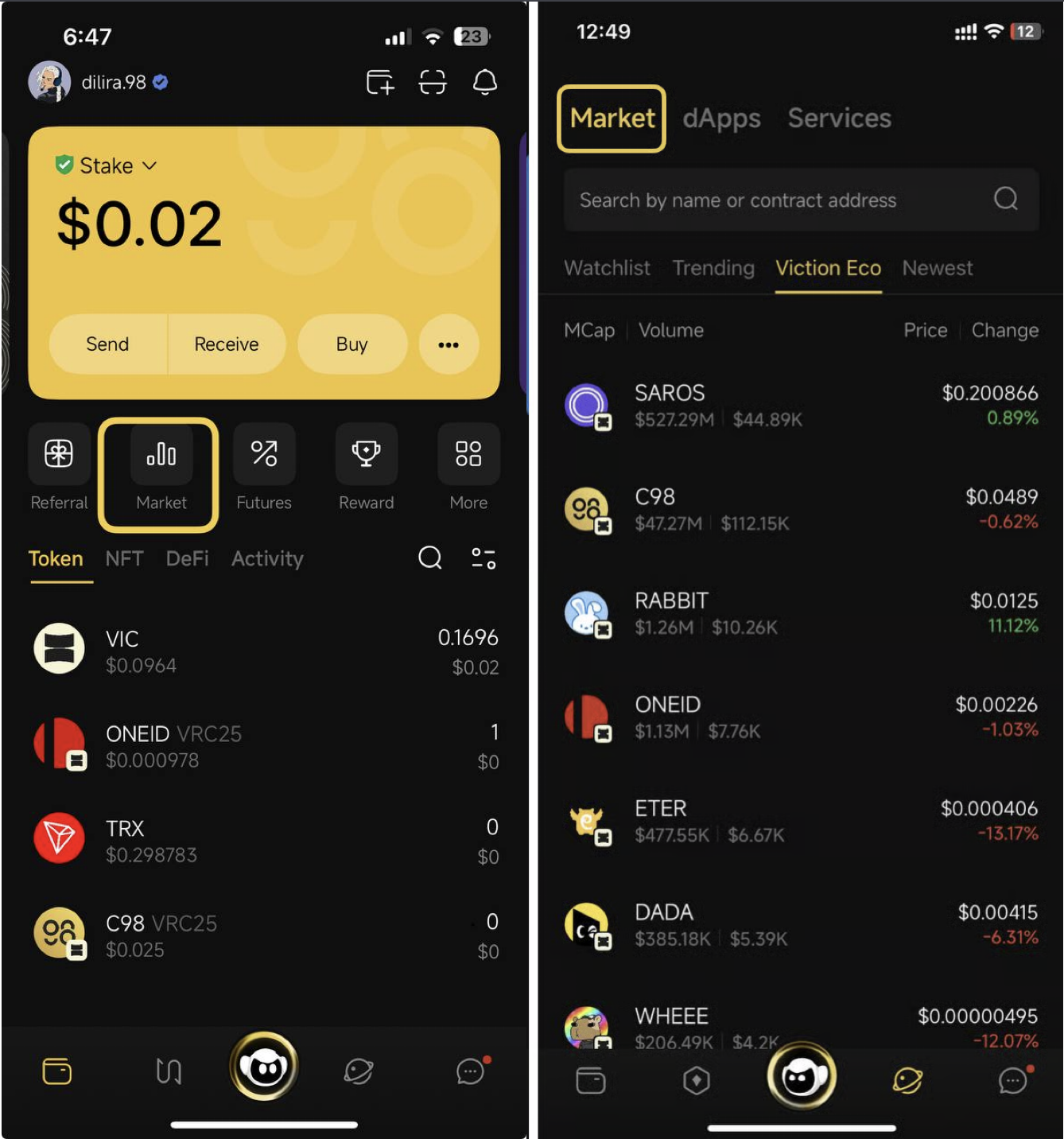
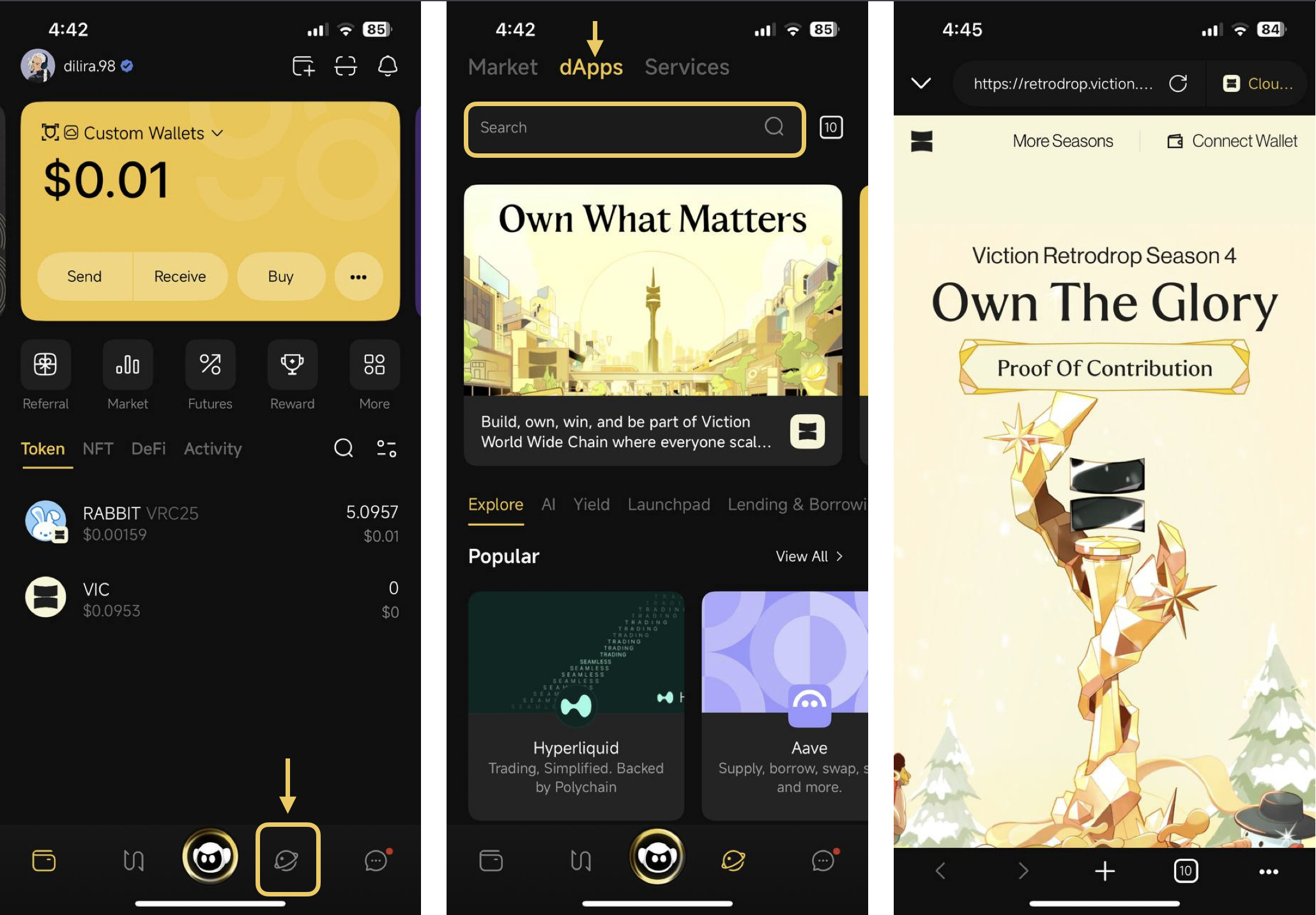
## How to access Market section <a href="#qnjl1vvhku8q" id="qnjl1vvhku8q"></a>

Click on the **Market** or the **Discovery** icon on the Home screen

<figure><img src="https://2549780185-files.gitbook.io/~/files/v0/b/gitbook-x-prod.appspot.com/o/spaces%2FirKWZRA5WMZ5uBeDGB96%2Fuploads%2F4JY2P0uwuory0rpdT1ii%2FScreenshot%202026-04-03%20at%205.02.14%E2%80%AFPM.png?alt=media&amp;token=b348050b-b0fb-45f7-9286-385fe50846b6" alt="" width="563"><figcaption></figcaption></figure>

Easily switch between tabs to view the token list:

![](https://2549780185-files.gitbook.io/~/files/v0/b/gitbook-x-prod.appspot.com/o/spaces%2FirKWZRA5WMZ5uBeDGB96%2Fuploads%2Fo4lWMLjDCYcGg9N0iDCT%2F2.png?alt=media)

## How to add token to Watchlist <a href="#kdntv2bg5wsw" id="kdntv2bg5wsw"></a>

**Step 1:** On the **Market** section, switch to Watchlist tab

**Step 2:** Click the **Add Toke**n button

**Step 3:** Search for the token by token name or contract address and choose the desired token from the list

**Step 4:** On the token detail page, click on the **Star** icon on the top right corner.&#x20;

If you want to remove token from the watchlist, click on the **Star** icon again.

![](https://2549780185-files.gitbook.io/~/files/v0/b/gitbook-x-prod.appspot.com/o/spaces%2FirKWZRA5WMZ5uBeDGB96%2Fuploads%2FxqdypkYJMfVWDKdwSq3t%2F3.png?alt=media)

Here if you want to get the token, you can also click on the **Swap** button and you will be redirected to SwapX on the Coin98 Super Wallet app. So quick and convenient, right?

Now the token is added to your Watchlist for easy observation.

<img src="https://2549780185-files.gitbook.io/~/files/v0/b/gitbook-x-prod.appspot.com/o/spaces%2FirKWZRA5WMZ5uBeDGB96%2Fuploads%2FwnwGkMgXh0Kv35xiccKl%2F4.png?alt=media" alt="" width="375">


# Third party platforms and dApps


# How to use multichain dApp browser on Coin98 Super Wallet

Coin98 Super Wallet currently supports DApps on more than 100 blockchains: Ethereum, Ethereum PoW, BNB Smart Chain, HECO Chain, Solana, Avalanche (C-Chain), Polygon (Matic), Fantom, Viction, OKExChain, GateChain, xDAI Chain, Klaytn, KardiaChain, Celo, Optimism, Arbitrum, Boba Network, Kucoin Chain, Near, various EVM Custom Networks, etc.&#x20;

In the future, Coin98 Super Wallet will integrate more top-tier dApps to elevate users' trading experience to a new level.

### Create a Multi-chain Wallet <a href="#create_a_multi-chain_wallet" id="create_a_multi-chain_wallet"></a>

After downloading or updating the Coin98 Super Wallet, you can follow the instructions below to create a Multi-chain Wallet or import wallets from other platforms to the Coin98 Super Wallet.

If you are currently a Coin98 Super Wallet user, please re-import your multichain wallet to update other new chain wallets available in the latest version!

{% hint style="info" %}

* [How to create a Multichain Wallet](/products/coin98-super-wallet/mobile/getting-started/v15-how-to-create-or-import-a-multichain-wallet)
* [How to import Multi-chain wallets to Coin98 Super Wallet](/products/coin98-super-wallet/mobile/wallet-management/v15-how-to-import-multi-chain-wallets-to-coin98-super-wallet)
  {% endhint %}

### Prepare the blockchains' native coins for transaction fees <a href="#prepare_the_blockchains_native_coins_for_transaction_fees" id="prepare_the_blockchains_native_coins_for_transaction_fees"></a>

The transaction fee is calculated differently depending on the blockchain-based dApps. Users need to prepare the blockchains' native coins in the corresponding wallets of the respective chains, *such as:*

* Transaction fees of dApps built on **BNB Smart Chain** will be calculated in **BNB.**
* Transaction fees of dApps built on **Ethereum** will be calculated in **ETH**.
* Transaction fees of dApps built on **HECO Chain** will be calculated in **HT**.
* Transaction fees of dApps built on **Polygon** will be calculated in **MATIC.**
* Transaction fees of dApps built on **Avalanche C-chain** will be calculated using **AVAX (Avalanche C-chain)**.
* Transaction fees of dApps built on **Viction** will be calculated using **VIC**.
* Transaction fees of dApps built on **Fantom** will be calculated using **FTM**.
* Transaction fees of dApps built on **xDai Chain** will be calculated using **XDAI**.
* Transaction fees of dApps built on **Ronin** will be calculated using **RON**.
* Transaction fees of dApps built on **Klaytn** will be calculated using **KLAY**.
* Transaction fees of dApps built on **KardiaChain** will be calculated using **KAI**.
* Transaction fees of dApps built on **Gate Chain** will be calculated using **GT.**
* Transaction fees of dApps built on **OKEx Chain** will be calculated using **OKT**.
* Transaction fees of dApps built on **Near** will be calculated using **NEAR**.
* Transaction fees of dApps built on **Arbitrum, Optimism & Boba Network** will be calculated in **ETH on the respective blockchain**.
* Transaction fees of dApps built on **KuCoin Chain** will be calculated using **KCS**.
* Etc.

{% hint style="info" %}
[What is Gas Fee?](https://coin98.net/what-is-gas-fee)
{% endhint %}

You can get these coins from centralized exchanges like Binance, Gate.io,... and transfer them to your wallet.

> **Note:** You must transfer each coin to the corresponding wallet on the correct blockchain.

### How to access the DApp Browser on Coin98 Super Wallet <a href="#how_to_access_the_dapp_browser_on_coin98_wallet" id="how_to_access_the_dapp_browser_on_coin98_wallet"></a>

**Step 1:** Click the **Discover** icon on the home screen.

**Step 2:** On the Discover interface, enter the name/URL of the Dapps you want to access in the search bar.

**Step 3:** Connect your wallet after entering the DApp.

<figure><img src="https://2549780185-files.gitbook.io/~/files/v0/b/gitbook-x-prod.appspot.com/o/spaces%2FirKWZRA5WMZ5uBeDGB96%2Fuploads%2FcQVhxyYEbRocuvL52L0f%2FScreenshot%202026-04-03%20at%2011.17.27%E2%80%AFAM.png?alt=media&amp;token=aa1a5bd6-5d27-4579-a365-f8f39cd58ad2" alt=""><figcaption></figcaption></figure>

To change the chain or the wallet, you can select the chain/ wallet you want to connect by clicking on the selection tab in the top right corner of the screen.

{% hint style="warning" %}
**Make sure to select the right wallet on the right chain in the Connection section (see photo) for a smooth DApp connection**
{% endhint %}

<figure><img src="https://2549780185-files.gitbook.io/~/files/v0/b/gitbook-x-prod.appspot.com/o/spaces%2FirKWZRA5WMZ5uBeDGB96%2Fuploads%2F5358zirGzP87o03qx0yC%2Fcoin98-app-dapp-2.png?alt=media&amp;token=0a7faa81-9c5d-4f30-8def-c7782f6b588b" alt=""><figcaption></figcaption></figure>

### How to clear cache in Dapp Browser on Coin98 Super Wallet <a href="#how_to_add_dapp_to_favorite_list" id="how_to_add_dapp_to_favorite_list"></a>

If you have some browsing issues when using Dapp Browser, you can clear the cache by following the steps below

**Step 1:** Click the "..." icon at the bottom corner

**Step 2:** Select **Clear cache,** then click **Confirm** on the confirmation popup.

<figure><img src="https://2549780185-files.gitbook.io/~/files/v0/b/gitbook-x-prod.appspot.com/o/spaces%2FirKWZRA5WMZ5uBeDGB96%2Fuploads%2FHBBQ8RKg0DYBvf7qtEPF%2Fcoin98-app-dapp-clearcache.png?alt=media&amp;token=a2f99103-9ba9-4dc3-a289-6e7b52ba7cbd" alt=""><figcaption></figcaption></figure>

### How to add a dApp to the favorite list <a href="#how_to_add_dapp_to_favorite_list" id="how_to_add_dapp_to_favorite_list"></a>

**Step1:** Click the "..." icon at the bottom corner

**Step 2:** Select **Add to Favorites**

After successfully adding a Dapp to the favorite list, go back to the dApps interface to check the Favorites list.

<figure><img src="https://2549780185-files.gitbook.io/~/files/v0/b/gitbook-x-prod.appspot.com/o/spaces%2FirKWZRA5WMZ5uBeDGB96%2Fuploads%2FNXa49SgEShgB9ER9SgKP%2Fcoin98-app-dapp-add-favorite.png?alt=media&amp;token=c976bb46-6509-4967-9237-a886cd6b28bc" alt=""><figcaption></figcaption></figure>

### How to remove a dApp from the favorite list <a href="#how_to_add_dapp_to_favorite_list" id="how_to_add_dapp_to_favorite_list"></a>

**Step 1:** Click the "..." icon at the bottom corner

**Step 2:** Select **Remove from favorites**

After successfully removing a dApp from the favorite list, go back to the dApps interface to check the Favorites list.

<figure><img src="https://2549780185-files.gitbook.io/~/files/v0/b/gitbook-x-prod.appspot.com/o/spaces%2FirKWZRA5WMZ5uBeDGB96%2Fuploads%2FfnKSYHIozy4OtdkuJbDP%2Fcoin98-app-dapp-remove-favorite.png?alt=media&amp;token=8a1491fa-bc09-4d36-92f0-637abdf68ec0" alt="" width="563"><figcaption></figcaption></figure>


---

[Next Page](/llms-full.txt/1)