> For the complete documentation index, see [llms.txt](https://docs.coin98.com/llms.txt). Markdown versions of documentation pages are available by appending `.md` to page URLs; this page is available as [Markdown](https://docs.coin98.com/products/physical-cards/hybrid-wallet/zen-card-beginner-guide/how-to-restore-a-zen-card-wallet.md).
# How to Restore a Zen Card Wallet
This article will guide you to restore an existing wallet of yours onto Zen Card.
{% hint style="danger" %}
**Important Note:**
* Each **Zen Card** can store **only one wallet** at a time.
* Restoring a wallet will **replace the existing one** on your card.
* Before proceeding, always **back up your Seed Phrase and Private Key** in a safe place.
* Once replaced, the previous wallet can **only be recovered** using its backed-up Seed Phrase or Private Key.
{% endhint %}
### **Requirements:**
* A **Zen Card**
* The **Coin98 Super Wallet** app installed
* An existing **multi-chain hot wallet** with its **Seed Phrase**
* A **smartphone with NFC support**
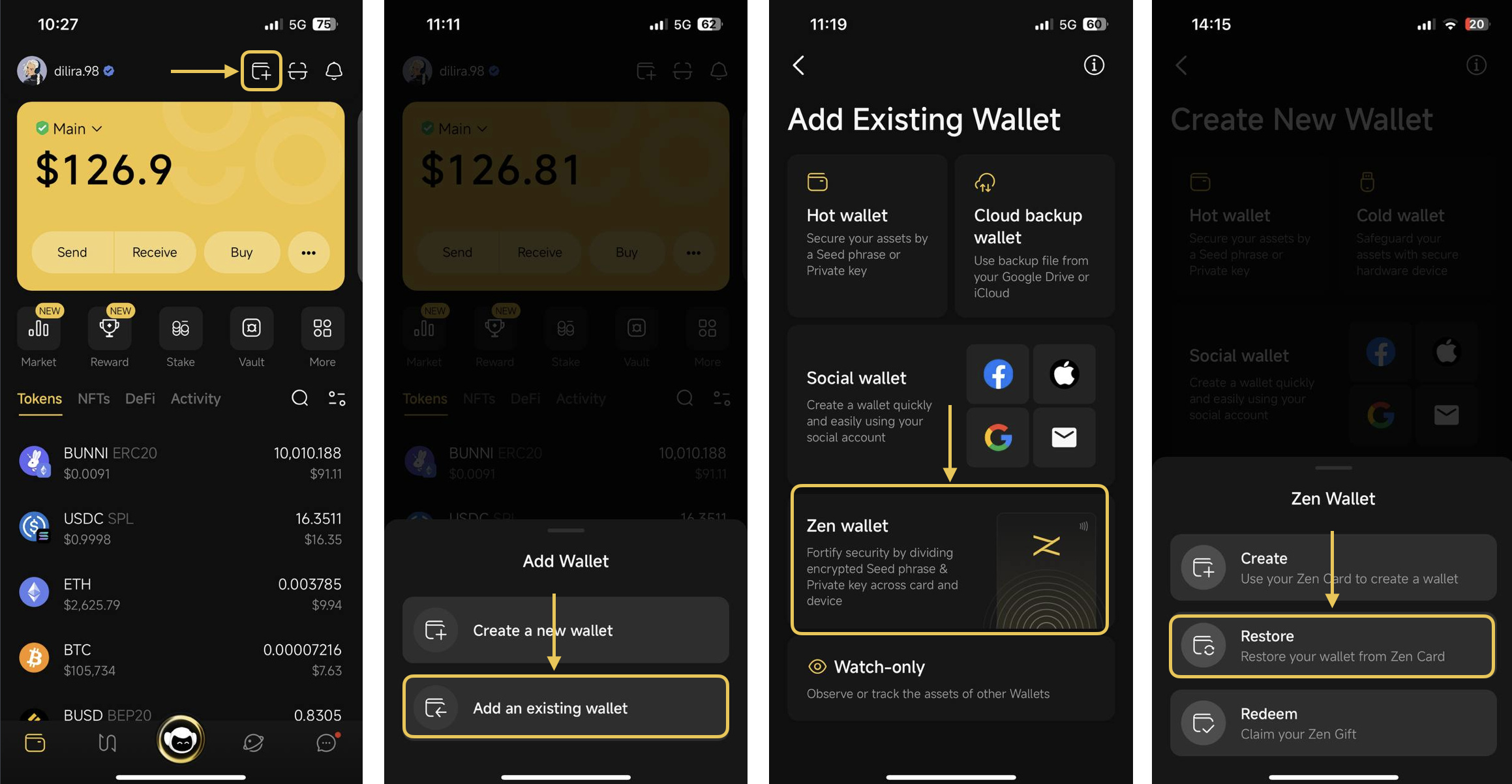
**Step 1:** On the main screen of the Coin98 Super Wallet, click **Add Wallet** icon
**Step 2:** Select **Add an Existing Wallet** → choose **Zen Wallet** → tap **Restore**.
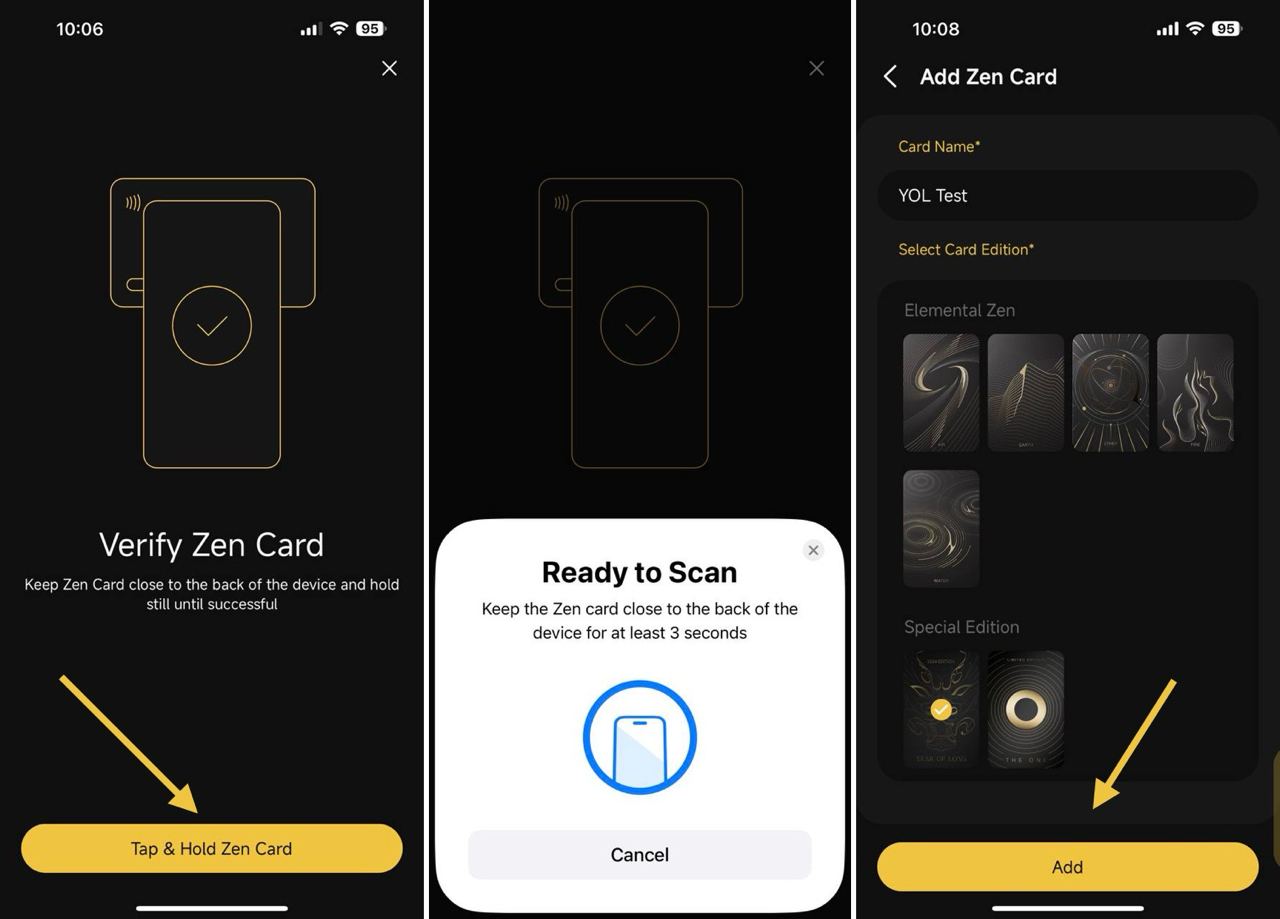
**Step 3**: Tap & hold your **Zen Card** on your phone’s NFC area until the app confirms success.
{% hint style="info" %}
When the system prompts you to scan, **tap and hold your Zen Card** on the back of your phone until a success message appears.
**NFC Scan Area:**
* On **iPhone X and newer**, hold the card **horizontally near the top front**.
* On **Android**, make sure **NFC is enabled** and check your phone’s settings or guide for the correct placement.
The success screen may look slightly different between **Android** and **iOS** devices.
{% endhint %}
**Step 4:** Enter your **Card Name** and select the **Card Edition** that matches your Zen Card → tap **Add**.
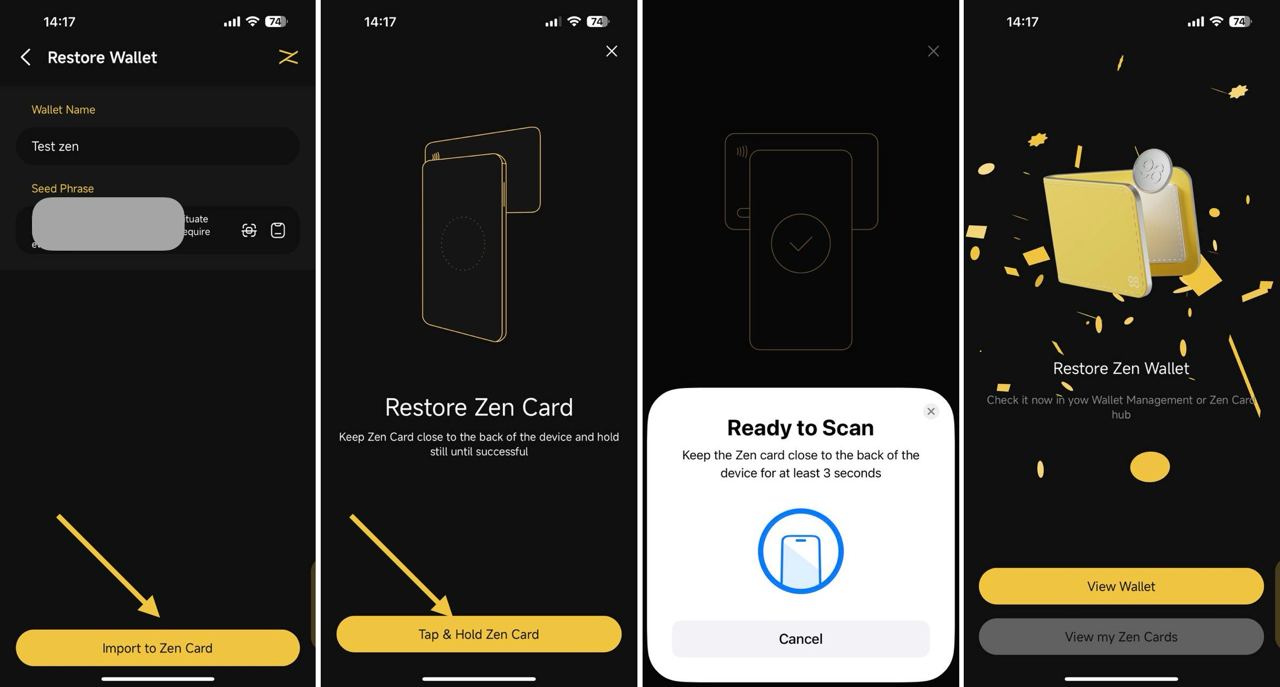
**Step 5:** Input the Wallet Name and Seed Phrase, then click **Import to Zen Wallet**
**Step 6:** When prompted, tap & hold your **Zen Card** again to complete the process.
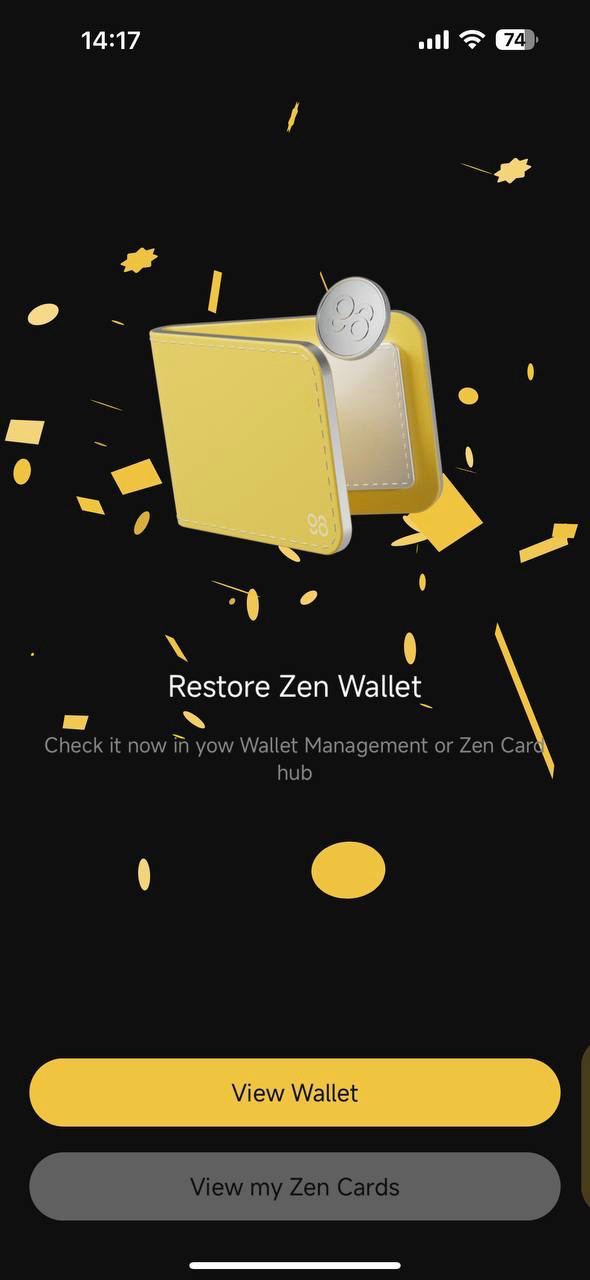
Once restored successfully, your **Zen Wallet** will appear on the main screen of **Coin98 Super Wallet**.\
Tap **View Wallet** to access it.
{% hint style="info" %}
**Zen Card** supports **multi-chain wallets**, allowing you to manage multiple blockchains within a single wallet.
{% endhint %}
---
# Agent Instructions
This documentation is published with GitBook. GitBook is the documentation platform designed so that both humans and AI agents can read, navigate, and reason over technical content effectively. Learn more at gitbook.com.
## Querying This Documentation
If you need additional information that is not directly available in this page, you can query the documentation dynamically by asking a question.
Perform an HTTP GET request on the current page URL with the `ask` query parameter, and the optional `goal` query parameter:
```
GET https://docs.coin98.com/products/physical-cards/hybrid-wallet/zen-card-beginner-guide/how-to-restore-a-zen-card-wallet.md?ask=&goal=
```
`ask` is the immediate question: it should be specific, self-contained, and written in natural language.
`goal` is optional and describes the broader end goal you are ultimately trying to accomplish on behalf of the user. GitBook uses it to tailor the answer towards what is most useful for that goal.
The response will contain a direct answer to the question and relevant excerpts and sources from the documentation.
Use this mechanism when the answer is not explicitly present in the current page, you need clarification or additional context, or you want to retrieve related documentation sections.