> For the complete documentation index, see [llms.txt](https://docs.coin98.com/llms.txt). Markdown versions of documentation pages are available by appending `.md` to page URLs; this page is available as [Markdown](https://docs.coin98.com/products/physical-cards/hybrid-wallet/zen-card-beginner-guide/how-to-restore-a-zen-card-wallet.md).
# How to Restore a Zen Card Wallet
This article will guide you to restore an existing wallet of yours onto Zen Card.
{% hint style="danger" %}
**Important Note:**
* Each **Zen Card** can store **only one wallet** at a time.
* Restoring a wallet will **replace the existing one** on your card.
* Before proceeding, always **back up your Seed Phrase and Private Key** in a safe place.
* Once replaced, the previous wallet can **only be recovered** using its backed-up Seed Phrase or Private Key.
{% endhint %}
### **Requirements:**
* A **Zen Card**
* The **Coin98 Super Wallet** app installed
* An existing **multi-chain hot wallet** with its **Seed Phrase**
* A **smartphone with NFC support**
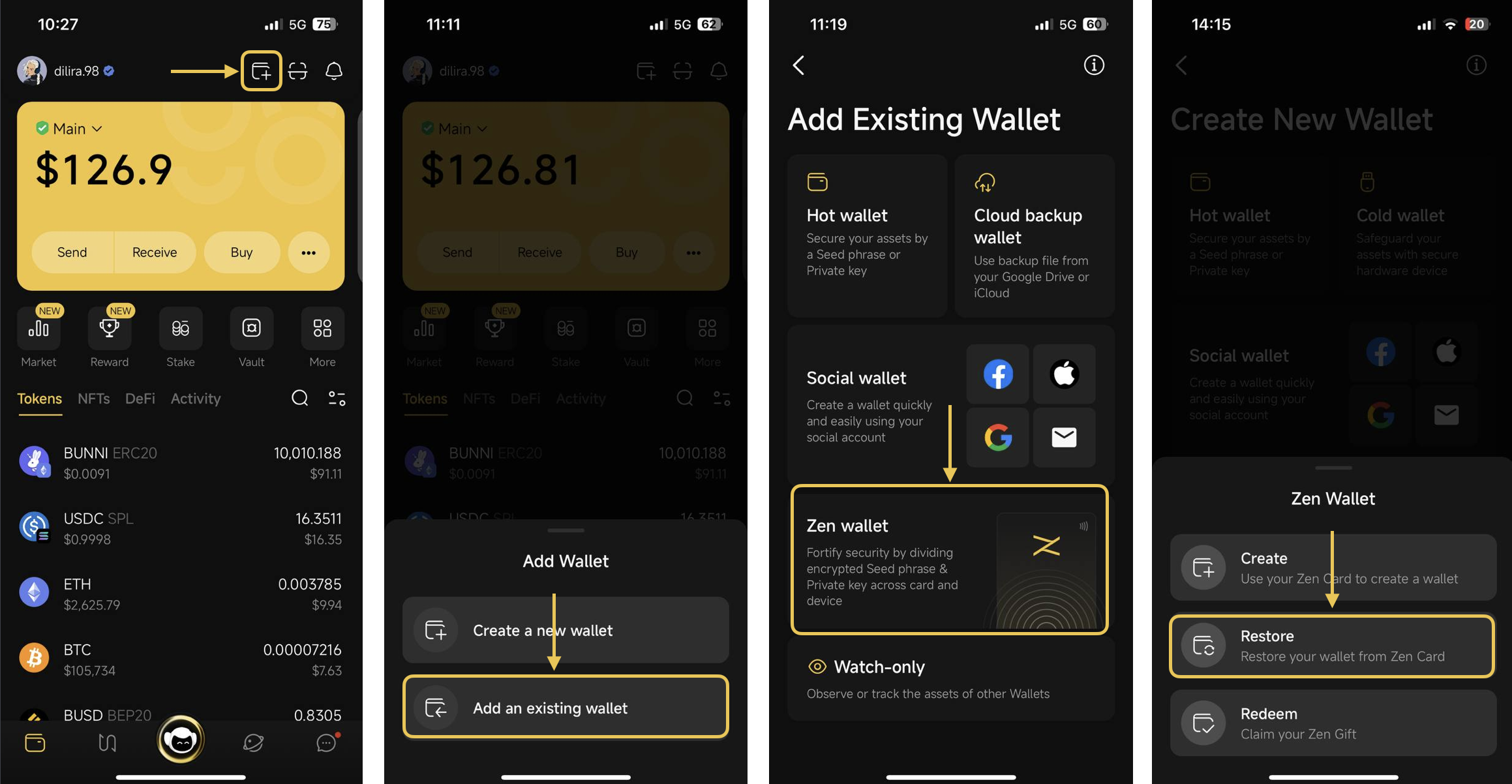
**Step 1:** On the main screen of the Coin98 Super Wallet, click **Add Wallet** icon
**Step 2:** Select **Add an Existing Wallet** → choose **Zen Wallet** → tap **Restore**.
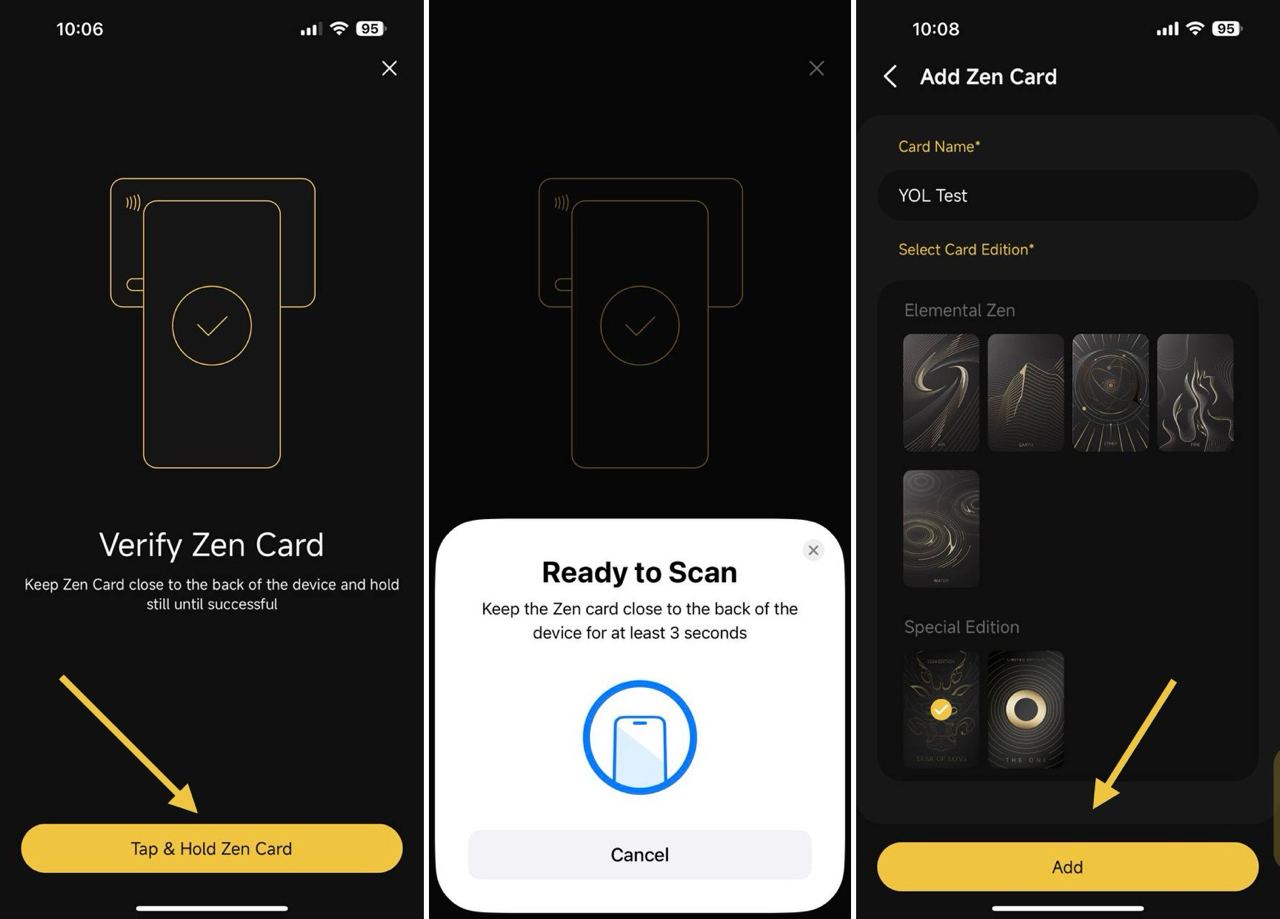
**Step 3**: Tap & hold your **Zen Card** on your phone’s NFC area until the app confirms success.
{% hint style="info" %}
When the system prompts you to scan, **tap and hold your Zen Card** on the back of your phone until a success message appears.
**NFC Scan Area:**
* On **iPhone X and newer**, hold the card **horizontally near the top front**.
* On **Android**, make sure **NFC is enabled** and check your phone’s settings or guide for the correct placement.
The success screen may look slightly different between **Android** and **iOS** devices.
{% endhint %}
**Step 4:** Enter your **Card Name** and select the **Card Edition** that matches your Zen Card → tap **Add**.
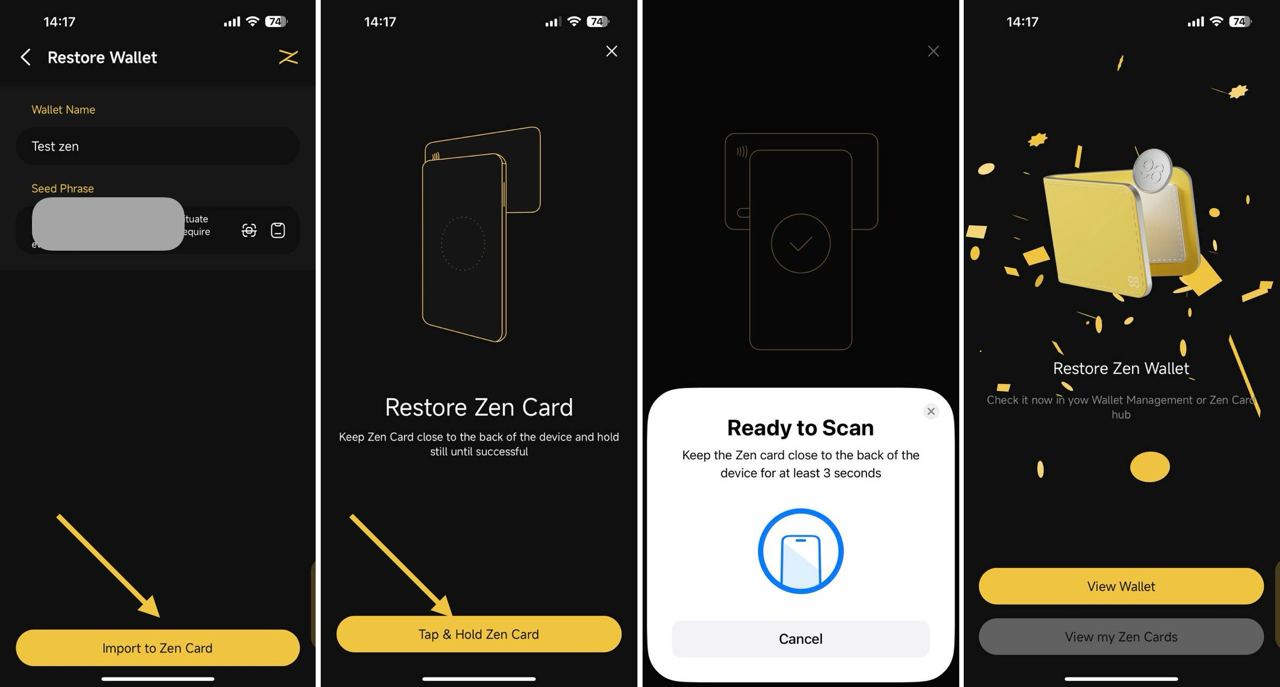
**Step 5:** Input the Wallet Name and Seed Phrase, then click **Import to Zen Wallet**
**Step 6:** When prompted, tap & hold your **Zen Card** again to complete the process.
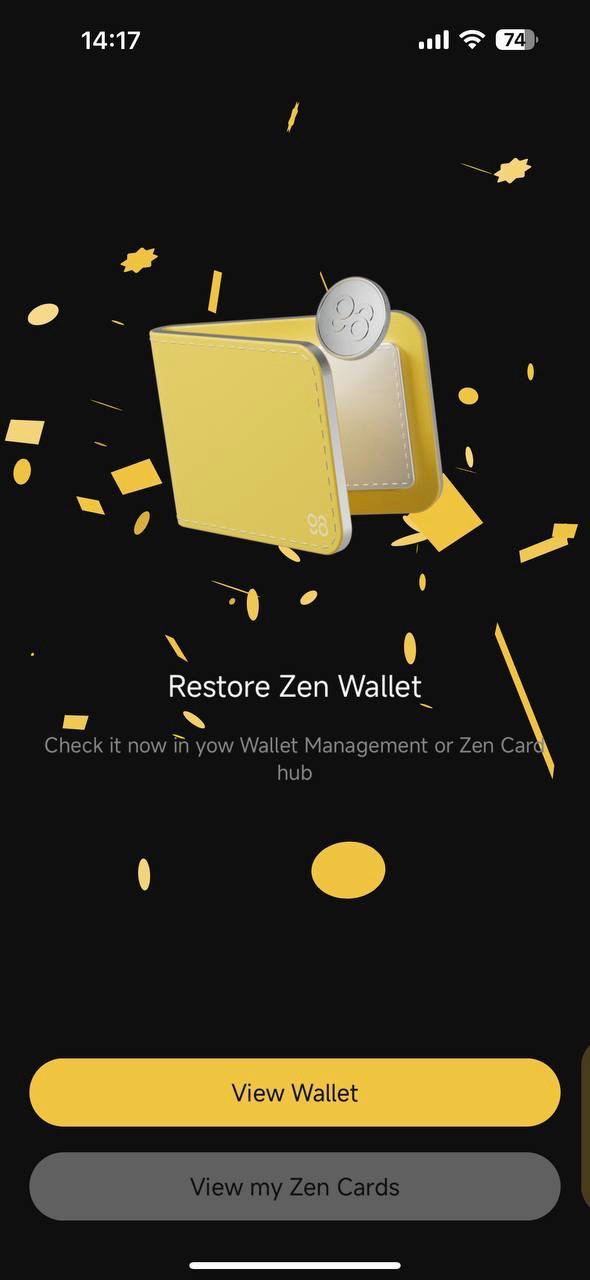
Once restored successfully, your **Zen Wallet** will appear on the main screen of **Coin98 Super Wallet**.\
Tap **View Wallet** to access it.
{% hint style="info" %}
**Zen Card** supports **multi-chain wallets**, allowing you to manage multiple blockchains within a single wallet.
{% endhint %}
---
# Agent Instructions
This documentation is published with GitBook. GitBook is the documentation platform designed so that both humans and AI agents can read, navigate, and reason over technical content effectively. Learn more at gitbook.com.
## Querying This Documentation
If you need additional information that is not directly available in this page, you can query the documentation by asking a question.
Perform an HTTP GET request on the following URL with the `ask` and `goal` query parameters:
```
GET https://docs.coin98.com/products/physical-cards/hybrid-wallet/zen-card-beginner-guide/how-to-restore-a-zen-card-wallet.md?ask=&goal=
```
`ask` is the immediate question: it should be specific, self-contained, and written in natural language.
`goal` is what the user is ultimately trying to achieve, the reason they need the answer. Sharing it helps GitBook give you a better, more relevant answer. A goal is most helpful when it describes the outcome the user wants rather than restating the question. For example, with `ask=how do I create an API token`, a goal like `automate deployments from our CI pipeline` lets GitBook tailor the answer to that use case.
The response will contain a direct answer to the question and relevant excerpts and sources from the documentation.
Use this mechanism when the answer is not explicitly present in the current page, you need clarification or additional context, or you want to retrieve related documentation sections.