> For the complete documentation index, see [llms.txt](https://docs.coin98.com/llms.txt). Markdown versions of documentation pages are available by appending `.md` to page URLs; this page is available as [Markdown](https://docs.coin98.com/products/physical-cards/zen-card/ecard/using-coin98-super-wallet.md).
# How to set up eCard using Coin98 Super Wallet
A complete guide to creating, customizing, and using your eCard for effortless identity sharing and professional networking.
The **eCard feature** transforms your Zen Card into a **smart digital identity card**, allowing you to share your name, contact information, and social profiles effortlessly. When someone taps your Zen Card with an **NFC-enabled smartphone**, your profile opens instantly in their browser providing a seamless and professional way to connect, without requiring any additional apps or setup.
## How to set up your eCard
Before setting up your eCard, you need to **add your Zen Card to the Coin98 Super Wallet app**.\
This connects your physical Zen Card to your digital identity, enabling both the **eCard** and **Hybrid Wallet** features.
#### Requirements
* [x] A **Zen Card**
* [x] A **smartphone with NFC**
* [x] The **Coin98 Super Wallet** 👉 [How to download Coin98 Super Wallet](https://docs.coin98.com/products/coin98-super-wallet/mobile/getting-started/how-to-download-install)
### 1. Add Zen Card to Coin98 Super Wallet
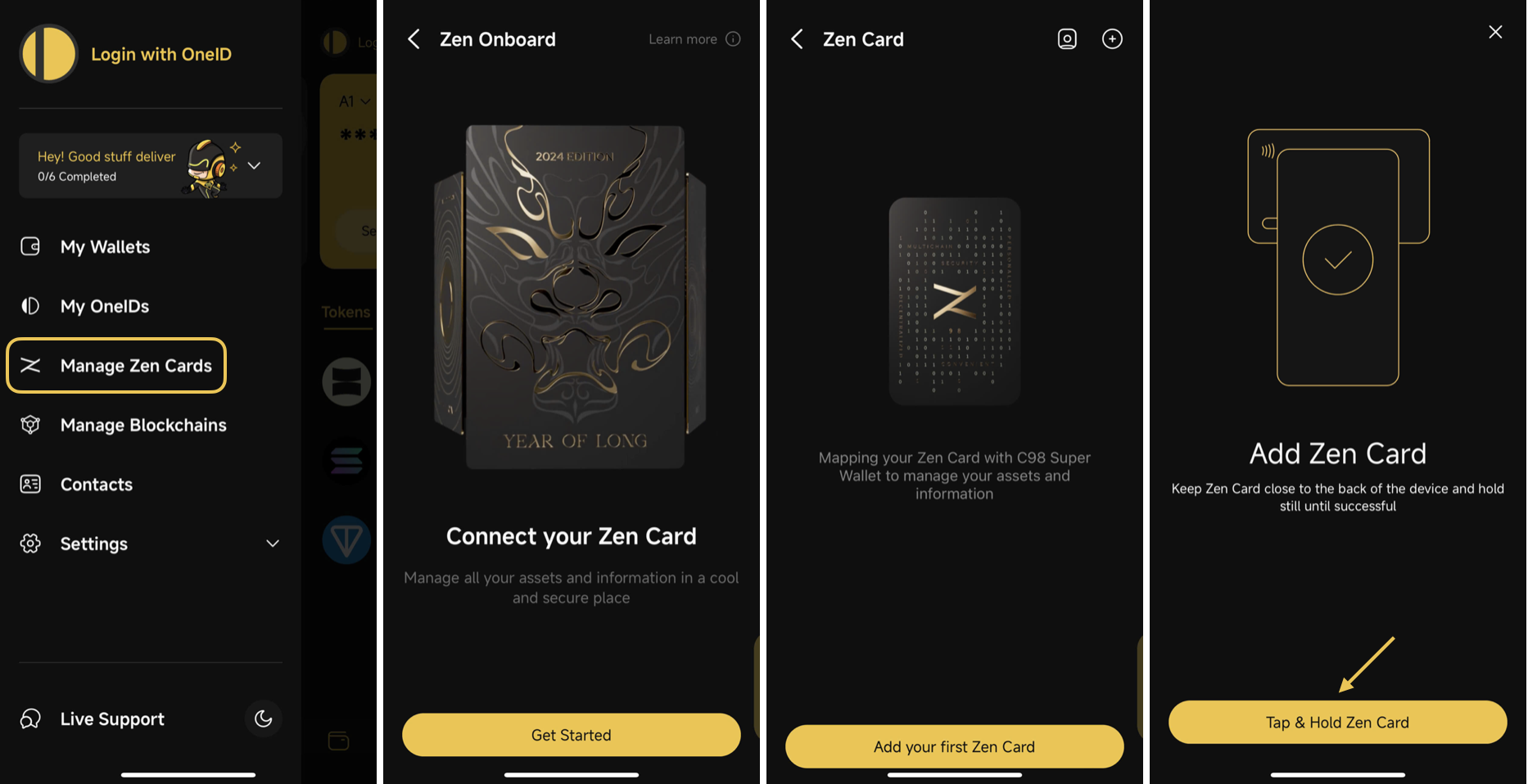
**Step 1:** Open the side menu, choose **Manage Zen Cards**
**Step 2:** On the **Zen Onboard** screen, choose **Get Started** and select **Add your first Zen Card**
**Step 3:** Tap and hold the Zen Card, then follow the on-screen instructions
{% hint style="success" %}
When the system prompts you to scan, **tap and hold your Zen Card** on the back of your phone until a success message appears.
**NFC Scan Area:**
* On **iPhone X and later**, hold the card **horizontally near the top front**.
* On **Android**, make sure **NFC is enabled** and check your phone’s settings or guide for the correct placement.
The success screen may look slightly different between **Android** and **iOS** devices.
{% endhint %}
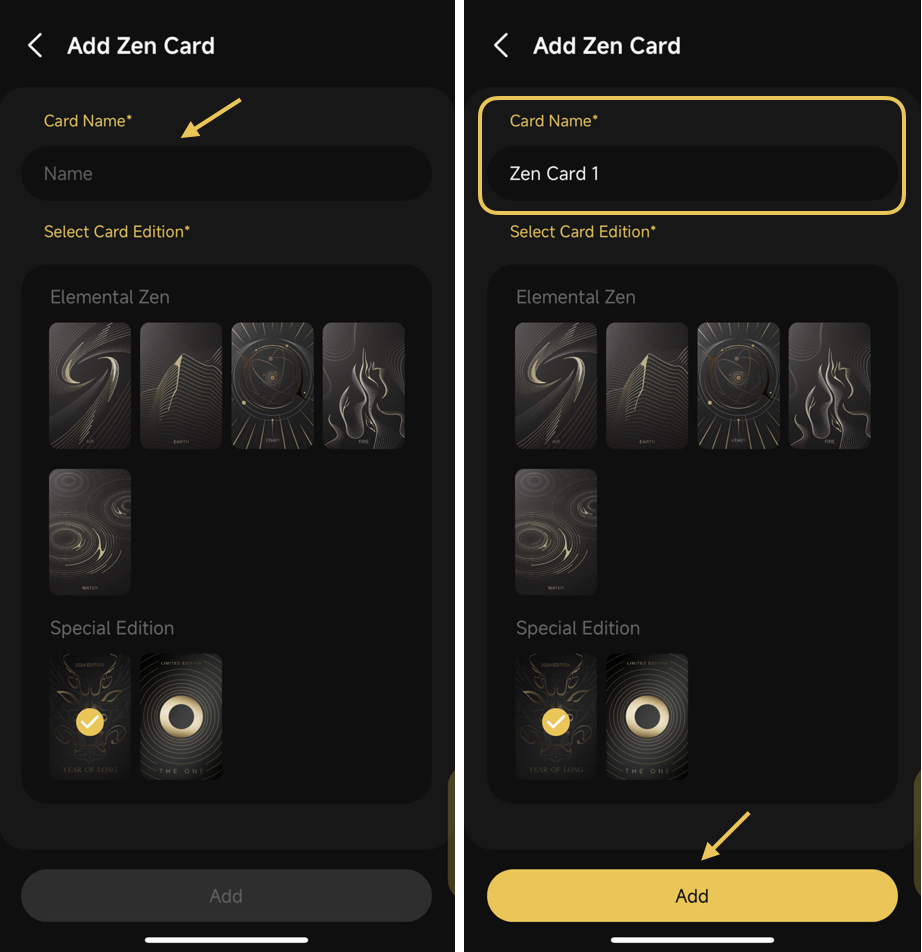
**Step 4:** Enter a name for the wallet, select the corresponding Card Edition, and click **Add**;
### 2. Set Up Your eCard Profile
After successfully adding your Zen Card to the Coin98 Super Wallet, you can proceed to create your eCard profile. This profile serves as your digital identity, containing your name, contact information, and social links that others can instantly access by tapping your Zen Card with an NFC-enabled device.\
\
Follow the instructions below to set up your eCard profile:
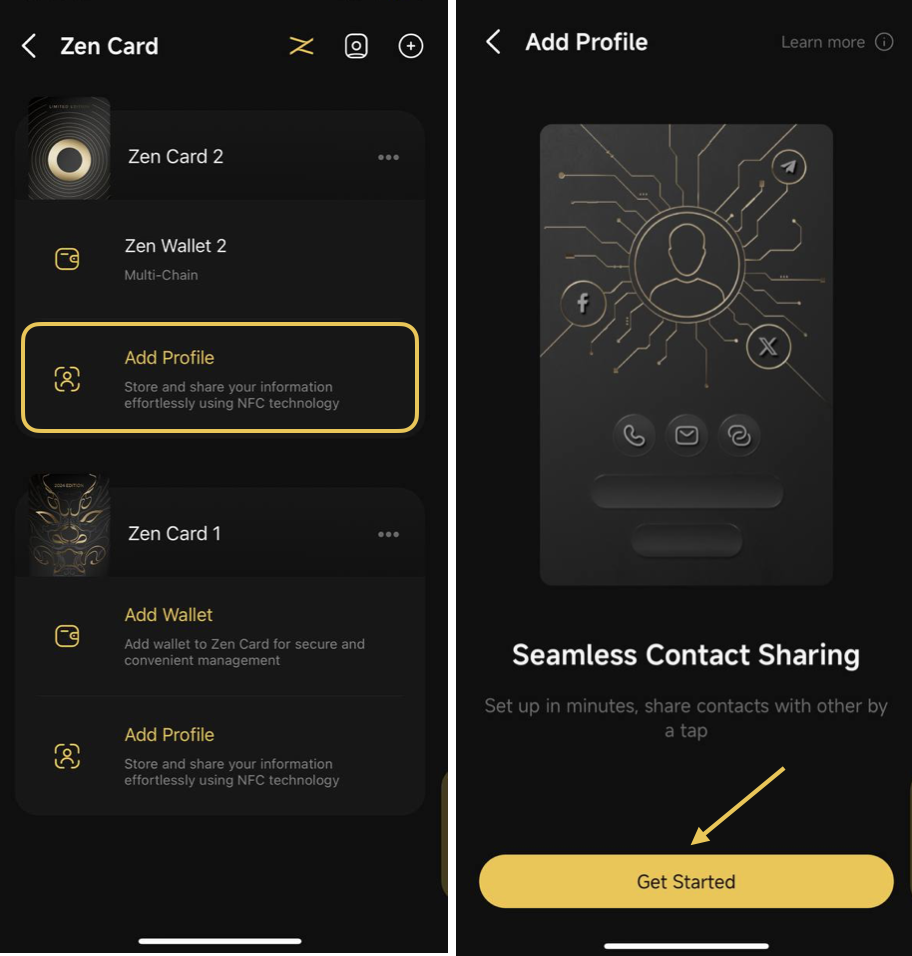
**Step 1:** In the **Manage Zen Cards** section, select **Add Profile** under the desired Zen Card
**Step 2:** On the Add Profile screen, click **Get Started**
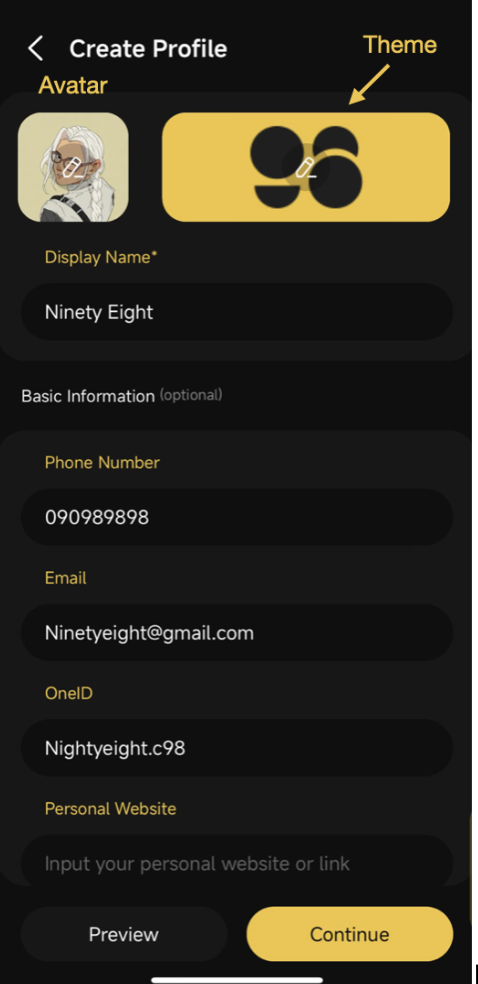
**Step 3:** On the Create Profile screen, provide the required personal information, including:
* Avatar (profile image)
* Theme (customize the profile's appearance)
* Display Name
Other information are optional (Phone Number, Email, OneID,..)
**Step 4:** Click **Preview** to review your profile or **Continue** to finalize the setup
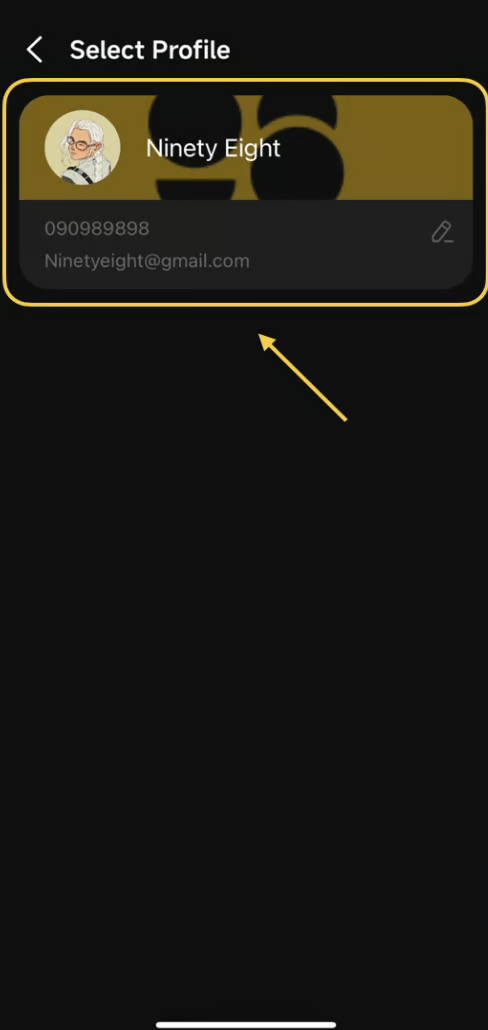
**Step 5:** Once the profile is created, select the profile to associate with your Zen Card
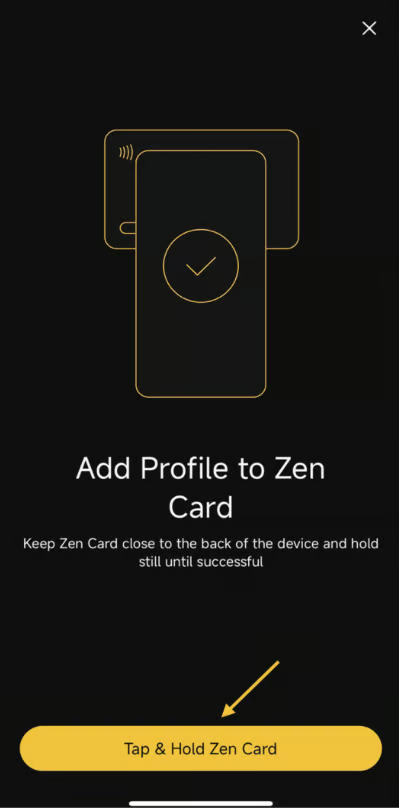
**Step 6:** Click on **Tap & hold Zen Card** on the NFC scanner of the phone until the notification shows successful.
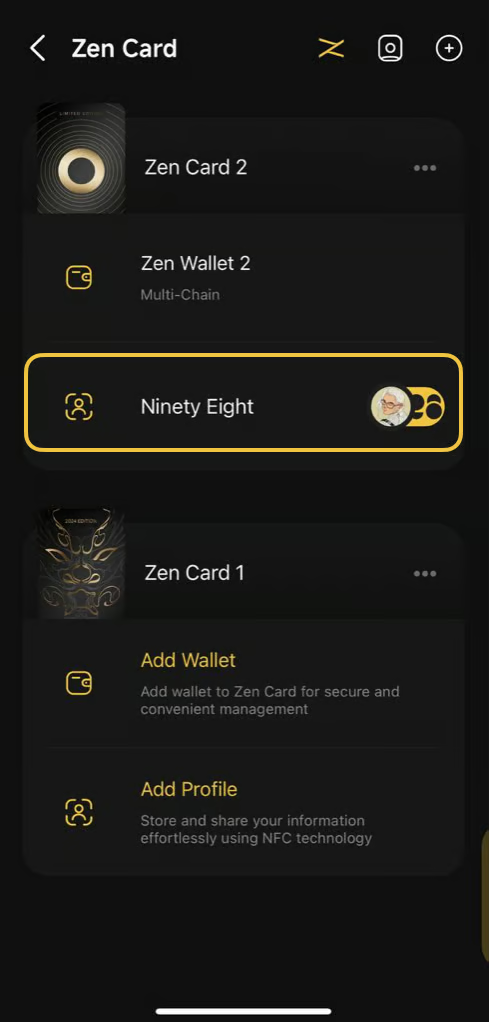
The associated profile will now appear under the Zen Card
### 3. Manage your Profile
After creating your eCard profile, you can easily view, edit, or delete it within the **Manage Profile** section. This allows you to keep your information up to date and control how your profile appears when others access it.
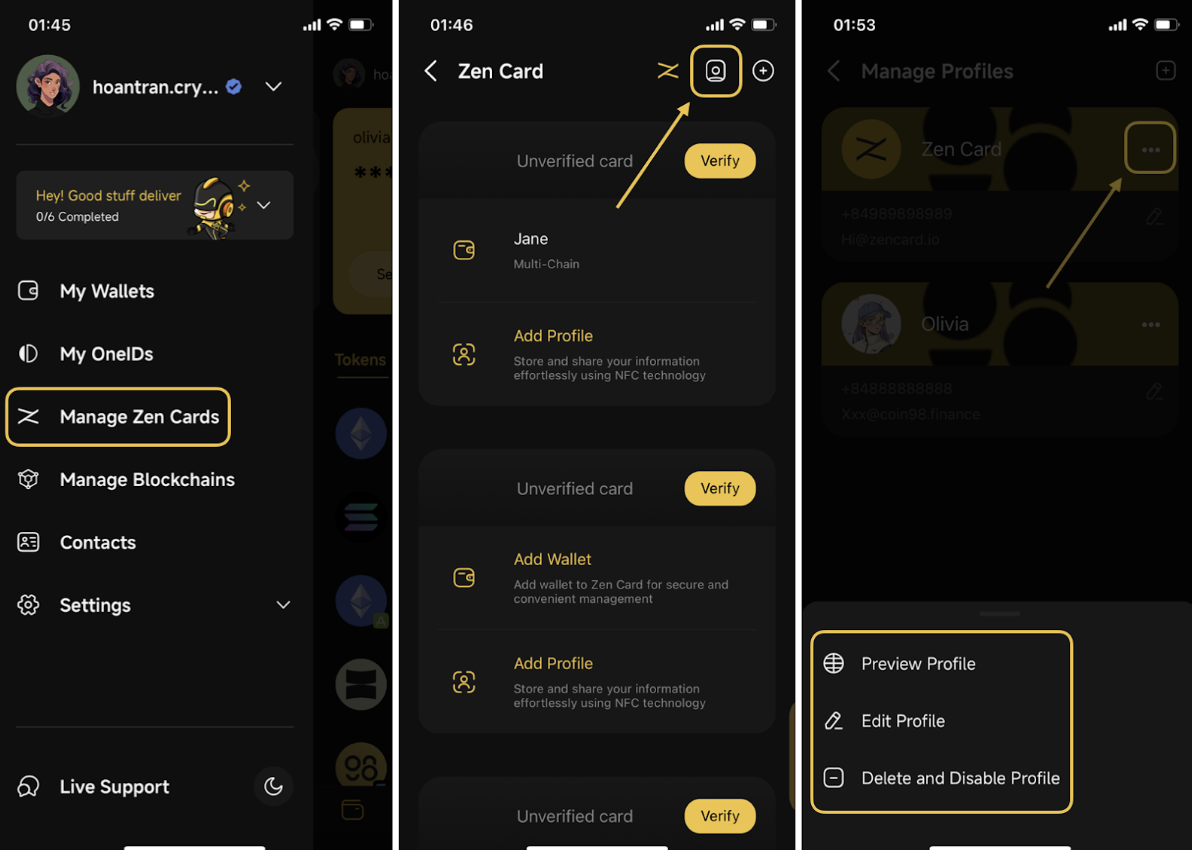
**Step 1:** Open the side menu, choose **Manage Zen Cards**, then click on the **Profile icon** on the top right corner.
**Step 2:** For each profile, you can either preview it, edit it, or delete it.
* **Preview Profile:** shows how your profile appears when others tap your Zen Card.
* **Edit Profile:** edit any information on your Profile
* **Delete and Disable Profile:** after deleting, the link of your profile you shared with other people will be disabled.
### Explore the Hybrid Wallet Feature
You’ve completed your eCard profile, great work!
It’s time to unlock the other side of Zen Card, the **Hybrid Wallet** feature. This feature lets you store, manage, and protect your crypto assets with enhanced security.
👉 Learn how to get started in the [**Zen Card Beginner Guide**](/products/physical-cards/hybrid-wallet/zen-card-beginner-guide.md)
---
# Agent Instructions
This documentation is published with GitBook. GitBook is the documentation platform designed so that both humans and AI agents can read, navigate, and reason over technical content effectively. Learn more at gitbook.com.
## Querying This Documentation
If you need additional information that is not directly available in this page, you can query the documentation dynamically by asking a question.
Perform an HTTP GET request on the current page URL with the `ask` query parameter, and the optional `goal` query parameter:
```
GET https://docs.coin98.com/products/physical-cards/zen-card/ecard/using-coin98-super-wallet.md?ask=&goal=
```
`ask` is the immediate question: it should be specific, self-contained, and written in natural language.
`goal` is optional and describes the broader end goal you are ultimately trying to accomplish on behalf of the user. GitBook uses it to tailor the answer towards what is most useful for that goal.
The response will contain a direct answer to the question and relevant excerpts and sources from the documentation.
Use this mechanism when the answer is not explicitly present in the current page, you need clarification or additional context, or you want to retrieve related documentation sections.